1
April, 2004
NWN Toolset
Chapter 6: Continued
Section B: Placeable Object Properties Window
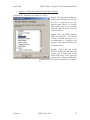
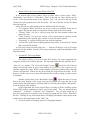
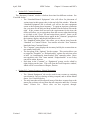
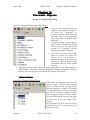
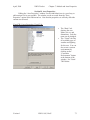
When you have created a custom object, it will appear in the “Custom” Palette
list. Editing a “Custom” or “Standard” Palette object can be done by right clicking on the
object and selecting “Edit” from the pop-up menu. Selecting “Edit Copy” will open the
Properties window and place an edited duplicate of the object in the “Custom” Palette
lists under the category of the original. Using “Edit Copy” will allow you to change the
resref, which has also been altered. The default alteration to the resref of a copy is to add
three numbers on the end. These numbers will appear sequential if multiple copies are
made. If the original object did not have at least three numbers at the end of the resref, it
will be changed to “…001”. Though the default sets three numbers, the toolset will
adjust to increment the number assigned to other copies beyond three digits.
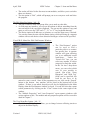
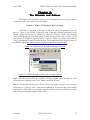
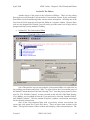
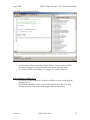
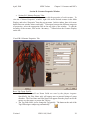
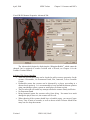
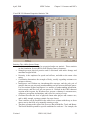
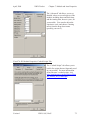
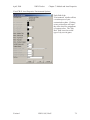
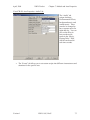
As with most objects and creatures, the “Placeable Object Properties” window
that loads when you edit an object is divided into tabs. In the “Basic” tab, if you check
the “Usable” box the “Lock” and “Trap” tabs will also become available. Even if an
object is useable, it is not required to add lock or trap properties.
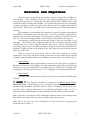
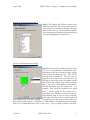
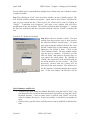
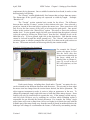
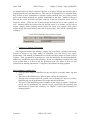
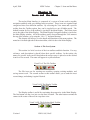
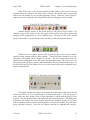
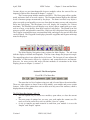
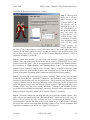
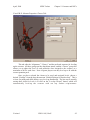
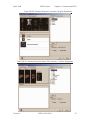
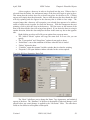
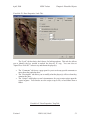
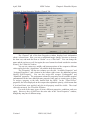
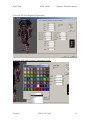
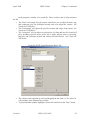
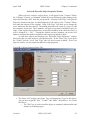
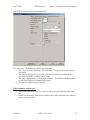
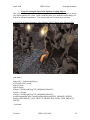
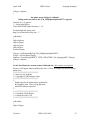
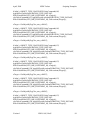
Visual 6B-I: Object Properties: Basic Tab:
•
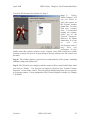
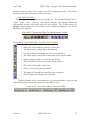
The “Basic Tab” displays the Name, Tag, and Appearance Type for the object.
You can also assign the “Plot,” “Usable,” and “Static” check boxes. See Visual
6B-I above.
o The “Plot” box is used to mark the object as completely indestructible and
immune to all damage types.
Version 1
NWN: SoU, HotU
69