1
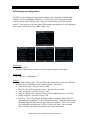
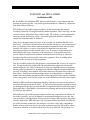
Multideco-DR5 user manual 10 Multideco-DR5 registration Multideco-DR5 installs by default in a demo mode of operation. This allows you to see and test the program for free. However, it will not operate in dive mode until registered. To register your copy of Multideco-DR5, visit the web page below. You will need the serial number from your DR5 and the install code. These can be found on the DR5 menu System -> Registration. Registration purchase web page: http://www.multideco-dr5/reginfomulti.html Using the Windows PC: Plug the DR5 USB into the PC. On the DR5, select USB, the DR5 should map a new drive in the Windows Explorer, usually as a drive E: of F: Move the contents of this zip file onto the DR5. Place them in the top folder. Double click the md-dr5_lic_pc.cmd file. This will transfer the required files. On the DR5, press the Exit button. Do not "eject" the drive. The DR5 should show the message "License OK - ready to dive". Using the Mac OSX: Plug the DR5 USB into the Mac. On the DR5, select USB, the DR5 should map a new volume in the Finder and desktop. Move the contents of this zip file onto the DR5. Place them in the top folder. Open a terminal window (Applications, Utilities, Terminal). Type in: cd "/Volumes/NO NAME/" (replace NO NAME if not correct). Type in ./md-dr5_lic_mac-osx.sh This will transfer the required files. On the DR5, press the Exit button. Do not "eject" the volume. The DR5 should show the message "License OK - ready to dive". Upgrades and replacement DR5’s New or upgraded versions of Multideco-DR5 does not affect the settings or installed license. Your existing dive logs and settings will remain. The install process will save your last license on the PC for the next time it’s required. Existing licenses can be re-sent from this link: http://www.hhssoftware.com/multideco-dr5/lostkey.html HHS Software Corp. Copyright2013 All rights reserved.