1
Chapter 1: Jumping Right In
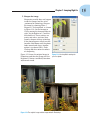
5. Sharpen the image.
Sharpening usually does not happen
inside the camera and has to be
performed in Photoshop. Sharpen
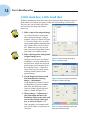
the image by choosing Filter ➪
Sharpen ➪ Unsharp Mask, as shown
in Figure 1-12. Set the Amount to
150 by moving the Amount Slider to
right. Set the Radius to 1.5 and the
threshold to 8. These settings are
pretty safe unless you have your
camera sharpen settings turned up.
If the photo appears weird, turn the
Amount slider down until the photo
looks normal and sharp. Another
option is to choose Edit ➪ Fade
Unsharp Mask to soften the effects
of sharpening.
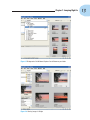
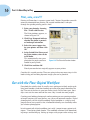
Figure 1-13 shows the original image in
Photoshop and then the image with the
Brightness/Contrast and Hue/Saturation
adjustments made.
Figure 1-12: Unsharp Mask settings for
your first photo.
Figure 1-13: The original image and the image edited in Photoshop.
15