1
Reports
How to Preview a Report
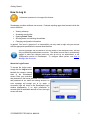
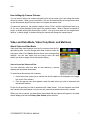
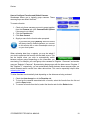
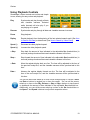
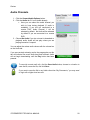
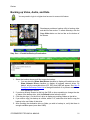
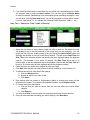
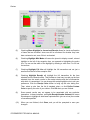
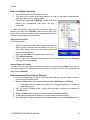
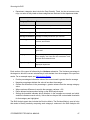
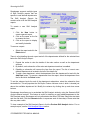
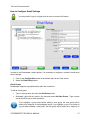
Click the Preview button to view the report. The report will display, along with several controls.
These controls allow you to switch between pages (if applicable), print, and save the report in
Adobe PDF format. The page
control
buttons
are
represented by arrow buttons.
The middle two arrow buttons
switch between pages, while
the two outside arrow buttons
skip to the first or last pages in
the report. Click the Print
button to print the report. To
save the report, click the Save
button. To change the zoom on
the report, click the drop-down
box and select the desired
display. Click the Close button
to exit the preview screen.
How to Email a Report
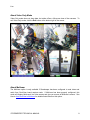
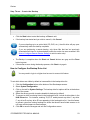
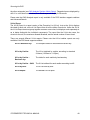
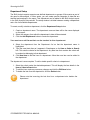
To email a report, select the report and click the Email button. The email menu will appear. See
How to Send Emails for more information on how to send an email.
To send multiple reports on a single email:
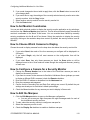
1. Click the report you wish to add to an email, and click the Add to Queue button. The
report will automatically be added to the email queue and will not open the email wizard.
2. To open the email wizard, click the last report you wish to add to the email, and click the
Email button.
Click Clear Queue to remove all reports from the queue.
How to Quickly Print a Report
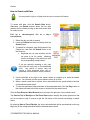
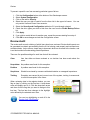
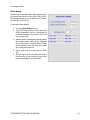
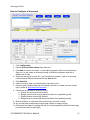
To quickly print a report, select the Print button. If more than one printer is setup on the system,
a print dialog will appear so that you can select which printer you wish to use. If only one printer
is setup on the system, the report will print immediately.
How to Save a Report
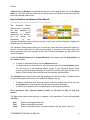
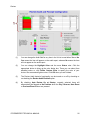
Click the Save button to save a report in Adobe PDF format.
STOREKEEPER TECHNICAL MANUAL
42