1
Create A M&R Plan
Overview
The PAVER™ Work Plan is a tool for planning, scheduling, budgeting, and analyzing alternative
pavement maintenance and repair (M&R) activities. The M&R Plan utilizes basic inventory data
combined with inspection information, maintenance policies, maintenance costs, and predictions
about future pavement condition. Work Plan results are specific to the user’s site, and all factors used
in determining future M&R or construction activity, or the associated costs, can be configured to
reflect specific pavement management practices and costs.
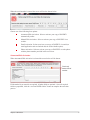
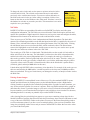
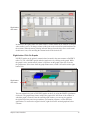
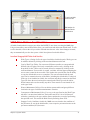
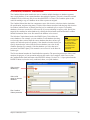
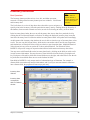
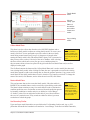
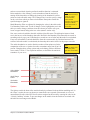
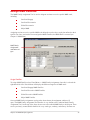
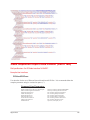
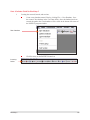
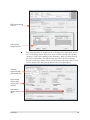
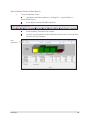
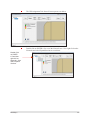
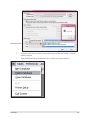
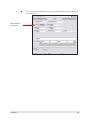
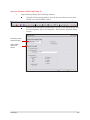
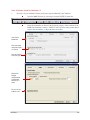
The Work Plan Parameters window is opened by clicking Visual Menu >> M&R Plan >> Create
M&R Plan, or by clicking M&R Plan on the PAVER™ Button Bar. The Work Plan report operates
like the Condition Analysis report. The Work Plan Parameters window is organized with these five
tabs: Plan Setup, Budget, M&R Categories, M&R Families, and Project Planning. When the Work
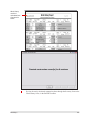
Plan report is configured, Execute the report and view the results in the Report Viewer.
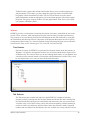
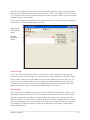
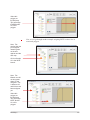
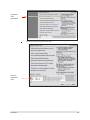
Tab 1 - Plan Setup
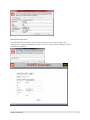
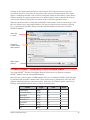
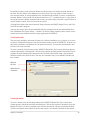
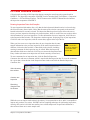
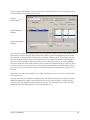
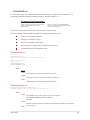
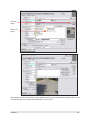
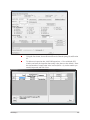
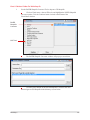
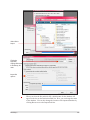
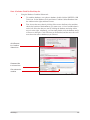
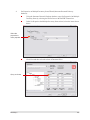
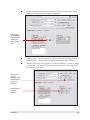
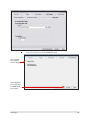
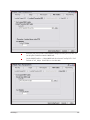
The first step when developing a work plan is to establish an inventory. On
Note
the Plan Setup tab, the user can decide if they would like to run an analysis
Selecting the
on the Actual Database that is currently open, or a preciously created Virtual
Consequence
Database. If the user decides to use an Actual Database, two options are
Model option, on
the Plan Setup tab,
available for selecting inventory items to be reported: All Items and Build
automatically forces
Selection using Query Tool. The default is set to All, but to choose a subset
the Years value on the
of sections or records for the report , select Build Selection using Query Tool.
Timing tab to “1”.
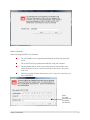
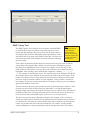
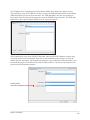
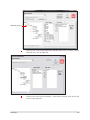
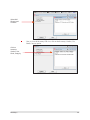
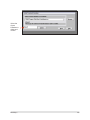
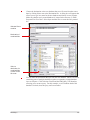
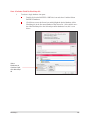
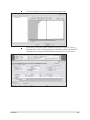
The EMS™ Query Tool window will appear allowing the selection of a subset.
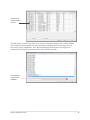
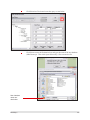
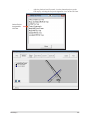
If a graphical selection of subsets is wanted, select None, and then OK in the
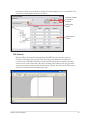
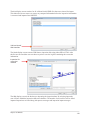
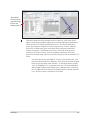
EMS™ Query Tools window. A GIS map and tree selector window will appear, allowing the user
to select the desired sections to include in the report. Note that if a GIS map has not been converted
into PAVER™, the GIS window will be blank (for further information regarding converting a GIS
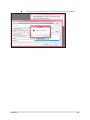
map into PAVER™, see Chapter 14 GIS Tools). After selections are made in either the Query or
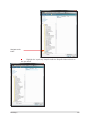
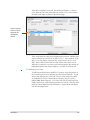
GIS windows, click OK to exit out of the selection process. In the M&R Plan Parameters window
the selection criteria is shown. When checked, the Record Count box shows the number of sections
included in the current plan.
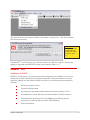
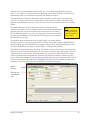
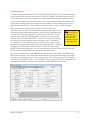
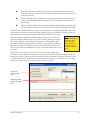
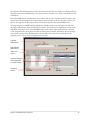
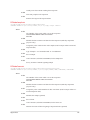
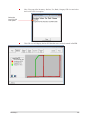
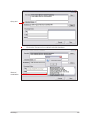
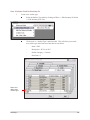
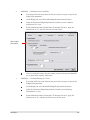
Below the inventory selection is Select Plan Start Date and Plan Length. Enter the desired Start Date
and the number of Years to run the M&R Plan. The Start Date field must be entered in mm/dd/yy
format. The drop-down arrow next to the Start Date activates a calendar window for ease of viewing.
The Plan Start Date cannot be set to an earlier date than the current date, and the Plan Length must be
between one and twenty years.
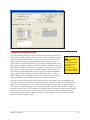
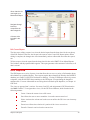
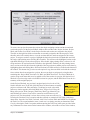
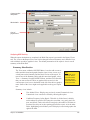
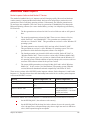
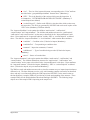
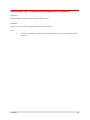
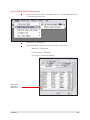
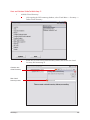
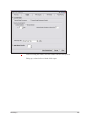
At the bottom of the Plan Setup tab there are three variations of the Work Plan. The first, Critical
PCI Method, optimizes M&R activity against a specified budget, or determines the budget needed to
maintain a specified condition Level. The second, Consequence of Localized Distress Maintenance,
calculates the cost and resulting condition of immediate implementation of local M&R, for the year
of the most recent inspection. Choosing Consequence Model automatically changes the work plan
duration in the Timing tab to one year. The Third, Major M&R based on Minimum Condition, lets the
user set the lowest pavement condition (PCI) that is allowed per year. To edit or add a new minimum
condition table, refer to Chapter 3 System Tables >> M&R Tables and Families >> Major M&R
Tables and Families.
Chapter 13: M&R Plan
95