1
Chapter
1
Before Use
Chapter
2
Copy Function
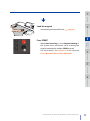
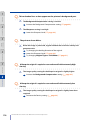
Set up the FTP
connection.
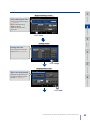
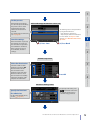
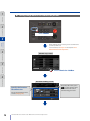
Add or Edit Image Destination screen (2/2)
If frequently used settings
are set in the preset memory,
the presets can be called
automatically only with
the submission destination
selected.
For details of preset
functions, see & page 99 .
Specify the FTP connection
method and FTP ports.
Generally, the default FTP
port is acceptable.
Chapter
3
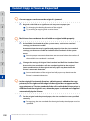
Set the presets.
Save the settings.
Submission
Function
Chapter
4
If the Save button is pressed,
the settings are saved and
the connection to specified
shared folder is confirmed.
If the connection cannot
be confirmed, check the
settings.
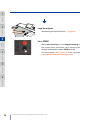
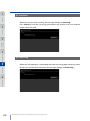
(1) Press Save
(2) Press Back
Preset Functions
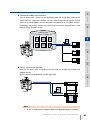
The following actions can be performed
by using the Web functions.
Copy submission destinations
Import/export submission destinations
For more details, see Chapter 2 in the
separate User's Manual for Basic Printer
Operation.
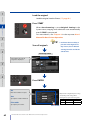
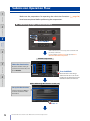
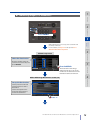
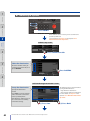
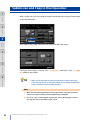
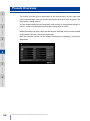
Submit's top screen
Chapter
5
Scan Function
Chapter
6
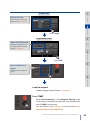
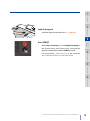
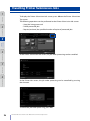
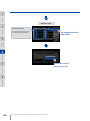
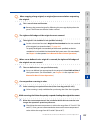
Select the destination.
Troubleshooting
Select the number of the
destination and press OK.
Then the Printer checks
the connection to the
destination selected. If the
Printer is unable to check
the connection successfully,
review the condition of the
computer for submission.
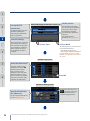
Press OK
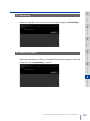
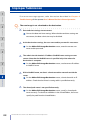
Functions Setting screen
Specify the functions
for submission.
For the supported functions,
see the (& page 84 ).
76
LP-1030-MF User's Manual for Multifunction Printer Operation
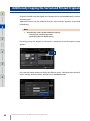
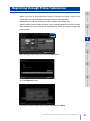
To specify a file name, press
and enter the file name.
As default the file name is
automatically generated.