1
GETTING TO KNOW YOUR
Watch the included DVD, as many times as
you want!
Read and share this PlanScan Guide with
your team.
Go to www.e4d.com for more valuable
information.
Ask questions! Email our team at
[email protected]
GETTING TO KNOW YOUR PLANSCAN
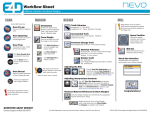
Four helpful ways to be informed!
Watch the included
DVD, as many times
as you want!
Read and share this
PlanScan Guide with
your team.
Questions? Call E4D Customer Support 800.537.6070 or
e-mail [email protected]
Go to www.e4d.com
for more valuable
information.
Ask questions!
Email our team at
[email protected]
www.e4d.com
Copyright 2014. All rights reserved.
Welcome to the PlanScan CAD/CAM system and a new era in digital dentistry!
E4D’s recent partnership with Planmeca opens the door to unparalleled communication and
coordination within the office and among dental and laboratory professionals and specialists.
Integrated digital 2D and 3D solutions for specialized treatment planning of implants, endo, and
orthodontics are now possible with the powerful Romexis image management software.
PlanScan, PlanCAD, and PlanMill – all powered by E4D Technologies – comprise the Romexis CAD/
CAM module.
If you are new to CAD/CAM, the plug-and-play convenience, portability, and fast video-rate data
capture combined with easy design customization and micron-accurate milling, provide efficient
in-office restorative capabilities without compromise.
If you are upgrading from a previous E4D or NEVO version, then the options for importing and
superimposing soft tissue images with crown design and CBCT data as well as 3D tools for
orthodontic and dental labs offer exciting new possibilities.
Regardless of your starting point, I am confident that the PlanScan CAD/CAM system will be an
outstanding addition to your practice and bring a whole new level of satisfaction to you, your team,
and your patients. Enjoy your E4D PlanScan experience!
Gary Severance, DDS
Chief Marketing Officer
E4D Technologies
Table of Contents
Quick view tabs, pick the sections that best fit you! ..............................................................................................................................................5
PlanScan System ........................................................................................................................................................................... 6
New Hardware: ............................................................................................................................................................................. 7
Chemical Disinfection: ......................................................................................................................................................................................................7
Removable Components .............................................................................................................................................................. 9
Connecting the Thunderbolt™ Adapter .....................................................................................................................................................................9
Connecting the Scanning Tip .........................................................................................................................................................................................10
Disconnecting the Scanning Tip ...................................................................................................................................................................................10
Scanner Cradle (for Laptop Systems) ..........................................................................................................................................................................11
Windows 8.1 .................................................................................................................................................................................. 12
Romexis ......................................................................................................................................................................................... 13
Starting Romexis .................................................................................................................................................................................................................13
Managing Patients in Planmeca Romexis ..................................................................................................................................................................13
Searching Patients ..............................................................................................................................................................................................................14
Sorting patients...................................................................................................................................................................................................................14
Selecting and opening patients ....................................................................................................................................................................................15
Starting a New Restoration ............................................................................................................................................................................................16
Button/Icon Changes.................................................................................................................................................................... 17
Patient Data Management ........................................................................................................................................................... 17
Importing CAD/CAM cases .............................................................................................................................................................................................17
Importing 3D models ................................................................................................................................................................... 18
3D model import ................................................................................................................................................................................................................18
Exporting 3D models ................................................................................................................................................................... 19
3D model export .................................................................................................................................................................................................................19
Cloud export.........................................................................................................................................................................................................................19
Send to iRomexis ................................................................................................................................................................................................................19
DDX Export ...........................................................................................................................................................................................................................19
Export CAD/CAM Case ......................................................................................................................................................................................................19
Retract ........................................................................................................................................................................................... 20
PlanCAD ........................................................................................................................................................................................ 21
Buccal/Opposing is the New Default ..........................................................................................................................................................................21
Scan Type ...............................................................................................................................................................................................................................22
Scanning with PlanScan ............................................................................................................................................................... 22
Adjust Live View Window Size ..................................................................................................................................................... 26
Adjust the Scanning Field of View ............................................................................................................................................... 26
Evaluating the model ................................................................................................................................................................... 27
Highlight Low Data Areas is now Data Density View.............................................................................................................................................27
New ICE View ........................................................................................................................................................................................................................27
Editing the Model ......................................................................................................................................................................... 28
Eraser Tool Replaces Trim Model ...................................................................................................................................................................................28
Time Saver Tools ........................................................................................................................................................................... 29
Time Saver: Pre-op .............................................................................................................................................................................................................29
Time Saver: Bite Registration ..........................................................................................................................................................................................31
Selecting the Bite Registration ................................................................................................................................................... 33
Model Alignment .......................................................................................................................................................................... 34
Orientation.................................................................................................................................................................................... 35
Bridges .......................................................................................................................................................................................... 35
Bridge Preparation .............................................................................................................................................................................................................35
Updated Block Recommendation Chart ....................................................................................................................................................................36
Bridge Setup Tab .................................................................................................................................................................................................................37
Unlinking a Bridge..............................................................................................................................................................................................................37
Bridge Scanning ..................................................................................................................................................................................................................38
Bridge Orientation..............................................................................................................................................................................................................38
Drawing Pontic Margins ...................................................................................................................................................................................................39
Designing the Bridge ........................................................................................................................................................................................................40
Spacer Tool Settings on Bridges ....................................................................................................................................................................................41
Rotating Slice Plane ...........................................................................................................................................................................................................41
Evaluating the Bridge ........................................................................................................................................................................................................42
Milling Center Changes ................................................................................................................................................................ 43
New Icon for a Parked Job ...............................................................................................................................................................................................43
Zirlux FC2 Mill Maintenance ...........................................................................................................................................................................................44
Zirlux FC2 Scale Factor ......................................................................................................................................................................................................44
Appendix ....................................................................................................................................................................................... 45
Scanning Buccal/Opposing ............................................................................................................................................................................................45
New Documentation Available.................................................................................................................................................... 47
WHAT
YOU
SHOULD
KNOW
Quick view tabs, pick the sections that best fit you!
An in-depth look at the system hardware, the
components, and Windows 8.1 basics.
New to Romexis? Learn about the changed icons in
PlanScan and PlanCAD.
Video-like scanning and the bridge functionality.
(These features were available in versions 4.6 and 5.0)
Parked Jobs option and details for milling Zirlux.
(These features were available in versions 4.6 and 5.0)
A group of essential documents that can make your life
easier. Copy them, tear them off, or download new ones
from www.e4d.com today!
Or pick them all! You’ll learn valuable information throughout the whole guide!
PlanScan & Components
PlanScan System
The PlanScan system includes a plug-and-play scanner and a laptop.
What’s New With PlanScan:
• Romexis software interface with optional access to full range of 2D and 3D imaging.
• Patient management in Romexis with search and sorting functions
• Additional import and export options for STL files
• Retract tool for virtual ditching of the 3D model (used in exporting STL cases)
Features Introduced with NEVO:
• Plug-and-play technology - You can now have multiple design stations and move the scanner from
one station to another without shutting down the computer.
• The standoff and disposable sleeves have been replaced with solid removable tips. The system
comes with three tips which means no down time between patients. Tips require effective highlevel disinfection.
• The mirror in the tip is heated to prevent intraoral fogging.
• Convenient ON/OFF button on the wand to start and stop the scanning process.
• Scanning is faster and easier with video-like capture of data. You can watch your model build and
move accordingly. Capture full arches and buccal bite cases faster and easier than before.
• New Time Saver functionality - You can copy your pre-op model to create your prep model or you
can copy your prep model to create your bite registration model. After the model is copied, you can
erase the pre-op or prep and just re-scan that area.
• Full ICE View - The scans are turned into clinically realistic images of the entire model
• New Erase Tool enables you to remove part of the scans. Did you spot a tissue tag or retraction cord
covering the margin that needs to be removed? You can fix the problem, erase that spot on the
model, and re-scan that area. No need to start over.
• Improved automatic alignment of models
• Bridge capability (also available in version 4.6)
6
Getting to Know Your PlanScan 10822802.B
PlanScan requires a Windows 8.1 laptop and a scanner.
New Scanner
The new scanner has a removable tip. Press the green release button (below the scanning window) to
separate the tip from the wand. Do NOT just pull on the tip.
Tips are consumable products (approximately 100 high level disinfections) and can be ordered in
refills of 3. Tip can be removed and disinfected while the next tip is being used. See below for cleaning
instructions on the tip and the system itself.
PlanScan & Components
New Hardware:
Icons in the lower-left corner of the screen indicate the status of the scanner.
Disconnected
Connected - Cold
Tip Disconnected
Heating - Stage 1
Heating - Stage 2
Ready
Cleaning the Scanner Tip
For intraoral scanning systems only.
The following instructions are for the removable tip of the scanner only and not for the entire
scanner. See instructions below for cleaning the base of the scanner.
Chemical Disinfection:
Note: These instructions were validated using MaxiCide Plus w/ Activator (3.4%
Gluteraldehyde) disinfectant available from Henry Schein Dental (#102-2865).
DO NOT Autoclave. DO NOT place in Ultrasonic Cleaner.
1.
Clean the tip for 2 minutes under running tap water at 22 - 25°C (4 liters/minute) to remove debris.
2.
Test the potency of your activated MaxiCide Plus prior to disinfection. (Recommend MetriTest Strips
by Metrex (HSD #602-3437)
3.
Immerse the tip in activated MaxiCide Plus for 120 minutes (2 hours).
Note: Do not leave the tips soaking overnight.
Customer Support 800.537.6070
7
PlanScan & Components
4.
Remove tip from the disinfectant.
5.
Rinse disinfected part in three separate copious amounts of distilled water (1000 ml volume of
water; minimum of 2” head height while part is immersed).
6.
Agitate the tip in the water for 30 seconds and then let it stand in the water for another 30 seconds.
7.
Repeat the agitation and soak in each of the other two containers with fresh distilled water.
Storage
1.
Wipe water off mirror using non-woven optical wipes (recommend Kimwipes Lens Cleaning #1017070).
2.
Optional: Insert tip into a sterilization pouch. (recommend Self Seal Sterilization Pouch 5 ¼” x 10”
[200/box] #112-4854)
3.
Store for later use.
Note: Ensure the tip is dry before connecting it to the base.
Prior to scanning, visually confirm the scanning tip mirror is clean and dry.
• To clean the mirror, use a Kimwipe, 2x2 gauze, or optical cloth with a little alcohol
to gently clean the mirror.
• Dry the mirror with a dry Kimwipe, 2x2 gauze, or dry optical cloth.
Cleaning the System
For intraoral scanning systems only.
Protect the keyboard with a disposable barrier.
Cleaning Cycle: Before and after each use, clean all areas of the PlanScan.
Warning: Before and after each use, follow these instructions to disinfect the PlanScan. Do not
substitute any other cleaning solution or procedure. Under no circumstances should you use
any paint thinner, solvents, or harsh chemicals. Use only a non-woven sponge or pre-moistened
germicidal cloths when cleaning the PlanScan.
8
1.
Using a clean, non-woven sponge that has been saturated with a hospital grade, TB-rated germicide
or pre-moistened germicidal cloths, apply the germicide to the entire surface of the scanner base,
scanner holder, mouse, mousepad, and any other surfaces that you touch that were not covered
by a disposable barrier. Do not spray the germicide directly on the items and do not submerge the
scanner or mouse in the germicide.
2.
Follow the germicide manufacturer’s instructions.
3.
Attach the protective (nonfunctional) scanner tip to the scanner base when the scanner is not in use.
Getting to Know Your PlanScan 10822802.B
The PlanScan system has a set of removable components.
Connecting the Thunderbolt™ Adapter
Properly connecting and disconnecting the scanner prevents damage to your
devices.
1.
Insert the Thunderbolt adapter into the adapter slot on the side of the
laptop. (The adapter should remain attached, even when not in use.)
2.
After opening the PlanCAD software, connect the red FireWire connector
of the scanner into the white Thunderbolt™ adapter.
PlanScan & Components
Removable Components
The laptop gives an audible signal to confirm that the connection is fully
seated.
To remove the scanner, hold the red end with one hand and with the other
hand grasp the Thunderbolt adapter. Gently pull apart to disconnect. Leave the
white Thunderbolt adapter attached to the computer.
Disconnecting the Thunderbolt™ Adapter
If you wish to remove the adapter from the laptop:
1.
Disconnect the scanner and exit Romexis to the Windows desktop.
2.
Navigate to the Eject Media icon in the lower left corner of the desktop.
3.
Click the icon and choose Eject IEEE 1394 Controller.
4.
Remove the Thunderbolt adapter from the laptop.
Note: Failure to follow this procedure may result in an inoperable scanner. For
additional questions or concerns please contact Customer Support at 800.537.6700.
Customer Support 800.537.6070
9
PlanScan & Components
Connecting the Scanning Tip
(After disinfection if scanning intraorally. See insert with
scanning tips for further details.)
1.
Grasp the body of the scanner with one hand.
2.
Use the other hand to press the scanning tip onto the
scanner as shown. A locking click is heard once the tip
is fully seated.
Disconnecting the Scanning Tip
1.
Grasp the body of the scanner with one hand.
2.
With your other hand depress the green button on
the underside of the scanner. Gently pull the tip from
the scanner.
When the scanner is not in use, place the non-functional
protective scanner tip on the scanner. (Included with the
scanner during shipping.)
Note: Failure to follow this procedure may result in damage to the scanner and
scanning tip.
10
Getting to Know Your PlanScan 10822802.B
The PlanScan laptop comes with a standalone cradle for the scanner.
PlanScan & Components
Scanner Cradle (for Laptop Systems)
The cradle can be separated and inserted into a 5/8 inch (16 mm) holder in your operatory equipment
(i.e. the slow speed suction holder).
Customer Support 800.537.6070
11
PlanScan & Components
Windows 8.1
The PlanScan system uses the Windows 8.1 operating system. This section is for those who may be
unfamiliar with Windows 8.1.
Start Screen
When the laptop starts up, a Start screen appears with several tiles. Click the Romexis tile to open the
Romexis software. The Desktop is also a tile on the Start screen. Your tiles may differ from those shown.
Desktop
Romexis
If you click on another tile and don’t know how to exit, press the Windows key
screen.
to return to the Start
Screenshots
You may wish to save an image of the screen for communicating with associates or E4D Customer
Support.
To take and save a screenshot:
1.
On your keyboard, press the
2.
The computer takes a screenshot and saves it in Libraries - Pictures - Screenshots.
3.
The screenshots are automatically numbered. You can rename them if desired.
key and Prt Sc key.
Shutting Down in Windows 8.1
The Start button is no longer on the desktop taskbar in Windows 8.1.
1.
Move the mouse to the top-right corner or the bottom-right corner of the monitor to bring up the
slide-out menu.
2.
Click Settings.
3.
Click Power.
4.
Click Shut Down.
Note: Windows 8.1 should be updated regularly.
12
Getting to Know Your PlanScan 10822802.B
Romexis
Romexis is an all-in-one digital solution provided by Planmeca. It can store, capture, and manipulate 2D,
and 3D images as well as allowing for treatment planning and exporting data.
Note: For more information, see the Romexis manual.
Starting Romexis
Click the Romexis icon on the Start Screen or double click the desktop icon. Refer to the Windows 8
section of this workbook for more information regarding this process.
Romexis & PlanCAD
Click to launch
Romexis
OR double click the
desktop icon
Managing Patients in Planmeca Romexis
Creating new patients
1.
In the File menu click the Add Patient button.
The Files module opens.
2.
Enter the necessary information and add a face photo if desired.
Note: The obligatory fields are Person ID, First name, and Last name.
Customer Support 800.537.6070
13
3.
To save the patient into the database click the Save Patient button at the bottom of the screen.
Note: The changes are not saved unless Save Patient button is used.
Note: To view the newly created patient on the list, perform new patient search.
Searching Patients
Patients can be searched by ID or by name.
Romexis & PlanCAD
Search patients by ID
1.
Select the option Find by Person ID from the drop-down menu.
2.
Enter the patient ID in the text field and click the Find button.
Search patients by name
1.
Select Find by Name from the drop-down (see image above).
2.
Enter the patient’s name in Last name, First name format into the search field and touch the Enter
key or click Find to make matching patients appear in the patient list.
To view all patients saved in the database use the * sign as the search term.
If a partial name is entered all patients whose last name begins with that partial string are shown. To
search patients by their first name replace the last name with the wild card *.
Examples:
• Doe, John: all patients whose last name is Doe and first name John
• S: all patients whose last name starts with the letter S
• Smi : all patients whose last name starts with ‘Smi’, e.g. Smith and Smiley
• Van Gogh: all patients with the last name Van Gogh
• *, Paul: all patients whose first name is Paul
Sorting patients
Patients in the patient list can be sorted by ID, last name, first name, birth date, age, gender, phone
number, the number of assigned providers and type (for virtual and template patients) as well as by
assignments.
To sort patients click the respective column title.
14
Getting to Know Your PlanScan 10822802.B
Selecting and opening patients
1.
Click the patient name in the patient list.
2.
Click the Select button (or double-click the patient name).
3.
In the opening dialogue select the reason for accessing the patient record and click OK.
Romexis & PlanCAD
Note: This request can be set as optional in the Planmeca Romexis Configuration
application. See the Romexis manual for more details.
Planmeca Romexis automatically opens the Files module.
Customer Support 800.537.6070
15
The reason for accessing a patient record is saved and displayed in the dental record under the patient
case history.
The name of the active patient is always visible in the upper right corner of the screen. Several patient
records can be open at a time but only one of the open records is active at a time.
To close the active patient click the Close Patient button.
To view all open patients click the arrow of the drop-down menu.
Romexis & PlanCAD
To select and modify another open patient select the name from the drop-down menu.
Starting a New Restoration
1.
Open the desired patient file.
2.
Click CAD/CAM.
3.
To start a new scan click New Scan and Design.
Note: Click New Scan Only if you do not have a design license.
4.
To open an existing scan or restoration (crown, inlay, onlay etc.) double-click a case on the list or
click the Open Restoration button.
Note: Click Open for Design Only if you do not have a scanning license.
The case opens in the Planmeca PlanScan Full System Setup tab.
From here, the majority of the screens are similar to what you are used to in previous DentaLogic
versions. Click Home at the top of the screen to exit the PlanScan and PlanCAD software and return to
the Romexis screens.
16
Getting to Know Your PlanScan 10822802.B
Button/Icon Changes
The functionality has remained the same, but there are some new icons in the PlanScan and PlanCAD
software.
Icon
Previous Version
PlanScan/PlanCAD
Data Density View
View ICE
Impression Mode
Patient Data Management
The open architecture of Romexis gives you the freedom to Import scan data from our previous versions
of software into PlanCAD. It also allows the export of data to DDX, Planmeca Romexis Cloud, and to your
local machine.
Romexis & PlanCAD
Return Home
Exit CAD/CAM
Importing CAD/CAM cases
You can import cases from another Planmeca or E4D system into Romexis. Cases from previous versions
can be opened in PlanScan, but the Scan tab is disabled. Older models cannot be trimmed or aligned.
1.
In Romexis, click File - Import - Import CAD/CAM Case.
2.
A new screen appears. Click Browse to find the file with the time and date stamp as the folder name,
ex. [3-25-2014 10:37:42 AM].
• If you have exported the files from another Planmeca system, a .zip
file is created with the restoration number(s) as the name. Extract
the files and open the folder to find the time and date stamped
folder.
• E4D patient files are stored under the customer name or
whatever naming convention was used in the E4D system. c:\d4d\
DesignCenter\patients\Joe Smith\restorations\
Customer Support 800.537.6070
17
3.
Select how you want to import it:
• Import to current patient
• Create new patient (available when there is not a patient file currently open)
• Select an existing patient (available when there is not a patient file currently open)
Importing 3D models
3D model import
To import models click 3D model import.
Romexis & PlanCAD
The following window opens.
You may import models either from an external source or from Planmeca Romexis 3D module’s Volumes
tab.
To import models from an external source:
1.
Click Browse.
2.
Browse to the folder from which you want to import the models.
3.
Select the files and click Open.
The imported files appear in the Patient’s case files window.
18
Getting to Know Your PlanScan 10822802.B
To import models from the Planmeca Romexis 3D module’s Volumes list:
Click Select.
2.
In the following window select the file to import and click OK.
3.
Select the model(s) to import and click OK.
The imported files appear in the Volumes tab.
Exporting 3D models
3D model export
To export 3D models in STL format click 3D model export.
Romexis & PlanCAD
1.
Note: For equigingival or subgingival margins, ensure you have used the Retract
margin tool to define your margin. The drawn margin is not converted to STL and the
recipient will not be able to use ICE View to find the margin. See the “Retract” section
below for more information.
Cloud export
To export scans and restorations via Planmeca Romexis Cloud click Cloud export. For more information
on how to use the Cloud service, see the User Manual.
Send to iRomexis
To send the model to iOS click Send to iRomexis. For more information on how to use the Planmeca
iRomexis see Planmeca Romexis User’s Manual APPENDIX C: “PLANMECA iROMEXIS”.
DDX Export
To send STL models via the DDX website, click DDX Export. For more information on how to use the DDX
Export, see the User Manual
Export CAD/CAM Case
To export a file to share with another Planmeca system, click File - Export - Export CAD/CAM Case.
Select the destination folder and enter a file name
Customer Support 800.537.6070
19
Retract
Use the Retract tool on STL export cases with a subgingival or equigingival margin. This tool ditches the
3D model since the margin line does not convert to STL.
Note: ICE View is not converted to STL format and cannot be used as a visual aid by the
recipient of your case.
Without virtual ditching, the margin may be difficult for your recipient to see.
Romexis & PlanCAD
1.
After the margin has been drawn and edited, click Retract.
The system virtually removes part of the model outside of the drawn margin.
Margin drawn
Margin drawn
No ditching
With ditching
Note: Any changes to the margin will require the ditching to be redone. If you are
doing a multiple restoration case, finish all of the margin edits before using the
Retract tool.
20
2.
Click Toggle Margin to view the ditched area without the margin. This is similar to what your STL
recipient will see.
3.
Click Toggle Retraction to show/hide the virtual ditching.
Getting to Know Your PlanScan 10822802.B
PlanCAD
PlanCAD includes the scanning capabilities that and the bridge software that were introduced with the
NEVO (5.0) version. For complete instructions, see the User Manual.
Buccal/Opposing is the New Default
With the faster scanning, more clinical operators prefer the Buccal/Opposing option for capturing the
occlusion data.
Many clinical operators scan the Opposing while the patient is being anesthetized. Scan the Buccal Bite
after the tooth has been prepped.
If you are unfamiliar with scanning the Buccal Bite and Opposing, see the back of this booklet.
Scan Tab Layout
The Scan tab has a different look and a lot of new functionality.
1
4
2
Scanning & Bridges
3
1. Scan Type
2. Model Editing Tools
3. Evaluation Tools
4. Alignment Tools
Customer Support 800.537.6070
21
Scan Type
The default selection is always Pre-op (formerly Clone). The other available options depend on whether
Bite Registration or Buccal/Opposing was selected on the Setup tab.
Click the desired icon to select it.
Scanning with PlanScan
The scanning pattern does not need to change.
Note: For multiple anteriors and full arch cases, many operators
use a “saddle” pattern to roll back and forth over the straight and
long anterior teeth. This pattern can help avoid misalignments
when dealing with such similar teeth.
Goal:
• 100% of the prep and interprox. contact areas
• 90% of the proximal neighbors
• Good axial data for design
• 2-3 mm gingival tissue on buccal and lingual
1.
Rest the tip of the scanner on the teeth to achieve the optimal focal
distance.
2.
Click the Power Button on the scanner or press the Spacebar on the
keyboard to activate the scanner.
Scanning & Bridges
The Live View displays on the right side of the screen.
22
Getting to Know Your PlanScan 10822802.B
3.
Start scanning with an occlusal view of the preparation or proximals. The first scan still determines
the orientation of the model.
The system starts scanning as you get into place and stop moving. Once the first scan is taken and
the model starts to build, move slowly in the scan pattern. You do not have to stop to take individual
pictures. The scanner picks up the data as you move. You can watch as the model builds on the left to see
what data has been captured and what is still needed.
4.
Watch the model building on the left as you scan. The Focal Distance Gradient (see following section
for more information) shows you the most recently applied information and helps you visualize
where you need to go.
Customer Support 800.537.6070
Scanning & Bridges
In previous software versions, the operator’s attention was usually on the Live View to watch the
shrinking target indicator and to move the scanner in half-tooth increments for the next scan. Most
operators kept the building model on the left in their periphery vision to see where the scans were
added. With PlanScan, most operators watch the building model and use the Live View only when they
need to alter their positioning. With the new video-like rate of capture, the scanner is almost always
moving and the building model shows the operator what they have and what is still needed. Watch the
focal gradient to see where you are and the blue raw data model shows what is still needed.
23
If you move too quickly, move too far away, or if the system isn’t sure where you are, the Live View turns
sepia. Move back to an area that’s already been captured and when the system starts capturing data
again you may proceed.
Focal Distance Gradient
Scanning & Bridges
The color gradients on the model indicate the location of that data point within the focal distance. Red
data is still good data, but it is at the far end of the scanner’s focus. If you are trying to capture data that is
beyond something else that is red, then you need to get closer or try a different angle with the scanner.
Normal focal gradient. You see
green close to the scanner and
red as it gets further away.
24
If the scanner tip is not resting on the teeth, you
may see red with no green. You are still capturing
data, but you may need to move closer.
Getting to Know Your PlanScan 10822802.B
To capture the interproximal areas, it may help to turn the scanner and tilt it to capture the undercut
area. In the example, the focal gradient is red, but we are able to capture the interproximal data.
5.
Once you have finished your basic scans, turn OFF the scanner.
The model displays in the raw data form.
Click Generate Model or press M on the keyboard.
The 3D model is created.
Customer Support 800.537.6070
Scanning & Bridges
6.
25
Adjust Live View Window Size
While the Live View is active, The window size can be adjusted. By default, the Live View is large enough
to fill the height of the scanning window. To make it smaller, place the mouse cursor on the left edge of
the Live View. Right-click and drag the window to the desired size.
The Live View returns to the default size the next time it is activated.
Adjust the Scanning Field of View
The Field of View or scanning area can be reduced if the movement of tongue, cheek, instruments, etc., is
interfering with your scans.
Scanning & Bridges
Click and drag the Field of View indicator to the desired setting. In the examples, the change in the Live
View has been outlined in yellow for emphasis.
26
Getting to Know Your PlanScan 10822802.B
Evaluating the model
Highlight Low Data Areas is now Data Density View
The button has been renamed, but the functionality is the same. Click Data Density View to evaluate the
model and find any areas that need to be rescanned.
New ICE View
The ICE View now covers the entire model. This view is mainly utilized on the Margin tab, but is also
available on the Scan tab. The example below shows an intraoral scan of an implant with a metal crown
at the edge of the scans. No treatment of the metals was needed before scanning.
Customer Support 800.537.6070
Scanning & Bridges
To the left of the ICE View button is the ICE Contrast slider. Click and drag within the square (up and
down, left and right) to change the brightness and contrast of the ICE View if needed to see part of the
model better. This is currently only available on the Scan tab. To reset the ICE Contrast to the default,
activate and deactivate the Erase button to regenerate the model.
27
Editing the Model
Eraser Tool Replaces Trim Model
Trim Model has been replaced with the Eraser Brush.
Scanning & Bridges
With the new Eraser, click and drag to remove extra data (i.e. tongue, cheeks, etc.).
28
In previous versions, if you told the system to trim a part of the model, then subsequent scans of the
same area would be ignored. With this new tool, you can erase an area that needs to be rescanned. If you
spot a problem (i.e. the margin is partially hidden by cord or tissue), you can erase that area, correct the
problem on your model or intraorally, then rescan just that area! You do not have to start over. Be sure to
erase and rescan ALL areas that were changed.
The Eraser is also used in the new Time Saver tools (see following sections).
Click the Eraser tool to deactivate it and regenerate the model.
Note: You can zoom in and out to make the model larger or smaller in relation to the
Eraser tool. You can also select a different circle size above the Eraser icon.
Getting to Know Your PlanScan 10822802.B
Time Saver Tools
These Time Saver Tools are recommended for single unit cases. For multiple unit cases and bridges, you
would usually delete more of the model than you would keep. Large gaps in the model are not optimal.
If 50% or more of the model would be removed, it is suggested that you rescan instead of using the Time
Saver feature.
Time Saver: Pre-op
1.
Scan the Pre-op with the normal scan pattern. Remember that you can do this while the patient is
being anesthetized.
Note: Time Saver is not recommended for impression scans.
2.
Use all of the evaluation and editing tools mentioned above.
Note: ICE and Data Density are available for all scan types.
Prepare the tooth.
4.
On the Scan tab, click Scan Prep.
p
p.
A Time Saver message appears. This message appears when the pre-op is scanned first. The Time Saver
option allows you to duplicate the pre-op model and use the same data for the preparation model.
5.
Click OK to use the Time Saver. If you do not wish to use the Time Saver option, the preparation and
proximals can be scanned on their own. The following instructions assume the use of the Time Saver
option.
A copy of the pre-op model is created in the preparation model color.
Customer Support 800.537.6070
Scanning & Bridges
3.
29
6.
Click the Eraser Tool.
7.
Erase the tooth that has been prepared and the marginal ridges of the proximal teeth.
Scanning & Bridges
Note: If you erase the buccal and lingual gingival data, most of your model disappears.
If this happens, the other side of your model reappears as you scan the connection.
30
8.
Click the Eraser Tool to deactivate it. The model is smooth where the data has been erased.
9.
Activate the wand and scan begin the scans with the occlusal of one of the proximal teeth. Once you
have established your position, you can begin scanning the preparation. DO NOT start your scans
over the missing data.
10. Scan the entire preparation and any of the proximal tooth data that was removed.
11. Click Generate Model or press M on the keyboard.
Getting to Know Your PlanScan 10822802.B
The Align Pre-op icon displays a green light if the models are aligned. A red light means that alignment
must be done manually.
12. Click the Align Pre-op button to verify the alignment. See below for how to manually align the
models if needed. Click the button again to deactivate it and return to the main scan screen.
Time Saver: Bite Registration
1.
On the Setup tab, select Bite Registration.
2.
On the Scan tab, click Scan Prep and scan the preparation model first.
3.
Click Scan Bite.
4.
Click OK to use the Time Saver. If you do not wish to use the Time Saver option, the bite registration
and proximals can be scanned on their own. The following instructions assume the use of the Time
Saver option.
A copy of the preparation model is created in the bite registration model color.
Customer Support 800.537.6070
Scanning & Bridges
A Time Saver message appears. This message appears when the preparation is scanned first. The
Time Saver option allows you to duplicate the preparation model and use the same data for the bite
registration model.
31
5.
Click the Eraser Tool.
6.
Erase the preparation and the marginal ridges of the proximal teeth.
Scanning & Bridges
Note: If you erase the buccal and lingual gingival data, most of your model disappears.
If this happens, the other side of your model will reappear as you scan the connection.
32
7.
Click the Eraser Tool to deactivate it. The model is smooth where the data has been erased.
8.
Activate the wand and begin the scans with the occlusal of one of the proximal teeth. Once you
have established where you are, you can begin scanning the bite registration data.
Getting to Know Your PlanScan 10822802.B
9.
Scan the occlusal of the bite registration material and any of the proximal tooth data that was
removed and is not covered by the bite registration.
The Align Bite Registration icon displays a green light if the models are aligned. A red light means that
alignment must be done manually.
10. Click the Align Bite Registration button to verify the alignment. See below for how to manually
align the models if needed. Click the button again to deactivate it and return to the main scan
screen.
Selecting the Bite Registration
Instead of drawing the outline of the opposing dentition on the bite registration model, you now
highlight the opposing dentition.
Click Bite Selection at the bottom of the screen. This icon only appears on the Scan Bite screen.
2.
Click and drag to highlight the areas of the opposing dentition that would come into contact with
the restoration.
Customer Support 800.537.6070
Scanning & Bridges
1.
33
Your finished highlighting should resemble the following.
3.
Click Bite Selection again to deactivate it.
Model Alignment
Alignment now occurs on the Scan tab. There are no tools to rotate the models. It is important to start
your scanning in the same orientation for each scan. Rescan the model if you scanned something in
backwards.
Scanning & Bridges
The alignment icons are on the right side of the screen. There is a different icon for each alignment type:
Buccal Bite, Pre-op, and Bite Registration. The system attempts to automatically align the models as they
are generated. A green dot means the scans are aligned. A red dot means they are not aligned.
34
Click the icon to view the alignment. All of the alignment icons have a Refresh
button. Click
Refresh to reset the alignment and manually align the models. Automatic alignment should be used in
most cases.
If there is extra data that might be interfering with the scans (tongue, cheek, etc.), try trimming the extra
data before manually aligning.
The buccal bite has an extra Show/Hide Buccal option. This enables you to hide the buccal bite model
and evaluate the opposing and prep models.
Getting to Know Your PlanScan 10822802.B
To align models, drag and drop the buccal bite, pre-op, or bite registration over the prep model.
The models snap into place.
Orientation
The pink shading for undercuts has been removed from Orientation.
Bridges
Bridge cases are unique in that they are designed as individual teeth and milled as one unit.
Scanning & Bridges
To access the menu options at the top or to return to scanning, deactivate the selected Alignment icon.
You cannot proceed if the Alignment icon is active (orange).
This document assumes familiarity with multiple restoration cases and other intermediate to advanced
topics. Refer to your User Manual for more information.
Bridge Preparation
Ensure the preparations for the abutment teeth are not angled in different directions. If one is
pointed towards the lingual and one towards the buccal, there may be issues with path of insertion
and overmilling. Cantilever and Maryland bridges are not recommended by the material
manufacturers.
Customer Support 800.537.6070
35
Updated Block Recommendation Chart
• IPS e.max 16 mm block for longer anteriors and 32 mm anterior bridge
• Telio CAD blocks are intended for long-term provisional restorations (maximum wear of
12 months) (40 and 55 mm)
• Zirlux FC2 is full contour zirconia that can be milled with the E4D Milling Center. Zirlux requires a
sintering oven. Individual restoration (20 mm) and bridge block (55 mm).
Block Recommendation Chart
Manufacturer Specifications for Materials
Restoration Type
Anterior
Full Crown
Anterior Veneer
CAD/CAM Materials
Paradigm MZ100
Lava Ultimate
Posterior
Full Crown
Inlay/Onlay
Implant
Bridge
Provisional Only
IPS Empress CAD HT
IPS Empress CAD LT
IPS Empress Multi
IPS e.max CAD HT
IPS e.max CAD LT
IPS e.max CAD Impulse
Anterior Only
Anterior Only
Provisional Only
Telio CAD
Zirlux FC2
Burn Out Block (BOB)
FOR CAST OR PRESSED INDICATIONS ONLY
Scanning & Bridges
Primary Indication
36
Secondary Indication
With manufacturer caution
Getting to Know Your PlanScan 10822802.B
Bridge Setup Tab
A bridge is made up of two or more restorations that are connected. On the Setup tab, select each tooth
on the anatomical model that is part of the bridge. For each tooth, you must select the restoration type.
1.
Select each tooth that is part of the bridge - the abutment(s) and the pontic(s).
2.
Click Link. The cursor changes to a chain symbol.
3.
Click the mesial and distal teeth of the bridge. After each end of the bridge is selected, the teeth turn
purple.
4.
Select a tooth in the bridge and choose the Library, Material, and Shade. This will set the material
and shade for the remaining restorations in the bridge.
5.
Select the remaining teeth in the bridge and designate the Restoration Type and Library. Ensure
each pontic is designated as such. Library must be chosen for each restoration before you can
continue to the Scan Tab.
Note: If Library, Material and Shade are chosen before linking the bridge, the software
will replace the Material and Shade of the remaining restorations with that of the
highest tooth number after the link.
Your anatomical model will resemble the following:
Scanning & Bridges
Multiple bridges can be created on the same arch. Repeat the steps above to create another bridge.
Unlinking a Bridge
If there is an error in how the bridge was linked, click Unlink and click on any of the teeth in the bridge.
Customer Support 800.537.6070
37
Bridge Scanning
The scanning procedure for a bridge is the same as that for a multiple restoration case. Scan the prepped
teeth, the edentulous area, and two or more unprepped neighbors to aid in design and alignment.
Scanning & Bridges
Note that scanning more teeth on anterior bridges will aid in the smile design.
38
Bridge Orientation
Set the Orientation for each tooth tab. Good model alignment will aid Autogenesis with the design and
is important for the bridge’s Path of Insertion.
Getting to Know Your PlanScan 10822802.B
Drawing Pontic Margins
A margin is drawn for each tooth in the bridge.
1.
Click the tooth number tab for each abutment and draw the margin on the selected tooth.
An edentulous space does not technically have a margin. The margin is drawn on the gingival tissue to
aid the design process.
2.
Click Trace and designate the position and extension of the base of the pontic on the gingival tissue
to fit the appropriate contour.
Note: Do not go too far
down the curve of the
gingival tissue or you
may not be able to fit the
bridge in the block.
Scanning & Bridges
Customer Support 800.537.6070
39
Designing the Bridge
With any multiples case, it is generally best to start the Autogenesis process on a tooth with an
existing neighbor. In a bridge case, that means starting with the abutments. You may need to turn off
Autogenesis to control the size and position.
1.
Rotate to evaluate the position of the preview library tooth.
Scanning & Bridges
In this example, the preview tooth is high because the system is attempting to match the height of the
higher mesial data. This may result in a distorted initial proposal.
40
2.
Resize (Alt + arrows) and move (drag and drop) as needed.
3.
Click Apply.
4.
Repeat these steps for the other abutment.
5.
Repeat these steps for the pontic(s).
Getting to Know Your PlanScan 10822802.B
When you rotate the model, you will notice that the pontics have a solid base and are raised above the
gumline (0.75 mm). The gingival aspect of the pontic follows the contours of the edentulous tissue and
can be adjusted utilizing the design tools.
Note: If you are unsure whether the bridge will fit in the desired material block, skip
ahead to the Mill tab and verify that it does not say “Please reorient the restoration to
fit or try a different material.” Verify and/or change your material selection in Settings.
If the material is correct, try moving the sprue position. Once you are satisfied that the
bridge fits in the block, return to the Design tab to finish designing your bridge.
6.
Follow the normal design workflow with interproximal contacts being the only difference.
7.
Adjust the interproximal contacts that touch unprepped teeth to the same contact strength that
you normally use.
The contacts of the bridge teeth will be fused together to form the bridge, so the actual contact strength
is not a concern, but the contact should be heavy enough to ensure a proper connection.
8.
When you are satisfied with your designs, click the Mill tab.
Spacer Tool Settings on Bridges
The normal maximum for the spacer is 0.20 mm. On bridge cases, the spacer defaults to 0.20 mm and
can be increased to 0.30 mm.
A larger default margin ramp of 1 mm is used to aid in stability.
Rotating Slice Plane
The Slice Plane can now be rotated. Place the center of the Slice Plane approximately where you want it
and then hold down the Ctrl key while moving the mouse to rotate.
Customer Support 800.537.6070
Scanning & Bridges
The default Spacer Tool settings are different on bridges to account for the larger Path of Insertion.
41
Evaluating the Bridge
It is important to evaluate the connections on the bridge and look for possible hangups.
The sprue will be on the mesial or distal side of the bridge.
1.
Click View Model to hide the model.
2.
Click Sim.
When the Simulation is run, the connections between the teeth are displayed.
3.
Click Slice Plane twice.
When Slice Plane is activated on a bridge mill simulation, the system measures the slice width. If the slice
is thinner than the material guidelines, the slice displays as red. It is important to slice the simulation
through the thinnest part of the connectors (yellow lines in the examples).
Scanning & Bridges
Posterior cases tend to have wider contacts with smaller embrasures and are unlikely to be thin. Anterior
cases have smaller contacts and larger embrasures. Any thin area should be evaluated.
42
4.
Move the Slice Plane to a connector. If the Slice Plane needs to be rotated to slice through the
thinnest part, hold down the Ctrl key while moving the mouse to rotate.
5.
Rotate the model to view the slice.
6.
If the slice is red, adjust your embrasures and/or contacts and try the simulation again. Note that
when the model is hidden, the Slice Plane icon displays the mm2 area.
Minimum required thickness:
•
Zirlux FC2 - 9 mm2
•
Telio CAD - 12 mm2
•
IPS e.max - 16 mm2
7.
Click View Model to activate it.
8.
Click the Gingival View Control arrow to view the model from underneath.
9.
Look for internal hangups (blue seen through the stone model on the axial walls or occlusal surface).
Blue around the margin is expected due to the margin ramp. If there are any hangups, adjustments
need to be made to the Spacer on the Design tab. Call Customer Support for help on your first few
cases if there are hangups on Bridges.
Getting to Know Your PlanScan 10822802.B
Milling Center Changes
New Icon for a Parked Job
The Parked Job feature was introduced in Version 4.5. In this update, a new icon has been added to
indicate that a job has been saved.
When a job is interrupted by an error message or a manual cancellation of the job, it is saved in Parked
Job. Only the most recent job is available in Parked Job.
When a job has been saved, an icon will appear in the corner to notify you.
1.
To restart the interrupted job, touch Parked Job...
Note: Jobs interrupted by a
power failure are not parked.
Do NOT insert a new block for
a Parked Job. A new block will
result in broken tools. To restart
the job with a new block, use
Pending Jobs.
2.
Touch Select.
3.
Reinsert the partially milled block if it had been removed.
4.
Follow the on-screen instructions.
The milling restarts from where it was cancelled.
PlanMill 40
Customer Support 800.537.6070
43
Zirlux FC2 Mill Maintenance
It is necessary to clean the mill and change the water before milling Zirlux FC2. If the zirconia
is contaminated with other materials, it will turn green when sintered. Cleaning after milling is
recommended because the zirconia acts as a thickening agent with the water.
Zirlux FC2 Scale Factor
See the manufacturer’s Instructions for Use provided with the Zirlux FC2 blocks for processing
instructions.
PlanMill 40
Zirconia shrinks in the sintering oven. There are numbers on the side of the box that the blocks come
in. You must keep this box with the blocks. Do not mix blocks from different boxes. Each box can have a
different amount of shrinking. The Milling Center asks for the Scale Factor before a Zirlux FC2 is milled.
The system will increase the size of the restoration according to this number. This means you cannot test
the fit of the restoration before sintering.
44
Getting to Know Your PlanScan 10822802.B
This section is for people that have not previously been using Buccal/Opposing scanning. The
instructions for scanning have not changed in PlanScan.
Scanning Buccal/Opposing
The opposing teeth are scanned to acquire bite information for the proposal. The buccal bite is scanned
to align the preparation model with the opposing model.
Scan Opposing
Appendix & Documents
Appendix
Note: Many clinical operators scan the Opposing while the patient is being
anesthetized.
1.
On the Setup tab, Buccal/Opposing is the default.
2.
On the Scan tab, select Scan Opposing.
3.
Starting with an occlusal view, scan the occlusal surfaces of the opposing dentition. Include the
same number of teeth as the preparation model. Ensure there is good cusp tip data on both the
lingual and buccal sides.
Roll to the buccal and scan the buccal side of the opposing dentition. Include gingival data, do not stop
halfway down the tooth.
Customer Support 800.537.6070
45
Appendix & Documents
Your model should resemble the following:
• Good occlusal data
• Good buccal data
• Good lingual cusps. Lingual axial data is not needed.
4.
Erase extra data from the opposing model.
Scan Buccal Bite
1.
Click Scan Buccal Bite.
2.
Press the articulated model down firmly or have the patient bite down firmly and tell them not to
move while you are scanning. If they shift during the scanning, the alignment may be incorrect.
Note: Position the PlanScan tip against the inside of the cheek while the patient is
open. When the PlanScan is in place, ask the patient to close and bite down firmly. Tell
them not to move during scanning. Keeping the PlanScan tip against the cheek and
not rubbing against the gingiva during scanning is typically more comfortable for the
patient.
46
Getting to Know Your PlanScan 10822802.B
Scan at a 90° angle to the teeth. Scan the sides of the teeth that were captured in the preparation
and opposing models. Ensure some gingival data is captured.
4.
Click Generate Model or press M on the keyboard. The system generates the model and attempts
to align to the other scanned models. The software should automatically align the models. If Align
Buccal is red, see previous for instructions on manually “Model Alignment.”
Your model should resemble the following. Ensure there is good data on the buccal sides of the teeth.
Intraoral scans will most likely have the tongue in the background. Model scans will have space filler in
the gaps.
5.
Appendix & Documents
3.
Erase any excess data from the model.
New Documentation Available
PlanScan documentation and videos available at the Learning Tools
on www.e4d.com home page (lower right corner).
Customer Support 800.537.6070
47
Week 2
MONTH 1
Week 3
Week 4
Week 5
Water
Week 1
Water
Strainer
Week 5
Strainer
Week 4
Collets
Week 3
MONTH 3
Collets
Week 2
Water
Week 1
Water
Strainer
*verify all internal aspects have been
thoroughly cleaned
Week 3
MONTH 4
Week 3
MONTH 2
NOTE: Keep this document for your records
Week 2
Week 2
Week 4
Week 5
Week 5
©2014 E4D Technologies All Rights Reserved. EDU1080.C
NOTE: Material types and heavy use will
increase the maintenance frequency!
Contact Support @ 800.537.6070
QUESTIONS?
Week 4
Mill Maintenance Checklist
Week 1
Week 1
Clean spindle caps (left & right)
Clean collet & collet shafts*
Every 2 Weeks or 10hrs Milling:
HSD
Quarterly
Strainer
Weekly or 3hrs Milling:
Collets
Daily Procedures:
Clean water tank w/warm water
Dry internal mill areas
Clean floats & strainer
Replace fluids (water, coolant)
Collets
Check tool wear
Turn OFF the mill
Wipe the milling chamber dry
Clean debris from chamber
L
th lid
• A full arch bite is not
necessary
• Start on the same side as the
initial segment
Buccal Bite
Use these step for all
quadrant scanning: pre-op,
prep, and opposing.
• After passing the midline on
anterior segments, you may want
to change the wand’s orientation or
“flip” to continue scanning.
• The starting point should be directly
over the occlusal surface. This sets
the orientation of the model.
• Use of an intraoral retraction device
is advised for scanning. It is critical
in the anterior segment.
Quadrant Scanning
Begin scanning the posterior segment
using the scan pattern shown above.
Use full rotations and limit excess data;
such as the cheek or tongue.
Posterior Segments
Begin scanning on the most distal tooth
in the arch. Move in a serpentine scan
pattern as shown toward the anterior
region. Be sure to start scanning in the
same area as the initial scan.
© 2014 E4D Technologies
All Rights Reserved EDU1113.A
NOTE: When flipping, be sure to overlap the data starting from the lingual aspect.
The saddle technique is used in the anterior region. Roll from the facial to the
lingual in small, gradual movements. After passing the midline, you can flip the
scanner position to continue. Several passes from facial to lingual, lingual to
facial will be needed to complete the scan. Remember to start directly over the
incisal edge.
Anterior Segments
Quadrant & Full Arch Scanning Techniques
Tips & Patterns
Flip Zone
Rotate to the lingual of the neighbor
and continue scanning from lingual
to buccal for each tooth
After passing the midline, flip the scanner. Be
sure to overlap the data.
From the lingual rotate to the
buccal
Using the saddle technique throughout
the arch will ensure an accurate model.
Quadrant & Full Arch Scanning Technique
Tips & Patterns
Full Arch Scanning
• Begin scanning over the occlusal
surface of the most distal tooth. The
first scan sets the orientation of the
entire model.
• Rotate to the lingual and then to
the facial for each tooth. This will
give you the best accuracy while
scanning.
• For Full Arch scanning, flipping the
scanner after passing the midline
will be crucial. The data must
overlap in the “flip zone”.
Repeat these steps for the
opposing arch. Remember to
capture the bite.
See the other page of this document for
the buccal bite scanning technique.
Start directly over the occlusal
surface, rotate to the lingual
© 2014 E4D Technologies
All Rights Reserved EDU1113.A
2-3 mm gingival tissue on
buccal and lingual
Good axial data for design
Rest the scanner on the
proximal dentition and
perpendicular to the arch
To achieve 100% of the
interproximal contact area, a
slight rotation of the scanner
will be needed
100% of the prep and
interproximal contact areas
90% of the adjacent teeth
Interproximal
Preparation
Goals & Patterns
Lingual and gingival data not
necessary
2-3 mm gingival tissue on the
buccal side
100% of the cusps
Opposing
Scanning Technique
Note: Information on scanning
Bite Registration material can be
found in the User Manual
No rotations necessary
© 2014 E4D Technologies
All Rights Reserved EDU1107.A
2-3 mm gingival tissue on
buccal and lingual
Good axial data for design
90% of the adjacent teeth
100% of the prep and
interproximal contact areas
Capture the buccal surface of
the dentition in the prep and
opposing
2-3 mm gingival tissue
Impressions
Buccal Bite
!
Verifying the appropriate amount
of scan data will ensure a better
fitting restoration.
Verify buccal alignment,
and re-align if needed
Capture all teeth associated
in Prep & Opposing scans
Scan Buccal
100% Occlusal and 2mm of
buccal gingival data
Scan Opposing
Use the Eraser tool to
remove excess scan data
Click Data Density View
to evaluate for low data
100% of Prep and contacts
Scan Prep
Buccal Bite Scanning
SCAN
ICE mode can be used in
margin detection; remember
stone mode is priority
Margin Marking Guide
After deactivating all tools,
use the green Preview Tooth
to verify orientation.
Orientation Guide
Use Add Segments to
redraw a portion
Use Move Margin to
adjust placement
Click Show Features as
an aid to highlight high
contour areas
From the occlusal view, mark
the margin on the shoulder
Trace Margin
Occlusal - Buccal/Lingual tip
Distal - Align buccal cusps
Buccal - Marginal ridges
Automatically active; use the
View Circle to position model
Orientation
MARGIN
QUESTIONS ABOUT DESIGN? Contact Support @ 800.537.6070
CAD/CAM Workflow
Activate View Bite Registration (click twice)
then activate View Contacts to evaluate.
Use Contact Refinement (small circles) to
adjust to White, Brown, Black.
Margins should be Yellow. If Red/Orange, verify
margin placement with Move Margin. Use
Dropper as needed to add material.
Verify that design changes have not affected the appropriate
material thickness for milling.
Recheck Material Thickness & Check Margins
Turn OFF View Bite Registration and activate
Hide Model. Rotate to the mesial and distal to evaluate
interproximal contacts. Return to Freeform Change
Tools, use Smooth Surface to adjust to Light Green/
Aqua surrounded by Dark Blue.
Adjusting Interproximal Contacts
Adjusting the Bite
1st - Axial Walls
2nd - Marginal Ridges (Occlusal Table if needed)
3rd - Embrasures
Rubber Tooth
Occlusal table - 1.5 to 2 mm (Dark Green/Blue)
Axial walls - 1.0 to 1.5 mm (Green)
Margins - Yellow
Material Thickness
Small adjustments to contour - Fine tuning the design
Freeform Change Tools
Large adjustments to tooth position - Fitting the
proposal in its space
Incremental Tools
Autogenesis™ ON - Click APPLY
Autogenesis OFF - Resize, Reposition, Re-Apply
Tooth Libraries
DESIGN
!
©2014 E4D Technologies
All Rights Reserved. EDU1103.A
Congratulations!
Available block sizes depend on sprue
position and the material selected.
Block Size Selection
Check the internal fit of your
restoration before milling.
Mill Sim
Away from margins,
contacts, and occlusion.
Initial position is the fastest
milling time. Verify the end
of the sprue is round.
Sprue Position
Bright Yellow on the occlusal or
axial surfaces indicates low material
thickness and should be adjusted in
the Design tab.
MILL