1
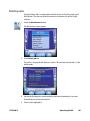
Planmeca
Table of Contents
Introduction............................................................................ 9
Associated Documentation....................................................................................................9
Indications for Use.................................................................................................................. 10
Contraindications.................................................................................................................... 10
Turn ON Laptop .................................................................................................. 10
Logging In To Planmeca Romexis....................................................................... 10
Scanner ................................................................................................................ 11
Removable Components...................................................................................................... 11
Connecting the Thunderbolt™ Adapter................................................................. 11
Disconnecting the Thunderbolt™ Adapter........................................................... 12
Scanner Indication Lights.................................................................................................... 12
Cradle.......................................................................................................................................... 13
Moving/Viewing the 3D Model........................................................................... 14
Using the Mouse..................................................................................................................... 14
Rotating the Model........................................................................................................ 14
Changing the Model Size............................................................................................ 14
Moving the Model.......................................................................................................... 15
Using the Spaceball................................................................................................................ 15
Manipulating the Model.............................................................................................. 15
System Options and Default Settings................................................................ 16
Screenshots............................................................................................................................... 16
The Settings Screens.............................................................................................................. 17
CAD/CAM Settings.................................................................................................................. 17
Version................................................................................................................................ 17
Reset Warnings................................................................................................................ 17
Sprue Angle Method .................................................................................................... 18
Margin Ramp ................................................................................................................... 18
Spacer Thickness ............................................................................................................ 18
Dropper Tool.................................................................................................................... 18
Spaceball Settings.......................................................................................................... 18
Network Settings............................................................................................................ 19
© 2014 E4D Technologies All rights reserved
11523400.D

1
Mill Notification Settings............................................................................................. 19
Milling Settings............................................................................................................... 19
Auto or Occlusal POI...................................................................................................... 20
Administration...................................................................... 21
Relocating the Laptop and/or Scanner.............................................................. 21
System Information and Upgrades.................................................................... 21
Software and Hardware........................................................................................................ 21
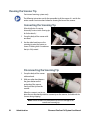
Cleaning the Scanner Tip..................................................................................... 22
Connecting the Scanning Tip............................................................................................. 22
Disconnecting the Scanning Tip........................................................................................ 22
High Level Disinfection:...................................................................................... 23
Storage............................................................................................................................... 23
Cleaning the System............................................................................................ 24
For intraoral scanning systems only................................................................... 24
Additional Assistance.......................................................................................... 25
Scanning Safety.................................................................... 26
Setting Up a Restoration...................................................... 28
Managing Patients in Planmeca Romexis.......................................................... 28
Creating new patients........................................................................................................... 28
Searching Patients.................................................................................................................. 29
Search patients by ID.................................................................................................... 29
Search patients by name............................................................................................. 29
Searching assigned patients............................................................................................... 30
Sorting patients....................................................................................................................... 30
Selecting and opening patients........................................................................................ 30
Managing Cases................................................................................................... 32
Setup tab.............................................................................................................. 35
Changing the Tooth Selection............................................................................................ 37
Smile Design......................................................................................................... 38
Block Selection......................................................................................................................... 40
Scanning............................................................................... 42
Scan Tab Layout................................................................................................... 42
Positioning the Scanner for the First Scan......................................................... 43
Scanning Overview.............................................................................................. 44
Scanning a Basic Posterior Preparation;............................................................ 46
Step-By-Step........................................................................................................ 47
Occlusal scans.................................................................................................................. 47
Rotate Clockwise............................................................................................................ 47
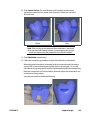
Distal Adjacent Tooth.................................................................................................... 47
Rotate Counter-Clockwise........................................................................................... 48
Scanning Options................................................................................................ 49
Adjust Live View Window Size................................................................................... 49
2

Planmeca PlanScan Full System User Manual
Adjust the Scanning Field of View............................................................................ 50
Evaluating Your Model........................................................................................ 51
Checking Your Model For Missing Data.......................................................................... 51
Eraser Tool............................................................................................................ 52
Reset Model.......................................................................................................... 53
Delete Model........................................................................................................ 53
Scanning Occlusion Data..................................................................................... 54
Scanning a Bite Registration............................................................................... 54
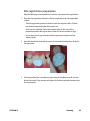
Bite registration preparation............................................................................................... 55
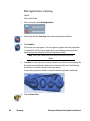
Bite registration scanning.................................................................................................... 56
Goals................................................................................................................................... 56
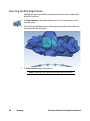
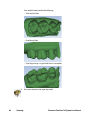
Selecting the Bite Registration .......................................................................... 58
Scanning Buccal/Opposing................................................................................. 59
Scan Opposing......................................................................................................................... 59
Scan Buccal Bite....................................................................................................................... 61
Model Alignment................................................................................................. 62
Scanning a Pre-op................................................................................................ 64
Scanning Multiple Restorations......................................................................... 66
Scanning an Anterior........................................................................................... 68
Optional Additional Scans................................................................................................... 69
Alternate Scanning Pattern................................................................................................. 69
Scanning Multiple Anteriors............................................................................... 70
Scanning Impressions......................................................................................... 71
Positioning the Scanner........................................................................................................ 71
Scanning the impression...................................................................................................... 72
Orientation........................................................................... 74
Viewing the model............................................................................................... 76
Moving the central point..................................................................................... 77
Single Restorations.............................................................................................. 79
Occlusal View............................................................................................................................ 79
Distal View......................................................................................................................... 80
Verifying Orientation.......................................................................................... 81
Resetting the Orientation................................................................................... 83
Rotating the model.............................................................................................. 84
Multiple Restorations.......................................................................................... 85
Margin Tab............................................................................ 90
Margin Tool........................................................................................................... 91
Margin Aids............................................................................................................................... 91
View ICE Preparation..................................................................................................... 91
Show Features................................................................................................................. 92
Creating the Margin............................................................................................................... 92
Paint tool........................................................................................................................... 92
Trace tool........................................................................................................................... 93
11523400.D

3
Lasso tool.......................................................................................................................... 95
Margin Tab Settings............................................................................................. 95
ICE Margin Mode..................................................................................................................... 95
For intraoral cases only.......................................................................................................... 95
Modifying the Margin.......................................................................................... 96
Toggle Margin.................................................................................................................. 96
Move Margin tool........................................................................................................... 96
Add Segments tool........................................................................................................ 97
Preview Library................................................................................................................ 97
Retract................................................................................................................... 98
Multiple Restorations.......................................................................................... 99
Selection Area Tool............................................................................................ 100
Remove From Selection......................................................................................................102
Reset..........................................................................................................................................102
Pre-op Editing.................................................................................................... 102
Trace...........................................................................................................................................103
Move Curve.............................................................................................................................103
Add Segments........................................................................................................................103
Designing the Restoration.................................................. 104
Tooth Libraries................................................................................................... 105
Select a Library..............................................................................................................105
Resize the Library Tooth.............................................................................................105
Move the Library Tooth..............................................................................................105
Anatomy Levels.............................................................................................................106
Apply the changes.......................................................................................................106
Pre-op as Library Tooth.......................................................................................................106
Viewing Options................................................................................................. 107
Hide Model.....................................................................................................................107
Material Thickness........................................................................................................108
Measure...........................................................................................................................109
View Contacts................................................................................................................109
Slice Plane.......................................................................................................................109
View Bite Registration, Opposing Model, or Pre-op .......................................111
Incremental Change Tools................................................................................. 112
Rotate........................................................................................................................................112
Move..........................................................................................................................................113
Expand......................................................................................................................................113
Freeform Change Tools...................................................................................... 114
Rubber Tooth..........................................................................................................................115
Dropper....................................................................................................................................115
Move Feature..........................................................................................................................116
Smooth Surface.....................................................................................................................116
Move Margin...........................................................................................................................117
4

Planmeca PlanScan Full System User Manual
Define Feature........................................................................................................................117
Paint Feature...........................................................................................................................117
Contact Refinement........................................................................................... 118
Spacer Tool......................................................................................................... 119
Design Tab Settings........................................................................................... 120
Autogenesis Settings...........................................................................................................120
Contact Strengths.................................................................................................................120
Margin Boost...........................................................................................................................121
Margin Boost setting enables clinical operators to increase the thickness of
the proposal around the margin. Margin Boost is OFF by default......................121
Designing Multiples........................................................................................... 122
Mill Tab................................................................................ 123
Setting up the restoration for milling.............................................................. 124
Select a Block Size.................................................................................................................124
Sprue Placement...................................................................................................................125
Occlusal Only Inlays.....................................................................................................126
Restoration Positioning......................................................................................................126
Mill Simulation.......................................................................................................................127
Evaluate the simulation..............................................................................................127
Send to Mill......................................................................................................... 130
Mill Tab Settings................................................................................................. 130
Network Settings..........................................................................................................130
Material/Shade Settings.............................................................................................130
Margin Thickness Settings........................................................................................130
Milling Settings.............................................................................................................131
Simulation Settings.....................................................................................................131
Implant Design................................................................... 132
Orientation......................................................................................................... 133
Small Preview Tooth Method............................................................................ 134
Margin Tab......................................................................................................................134
Design Tab.......................................................................................................................134
Large Preview Tooth Method............................................................................ 136
Margin Tab...............................................................................................................................136
Design Tab...............................................................................................................................137
Extended Margin Method................................................................................. 140
Bridges................................................................................ 141
Tooth Preparation for Bridges.......................................................................... 141
Designating a Bridge...........................................................................................................141
Unlinking a Bridge................................................................................................................142
Scanning Bridges............................................................................................... 143
Bridge Orientation............................................................................................. 143
Drawing Pontic Margins.................................................................................... 144
11523400.D

5
Designing the Bridge......................................................................................... 145
Evaluating the Connectors................................................................................ 147
Spacer Tool Settings on Bridges....................................................................... 148
Scanner Specifications........................................................ 149
Cables...............................................................................................................................149
Applicable Standards........................................................................................ 150
Product Safety...............................................................................................................150
EMC....................................................................................................................................150
Laser Product Safety....................................................................................................150
Packaging and Environmental.................................................................................150
Biocampatibility............................................................................................................150
European Standards....................................................................................................150
Canadian Standards....................................................................................................150
US Food and Drug Administration.........................................................................150
International Standards.............................................................................................151
Approvals (All Systems)..................................................................................... 151
Guidance and Manufacturer’s Declaration -Electromagnetic Emissions...... 152
Guidance and Manufacturer’s Declaration - Electromagnetic Immunity...... 152
Recommended Separation Distances...........................................................................155
PlanScan Optical Specifications.......................................................................................156
Labels.................................................................................................................. 157
Symbols....................................................................................................................................157
Product Identification Labels............................................................................................159
External Components and Connectors.........................................................................160
Internal Fuse...................................................................................................................160
UL Listing.................................................................................................................................160
UL Medical Equipment Listing.................................................................................160
PlanScan and PlanCAD
Troubleshooting/Repair..................................................... 161
PlanMill 40 Introduction..................................................... 163
Turn ON the Job Server...................................................................................... 163
Turn OFF the Job Server.................................................................................... 163
Turn ON the PlanMill 40..................................................................................... 163
Power Buttons........................................................................................................................163
Display Screen........................................................................................................................164
Lid Lights............................................................................................................ 165
Turn OFF the Mill................................................................................................ 166
Relocating the Mill............................................................................................. 167
System Information and Upgrades.................................................................. 168
Software and Hardware......................................................................................................168
Job Server Software Version..............................................................................................168
Mill Software Version...........................................................................................................169
6

Planmeca PlanScan Full System User Manual
PlanMill 40 Safety............................................................... 170
Operating the Mill............................................................... 173
Pending Jobs...................................................................................................... 173
Inserting Blocks................................................................................................. 174
Horizontal Orientation................................................................................................174
Vertical Orientation.....................................................................................................175
Composite Block Defoaming Solution............................................................. 176
Zirlux FC2 Scale Factor...................................................................................... 177
Starting Milling.................................................................................................. 178
Parked Job.......................................................................................................... 179
Finished Jobs...................................................................................................... 180
Deleting Jobs...................................................................................................... 181
Automatic Tool Changer.................................................................................... 182
Broken Tools and Restoration Inspection.....................................................................183
Replacing/Inserting Tools..................................................................................................184
Override Mode................................................................................................... 187
Mill Troubleshooting/Repair.............................................. 189
Mill...................................................................................................................... 189
Job Server........................................................................................................... 191
Preventive Maintenance/Cleaning.................................... 192
Routine Mill Maintenance................................................................................. 192
Clean Fluid Tank:....................................................................................................................192
Refill milling fluids:................................................................................................................193
Clean the mill chamber:......................................................................................................194
Zirlux FC2 Mill Maintenance..............................................................................................194
Spindle Cap and Collet Cleaning.....................................................................................195
Spindle Cap A.........................................................................................................................196
Spindle Cap B..........................................................................................................................202
Mill System Specifications.................................................. 210
Applicable Standards..................................................................................................212
Approvals........................................................................................................................212
Labels.................................................................................................................. 213
Symbols....................................................................................................................................213
Product Identification Labels............................................................................................215
Attention Labels....................................................................................................................215
External Components and Connectors................................................................216
Protected Earth Ground Label..........................................................................................216
Fuse Replacement.................................................................................................................217
UL Listing:................................................................................................................................217
UL Laboratory Equipment Listing...................................................................................217
Importing and Exporting.................................................... 218
11523400.D

7
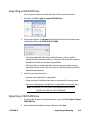
Importing a CAD/CAM Case.............................................................................. 219
Exporting a CAD/CAM Case............................................................................... 219
Importing 3D Models......................................................................................... 220
3D Model Import...................................................................................................................220
To import models from an external source:........................................................220
Exporting 3D Models......................................................................................... 221
3D Model Export...................................................................................................................221
Planmeca Romexis Cloud Export...................................................................... 221
Sending and Receiving Cases Via Planmeca Romexis Cloud................................221
Cloud Service Descriptions................................................................................................221
Planmeca Romexis Cloud Subscriber....................................................................221
Planmeca Online Account Holder..........................................................................222
Casual Users....................................................................................................................222
Sending CAD/CAM Cases via Cloud Export..................................................... 223
Additional settings and information..............................................................................224
Send to recipient as E-mail download link..........................................................224
Include Romexis Viewer.............................................................................................224
Downloading cases from the Planmeca Cloud server.................................... 224
Managing cases.................................................................................................. 225
Send to iRomexis............................................................................................... 226
DDX Export......................................................................................................... 226
Romexis Configurations..................................................... 228
Opening Romexis Configuration..................................................................... 228
Changing Tooth Numbers and/or Country............................................... 229
Patient File Changes.............................................................................................................229
DDX Configuration...............................................................................................................230
Planmeca Romexis Cloud Configuration......................................................... 231
Glossary.............................................................................. 233
Index.................................................................................... 235
8

Planmeca PlanScan Full System User Manual
Planmeca
1
Introduction
The Planmeca PlanScan Full System is a complete optical impression system for
CAD/CAM of dental restorations intended for dental offices or laboratories. The
system comprises a Planmeca PlanScan digital impression scanner, Planmeca
Romexis CAD/CAM design software module, and Planmeca PlanMill 40 mill.
The Planmeca PlanScan scanner takes digital impressions which can be designed
and customized on the Planmeca Romexis CAD/CAM design software. The
impressions can be sent via Planmeca Romexis Cloud to Planmeca or a certified
laboratory for design and milling or exported to a third party.
Note: Caution: US Federal law restricts the Planmeca PlanScan to
sale by or on the order of a dentist.
The Planmeca PlanScan Full System requires Planmeca Romexis software revision
3.4.0.R or later.
Associated Documentation
Planmeca Romexis User’s Manual (publication number 10014593).
Exercise Workbook, Throughout the documentation, important notes and items of
interest are formatted like this example.
Warning The orange Warning denotes something that can cause
personal injury or physical damage to the equipment.
Some of the screenshots may have been taken in earlier software versions and
may not exactly match your screen.
11523400.D
Introduction
9
Indications for Use
Planmeca PlanScan Full System is an optical impression system for CAD/CAM of
dental restorations. It is a device used for recording topographical characteristics
of teeth, dental impressions, or stone models by digital methods for use in
computer aided design and manufacturing of dental restorative prosthetic
devices.
Contraindications
The Planmeca impression system is not indicated for orthopedics or any indication
beyond dentistry.
Turn ON Laptop
Press the power button to start the laptop.
The Windows 8 Start screen appears. On your keyboard, press the
make the standard desktop appear if desired.
key to
A warning may appear from Windows. Do you want to allow the following
program to make changes to this computer?
Click Yes. This is a normal safety feature of Windows.
Logging In To Planmeca Romexis
1
Click this button on your desktop.
A login window opens.
Note: The appearance of the Login window may differ from the view
below depending on the settings configured by your administrator.
See the Romexis User Manual for more information.
10
Introduction
Planmeca PlanScan Full System User Manual
2
Type your user name and password and click OK.
The Planmeca Romexis application opens in Patient module.
The name of the current user is shown in the title bar.
To login as different user click this button.
To logout click this button. All currently opened files will be closed.
Note: If you are trying to log in while another user is currently logged
in, all patient records are closed but the current views will be stored
and shown when the patient is next accessed by the user. This allows
authorized personnel to view and modify patient status using their
own credentials. If you logout no views will be stored and the patient
data will be opened with default view when accessed next time.
Scanner
Removable Components
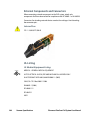
The PlanScan system has a set of removable components.
Connecting the Thunderbolt™ Adapter
Properly connecting and disconnecting the scanner prevents damage to your
devices.
1
Insert the Thunderbolt adapter into the adapter slot on the
side of the laptop. (The adapter should remain attached,
even when not in use.)
2
After opening the PlanCAD software, connect the
red FireWire connector of the scanner into the white
Thunderbolt™ adapter.
The laptop gives an audible signal to confirm that the
connection is fully seated.
11523400.D
Introduction
11
To remove the scanner, hold the red end with one hand and with the other hand
grasp the Thunderbolt adapter. Gently pull apart to disconnect. Leave the white
Thunderbolt adapter attached to the computer.
Disconnecting the Thunderbolt™ Adapter
If you wish to remove the adapter from the laptop:
1
Disconnect the scanner and exit Romexis to the Windows desktop.
2
Navigate to the Eject Media icon in the lower left corner of the desktop.
3
Click the icon and choose Eject IEEE 1394 Controller.
4
Remove the Thunderbolt adapter from the laptop.
Note: Failure to follow this procedure may result in an inoperable
scanner. For additional questions or concerns please contact
Customer Support at 800.537.6700.
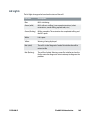
Scanner Indication Lights
There are colored LED lights in the button on the scanner.
• Green - Ready for Use. Scanner is connected, but not actively scanning.
• Blue - Laser ON. Scanner is actively scanning.
If scanner light is not illuminated, the scanner is not ready or it is not connected.
12
Introduction
Planmeca PlanScan Full System User Manual
Cradle
The system comes with a standalone cradle for the scanner.
The cradle can be separated and inserted into a 5/8 inch (16 mm) holder in your
operatory equipment (i.e. the slow speed suction holder).
11523400.D
Introduction
13
Moving/Viewing the 3D Model
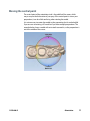
Use the mouse to zoom in or out, move, and rotate the composite model.
Using the Mouse
Note: The mouse cursor changes noted here do not appear on the
Scan tab.
Rotating the Model
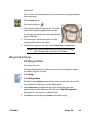
1
The pointer changes to
2
Rotate Model
press and hold the
right button, then
drag
Click and hold down the right mouse button.
.
Drag the mouse horizontally, vertically, or
diagonally to rotate the image.
Drag in small increments for more control.
3
Release the mouse button to stop rotating. Repeat as needed.
Changing the Model Size
Use the scroll wheel on the mouse to zoom
in and out on the model.
1
Position the pointer on your model.
2
Rotate the mouse wheel downward,
toward your wrist.
The pointer changes to
3
Zoom Model
rotate the wheel
button to change the
size of the model on
the screen
and the model becomes smaller.
Rotate the mouse wheel upward, away from your wrist.
The model becomes larger.
14
Introduction
Planmeca PlanScan Full System User Manual
Moving the Model
The model can be moved without being
rotated.
1
Position the pointer on the model.
2
Press and hold down the mouse wheel.
The pointer changes to
3
Move Model
up/down, left/right:
press and hold the
wheel button, then
drag.
.
Drag the model to the desired position and release the mouse wheel.
Using the Spaceball
Optional accessory.
The Spaceball is a 3D controller that enables you to zoom,
move, and rotate the model in a more fluid way than the
mouse. The use of this controller is optional. The mouse can be
used alone if preferred.
Manipulating the Model
The Spaceball enables you to pan, zoom, and rotate separately or at the same
time. The base of the Spaceball does not move, only the top half, called the cap,
moves.
Place the Spaceball with the cord facing away from you. Place your fingers on the
raised areas of the cap. This helps orient you to match the up/down/left/right of
the cap to what’s on the screen.
• Pan - Use side-to-side motions to move the model straight up and down or left
and right.
• Zoom - Pull up or push down on the cap to zoom in and out.
• Rotate - Tilt the cap in the direction that you want to rotate the model.
11523400.D
Introduction
15
Press the right button on the Spaceball to re-center the model on the screen. This
also re-enables the mouse for moving the model. However, once the Spaceball is
used, the mouse is deactivated.
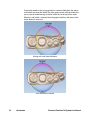
By default, the center of the model is the central rotating point. If you want a
different rotating point, move that area to the center of the screen and click on the
left mouse button.
Models with multiple restorations will automatically rotate around the prep for
each tab once the margins have been drawn.
System Options and Default Settings
Individual tabs are used to design the restoration: Setup, Scan, Margin, Design,
and Mill. The tabs are dynamic. The choices you make on each tab affect the
options available on that and related tabs. The typical restoration utilizes the tabs
from left to right. Moving backwards in the process (e.g., modifying the settings in
the Margin tab after completing the design in the Design tab) can cause settings
and designs to be discarded. The system warns you when your actions will cause
design data to be discarded.
Some system configurations will restrict the use and access of individual tabs.
Screenshots
You may wish to save an image of the screen for communicating with associates
or Customer Support.
To take and save a screenshot:
On your keyboard, press the
key and Prt Sc keys.
The computer takes a screenshot and saves it in Libraries - Pictures Screenshots.
The screenshots are automatically numbered. You can rename them if desired.
16
Introduction
Planmeca PlanScan Full System User Manual
The Settings Screens
Access Settings by clicking the Settings button on the CAD/CAM screen or the
Settings button on each tab. These screens contain preference settings that
modify the default behavior of the software. The settings are based on each
screen. Use the arrows to scroll right or left. Click a category to select it. Selected
categories display in the bottom of the screen.
Click Restore Factory Defaults to revert to original settings, click Save to save
changes, or click Cancel to exit without saving.
CAD/CAM Settings
Version
Displays the version of the software and imaging systems.
Reset Warnings
The warning and reminder screens have an option to Do Not Show This Message
Again. If a new operator is using the system, you may want to reactivate these
warnings.
11523400.D
Introduction
17
Sprue Angle Method
(For mill systems)
The default setting is Tooth Specific. Tooth Specific places the sprue in the most
commonly recommended position based on the type of restoration. Optimized
selects the placement based on the fastest milling time. In all cases, the sprue can
be manually moved on the Mill tab.
Margin Ramp
(For design systems)
Default: 0.25
Default setting for the margin ramp incline. Use the slider
or type a number in the box to change the setting.
Increasing the Margin Ramp decreases the space
between the restoration and preparation at the shoulder.
Decreasing the Margin Ramp increases this space.
Spacer Thickness
(For design systems)
Default: 0.1 Top: 0.1 Sides
Default setting for the space between the preparation and
the restoration.
Dropper Tool
(For design systems)
Default: 0.040 Thickness: 2.000 Width
Default setting for the dropper tool has an amount/thickness of material and how
much surface area it covers.
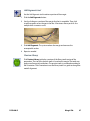
Spaceball Settings
(Optional accessory)
Select to activate the Spaceball option.
18
Introduction
Planmeca PlanScan Full System User Manual
Network Settings
This screen should be used only under the supervision of a customer service
representative. These settings are pre-configured and should not be changed.
Mill Notification Settings
(For Classic systems)
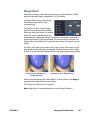
Milling Settings
(For mill systems)
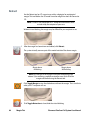
Accessed from the Home screen or the Mill tab, Milling Settings determines
whether to use Standard milling (overmill) or Undermill.
Milling Settings only affects proposals with a sharp interior, like an anterior
incisal edge. If the interior of the proposal is smaller at the tip than the tools in
the mill, the standard setting is for the mill to remove extra material at the tip.
This may lead to a crown that is too thin at the top. The options are to round
the preparation or to select Undermill. If Undermill is selected, the mill will not
remove all of the interior. It will go as far as the tool’s size will allow and the
remainder must be removed manually.
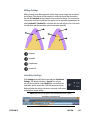
1
2
1
4
3
11523400.D
3
Proposal
Preparation
Standard
Undermill
Introduction
19
Auto or Occlusal POI
(For mill systems)
This should only be changed at the request of Customer Support. Auto POI
(Orientation) finds the best possible milling path to avoid undercuts and this
eliminates the need to go back (on veneer and multiple cases especially) and reset
POI for the mill. Occlusal POI uses the Orientation to set the tool path.
For Your Information
See “PlanMill 40 Introduction” on page 163 for information on the Job Server and Mill.
20
Introduction
Planmeca PlanScan Full System User Manual
Planmeca
2
Administration
This chapter describes the administrative functions associated with the
Planmeca PlanScan Full System.
Relocating the Laptop and/or Scanner
The laptop can be unplugged and moved as needed. The software does not need
to be shut down. The scanner can be disconnected at any time.
System Information and Upgrades
Software and Hardware
System software and hardware upgrades are initiated through Planmeca only. No
software or hardware should be added or deleted to/from the Planmeca systems
without prior approval of Planmeca. Doing so may result in damage to the system
and will void the product warranty.
11523400.D
Administration
21
Cleaning the Scanner Tip
For intraoral scanning systems only.
The following instructions are for the removable tip of the scanner. It is not for the
entire scanner. See instructions below for cleaning the base of the scanner.
Connecting the Scanning Tip
(After disinfection if scanning
intraorally. See insert with scanning tips
for further details.)
1
Grasp the body of the scanner with
one hand.
2
Use the other hand to press the
scanning tip onto the scanner as
shown. A locking click is heard once
the tip is fully seated.
Disconnecting the Scanning Tip
1
Grasp the body of the scanner
with one hand.
2
With your other hand depress
the green button on the
underside of the scanner.
Gently pull the tip from the
scanner.
When the scanner is not in use,
place the non-functional protective scanner tip on the scanner. (Included with the
scanner during shipping.)
Note: Failure to follow this procedure may result in damage to the
scanner and scanning tip.
22
Administration
Planmeca PlanScan Full System User Manual
High Level Disinfection:
Note: These instructions were validated using MaxiCide Plus w/
Activator (3.4% Gluteraldehyde) disinfectant available from Henry
Schein Dental (#102-2865).
DO NOT Autoclave. DO NOT place in Ultrasonic Cleaner.
1
Clean the tip for 2 minutes under running tap water at 22 - 25°C (4 liters/minute)
to remove debris.
2
Test the potency of your activated MaxiCide Plus prior to disinfection.
(Recommend MetriTest Strips by Metrex (HSD #602-3437)
3
Immerse the tip in activated MaxiCide Plus for 120 minutes (2 hours).
Note: Do not leave the tips soaking overnight.
4
Remove tip from the disinfectant.
5
Rinse disinfected part in three separate copious amounts of distilled water
(1000 ml volume of water; minimum of 2” head height while part is immersed).
Agitate the tip in the water for 30 seconds and then let it stand in the water for
another 30 seconds.
6
Repeat the agitation and soak in each of the other two containers with fresh
distilled water.
Storage
1
Wipe water off mirror using non-woven optical wipes (recommend Kimwipes Lens
Cleaning #101-7070).
2
Optional: Insert tip into a sterilization pouch. (recommend Self Seal Sterilization
Pouch 5 ¼” x 10” [200/box] #112-4854)
3
Store for later use.
Note: Ensure the tip is dry before connecting it to the base.
Prior to scanning, visually confirm the scanning tip mirror is clean and dry.
• To clean the mirror, use a Kimwipe, 2x2 gauze, or optical
cloth with a little alcohol to gently clean the mirror.
• Dry the mirror with a dry Kimwipe, 2x2 gauze, or dry
optical cloth.
11523400.D
Administration
23
Cleaning the System
For intraoral scanning systems only.
Protect the keyboard with a disposable barrier.
Cleaning Cycle: Before and after each use, clean all areas of the
Planmeca PlanScan Full System.
Warning: Before and after each use, follow these instructions to disinfect the
Planmeca PlanScan Full System. Do not substitute any other cleaning solution or
procedure. Under no circumstances should you use any paint thinner, solvents,
or harsh chemicals. Use only a non-woven sponge or pre-moistened germicidal
cloths when cleaning the Planmeca PlanScan Full System.
24
1
Using a clean, non-woven sponge that has been saturated with a hospital grade,
TB-rated germicide or pre-moistened germicidal cloths, apply the germicide to
the entire surface of the scanner base, scanner holder, mouse, mousepad, and any
other surfaces that you touch that were not covered by a disposable barrier. Do
not spray the germicide directly on the items and do not submerge the scanner or
mouse in the germicide.
2
Follow the germicide manufacturer’s instructions.
Administration
Planmeca PlanScan Full System User Manual
Additional Assistance
The following additional materials are provided to assist you in operating the
Planmeca PlanScan Full System system:
• Quick Reference Cards
• Online Help
• Training Videos available at e4d.com/resources on the ECO Member’s page.
If you have questions, please contact Customer Support at
Toll Free
800-537-6070
E-mail
[email protected]
Fax
972-479-1106
Hours of Operation
Monday - Thursday
Friday
7 am – 7 pm CT
8 am – 5 pm CT
Web site
www.e4d.com
Mailing Address
D4D Technologies LLC
dba E4D Technologies
650 International Pkwy
Richardson, TX 75081
See “3M and E4D Support Guide” on page 219 for information on who to call if
you are using a 3M True Definition™ scanner.
11523400.D
Administration
25
Planmeca
3
Scanning Safety
Warning: Failure to adhere to all safety warnings may result in personal injury,
equipment damage, or data loss.
Do not use the Planmeca products for any purpose other than its intended and
labeled use.
To prevent electrical shock, do not open any sealed or user restricted access
panels or connectors.
In case of emergency unplug the computer power cord from the wall or from the
computer.
Do not make any unauthorized repairs or modifications to the system software or
hardware. This includes installing unauthorized software on the host computer
system or altering or bypassing any safety switches or mechanisms. Changes or
modifications not expressly approved by Planmeca could void the user’s authority
to operate the equipment and/or void the warranty.
Do not install or operate the Planmeca products in an environment where an
explosion hazard exists, e.g., high oxygen area.
Comply with all applicable regulations when disposing of waste materials from
the Planmeca products.
Do not attach any equipment or devices to the Planmeca products unless their
use has been specifically authorized by Planmeca or E4D Technologies.
Medical electrical equipment requires special precautions regarding EMC
(Electromagnetic Compatibility). The Planmeca products must be installed
and placed into service according to the EMC information provided in the
documentation that accompanies the Planmeca products.
Portable and mobile RF (Radio Frequency) communications equipment can affect
medical electrical equipment.
26
Scanning Safety
Planmeca PlanScan Full System User Manual
The wireless components in the Planmeca products may be interfered with by
other equipment, even if the other equipment is fully compliant with CISPR
(International Special Committee on Radio Interference) emission requirements.
When possible, electrical equipment should not be used when adjacent to other
electrical equipment. If adjacent use is necessary, the equipment should be
observed to verify normal operation in the configuration in which it will be used.
When connecting the Planmeca components, use only the cables supplied with
the products. Failure to do so may result in increased electromagnetic emissions
or reduced immunity to external electromagnetic emissions.
If you suspect equipment malfunction or failure, discontinue using the Planmeca
products and contact Technical Support immediately. Do not attempt to make any
repairs on the Planmeca products.
Read and comply with all safety, warning, and instructional labels on the
Planmeca products.
11523400.D
Scanning Safety
27
Planmeca
4
Setting Up a Restoration
Managing Patients in Planmeca Romexis
Creating new patients
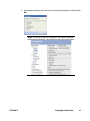
1
In the File menu click the Add Patient button.
The Files module opens
2
Enter the necessary information and add a face photo if desired.
Note: The obligatory fields are in bold text. In the example below,
they are Person ID, First name, and Last name. See “Patient File
Changes” on page 229 for more information.
28
Setting Up a Restoration
Planmeca PlanScan Full System User Manual
3
To save the patient into the database click the Save Patient button.
Note: The changes are not saved unless Save Patient button is used.
Note: To view the newly created patient on the list, perform new
patient search.
Searching Patients
Patients can be searched by ID or by name.
Search patients by ID
Note: You cannot use the ID search if you have activated the
Autonumber option in Romexis Configuration. See “Patient File
Changes” on page 229 for more information.
1
Select the option Find by Person ID from the drop-down menu.
2
Enter the patient ID in the text field and click the Find button.
Search patients by name
1
Select Find by name from the drop-down (see image above).
2
Enter the patient’s name in Last name, First name format into the search field
and touch the Enter key or click Find to make matching patients appear in the
patient list.
To view all patients saved in the database use the * sign as the search term.
If a partial name is entered all patients whose last name begins with that partial
string will be shown. To search patients by their first name replace the last name
with the wild card *.
Examples:
• Doe, John: all patients whose last name is Doe and first name John
• S: all patients whose last name starts with the letter S
11523400.D
Setting Up a Restoration
29
• Smi : all patients whose last name starts with ‘Smi’, e.g. Smith and Smiley
• Van Gogh: all patients with the last name Van Gogh
• *, Paul: all patients whose first name is Paul
Searching assigned patients
To retrieve all patients assigned to the current user click the Find assigned.
Sorting patients
Patients in the patient list can be sorted by ID, last name, first name, birth date,
age, gender, phone number, the number of assigned providers and type (for
virtual and template patients) as well as by assignments.
To sort patients click the respective column title.
Selecting and opening patients
30
1
Click the patient name in the patient list.
2
Click the Select button (or double-click the patient name).
Setting Up a Restoration
Planmeca PlanScan Full System User Manual
3
In the opening dialogue select the reason for opening the patient record and click
OK.
Note: This request can be set as optional in the Planmeca Romexis
Configuration application. See the Romexis manual for more details.
11523400.D
Setting Up a Restoration
31
Planmeca Romexis automatically opens the Files module.
The reason for opening a patient record is saved and displayed in the dental
record under the patient case history.
The name of the active patient is always visible in the upper right corner of the
screen. Several patient records can be open at a time but only one of the open
records is active at a time.
To close the active patient click the Close Patient button.
To view all open patients click the arrow of the drop-down menu.
To select and modify another open patient select the name from the drop-down
menu.
Managing Cases
1
Connect the Planmeca PlanScan scanner to your computer by connecting the
scanner’s connector to the computer’s FireWire port.
The Planmeca Romexis software automatically recognizes the scanner.
2
32
Click the CAD/CAM module button.
Setting Up a Restoration
Planmeca PlanScan Full System User Manual
The following window opens.
Select what you want to do:
• Start a new restoration - See below for more information
• Open an existing restoration - See below for more information
• Import 3D models - See Planmeca Romexis User’s manual for more information
• Export 3D models - See Planmeca Romexis User’s manual for more information
Deleting Files
To delete an image (stl file) from the patient’s case files right-click on the file and
select Inactivate STL.
11523400.D
Setting Up a Restoration
33
To delete a case from the patient’s case files right-click on the case and select
Inactivate restoration.
To reactivate or permanently delete a case from the database see the Romexis
User Manual.
Starting a New Restoration
1
To start a new scan click New Scan and Design.
Note: Click New Scan Only if you do not have a design license.
2
To open an existing scan or restoration (crown, inlay, onlay etc.) double-click on a
case on the list or click the Open Restoration button.
Note: Click Open for Design Only if you do not have a scanning
license.
The case opens in the Planmeca PlanScan Full System Setup tab.
34
Setting Up a Restoration
Planmeca PlanScan Full System User Manual
Setup tab
Use the Setup screen to set the restoration type, occlusal data type, material,
and tooth library. If you open an existing restoration, many of these settings may
already be selected.
Note: For Scan Only cases, click the Scan tab at the top to skip the
Setup tab. This tab must be filled out for Margin, Design, and Milling.
The Setup screen requires that the settings be made in a particular order because
certain parameters depend upon previous selections. Always define a restoration
in the following order:
11523400.D
Setting Up a Restoration
35
1
Select a restoration site by clicking on the anatomical
model. If no teeth have been selected, the anatomical
model is closed until the mouse cursor is moved near
it.
The currently selected tooth is orange. If any other
teeth are part of this restoration file, they are green.
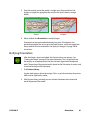
For bridges, select the abutments and the pontic(s).
See “Designating a Bridge” for more information.
Note: You can do up to 16 restorations on
the same arch at one time. Repeat these
steps for each tooth individually.
Note: To change the tooth numbers,
“Changing Tooth Numbers and/or
Country” on page 229.
2
Choose the restoration type.
3
Select the opposing scan type.
Note: The majority of exported case
recipients will require Buccal/Opposing
cases. Bite registration cases can only be
sent to someone else using a PlanCAD
system.
36
Setting Up a Restoration
Planmeca PlanScan Full System User Manual
4
Specify a tooth library. See “Smile Design” on page
38 for more information on the tooth libraries.
5
Specify a material. See “Block Selection” on page 40
for more information on material selection.
6
Specify a shade. The shade is shown on the Mill
instructions along with the material and block size.
Note: You can change the tooth library
on the Design tab. The system offers block
size options on the Mill tab. The material
can be changed on the Mill tab Settings
7
Click the Scan tab or click Next.
Changing the Tooth Selection
11523400.D
1
If the wrong tooth was highlighted for the restoration, right-click the tooth and
click Deselect.
2
Click on the correct restoration site.
Setting Up a Restoration
37
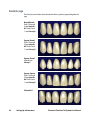
Smile Design
The facial pictures below show the anterior library options grouped together by
type.
Round-Round
Teeth 7 through
10 are Anterior
A1. Teeth 6 and
11 are Library A.
Square-Round
Teeth 7 through
10 are Anterior
A2. Teeth 6 and
11 are Library A.
Square-Round
All teeth are
Library C.
Square-Square
Teeth 7 through
10 are Anterior
A2. Teeth 6 and
11 are Library A.
Cutback A4
38
Setting Up a Restoration
Planmeca PlanScan Full System User Manual
The lingual pictures below show the anterior library options grouped together by
type.
Round-Round
Teeth 7 through
10 are Anterior
A1. Teeth 6 and
11 are Library A.
Square-Round
Teeth 7 through
10 are Anterior
A2. Teeth 6 and
11 are Library A.
Square-Round
All teeth are
Library C.
Square-Square
Teeth 7 through
10 are Anterior
A2. Teeth 6 and
11 are Library A.
Cutback A4
11523400.D
Setting Up a Restoration
39
Block Selection
With over 200 combinations of block sizes, materials, and shades available, the
selection of the correct block can be a daunting task. Here are some guidelines
(for more specific directions, contact your local Ivoclar Vivadent or 3M ESPE
representative):
• 3M ESPE supplies E4D’s composite block - Paradigm® MZ100. Because of the
custom mill paths within the mill, this block will typically mill much quicker
and have less associated bur (tool) wear. These blocks are cylindrical. Insurance
coverage may vary compared to ceramic blocks.
• Lava Ultimate is a nano resin ceramic ideal for all indications including implant
superstructures. Fast milling, no firing for great results.
• Ivoclar Vivadent categorizes their IPS Empress® block selection by amount
of translucency; LT blocks have lower translucency and therefore are more
opaque, allowing some visual blocking of the underlying tooth structure (ideal
for full coverage). HT blocks are higher translucency blocks; they are great for
inlays and onlays where surrounding tooth structure can positively affect the
esthetic outcome.
• Multiblocks are blended in color and translucency from cervical to incisal and
allow for complete esthetic control.
• IPS e.max is a lithium disilicate glass-ceramic material that comes in a precrystallized state which changes color and strength when fired. In its final
tooth colored state, IPS e.max CAD offers 360 MPa of flexural strength which is
nearly three times the strength of many millable ceramics available chairside.
Adjustments should be made to the e.max restorations while in the blue stage.
• IPS e.max Impulse are supplied in three Values (Value 1, 2, 3) and two Opal
shades (Opal 1, 2). They are mainly used for veneers. The Value blocks feature
different brightness values: 1 is the lowest and 3 the highest. The Opal blocks
exhibit a decreasing opalescence and increasing brightness value from 1 to 2.
• Telio CAD blocks are intended for long-term provisional restorations (maximum
wear of 12 months).
• Zirlux FC2 is full contour zirconia that can be milled with the PlanMill 40. Zirlux
FC2 requires a sintering oven.
• Burn Out Blocks (BOB) are used to manufacture an acrylic pattern for further
fabrication methods utilizing the burnout technique, including casting and
pressing for inlays, onlays, crowns, as well as other dental applications.
40
Setting Up a Restoration
Planmeca PlanScan Full System User Manual
The block selection chart provides general direction on what block or category of
block is recommended for different types of restorations. Please understand that
the clinical situations and parameters (preparation, occlusion, patient compliance)
E4D TECHNOLOGIES
Manufacturer Specificationsare
for all
Materials
factors in the success of the final restoration regardless of the material.
Block Recommendation Chart
Restoration Type
Anterior
Full Crown
Anterior Veneer
CAD/CAM Materials
Paradigm MZ100
Lava Ultimate
Posterior
Full Crown
Inlay/Onlay
Implant
Bridge
Provisional Only
IPS Empress CAD HT
IPS Empress CAD LT
IPS Empress Multi
IPS e.max CAD HT
IPS e.max CAD LT
IPS e.max CAD Impulse
Anterior Only
Provisional Only
Telio CAD
Zirlux FC2
Burn Out Block (BOB)
FOR CAST OR PRESSED INDICATIONS ONLY
Primary Indication
Secondary Indication
With manufacturer caution
©2014 E4D Technologies All rights reserved EDU.1119.C
11523400.D
Setting Up a Restoration
41
Planmeca
5
Scanning
This chapter does not apply to cases that are imported from another scanning
system.
Warning The scanner is a high precision Class 2 laser scanning instrument.
Always store the scanner in its cradle when not in use. To prevent damage or
misalignment, do not drop or strike the scanner. Follow all stated precautions
when using the scanner.
The scanner captures the restoration site with a laser system and delivers live
images to the monitor. As you take multiple snapshots, the system creates a
composite image of the restoration site, revealing any areas that need further
scanning.
Scan Tab Layout
3
1
2
42
Scanning
1Scan Type
2Model Editing Tools
3Evaluation Tools
4Alignment Tools
4
Planmeca PlanScan Full System User Manual
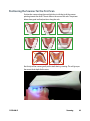
Positioning the Scanner for the First Scan
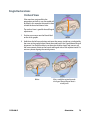
Position the scanner along the mesial-distal axis with the tip of the scanner
pointing towards the distal. The axis follows the curve of the arch. The pictures
below show good and bad positions along the arch.
Rest the tip of the scanner gently on the teeth during scanning. This will give you
the correct focal depth for the scans.
11523400.D
Scanning
43
Scanning Overview
Scan the restoration site using the E4D scanner to capture the image of the tooth
(pre-operative or wax-up), preparation, opposing teeth, buccal bite, and/or bite
registration. Scanning the restoration site requires proper site preparation, correct
placement and movement of the scanner, and a sufficient number of scans to
ensure adequate digitalization of the restoration site. The basic steps are:
1
Click the Scan tab.
2
Click the desired scanning mode: Pre-op, Prep, Bite Registration, Opposing, or
Buccal Bite.
• Pre-op - Used to utilize the patient’s existing dentition or a wax-up as the
pre‑op model for creating the restoration.
• Prep - Used to scan the prepared site of the restoration. All free flowing blood,
saliva, and residue should be removed from the preparation site before
scanning.
• Opposing - Used to scan the teeth on the opposite arch of the preposition.
Scan the same number of teeth as the preparation model to ensure good
alignment.
• Buccal - Scan the buccal view of the preparation, adjacent teeth, and opposing
teeth.
• Bite - Used if you have produced a bite registration for use in defining the
occlusal anatomy. This button is active when Bite Registration is selected on the
Setup tab.
3
Shield the site from strong extraneous light sources (dental lights, sunlight, etc.).
4
Click the button on the scanner to activate the laser.
5
The Live View displays the scanning view with live feedback. Place the scanner so
that the camera is centered over the occlusal of the restoration site.
Note: The system assumes that the first scan is taken from the
occlusal. Ensure the first scan is taken at a 90 degree angle to the
occlusal surface. If the first scan is not optimal, delete it and retake it.
44
6
Follow the Scanning Goals below.
7
Continue taking scans until the composite model is fully formed.
8
Click the button on the scanner to deactivate the laser.
Scanning
Planmeca PlanScan Full System User Manual
9
Click Generate Model or press M on the keyboard to finish building the model.
10 Evaluate the model.
11 Make adjustments as needed.
12 Select the next scan type.
13 Repeat the steps above.
14 Click the Margin tab or click the Next button when finished with scanning.
11523400.D
Scanning
45
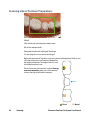
Scanning a Basic Posterior Preparation;
Goals
100% of the prep and interprox. contact areas
90% of the adjacent teeth
Good axial data (buccal and lingual) for design
2-3 mm gingival tissue on buccal and lingual
Begin with the occlusal. Top down scans to lay down the foundation. The first scan
is the most important scan because it determines
the default orientation. The angle of the first scan
should be an occlusal scan.
The first scans are of the occlusal surface. Starting
over the preparation, take scans of the occlusal
surfaces moving in half tooth increments.
D
M
D Distal
46
Scanning
M Mesial
Planmeca PlanScan Full System User Manual
Step-By-Step
Occlusal scans
1
The first scan is of the preparation.
2
Keep the scanner parallel to the occlusal table. Take
overlapping scans and move in half-tooth (or less)
increments.
3
The last occlusal scan is the center of the mesial
neighbor.
Rotate Clockwise
The right side of the scanner is stronger because of how
the laser is reflected. That is why you always want to
rotate to the right before going to the left.
1
Use small rotations over the mesial neighbor to create
overlapping scans as you transition from occlusal scans
to a clockwise rotation.
2
Scan along the right side of the teeth. Rotate the
scanner to almost 90° from the occlusal table.
3
Watch as your model builds to see any areas that might
require a different rotation or angle.
Distal Adjacent Tooth
Rotate in small increments across the distal adjacent
tooth until you reach the left-hand side. This enables
you to capture the occlusal data as you shift from one
rotation to the other.
11523400.D
Scanning
47
Rotate Counter-Clockwise
Scan from the distal to the mesial along the left-hand
side of the teeth.
The last scan is of the mesial neighbor.
The system displays a model based upon the scan data. The Live View appears
on the right and the model builds on the left. Watch the model building on the
left to see what information has been captured and where you need to move the
scanner.
The system changes the Live View to orange if you have moved too far and the
system needs data overlap.
48
Scanning
Planmeca PlanScan Full System User Manual
The most recent scan added to the model displays with a color coding to indicate
the focal distance of the data added.
• Green - close to the tip
• Yellow/Orange - middle of the range
• Red - end of the range (far away from tip)
Note: Any color shown means the scanner IS capturing data. The
colors only correspond to the focal distance.
The building model rotates to match the Live View.
Click the button on the scanner to stop scanning.
A raw data model is displayed.
Click Generate Model or press M on the keyboard to create the 3D model. If you
exit without generating the model, the scans will be lost.
Click Data Density View to evaluate the model for low data. See “Checking Your
Model For Missing Data” on page 51 for more information.
For design purposes, you may want to acquire more details of the adjacent teeth.
If extra scans are desired, deactivate Data Density View to speed up the process.
Reactivate when finished scanning.
Note: If the mesial adjacent tooth is missing, take scans of two teeth
on the distal side and vice versa.
Scanning Options
Adjust Live View Window Size
While the Live View is active, The window size can be adjusted. By default, the Live
View is large enough to fill the height of the scanning window. To make it smaller,
place the mouse cursor on the left edge of the Live View. Right-click and drag the
window to the desired size.
The Live View will return to the default size next time it is activated.
11523400.D
Scanning
49
Adjust the Scanning Field of View
The scanning area can be reduced if tongue, cheek, instruments, etc. are
interfering with your scans. Most clinical operators do not change the Field of
View.
Click and drag the Field of View indictor to the desired setting.
50
Scanning
Planmeca PlanScan Full System User Manual
Evaluating Your Model
Checking Your Model For Missing Data
Click Data Density View to evaluate the model for low data. If multiple scans are
needed, deactivate this button to speed up the process.
Your model should resemble the example below. The adjacent teeth are important
in designing the restoration. Ensure you have enough detail, approximately 90%,
to align the restoration with its neighbors.
1
Click Data Density View if it is not already activated. The model refreshes with the
dark blue and purple areas indicating the least data. Rotate the model to analyze
it.
2
Dark areas on your restoration site and interproximal contact areas should be
rescanned.
In the example below, the standard scan pattern was not taken and key areas
are missing data. Look for colored areas on the prepared tooth, especially on the
margin. The adjacent teeth should have good data on the interproximal contact
area, occlusal surfaces, and of the lingual and buccal contours. Data below the
height of contour is not as crucial on the adjacent teeth .
3
11523400.D
If areas lack detail, take additional scans.
Scanning
51
With a couple of additional scans, the example is greatly improved.
4
Click Data Density View again to return to the normal view.
5
Click the Margin tab or click the Next button when finished with scanning.
Eraser Tool
Use the Eraser Tool to remove parts of the scanned model. This can be used to
remove unnecessary data like extra teeth, tongue, cheek, etc. With this tool, you
can also erase an area that needs to be rescanned. If you spot a problem (i.e. the
margin is partially hidden by cord or tissue), you can erase that area, correct the
problem on your model or intraorally, then rescan just that area! You do not have
to start over. Be sure to erase and rescan ALL areas that were changed.
The Eraser is also used in the Pre-op and Bite Registration Time Saver tools (see
following sections).
52
Scanning
Planmeca PlanScan Full System User Manual
Click the Eraser tool to deactivate it and regenerate the model.
Note: Keep some of the buccal or lingual data when erasing. If
you disconnect the two halves of the model, half of the model will
disappear. It is also recommended that you not delete multiple teeth
in a row. Large gaps in the model is not recommended.
Reset Model
Click the Undo Erase Erase button to reset the model if a mistake was made when
erasing.
Delete Model
Click the Delete Data button to remove the model and start over.
11523400.D
Scanning
53
Scanning Occlusion Data
The proposal’s occlusion can be evaluated and designed using:
• Bite registration
• Buccal bite and opposing dentition
• Pre-op (a waxup or existing anatomy before preparation)
Note: Cases being sent via Planmeca Romexis Cloud usually need to
be Buccal/Opposing cases.
On the Setup tab, select Bite Registration or Buccal/Opposing. If you are scanning
a pre-op, leave the default to Buccal/Opposing.
The system will allow you to use a Time Saver method of copying the model. In
certain scenarios, this enables you to duplicate a model under another heading.
You can then erase the data that needs to be replaced and take fewer scans than if
you are doing a completely new scan.
• Pre-op model can be copied into Prep model
• Prep model can be copied into Bite Registration
The instructions below assume that you will use the Time Saver method. You
always have the option of simply doing a full scan for each model type.
Scanning a Bite Registration
A bite registration can be used to optimize occlusion for proper alignment with
the opposing tooth. Scan the preparation, ensuring there is enough detail of the
adjacent dentition and/or gingival tissue in your preparation scans to align the
bite registration scans.
After scanning the preparation, prepare the bite registration.
54
Scanning
Planmeca PlanScan Full System User Manual
Bite registration preparation
Keep the following recommendations in mind as you prepare bite registrations:
1
Place the bite registration material so that it completely covers the preparation
surface.
• The bite registration material should not cover the adjacent teeth. If it does,
trim to the interproximal after the material sets.
• There must be sufficient data of the adjacent teeth in the scans of the
preparation and the bite registration in order for the two models to align.
• Ensure there are no gaps between the bite registration material and the
adjacent teeth.
11523400.D
2
Have the patient bite down firmly or press the articulated model down firmly for
the impression.
3
If trimming of the bite is needed to expose more of the adjacent teeth, trim the
bite in the mouth. If you remove and replace it, the bite registration material may
not seat properly.
Scanning
55
Bite registration scanning
Goals
100% occlusal data
1
On the Setup tab, select Bite Registration.
2
On the Scan tab, click Scan Prep and scan the preparation model first.
3
Click Scan Bite.
A Time Saver message appears. This message only appears when the preparation
is scanned first. The Time Saver option allows you to duplicate the preparation
model and use the same data for the bite registration model.
Note: Time Saver cannot be used in conjunction with Impression
Mode.
4
Click OK to use the Time Saver. If you do not wish to use the Time Saver option, the
bite registration and adjacent teeth can be scanned on their own. The following
instructions assume the use of the Time Saver option.
A copy of the preparation model is created in the bite registration model color.
5
56
Scanning
Click the Eraser Tool.
Planmeca PlanScan Full System User Manual
11523400.D
6
Erase the preparation and the marginal ridges of the adjacent teeth.
7
Click the Eraser Tool to deactivate it. The model is smooth where the data has
been erased.
8
Activate the scanner and scan begin the scans with the occlusal of one of the
adjacent teeth. Once you have established where you are, you can begin scanning
the bite registration data.
9
Scan the occlusal of the bite registration material and any of the adjacent tooth
data that was removed and is not covered by the bite registration.
Scanning
57
Selecting the Bite Registration
Highlight the opposing dentition to designate which areas of this model should
be used for occlusion.
1
Click Bite Selection at the bottom of the screen. This icon only appears on the
Scan Bite screen.
2
Click and drag to highlight the areas of the opposing dentition that would come
into contact with the restoration.
3
Click Bite Selection again to deactivate it.
Note: Click Reset if you made a mistake and need to start over.
58
Scanning
Planmeca PlanScan Full System User Manual
Scanning Buccal/Opposing
The opposing teeth are scanned to acquire bite information for the proposal. The
buccal bite is scanned to align the preparation model with the opposing model.
Scan Opposing
11523400.D
1
On the Setup tab, select Buccal/Opposing.
2
On the Scan tab, select Scan Opposing.
3
Starting with an occlusal view, scan the occlusal surfaces of the opposing
dentition. Include the same number of teeth as the preparation model. Ensure
there is good cusp tip data on both the lingual and buccal sides.
4
Roll to the buccal and scan the buccal side of the opposing dentition. Include
gingival data, do not stop halfway down the tooth.
Scanning
59
Your model should resemble the following:
• Good occlusal data
• Good buccal data
• Good lingual cusps. Lingual axial data is not needed.
5
60
Scanning
Erase extra data from the opposing model.
Planmeca PlanScan Full System User Manual
Scan Buccal Bite
1
Click Scan Buccal Bite.
2
Press the articulated model down firmly or have the patient bite down firmly and
tell them not to move while you are scanning. If they shift during the scanning,
the alignment may be incorrect.
Note: Position the scanner tip against the inside of the cheek while
the patient is open. When the scanner is in place, ask the patient to
close and bite down firmly. Tell them not to move during scanning.
Keeping the scanner tip against the cheek and not rubbing against
the gingiva during scanning is typically more comfortable for the
patient.
3
Scan at a 90° angle to the teeth. Scan the sides of the teeth that were captured in
the preparation and opposing models. Ensure some gingival data is captured.
4
Click Generate Model or press M on the keyboard. The system generates the
model and attempts to align to the other scanned models. The software should
automatically align the models. If the Align Buccal is red, see below for instructions
on manually aligning the data.
Your model should resemble the following. Ensure there is good data on the
buccal sides of the teeth. Intraoral scans will most likely have the tongue in the
background. Model scans will have space filler in the gaps.
5
11523400.D
Erase any excess data from the model.
Scanning
61
Model Alignment
There are no tools to rotate the models. It is important to start your scanning in
the same orientation for each scan. Rescan the model if you scanned something in
backwards.
The alignment icons are on the right side of the screen. There is a different icon
for each alignment type: Buccal Bite, Pre-op, and Bite Registration. The system
attempts to automatically align the models as they are generated. A green dot
means the scans are aligned. A red dot means they are not aligned.
Click the icon to view the alignment. All of the alignment icons have a Refresh
button. Click Refresh to reset the alignment and manually align the models.
Automatic alignment should be used in most cases.
If there is extra data that might be interfering with the scans (tongue, cheek, etc.),
try trimming the extra data before manually aligning.
The buccal bite model is translucent on the Alignment screen to aid in evaluation.
The buccal bite has an extra Show/Hide Buccal option. This enables you to hide
the buccal bite model and evaluate the opposing and prep models.
To align models, drag and drop the buccal bite, pre-op, or bite registration over
the prep model.
62
Scanning
Planmeca PlanScan Full System User Manual
The models will snap into place or will return to their original positions.
In Buccal/Opposing cases, the opposing model appears after the prep and buccal
bite are aligned. Click and drag the opposing model to match the buccal bite
model.
To access the menu options at the top or to return to scanning, deactivate the
selected Alignment icon. You cannot proceed if the Alignment icon is active
(orange).
11523400.D
Scanning
63
Scanning a Pre-op
Use Scan Pre-op when you want to scan a pre-operative tooth or a wax-up. Pre‑op
scans can be used in combination with the Library tooth or can be used as a
template, like a bite registration.
1
On the Scan tab, click Scan Pre-Op.
Scan the pre-operative tooth or wax-up with the same scanning techniques used
for the prepared anterior or posterior tooth.
2
Prepare the tooth.
3
On the Scan tab, click Scan Prep.
A Time Saver message appears. This message only appears when the pre-op is
scanned first. The Time Saver option allows you to duplicate the pre-op model and
use the same data for the preparation model.
Note: Time Saver cannot be used in conjunction with Impression
Mode.
4
Click OK to use the Time Saver. If you do not wish to use the Time Saver option,
the preparation and adjacent teeth can be scanned on their own. The following
instructions assume the use of the Time Saver option.
A copy of the pre-op model is created in the preparation model color.
5
64
Scanning
Click the Eraser Tool.
Planmeca PlanScan Full System User Manual
11523400.D
6
Erase the tooth that has been prepared and the marginal ridges of the adjacent
teeth.
7
Click the Eraser Tool to deactivate it. The model is smooth where the data has
been erased.
8
Activate the scanner and begin the scans with the occlusal of one of the adjacent
teeth. Once you have established where you are, you can begin scanning the
preparation.
9
Scan the entire preparation and any of the adjacent tooth data that was removed.
Scanning
65
10 Click Generate Model or press M on the keyboard.
Scanning Multiple Restorations
In scanning multiple restorations, the basic scanning technique is expanded to
encompass the extra preparation(s).
66
1
On the Setup panel, select the tooth number for the first preparation and then
select a preparation type, library, material, and shade.
2
Repeat for each prepared tooth.
3
Click the Scan tab.
Scanning
Planmeca PlanScan Full System User Manual
4
Start on the most distal preparation. Two examples of multiple restoration models
shown below.
The basic scanning pattern is expanded to encompass the extra preparations
and any teeth in between.
11523400.D
Scanning
67
Scanning an Anterior
The scanning pattern for anteriors is similar to the posteriors. Since there is more
varying data on the lingual side, it is recommended that the lingual scans be taken
after the occlusal scans.
68
1
Start on the prep and scan the occlusal of the prep and the mesial neighbor.
2
Rotate to the lingual and scan the prep and adjacent teeth.
3
Rotate across the distal neighbor to reach the facial side.
4
Scan the facial side.
Scanning
Planmeca PlanScan Full System User Manual
Watch the model as it processes to ensure the scans are applied to the correct
area. Anterior teeth are often very similar to each other. Following the suggested
scanning steps lowers the chances of misalignment. The scanning method is the
same for all anteriors.
When scanning intraorally, it is sometimes more comfortable to have the scanner
tip pointing towards the mesial instead of the distal. In this case, the surface
indicators on the model will be incorrect until the Orientation is changed.
For Your Information
Optional Additional Scans
Evaluate your model. When you have long and
straight anterior teeth, additional facial scans
are sometimes needed to capture all of the data.
With the adjacent tooth or preparation in the
center, gradually rotate down the facial side of
the tooth.
For optimal design, more scans of the adjacent
teeth may be desired.
5
Click Data Density View to verify the integrity of your model. Rescan any dark
areas on the preparation or adjacent teeth.
6
Click the Margin tab or click the Next button when finished with scanning.
Alternate Scanning Pattern
Some operators use a “saddle” pattern to roll back and forth over the straight and
long anterior teeth. This pattern can help avoid misalignments when dealing with
such similar teeth.
11523400.D
Scanning
69
Scanning Multiple Anteriors
When scanning multiple anteriors and crossing the midline, start the scanning
with the highest tooth number (Universal) or higher quadrant (ISO) to get the
correct orientation.
For Your Information
When scanning intraorally, it is sometimes more comfortable to scan with the
scanner tip pointing towards the mesial instead of the distal. There are a couple
of options for dealing with this situation.
•• Take the first scan with the scanner pointing the correct way. Turn the
scanner around to a more comfortable position and retake the first scan.
Watch the model as it applies the second scan and ensure the scan is placed
correctly. This will not work if there is insufficient data for the system to
recognize the two scans as the same position. If the second scan aligns
correctly, continue scanning in the normal pattern.
When crossing the midline, lingual scans are recommended for more data
and fewer flat surfaces. After you turn the scanner around, pay careful
attention to where the system places the next scan. Repeating a previous
scan can help the system recognize that the scanner has been turned around.
If the scan is placed in the wrong area, there may not be enough data on your
model to turn the scanner around and more scans will be required.
•• Alternatively, take the first scan of the higher tooth number with the scanner
pointing towards the mesial or start with a lower tooth number. In this case,
the surface indicators will be incorrect until you reach the Margin tab. On the
margin tab, turn the model around when setting the Orientation.
70
Scanning
Planmeca PlanScan Full System User Manual
Scanning Impressions
Remove the excess impression material so that the scanner can get closer for
scanning.
Note: Any impression material can be used. The system does not
require a particular color or type of material.
Positioning the Scanner
When scanning the impression, ensure the tip of the scanner is pointing towards
the distal for the initial scans so that the orientation of the model will be correct.
11523400.D
Scanning
71
Due to the nature of impressions, the normal positioning of the scanner may not
be able to capture all of the walls of the impression. You can also tilt the scanner
up or down or turn the scanner perpendicular to the impression to achieve the
necessary point of view.
Scanning the impression
Ensure the scanner is positioned correctly. See above for positioning. Be careful
not to squeeze or otherwise distort the impression while scanning.
1
On the Scan tab, select Scan Prep if it is not already selected. Do NOT select Scan
Bite Registration, which resembles an impression.
2
Use the same scan pattern as for an intraoral or a model scan.
3
Click Data Density View to evaluate the model for low data.
Note that from the occlusal view, the impression can give the optical illusion of
looking like a regular model.
72
Scanning
Planmeca PlanScan Full System User Manual
11523400.D
4
Rotate the model to see all of the impression. Be sure to check the contact areas
on the adjacent teeth.
5
If there are areas that need additional scans, such as the mesial interproximal area
shown above, take extra scans.
6
Click Data Density View to deactivate it.
7
Click Impression Mode to invert the model into the normal view. All other tabs
will use the inverted model of the impression for creating the proposal.
8
Click the Margin tab and continue with the normal procedure for drawing the
margin and designing the proposal.
Scanning
73
Planmeca
6
Orientation
This chapter does not apply to Scan Only systems. Scan Only operators will click
Orientation to deactivate it and proceed to mark the margin (page 92) and align
the buccal scans (page 103).
Orientation - The selected model position for Autogenesis to propose the new
restoration. Autogenesis in turn uses this set position as a starting point for cusp
height and marginal ridges based on the adjacent teeth.
The first scan determines the initial positioning of the model.
Orientation affects two major aspects in the design software.
• Design - Orientation plays a large part in Autogenesis and determining that the
anatomy aligns with the adjacent teeth.
• Milling - The path of insertion determines the Orientation needed for milling. In
order for a restoration to mill out properly, the margin and axial walls must be
visible from the occlusal view.
In most cases, these two factors can be accomplished with one Orientation and
will only need minor adjustment. There are situations when greater adjustments
to Orientation are required.
Intraoral scanning examples:
• Tooth position and size of the patient’s mouth can sometimes make it difficult
to get a perfectly positioned first scan.
• Depending on an anterior tooth’s placement and whether you are right or
left handed, it may be necessary to point the wand in the wrong direction. If
the tip of the wand is pointing towards the mesial instead of the distal, then
the surface indicators on the model will be incorrect until the Orientation is
changed. see “Rotating the model” on page 84 for more information.
74
Orientation
Planmeca PlanScan Full System User Manual
Model or impression scanning:
If you accidentally scan a model or impression backwards (with the wand
pointing towards the mesial), see “Rotating the model” on page 84. Only the
preparation model can be turned around. If you scanned a pre-op, buccal bite,
bite registration, or opposing model backwards, then they must be rescanned.
When the Margin tab is selected, Orientation is automatically activated. The
model displays with the Orientation Circle.
When Orientation is active, the model is rotated using the left mouse button.
11523400.D
Orientation
75
Viewing the model
In Orientation, the model displays with a circular graphic labeling the mesial,
distal, buccal, and lingual surfaces. Zoom out to see the buccal and lingual labels,
if desired.
Note: The Skyball is deactivated for Orientation.
The model should also be evaluated from the sides. Click the arrows in View
Controls to view the desired surface.
76
Orientation
Planmeca PlanScan Full System User Manual
Moving the central point
The central point of the orientation circle is the middle of the screen, which
may or may not be the location of your prep. If the central point is not on your
preparation, it can be a little confusing when rotating the model.
It is not necessary to center the model on the preparation, but it can be helpful
if you are new to rotating a 3D model or if you have multiple preparations. The
example below shows a model with extra teeth scanned in, so the preparation is
not in the middle of the screen.
11523400.D
Orientation
77
To move the model so that your preparation is centered, hold down the mouse
scroll wheel and move the model. The circle graphic moves with the model, but
you can see the model moving in relation to the tabs at the top of the screen.
When the scroll wheel is released, the circle graphic refreshes and moves to the
center. Repeat as necessary.
Moving with scroll wheel held down
After scroll wheel is released
78
Orientation
Planmeca PlanScan Full System User Manual
Single Restorations
Occlusal View
If the wand was not parallel to the
preparation on the first scan, the model will
be tilted. In this example, the model is tilted
to both the buccal and mesial sides.
The occlusal view is good for buccal/lingual
adjustments.
1
Position your mouse near the Buccal label
on the circle graphic.
2
Hold down the left mouse button and move the mouse straight up as indicated by
the arrow in the graphic below. Rotate the model until it has a good buccal/lingual
alignment. You should be able to see the occlusal tables clearly and you can see
the same amount of data on the buccal and lingual sides of the adjacent teeth. Do
not worry about aligning the central grooves.
Before
11523400.D
After - model has rotated towards
the lingual. Buccal/lingual data is
visually even.
Orientation
79
Distal View
The distal or mesial view is good for mesial/distal and occlusal/gingival
adjustments.
1
Click the Distal arrow in View Controls.
The distal view is sometimes obscured by high distal data. Tilt the model up or
down to see the cusps of the adjacent teeth.
2
Evaluate the cusp heights of the adjacent teeth. Align your cusps and axial walls
according to the Curve of Spee.
Before
3
After - proximal cusp tips and axial
walls are aligned
Click Buccal or Lingual to view from the side.
Use the red line as a guide to evaluate the marginal ridge alignment of the
adjacent teeth. In this example, the alignment is good.
Return to the Occlusal or Distal view to make adjustments if necessary. You do not
want to adjust the orientation from the buccal or lingual point of view because it
is easy to accidentally change the mesial/distal alignment at the same time.
4
80
Click Occlusal.
Orientation
Planmeca PlanScan Full System User Manual
5
From the occlusal, ensure the model is straight across from mesial to distal.
Imagine a straight line going from the mesial to the distal (shown in orange
below).
Correct
6
Incorrect
When satisfied, click Orientation to accept changes.
Orientation can be reactivated and altered at any time. If Autogenesis has
already been applied, be sure to go to the Tooth Libraries screen and reapply the
library tooth for the new orientation. See “Apply the changes” on page 106 for
instructions.
Verifying Orientation
After the Margin is drawn and edited, the Preview Library icon appears. See
“Creating the Margin” on page 92 for more information. This is an optional step
that displays an example proposal that has not been aligned with the adjacent
teeth. The position of the preview tooth is based on the Orientation. It can be used
to evaluate and adjust the Orientation.
1
Click Preview Library.
A green tooth appears above the margin. If this is a partial restoration, the preview
tooth may be significantly smaller.
2
11523400.D
With Preview Library activated, you can activate Orientation and evaluate the
overall alignment of the model.
Orientation
81
82
3
From the occlusal, is the central groove in alignment?
4
From the buccal, are the marginal ridges parallel to the marginal ridges of the
adjacent dentition? Note that the preview tooth is usually higher than the
adjacent teeth. The proposal will drop down to align with the adjacent teeth
during Autogenesis.
Orientation
Planmeca PlanScan Full System User Manual
5
From the distal, are the cusp tips in parallel alignment? Since the preview tooth
usually sits higher than the adjacent teeth, it will not follow the curve of spee.
6
Make any necessary changes to the Orientation.
7
When satisfied with the alignment, click Orientation to accept the current
position.
Resetting the Orientation
The Orientation can be Reset at any time. If there are multiple restorations, the
Reset will only affect the tooth of the currently selected tab. Clicking Reset moves
the model into position based on the first scan.
11523400.D
Orientation
83
Rotating the model
In this example, the model is facing the wrong direction. If the scanner is not
pointing towards the distal on the first scan, the surface indicators will be
backwards. This is easily fixed with Orientation.
1
Click the Facial arrow.
2
Click and drag the mouse in a sideways motion multiple times to turn the model
around.
Before
3
84
After - model is facing the other way
Continue with the normal Orientation workflow.
Orientation
Planmeca PlanScan Full System User Manual
Multiple Restorations
A different Orientation is assigned to each restoration. The curve of Spee affects
the orientation of each restoration.
The default orientation is based on the first scan. In the case of multiple
restorations, the basic scanning technique starts with the distal proximal neighbor.
See “Scanning Multiple Restorations” on page 66 for more information.
Default Orientation is based on the first scan
(circled in orange on the examples above)
11523400.D
Orientation
85
The system displays the model with the lingual side facing the top of the screen.
The tooth number tabs are in the same left-to-right order as the teeth on the
model. In the example below, Tooth 8 (1-1 ISO) is the first tooth.
86
Orientation
Planmeca PlanScan Full System User Manual
The model rotates around the central point of the orientation circle. The model
can be moved so that an individual preparation is at the center of the circle.
This is an optional step which can make it easier to alter the orientation for each
restoration.
1
Click and hold the scroll wheel. Drag the model until the first tooth is centered
in the middle of the screen. The circle graphic moves with the model, but you
can see the model moving in relation to the tabs at the top of the screen. When
the scroll wheel is released, the circle graphic refreshes and moves to the center.
Repeat as necessary.
Moving with scroll wheel held down
11523400.D
After scroll wheel is released
Orientation
87
2
Rotate the model to get the correct Orientation for the first tooth. When satisfied,
click Orientation to accept.
Note: If you cannot use the distal or mesial view to make the
adjustments due to the length of the model or the malalignment of
the teeth, make all of the adjustments from the occlusal view.
3
Click the tab for the next tooth.
The model reorients back to the original orientation. If you click back on the
previous tab, the model will shift to the path for that tooth.
88
4
While on the second tab, click Orientation to designate the orientation for the
second preparation.
5
Drag the model so that the second preparation is centered.
Orientation
Planmeca PlanScan Full System User Manual
6
Rotate the model to the correct orientation.
7
Click Orientation to accept.
Clicking on each tooth’s tab moves the model to that tooth’s orientation.
Note: The model is centered on the original central point regardless
of which tooth you have selected.
11523400.D
Orientation
89
Planmeca
7
Margin Tab
The Margin tab contains tools for quickly and easily creating and modifying the
margin.
There are three tools on the Margin tab.
• Margin Tool
• Selection Area Tool
• Pre-op Editing Tool
90
Margin Tab
Planmeca PlanScan Full System User Manual
Margin Tool
Clicking the Margin Tool activates the margin editing mode in which various
methods are available to create and edit the margin.
There are three aids available when working with the margin:
• View ICE Preparation
• Show Features
• Toggle Margin
There are three options for creating your margin:
• Paint - Create the margin using a broad brush
stroke.
• Trace - Create the margin using individually
marked points along the edge.
• Lasso - Create the margin by marking several
points along the edge
Note: You can zoom and rotate the model while you are creating or
editing the margin.
After the margin is created, it can be edited using one or both of the following:
• Add Segments - Replaces existing segments of the margin.
• Move Margin - Adjusts the curve of the existing margin.
Margin Aids
View ICE Preparation
For intraoral cases only.
Use View ICE Preparation to toggle between ICE view and stone view.
11523400.D
Margin Tab
91
Show Features
Click Show Features to highlight high contour areas in green. This can be helpful
in finding the margin edge on supragingival preps, inlays, and onlays.
Creating the Margin
When creating the margin, use either the Paint, Trace, OR Lasso tool. They are not
used in combination.
Paint tool
The Paint tool is recommended for supragingival margins.
1
Click the Paint tool.
The pointer changes to
.
2
Hold down the mouse button and drag the Paint tool around the scanned prep to
highlight the outer margin edge. The margin doesn’t have to be perfect, but gaps
must be avoided.
3
Click the Paint button again.
The system automatically draws the margin.
4
92
To delete the margin and start over, click the
Paint, Trace, or Lasso button.
Margin Tab
Planmeca PlanScan Full System User Manual
Trace tool
The Trace tool can be used on any margin, but it is especially recommended for
equigingival and subgingival margins.
1
Click the Trace button.
The pointer changes to
.
2
Click Show Features to highlight high contour areas in green.
3
Zoom in and rotate the model until there is a good view of the margin.
4
Position the Trace tool in the middle of the green high contour indication on the
margin.
Note: Show Features is recommended as an aid in finding the edge
of the margin, it is not necessary for using the Trace tool. Draw the
margin in the middle of the green high contour indication.
5
11523400.D
Click on the margin. A dot appears as the starting point.
Margin Tab
93
6
There are two options when drawing the margin with Trace.
• Click along the margin in small increments. The system creates straight lines
between each click.
• Hold down the left mouse button to draw a continuous line. Release the mouse
at any time to stop. This requires a steady drawing hand with the mouse and is
not recommended for beginners.
If desired, switch between small clicks and continuous lines.
7
Click the starting point to finish the margin. The system automatically changes the
trace line to a margin line.
Your margin should resemble the following.
8
94
To delete the margin and start over, click the Paint, Trace, or Lasso button.
Margin Tab
Planmeca PlanScan Full System User Manual
Lasso tool
The Lasso tool is recommended for partial restorations and supragingival margins
with a sharp edge.
1
Click the Lasso button.
The pointer changes to
2
.
Click along the margin at large intervals. The system
creates a line along the edge between each click.
The starting point and the most recent point clicked
appear as blue dots.
3
Click to accept the previewed segment. Click the
starting blue dot to finish the margin.
4
To delete the margin and start over, click the Paint, Trace, or Lasso button.
Note: If Lasso is having trouble finding the margin, you can change
the ICE Margin Mode to Texture Only. See below.
Margin Tab Settings
ICE Margin Mode
For intraoral cases only.
ICE Margin Mode determines which view the system uses to create the margin
curve when using the Lasso tool.
1
Click Settings.
2
Click ICE Margin Mode.
The default setting, Normal, means that the system uses both the stone and ICE
view to determine where the Lasso line should appear.
11523400.D
3
Select Texture only to indicate that the system should ignore the stone
model and focus on the differences in the ICE view. If View ICE Preparation is
deactivated, this setting returns to Normal mode.
4
Click Save to save the change or Cancel to exit without saving.
Margin Tab
95
Modifying the Margin
The Margin tab provides two tools for modifying an existing margin path: Move
Margin and Add Segments.
Before selecting a tool, enlarge and position the model to ensure an optimal
view of the margin area. You can use either tool or both sequentially, they do not
remove previous changes when clicked like the margin drawing tools.
Toggle Margin
Once the margin is created, Toggle Margin shows or hides the margin. This is
helpful in verifying the margin has been drawn correctly.
Move Margin tool
Use the Move Margin tool to drag and drop a section of the margin into a new
position.
1
Click the Move Margin button.
2
Position the pointer on the margin; click and hold down the mouse button.
Note: Area of Influence - Change the tool’s area of influence by
dragging the yellow button to increase or decrease the size of the
ellipse.
3
Drag the margin onto the margin shelf and release the mouse button.
The system automatically redraws the margin in the new location.
4
96
Repeat as needed.
Margin Tab
Planmeca PlanScan Full System User Manual
Add Segments tool
Use the Add Segments tool to redraw a portion of the margin.
1
Click the Add Segments button.
2
Start by clicking on a portion of the margin line that is acceptable. Then, click
to add new points across the gap in the line. A line traces where you click. Use
multiple clicks to create a curve.
3
Click Add Segments. The system redraws the margin and removes the
unacceptable section.
4
Repeat as needed.
Preview Library
Click Preview Library to display a preview of the library tooth on top of the
preparation. The size of the preview tooth is based on the margin. The tooth may
appear small on partial restorations. The preview tooth is positioned according to
the Orientation. Click Orientation to use the library tooth as a guide to change the
model’s alignment.
11523400.D
Margin Tab
97
Retract
Use the Retract tool on STL export cases with a subgingival or equigingival
margin. This tool ditches the 3D model since the margin line does not convert to
STL.
Note: ICE View is not converted to STL format and cannot be used as
a visual aid by the recipient of your case.
Without virtual ditching, the margin may be difficult for your recipient to see.
1
After the margin has been drawn and edited, click Retract.
The system virtually removes part of the model outside of the drawn margin.
Margin drawn
No ditching
Margin drawn
With ditching
Note: Any changes to the margin will require the ditching to be
redone. If you are doing a multiple restoration case, finish all of the
margin edits before using the Retract tool.
98
2
Click Toggle Margin to view the ditched area without the margin. This is similar to
what your STL recipient will see.
3
Click Toggle Retraction to show/hide the virtual ditching.
Margin Tab
Planmeca PlanScan Full System User Manual
Multiple Restorations
On multiple restoration cases, the tooth number is assigned to each preparation
when the margin is drawn.
1
Click the desired tooth number tab.
2
Draw and edit the margin for the selected tooth number.
3
Select the next tooth number.
4
Draw and edit the margin for the selected tooth number.
Drawing the margins is how the tooth number is designated for each preparation.
If the wrong tooth number is selected when a margin is drawn, the margin must
be marked again on the correct tooth tab.
Note: See the Bridges chapter for information on drawing pontic
margins.
11523400.D
Margin Tab
99
Selection Area Tool
For designing systems only.
As soon as the margin is drawn on an inlay or onlay, one of the following messages
appears. If you do not want this reminder to appear in the future, select Do not
show this message again.
1
Click Take me there.
The system takes you to the Selection Area screen. The Selection Area options
appear at the bottom of the screen.
2
100
Click Add to Selection.
Margin Tab
Planmeca PlanScan Full System User Manual
11523400.D
3
Click and drag a circle around the entire tooth. After you let go, an area is
highlighted. Do not go too far beyond or short of the natural tooth or the proposal
will be distorted. This process is recommended for inlays, onlays, and window prep
veneers.
4
When you are satisfied with the Selection Area, click Margin Tool to edit the
margin.
Margin Tab
101
Remove From Selection
1
Click Remove from Selection.
2
Click and drag the mouse to select the areas that you want to remove.
3
Repeat as needed.
4
When finished, click Margin Tool.
5
Click Hide Model to view your trim region. Hide Model is only available on the
Margin tab when a Selection Area has been designated.
Reset
To remove the Selection Area and start over, click Reset.
Pre-op Editing
For designing systems only.
The Pre-op Editing tool is used to designate the area of the pre-op scan that will
be combined with the library tooth. This step is not necessary if the pre-op scans
are being used as a template only.
1
Click Pre-op Editing.
2
To designate the pre-op library surface, use the tools at the bottom of the screen.
These act the same as the margin tools.
• Trace - Removes the existing line. Draw a new pre-op area.
• Move Curve - Click to drag an exiting curve into a new position.
• Add Segments - Click to add a new line or curve to the existing area.
102
Margin Tab
Planmeca PlanScan Full System User Manual
Trace
1
Click Trace.
2
Click or drag the mouse around the edges of the pre-op to designate the area that
you want to combine with the library tooth.
Be sure to only designate areas with good data.
Down to the near the
gingival tissue
3
Occlusal cap only
Partial tooth - often used
when original anatomy is
chipped
Click on the blue dot to finish the pre-op area. The software automatically changes
the trace line to a margin line.
Move Curve
1
Click Move Curve.
2
Click and drag the curve into the desired position.
3
Release the mouse button to view the new occlusal area line.
Add Segments
11523400.D
1
Click Add Segments.
2
Start by clicking on the portion of the line that is good. Then, click to add new
node points across the gap in the line. A black line traces where you click. Use
multiple clicks to create a curve.
3
Click Add Segments. The system redraws the pre-op area line and removes the
bad section.
4
Repeat as needed.
Margin Tab
103
Planmeca
8
Designing the Restoration
After you have scanned the preparation and defined the margin, the Design tab
provides an array of tools and options to customize the proposal.
Select from the design tools on the left menu, each of which provides additional
options in the box below the restoration:
•• Tooth Libraries
•• Freeform Change Tools
•• Spacer Tool
•• Contact Refinement
•• Incremental Change Tools
104
Designing the Restoration
Planmeca PlanScan Full System User Manual
Tooth Libraries
On the Design tab, the system defaults to the Tooth Libraries page. You can
change the tooth library that was selected earlier in the Setup tab. This may be
useful to find a better match with the actual anatomy. You can also resize/move
the preview tooth, change the anatomy levels, and/or deactivate Autogenesis for
this restoration.
The library thumbnails appear in the Options box below the restoration. A green
preview tooth display. The selected library is highlighted in yellow.
Select a Library
If desired, click another library to view the preview tooth. Select the library with
the closest anatomy.
Resize the Library Tooth
The preview tooth can be resized to aid in Autogenesis.
Hold down the ALT key and use the UP or DOWN arrows to resize the preview
tooth. It should be close in size to the adjacent teeth.
Move the Library Tooth
The preview tooth can be moved to aid in Autogenesis.
Click and drag the tooth into closer alignment with the adjacent teeth.
11523400.D
Designing the Restoration
105
Anatomy Levels
The anatomy levels enable you to deactivate Autogenesis and/or select different
anatomy details for this proposal. Most restorations will use the default settings.
Note: The red line on the Detail slider represents the maximum
amount of detail that can be milled into the restoration.
1
If desired, use the sliders to change the amount of Detail, Slope, and/or Wear.
2
To deactivate Autogenesis, clear Autogenesis.
Apply the changes
3
Click Apply if any changes have been made to the library, Autogenesis activation,
or anatomy levels.
Pre-op as Library Tooth
When Pre-op is selected as the Library tooth, Autogenesis combines the Pre-op
selection with the Library A tooth. Use the following steps to move or resize the
Library A tooth to modify the proposal, if desired.
1
Click Tooth Libraries.
The Pre-op selection preview displays as green. Library A tooth displays as dark
red.
106
Designing the Restoration
Planmeca PlanScan Full System User Manual
Move and/or resize the library tooth to be a closer match to the Pre-op selection.
2
Click Apply.
3
Repeat as needed.
Viewing Options
The Design tab contains additional viewing options to aid in optimizing the
design that appear below and to the right of the restoration. These functions can
be used with most of the tools listed above.
Hide Model
Click to show or hide the adjacent teeth. This is especially
helpful when adjusting the contact area.
When Hide Model is activated on partial restorations, the
area that remains is the area that was designated as the
Selection Area. Rotate the proposal. Depending on the
designated selection area, you may see holes. These are
usually not a deterrent to the design process. If desired,
return to the Margin tab and edit the Selection Area.
11523400.D
Designing the Restoration
107
Material Thickness
Clicking Material Thickness alternately shows and hides the material thickness
indicators in the Design tab.
When Material Thickness mode is active, the system colors the proposal based
upon material thickness at each point on the restoration and displays a legend to
indicate the thickness associated with each color.
For Your Information
The thickness shown represents the shortest distance to the preparation (green
line) and not necessarily the vertical thickness at that point (red line).
Use Slice Place and the measuring grid to calculate the thickness of other areas.
108
Designing the Restoration
Planmeca PlanScan Full System User Manual
Measure
Click the Measure button and click anywhere on the proposal to see the material
thickness measurement displayed in the information bar.
Note: Measure does not have to be used with Material Thickness.
View Contacts
Clicking View Contacts alternately shows and hides the
strength of contact between the restoration model and
adjacent dentition. Use Hide Model to remove the adjacent
dentition from view.
When View Contacts is active, the system colors the
proposal based upon contact strength at each point
on the restoration and displays a legend to indicate the
measurement associated with each color.
Slice Plane
Slice Plane enables you to view the restoration along various cross sections. This is
especially helpful in optimizing material thickness and contacts.
11523400.D
Designing the Restoration
109
Each time you click Slice Plane, you see a different cross section.
Rotate the image to see the cross section.
The Slice Plane button shows the measurement represented by the grid lines.
Zoom in or out to change the measurement. Zooming in will decrease the
measurement. Zoom out will increase it.
110
Designing the Restoration
Planmeca PlanScan Full System User Manual
View Bite Registration, Opposing Model, or Pre-op
If a bite registration, opposing model, or pre-op was scanned, it can be viewed
anytime during the designing process.
1
Click View Pre-op or View Bite Registration. Click View Bite Registration to
view the opposing model.
2
The pre-op (yellow) or bite registration/opposing model (blue) template appears
on top of the restoration.
Pre-op
Bite Registration
Opposing Model
To make the template translucent, click View Pre-op or View Bite Registration
again. Use the slider to adjust the transparency of the template.
11523400.D
Designing the Restoration
111
3
Use the pre-op, bite registration, or opposing model to aid in your design of the
restoration’s anatomy.
4
Click again to remove the template from view.
Incremental Change Tools
Use the Incremental Change Tool options to move, rotate, or expand the
restoration’s occlusal table while leaving the margin intact.
Click Incremental Change Tools on the left most menu.
The Incremental Change options appear.
Note: The pictures for rotating, moving, and expanding the
restoration use exaggerated examples to help illustrate how the tools
work. These examples do not represent realistic restorations.
The recommended order is as follows:
Rotate
The Rotate controls use a numerical rotation angle field in
conjunction with three pairs of rotation arrows to rotate the
occlusal table about a selected axis.
112
1
Use the number field or pop-up list to set the rotation angle
in degrees.
2
Click the desired rotational direction arrow to rotate the
occlusal table the specified number of degrees in the
desired direction.
Designing the Restoration
Planmeca PlanScan Full System User Manual
Move
The Move controls are for overall movement and use
a numerical distance field in conjunction with six
directional arrows to move the occlusal table.
1
Use the number field or pop-up list to set the
movement distance in microns.
2
Click the desired directional arrow to move the
occlusal table the specified distance and desired
direction.
Expand
The Expand controls are for fine movement and use a
numerical field in conjunction with six pairs of arrows
to scale the cervical cap in a given direction. This is
different from Move and Rotate controls that move
the cervical cap as a unit.
11523400.D
1
Use the number field or pop-up list to set the
expansion in microns.
2
Click the desired directional arrow to expand or
contract the restoration the specified amount in the
desired direction.
Designing the Restoration
113
Freeform Change Tools
The Freeform Change Tools options enable you to modify the restoration in an
unrestricted manner rather than the defined increments of the Incremental
Change tools.
Note: The pictures for freeform changes on the restoration use
exaggerated examples to help illustrate how the tools work. These
examples do not represent realistic restorations.
Note: Area of Influence - Change the tool’s area of influence by
dragging the yellow button to increase or decrease the size of the
ellipse.
1
Click Freeform Change Tools on the left most menu.
The Freeform Change options appear.
• Rubber Tooth
• Dropper
• Move Cusp
• Smooth Surface
• Move Margin
• Define Feature
114
Designing the Restoration
Planmeca PlanScan Full System User Manual
Rubber Tooth
Use the Rubber Tooth tool to change the form of
the restoration by pushing or pulling inward or
outward on the restoration. In this example, the
tooth was pulled in the direction of the arrow.
1
Click the Rubber Tooth tool.
2
Click and hold down the left mouse button on
the part of the restoration that you want to
change. The area that will be affected turns pink.
3
While holding down the left mouse button, drag
the cursor in the direction that you want the
restoration to move.
Small moves are recommended. Rotate and
zoom as needed to view the changes.
4
Click Undo to remove changes.
Dropper
The Dropper tool adds/removes
virtual beads of material to/from the
restoration, analogous to placing
beads of liquid wax on a cast model.
The vertical axis of Area of Influence
determines whether the material is
being added (positive number) or
removed (negative number).
11523400.D
1
Click the Dropper tool.
2
Ensure Material Thickness is activated. This is the best way
to see the effect of the dropper. To speed up the process,
leave Material Thickness deactivated.
3
Position the pointer where you would like to add/remove
beads of material to the restoration.
4
Click and release the mouse button. Rotate and zoom as
needed to view the changes. Click and hold while dragging
to make a line of material.
5
Repeat, as necessary.
Designing the Restoration
115
6
Click Undo to remove changes.
Move Feature
Use the Move Feature tool to modify a cusp, marginal ridge,
or the occlusal table.
1
Click the Move Feature tool.
Each anatomical feature is now represented by a different
color.
2
Click the desired feature to activate it.
The selected feature is highlighted.
3
Click and drag the feature to the desired position.
Or, use the Control arrows to move the selected feature.
Small moves are recommended. Rotate and
zoom as needed to view the changes.
4
Click Undo to remove changes.
Smooth Surface
Use the Smooth Surface tool to make an area of the proposal’s
surface more uniform.
1
Click the Smooth Surface tool.
2
Click on the desired area to smooth it.
Small, gradual changes are recommended. Rotate and zoom as
needed to view the changes. Click and hold while dragging the
mouse to make continuous changes.
3
116
Click Undo to remove changes.
Designing the Restoration
Planmeca PlanScan Full System User Manual
Move Margin
The Move Margin tool allows you to make minor margin adjustments without
losing the design work.
1
Click the Move Margin tool.
The restoration becomes translucent.
2
Position the pointer on the margin line.
3
Click and hold down the mouse button.
4
Drag the margin into the new position and release the
mouse button.
The system automatically redraws the margin in the new location.
5
Click the Move Margin tool to see the solid restoration view.
Define Feature
Use Define Feature to add anatomical features to the
restoration. Multiple features can be drawn and moved
simultaneously.
1
Click Define Feature and trace the feature on the restoration
proposal.
2
Use the arrow controls to move the feature line(s) in the
desired direction.
As an alternative, use the Rubber Tooth to pull or push
the feature to the desired position or shape.
Paint Feature
Use Paint Feature to designate an area of the
proposal that you want to move. This is often used to
designate a contact area that you want to move.
1
Click Paint Feature and paint the desired area of the
proposal.
2
Use the arrow controls to move the highlighted area
in the desired direction.
As an alternative, use the Rubber Tooth to pull or
push the feature to the desired position or shape.
11523400.D
Designing the Restoration
117
Contact Refinement
Contact Refinement enables you to set the strength of the occlusal and/or
interproximal contacts. It also enables you to broaden the interproximal contacts
by making the proposal more square.
1
Select the desired Strength for the Bite and/or Contacts.
2
There are two ways to make the adjustment to the selected strength.
• Click Refine to automatically change the occlusal table or the interproximal
contacts.
• Circle the desired area.
Another way to change the interproximal contacts is to make the proposal more
square.
3
118
Click Occlusal in View Controls.
Designing the Restoration
Planmeca PlanScan Full System User Manual
4
Click Broaden Distally and/or Broaden Mesially to make the proposal more
square. This will usually be utilized on posterior crowns.
Note: The Broaden buttons change the proposal in set increments. It
is not connected to the selected Strength.
Be careful when using this feature. Overuse will make the proposal too square. See
the exaggerated example below.
5
Click Undo or reapply the library tooth to remove the changes if desired. If the
library tooth is applied, ALL design changes will be lost.
Spacer Tool
You may use the Spacer Tool to override the default spacer thickness and margin
ramp values.
Spacer thickness is the space between the restoration and the preparation.
The tool has separate settings for the axial and occlusal walls.
Margin ramp is the contact zone for the margin.
Use the sliders or pop-up menus to change the values.
11523400.D
Designing the Restoration
119
Design Tab Settings
Click Settings to select which features Autogenesis uses, to enter the default Bite
and Contact Strengths, and to use Margin Boost.
Autogenesis Settings
Each type of restoration has the option of different settings.
By default, Autogenesis uses all of the options when creating a crown. Inlays and
Onlays have Contacts and Occlusion selected. All of the options are deselected for
Veneers. Select which settings you desire for each restoration type.
Contact Strengths
Contact Strengths designates the default
strength of the Proximal Contact and Occlusal
Contact in Autogenesis and Contact Refinement.
For Your Information
Autogenesis may not create an interproximal contact if the proposal makes
contact with gingival tissue, as illustrated in the example below.
In these cases, you must create the contact manually.
120
Designing the Restoration
Planmeca PlanScan Full System User Manual
Margin Boost
Margin Boost setting enables clinical operators to increase the thickness of the
proposal around the margin. Margin Boost is OFF by default.
Use Margin Boost Settings to designate
the default margin boost for each
restoration type.
The controls are similar to the Dropper
tool. The Area of Influence (blue bubble)
affects the width and thickness of material
added. The width is represented by the
horizontal arrow, 1.000 in the example. The thickness of material is represented
by the vertical arrow, 0.100 in the example. The vertical slider on the right is the
height of the material added. This is generally kept towards the bottom, near the
margin.
The effects of this tool are most easily seen on pre-op cases where there is a gap
between the margin and the pre-op template, however this tool can be used on
all cases to ensure sufficient material thickness and avoid chipping during milling.
Default Pre-opAutogenesis™ No Margin Boost
Autogenesis with Margin Boost
Make any desired changes to the Margin Boost. In Tooth Libraries, click Apply to
regenerate the proposal with the new settings.
The settings are saved for the next proposal.
Note: Margin Boost is recommended over the use of Margin Thickness.
11523400.D
Designing the Restoration
121
Designing Multiples
On cases with multiple proposals, click the desired tooth number tab to designate
which tooth is being designed.
The ALL tab enables certain design tools to manipulate every proposal at the same
time or activates all proposals at the same time to enable individual manipulation
without switching tooth tabs.
Manipulate ALL proposals at
the same time
Manipulate individual proposals
without switching tabs
Incremental Change Tools
Freeform Change Tools
•• Move
•• Rubber Tooth
•• Rotate
•• Dropper
•• Expand
•• Smooth Surface
Note: When using the Incremental Change tools, The margins do not
adjust to the new position until Apply is clicked or another tool is
selected.
122
Designing the Restoration
Planmeca PlanScan Full System User Manual
Planmeca
9
Mill Tab
On the Mill tab of the design software:
• select a block
• choose a size and location for the sprue
• position for the restoration in a multiblock
• specify tool path settings
• view mill simulation
• send the design data to the mill
At the mill, you will load the block, ensure the milling tools are in place, verify the
fluid is at the correct level, and then start the mill process.
11523400.D
Mill Tab
123
Setting up the restoration for milling
Final restoration setup is done on the Mill tab.
Note: Yellow or red shading on the restoration indicates the
material in the shaded area is thin and the material manufacturer
recommends adjustment. Return to the Design tab to make changes
in material thickness.
Click the View Model icon to view or hide the preparation and proximals, if
desired.
Select a Block Size
Available block sizes are listed in the Blocks
section. A default size is selected. Click on
another size if desired. If the restoration will
not fit into any of the block sizes available in
the chosen material, click Settings to select a
different material.
124
Mill Tab
Planmeca PlanScan Full System User Manual
Sprue Placement
The default setting for the sprue can be changed with “Sprue Angle Method” on
page 18.
Change the location of the sprue on the restoration, if desired, by moving the
placement indicator (circled in orange below) along the circle that represents
the exterior of the restoration or by clicking one of the arrows. Recommended
locations are as follows.
• Anteriors/posteriors: midway between lingual and the mesial or distal
• Premolars: mesial or distal
• Inlays and Onlays: largest proximal box
Restoration
Sprue
Mandrel
Note: The sprue is the connection between the restoration and the
mandrel.
Rotate and inspect the restoration to ensure the sprue is not positioned on a
groove. Move the sprue towards a flatter area of the restoration. This is usually
near the interproximal, but should not be put on the contact area unless it is
necessary.
11523400.D
Mill Tab
125
Take care in positioning the sprue on inlay and onlay restorations. Ensure the
sprue is not attached to an upper surface. Deactivate View Model to ensure the
sprue is properly placed.
Occlusal Only Inlays
Since occlusal only inlays have no external proximal walls, sprue position can
become an issue. There are two options. The sprue can be placed on the internal
aspects, but this will result in manual adjustment of the internal fit, which can
affect the integrity of the restoration.
The recommended method is to use the dropper tool or rubber tooth tool to
“pull up” an area of the occlusal surface and create a raised area on which a sprue
can be attached. Manual adjustment of the occlusal surface will be required after
milling, but internal fit will not be compromised. For more details or information,
contact SOS.
Restoration Positioning
When using an IPS Empress CAD Multiblock,
the Restoration Positioning arrows are
enabled. Use the arrows to move the
restoration up or down within the block to
achieve the desired shading. Be aware that
if the restoration is near the top or bottom
of the block, extra milling time will be
required to remove the extra material.
126
Mill Tab
Planmeca PlanScan Full System User Manual
Mill Simulation
The Simulation Mode portrays the milled restoration. It takes about 10 seconds to
generate and is recommended before milling to check the internal fit.
If a hang-up is seen, you can increase the spacer or make any other necessary
design changes.
1
On the Mill tab, click Sim (located under Send to Mill).
2
Confirm the desired setting:
• Standard is recommended for full coverage
restorations.
• Detailed is recommended for partial coverage
restorations.
3
Click OK.
The system takes a few seconds to create the simulation.
Evaluate the simulation
• Are there hangups? Hangups are areas where the tools cannot completely
remove the material for the interior of the proposal.
• Is there overmilling? Overmilling is caused by areas of the preparation that are
smaller than the tools. The tools must “overmill” and remove extra material so
11523400.D
Mill Tab
127
that there is no hangup. Is the overmilling drastic enough to cause a loss in
retention?
1
Click Hide/View Model and click the Gingival arrow to view the interior aspect of
the proposal.
The simulation will show swirl marks in areas where the milling tools have to
overcompensate for small prep areas.
Sharp areas of the preparation that
are smaller than the milling tools
can result in overmilling.
Swirl marks indicate overmilling.
The rest of the proposal’s interior is
relatively smooth.
2
Click Hide/View Model to activate the model again.
3
Click Slice Plane once or twice to get the desired slice direction.
4
Drag the slice to the approximate area of the overmilling. Rotate and zoom to
evaluate.
Note: A maximum zoom of 1 mm is recommended.
128
Mill Tab
Planmeca PlanScan Full System User Manual
Example A: In the example below, the majority of the spacer follows the contours
of the preparation (highlighted in green). There is a section of extra spacer
where the tools had to overcompensate for the sharpness of the preparation
(highlighted in orange).
Example B: In the example below, there is large overmilling (orange), minor
overmilling (yellow) with only a slight increase in the spacer, and on a different
slice of the same proposal, there is an overlap which would cause a hangup (red).
Is there too much overmilling? How much is “too much”? What can be done about
a hangup?
Analyzing and fixing these issues requires judgment calls and experience. That is
why we recommend calling Customer Support at 1.800.537.6070 to have them
evaluate your simulation before you mill. If you mill a problematic proposal, you
may have too much spacer and loss of retention or you may have hangups and
have to adjust the restoration (and mill another block) or adjust the preparation.
11523400.D
Mill Tab
129
Send to Mill
1
Click Send to Mill when you are satisfied with the restoration and mill set up.
2
Confirm the desired setting.
• Standard is recommended for full coverage restorations.
• Detailed is recommended for partial coverage restorations.
Mill Tab Settings
Click Settings to change any of the settings listed below.
Network Settings
This should only be changed by a customer service representative. Incorrect
network settings will make the design computer unable to communicate with the
Job Server and mill.
Material/Shade Settings
The material and shade for the current restoration can be changed here.
Margin Thickness Settings
Select the minimum material thickness along the margin. The recommended
margin thickness is 70 to 100 microns to reduce margin chipping or potential
short margins.
130
Mill Tab
Planmeca PlanScan Full System User Manual
Milling Settings
Milling Settings only affect proposals with a sharp interior angle, like an anterior
incisal edge. If the interior of the proposal is smaller at the tip than the tools in
the mill, the Standard setting removes extra material at the tip. This may lead to
a crown that is too thin at the top. The options are to round the preparation or to
select Undermill. If Undermill is selected, then the mill will go as far as the tool’s
size will allow and the remainder must be removed manually.
1
2
1
4
3
3
Proposal
Standard
Preparations
Undermill
Simulation Settings
Click Settings on the Mill tab to view/edit the Simulation
Settings. The default selection is Speed. This will give
you a faster simulation. Select Quality for a more accurate
simulation, but be aware that it will take longer to process.
Note that when the design software is restarted, it will return
to the default Speed setting.
Note: Mill time is displayed in the information when Quality
simulations are processed.
11523400.D
Mill Tab
131
Planmeca
10
Implant Design
Implant restorations depend on three things:
• A properly placed implant
• Replication of a natural emergence profile
• Creating a natural, esthetic design of the restoration
The biggest challenge is the emergence profile. On most full coverage
restorations, the diameter of the tooth at the prepared margin is only slightly less
than the diameter of the proposed occlusal table. In these cases, the software can
easily create the axial contours.
The diameter of an implant abutment is often very narrow, so it is an entirely
different shape for the software and can be difficult to create a smooth and
naturally shaped emergence profile.
In this chapter, we demonstrate several methods for designing the restoration.
The best method to design an implant can change from one case to another.
If your first attempt at design does not meet your expectations, try another
method.
• “Small Preview Tooth Method” on page 134
• “Large Preview Tooth Method” on page 136
• “Extended Margin Method” on page 140
132
Implant Design
Planmeca PlanScan Full System User Manual
Orientation
If the implant is angled, use the adjacent teeth to evaluate and adjust the
Orientation. An orientation based on the adjacent teeth will create the best initial
Autogenesis design.
11523400.D
Implant Design
133
Small Preview Tooth Method
These instructions assume that you have already tried to use the default method
and been unable to get a satisfactory initial proposal. This method requires a lot of
design work and is not usually recommended.
Margin Tab
1
Click Trace. Draw the margin on the collar of the abutment.
Design Tab
134
1
Decrease the size of the preview tooth until the margin is close to the size of the
margin on the abutment. Hold down the ALT button and use the Down arrow
(located under the space bar) to decrease the size of the preview tooth. Use the
Up arrow to increase the size.
2
Ensure that the preview tooth is centered in all directions (mesial-distal, buccallingual, incisal-cervical) by left clicking and dragging into place.
3
Deselect Autogenesis, and then click Apply.
Implant Design
Planmeca PlanScan Full System User Manual
4
The new proposal generates. This tooth is very small initially, but we will manually
increase the size using the following design steps.
5
Click Incremental Change Tools.
The goal is to do as much with these tools as possible before moving on to the
Freeform Change Tools.
6
Use the arrows in the Move section to center the restoration from the occlusal
view.
7
Next, use the arrows in the Rotate section to correct the angulation of the occlusal
table if necessary.
8
Now use the arrows in the Expand section to reach for contact, adjust the height
of the occlusal table, and align the cusp tips as needed.
9
Once the tooth has attained the best overall starting position, then click Apply
next to the Expand arrows.
10 Click Freeform Change Tools.
11 Use Rubber Tooth to re-contour the axial walls of your proposal. Examine your
axial contours from a profile view, and ensure they are similar in shape to the
adjacent teeth.
11523400.D
Implant Design
135
12 If needed, use the Dropper tool (2.0 horizontal, 0.04 Vertical) to add virtual wax to
the cervical third. Once added, contour the virtual wax using the Smooth Surface
tool (2.0 horizontal, 0.4 vertical).
13 Examine the occlusal anatomy, and shape as desired using the Freeform Change
Tools.
Large Preview Tooth Method
Margin Tab
Mark the margin on the abutment.
136
Implant Design
Planmeca PlanScan Full System User Manual
Design Tab
1
Click the Design tab.
2
Resize and reposition the preview tooth to match the adjacent teeth.
3
Evaluate the position of the preview tooth in relation to the margin. This can be
done with Slice Plane or from the Gingival View if the library tooth can be seen
from below.
The edges of the Library Tooth must be outside of the designated margin.
Poor - The implant’s angle cause its
margin (orange lines) to be outside
of the Library Tooth’s edges (yellow
lines).
4
11523400.D
Good - Move the Library Tooth
(yellow lines) to be outside of the
implant margin (orange lines). It is
acceptable for the Library Tooth to
overlap with the adjacent tooth.
Deactivate Slice Plane.
Implant Design
137
5
Deselect Autogenesis and click Apply.
Your initial proposal should resemble the following.
138
6
Use Incremental Change Tools to Move the proposal towards the Mesial.
7
Expand if needed to adjust contacts.
8
Click Hide Model.
9
Click Freeform Change Tools.
Implant Design
Planmeca PlanScan Full System User Manual
10 Click Smooth Surface. The small diameter of the implant and the drastic
movement to the Mesial can create some distortion. Smooth any twisted or
distorted areas.
Before
After
Note: If the twisting on the bottom of your restoration is too drastic
to be corrected with Smooth Surface, try repositioning the preview
tooth and regenerating the proposal or try a different method.
11 Click Hide Model to deactivate it.
12 Follow the normal design workflow to adjust the embrasures and contacts.
When designing the proposal, remember to take into consideration the healing
status of the tissue surrounding the implant. Because tissue moves, it is usually
advisable to design the proposal with an ideal emergence profile to avoid creating
food traps when the tissue finishes healing. Manually adjust the restoration/tissue
contact areas during seating.
Your proposal should resemble the following:
11523400.D
Implant Design
139
Extended Margin Method
You can mark the margin on the gingival tissue and then manually remove the
excess after the restoration has been milled. This is recommended when there is a
large gap between the implant and a neighboring tooth.
140
1
Mark the margin on the tissue where the natural tooth’s emergence should begin.
2
On the Tooth Libraries page, deselect Autogenesis and click Apply.
3
Follow the normal design workflow.
4
When the restoration is milled, there will be excess material where the margin was
placed. This needs to be removed with a bur to provide the proper contours for he
restoration.
Implant Design
Planmeca PlanScan Full System User Manual
Planmeca
11
Bridges
Bridge cases are unique in that they are designed as individual teeth and milled as
one unit.
This chapter assumes familiarity with multiple restoration cases and other
intermediate to advanced topics. Refer to other chapters for more information.
Tooth Preparation for Bridges
Ensure the preparations for the abutment teeth are not angled in different
directions. If one is pointed towards the lingual and one towards the buccal, there
may be problems with path of insertion and overmilling. Cantilever and Maryland
bridges are not supported.
Designating a Bridge
A bridge is made up of two or more restorations that are connected. On the Setup
tab, select each tooth on the anatomical model that is part of the bridge. For each
tooth, you must select the restoration type.
11523400.D
1
Select each tooth that is part of the bridge - the abutment(s) and the pontic(s).
2
Select the Restoration Type for each tooth. In the example below, Tooth 19 is a
Pontic and the abutment teeth are Crowns.
3
Click Link. The cursor changes to a chain symbol.
4
Click the mesial and distal teeth of the bridge. After each end of the bridge is
selected, the teeth turn purple.
Bridges
141
The teeth are now designated as a bridge.
5
Select the first tooth in the bridge and designate the Library, Material, and Shade.
The material and shade is duplicated on the other teeth in the bridge when you
click on them.
6
Select the remaining teeth in the bridge and designate the Library. Library must
be chosen for each restoration before you can continue to the Scan Tab.
Note: If Library, Material and Shade are chosen before linking the
bridge. The software will replace the Material and Shade of the
remaining restorations with that of the highest tooth number after
the link.
Multiple bridges can be created on the same arch. Repeat the steps above to
create another bridge.
Unlinking a Bridge
If there is an error in how the bridge was linked, click Unlink and click on any of the
teeth in the bridge.
142
Bridges
Planmeca PlanScan Full System User Manual
Scanning Bridges
The scanning procedure for a bridge is the same as that for a multiple restorations
case. Scan the prepped teeth, the edentulous area, and two unprepped neighbors
or more unprepped neighbors to aid in design.
Note that scanning more teeth on anterior bridges will aid in the smile design.
Bridge Orientation
Set the Orientation for each tooth tab. Good model alignment will aid Autogenesis
with the design.
11523400.D
Bridges
143
Drawing Pontic Margins
A margin is drawn for each tooth in the bridge.
1
Click the tooth number tab for each abutment and draw the margin on the
selected tooth.
An edentulous space does not technically have a margin. The margin is drawn to
aid the design process.
2
Click Trace and designate the position and extension of the base of the pontic on
the gingival tissue to fit the appropriate contour.
Note: Do not go too far down the curve of the gingival tissue or you
may not be able to fit the bridge in the block.
144
Bridges
Planmeca PlanScan Full System User Manual
Designing the Bridge
With any multiples case, it is generally best to start the Autogenesis process on
a tooth with an existing neighbor. In a bridge case, that means starting with the
abutments.
1
Rotate to evaluate the position of the preview library tooth.
In this example, the preview tooth is high because the system is attempting
to match the height of the higher mesial data. This will result in a distorted
initial proposal. The size and position of the preview tooth is important when
Autogenesis is deactivated.
11523400.D
2
Resize (Alt + arrows) and move (drag and drop) as needed.
3
Click Apply.
4
Repeat these steps for the other abutment.
Bridges
145
5
Repeat these steps for the pontic(s).
When you rotate the model, you will notice that the pontics have a solid base and
are raised above the gumline (0.75 mm). The gingival aspect of the pontic follows
the contours of the edentulous tissue and can be adjusted utilizing the design
tools.
6
Follow the normal design workflow with interproximal contacts being the only
difference.
7
Adjust the interproximal contacts that touch unprepped teeth to the same contact
strength that you normally use.
The contacts of the bridge teeth will be fused together to form the bridge, so the
actual contact strength is not a concen, but the contact should be heavy enough
to ensure a proper connection.
8
146
Bridges
When you are satisfied with your designs, click the Mill tab.
Planmeca PlanScan Full System User Manual
Evaluating the Connectors
It is important to evaluate the connections on the bridge and look for possible
hangups.
The sprue will be on the mesial or distal side of the bridge.
1
Click View Model to hide the model.
2
Click Sim.
When the Simulation is run, the connections between the teeth are displayed.
3
Click Slice Plane twice.
When Slice Plane is activated on a bridge mill simulation, the system measures
the slice width. If the slice is thinner than the material guidelines, the slice displays
as red. It is important to slice the simulation through the thinnest part of the
connectors (orange lines in the examples).
Posterior cases tend to have wider contacts with smaller embrasures and are
unlikely to be thin. Anterior cases have smaller contacts and larger embrasures.
Any thin area should be evaluated.
11523400.D
4
Move the Slice Plane to a connector. If the Slice Plane needs to be rotated to slice
through the thinnest part, hold down the Ctrl key while moving the mouse to
rotate.
5
Rotate the model to view the slice.
Bridges
147
6
If the slice is red, adjust your embrasures and/or contacts and try the simulation
again. Note that when the model is hidden, the Slice Plane icon displays the mm2
area.
Minimum required thickness:
• Zirlux FC2 - 9 mm2
• Telio CAD - 12 mm2
• IPS e.max - 16 mm2
7
Click View Model to activate it.
8
Click the Gingival View Control arrow to view the model from underneath.
9
Look for mill simulation issues. See “Mill Simulation” on page 127 for more
information. Call Customer Support for help on your first few cases of possible
milling issues on Bridges.
Spacer Tool Settings on Bridges
The default Spacer Tool settings are different on bridges to account for the larger
Path of Insertion.
The normal maximum for the spacer is 0.20 mm. On bridge cases, the spacer
defaults to 0.20 mm and can be increased to 0.30 mm.
A larger default margin ramp of 1 mm is used to aid in stability.
148
Bridges
Planmeca PlanScan Full System User Manual
Planmeca
12
Scanner Specifications
Australian Sponsor
Emergo Australia
Level 20, Tower II
Darling Park
201 Sussex Street
Sydney NSW 2000
Model Number: PlanScan
P/N: 12370003
Electrical Ratings: 12Vdc, 12W
Storage conditions: -29°C to 38°C (-20°F to 100°F)
Operating conditions:
20 °C to 28 °C (67.5 °F to 82.5 °F) < 90%
non-condensing relative humidity
maximum altitude 6,562 ft (2,000 m)
Dimensions:
Scanner with tip - 1.9 x 2.1 x 10.9 inches (48 x 53 x 276 mm)
Scanner without tip - 1.9 x 2.1 x 7.4 inches (48 mm x 53 mm x 188 mm)
Scanner tip - 1.6 x 1.9 x 4.8 inches (40.5 x 49 x 123 mm)
Weight:
Scanner with tip - 19 oz (544 g)
Scanner base - 18 oz (516 g)
Scanner tip - 1 oz (28 g)
Cables
When connecting components, ensure you use only the cables provided with the
system. The following cables were provided with the scanner.
Scanner Connecting Cable: IEEE 1394b Fire Wire Cable, Length 2M, shielded
FireWire to Thunderbolt Adaptor Cable: Shielded, Length 0.2M
11523400.D
Scanner Specifications
149
Applicable Standards
Product Safety
ANSI/AAMI ES60601-1:2005
IEC 60601-1, 3rd Edition
EMC
IEC 60601-1-2
US FCC CFR 47, Part 15
Laser Product Safety
IEC 60825-1
Packaging and Environmental
ISTA Class 2A
Biocampatibility
ISO 10993
European Standards
EN 60601-1:2006
93/42/EEC Medical Device Directive
EN 60601-1:2006 Safety of Medical Electric Equipment
EN 60601-1-2 Electromagnetic Compatibility
EN 60825-1 Safety of Laser Products
EN ISO 14971:2012 Risk Management
EN ISO 13485 Quality Management Systems
EN ISO 10993: Biological Evaluation of Medical Devices
Canadian Standards
CAN/CSA C22.2 No. 60601-1:2008
SOR-98-282 Canada Medical Device Regulations
ICES-001 ISM Radio Frequency Generators
US Food and Drug Administration
US FDA CFR 21 Part 1040.10 Laser Products
US FDA Laser Notice 50
CFR 21, Part 820
FDA Class II Special Controls for Computer Assisted Design and Manufacturing of
Dental Restorations
150
Scanner Specifications
Planmeca PlanScan Full System User Manual
International Standards
ISO 14971:2007
ISO 13485:2003
Approvals (All Systems)
North America
Product Safety Mark (NRTL) - UL C/US
International
CB Scheme Product Safety Test Certificate (UL)
CB Scheme EMC Test Certificate (NEMKO)
CE Mark (TUV)
Quality System Certifications
ISO 13485 Registered Firm
CMDCAS (Canada)
Japan GMP
Complies with FDA performance standards for laser products, except for
deviations pursuant to Laser Notice No. 50, dated June 24, 2007.
This device complies with part 15 of the FCC Rules. Operation is subject to the
following two conditions: (1) This device may not cause harmful interference, and
(2) this device must accept any interference received, including interference that
may cause undesired operation.
Note: This equipment has been tested and found to comply with the limits for
a Class A digital device, pursuant to part 15 of the FCC Rules. These limits are
designed to provide reasonable protection against harmful interference when the
equipment is operated in a commercial environment. This equipment generates,
uses, and can radiate radio frequency energy and, if not installed and used in
accordance with the instruction manual, may cause harmful interference to radio
communications. Operation of this equipment in a residential area is likely to
cause harmful interference in which case the user will be required to correct the
interference at his own expense.
This ISM device complies with Canadian ICES-001. (Cet appareil ISM est conforme
à la norme NMB-001 du Canada.)
Warning: This is a Class A product. In a domestic environment this product may
cause radio interference in which case the user may be required to take adequate
measures.
11523400.D
Scanner Specifications
151
Guidance and Manufacturer’s Declaration -Electromagnetic
Emissions
The PlanScan is intended for use in the electromagnetic environment specified
below. The customer or the user of the PlanScan should assure that it is used in
such an environment.
Emissions Test
Compliance
Electromagnetic Environment guidance
RF emissions CISPR 11
Group 1
The PlanScan uses RF energy only for
its internal function.
Therefore, its RF emissions are very
low and are not likely to cause any
interference in nearby electronic
equipment.
RF emissions CISPR 11
Class A
Harmonic emissions IEC Not
61000-3-2
applicable
Voltage fluctuations
/ flicker emissions IEC
61000-3-3
Not
applicable
The PlanScan is suitable for use in all
establishments other than domestic
and those directly connected to the
public low voltage power supply
network that supplies buildings used
for domestic purposes.
Guidance and Manufacturer’s Declaration - Electromagnetic
Immunity
The PlanScan is intended for use in the electromagnetic environment specified
below. The customer or the user of the PlanScan should ensure that it is used in
such an environment.
Immunity Test
Electrostatic
discharge (ESD)
IEC 61000-4-2
152
Scanner Specifications
IEC 60601 Test
Level
+/- 6 kV contact
+/- 8 kV air
Compliance
Level
+/- 6 kV
contact
+/- 8 kV air
Electromagnetic
Environment - guidance
Floors should be wood,
concrete or ceramic tile.
If floors are covered with
synthetic material, the
relative humidity should be
at least 30%
Planmeca PlanScan Full System User Manual
Immunity Test
Compliance
Level
Electromagnetic
Environment - guidance
Electrical fast
+/- 2 kV for power
transient / burst supply lines
IEC 61000-4-4
+/- 1 kV for input/
output
Not
applicable
Mains power quality
should be that of a typical
commercial or hospital
environment
Surge
Not
applicable
Mains power quality
should be that of a typical
commercial or hospital
environment
<5% Ut
(>95% dip in Ut)
for 0,5 cycle
40% Ut
(60% dip in Ut) for
5 cycles
70% Ut
(30% dip in Ut) for
25 cycles
<5% Ut
(>95% dip in Ut)
for 5 sec.
Not
applicable
Mains power quality
should be that of a typical
commercial or hospital
environment.
3 A/m
3 A/m
Power frequency magnetic
fields should be at levels
characteristic of a typical
location in a typical
commercial or hospital
environment.
IEC 61000-4-5
Voltage
dips, short
interruptions
and voltage
variations on
power supply
input lines
IEC 61000-4-11
Power
frequency
(50/60 Hz)
Magnetic field
IEC 60601 Test
Level
+/- 1 kV
differential mode
+/- 2 kV common
mode
IEC 61000-4-8
Note: Ut is the a.c. mains voltage prior to application of the test level.
11523400.D
Scanner Specifications
153
Immunity Test
IEC 60601
Test Level
Compliance
Level
Electromagnetic Environment guidance
Conducted RF
IEC 61000-4-6
3 Vrms
150 kHz to
80 MHz
3 Vrms
Radiated RF
IEC 61000-4-3
3 V/m
80 MHz to
2.5 GHz
3 V/m
Portable and mobile RF
communications equipment should
be used no closer to any part of the
PlanScan, including cables, than the
recommended separation distance
calculated from the equation
applicable to the frequency of the
transmitter.
Recommended separation distance
where P is the maximum output
power rating of the transmitter
in watts (W) according to the
transmitter manufacturer and d is the
recommended separation distance
in metres (m). Field strengths from
fixed RF transmitters, as determined
by an electromagnetic site survey,a
should be less than the compliance
level in each frequency range.b
Interference may occur in the vicinity
of equipment marked with the
following symbol:
NOTE 1 At 80 MHz and 800 MHz, the higher frequency range applies.
NOTE 2 These guidelines may not apply in all situations. Electromagnetic propagation is affected by
absorption and reflection from structures, objects and people.
a. Field strengths from fixed transmitters, such as base stations for radio (cellular/cordless) telephones
and land mobile radios, amateur radio, AM and FM radio broadcast and TV broadcast cannot be predicted
theoretically with accuracy. To assess the electromagnetic environment due to fixed RF transmitters, an
electromagnetic site survey should be considered. If the measured field strength in the location in which
the PlanScan is used exceeds the applicable RF compliance level above, the PlanScan should be observed
to verify normal operation. If abnormal performance is observed, additional measures may be necessary,
such as reorienting or relocating the PlanScan.
b. Over the frequency range 150 kHz to 80 MHz, field strengths should be less than 3 V/m.
154
Scanner Specifications
Planmeca PlanScan Full System User Manual
Recommended Separation Distances
Recommended separation distances between portable and mobile RF
communications equipment and the PlanScan
The PlanScan is intended for use in an electromagnetic environment in which
radiated RF disturbances are controlled. The customer or the user of the PlanScan
can help prevent electromagnetic interference by maintaining a minimum distance
between portable and mobile RF communications equipment (transmitters) and the
PlanScan as recommended below, according to the maximum output power of the
communications equipment.
Rated
maximum
output power
of transmitter
W
Separation distance according to frequency of transmitter m
150 kHz to 80 MHz
80 MHz to 800 MHz
800 MHz to 2.5 GHz
0.01
0.12
0.12
0.23
0.1
0.38
0.38
0.73
1
1.2
1.2
2.3
10
3.8
3.8
7.3
100
12
12
23
For transmitters rated at a maximum output power not listed above, the
recommended separation distance d in metres (m) can be estimated using the
equation applicable to the frequency of the transmitter, where P is the maximum
output power rating of the transmitter in watts (W) according to the transmitter
manufacturer.
NOTE 1 At 80 MHz and 800 MHz, the separation distance for the higher frequency
range applies.
NOTE 2 These guidelines may not apply in all situations. Electromagnetic
propagation is affected by absorption and reflection from structures, objects and
people.
11523400.D
Scanner Specifications
155
PlanScan Optical Specifications
Caution Using controls, making adjustments, or performing procedures in a
manner other than is specified in this documentation may result in hazardous
radiation exposure.
Laser Classa
Class 2
Output
4.95 mW
Wavelength
450 nm
Beam divergence
10 degrees
a. Laser product classified to standard IEC/EN 60825-1:2007-03 Ed. 2.0
The scanner’s laser projection system utilizes a divergent beam powered by a nonaccessible laser source with a maximum power output of 200 mW. The scanner
incorporates design features that prevent exposure to any hazardous levels of
laser radiation in normal operation modes and in any reasonable fault conditions.
156
Scanner Specifications
Planmeca PlanScan Full System User Manual
Labels
Symbols
The following symbols are used on various labels on the system.
Symbol
Definition
Authorized Representative in the European community
Class 2 electrical product
Date of Manufacture
DC Current
This product must NOT be disposed of with other waste. It is the
user’s responsibility to dispose of their waste electrical and electronic
equipment by handing it over to an approved reprocessor, or
by returning it to E4D Technologies for reprocessing. For more
information about where you can send your waste equipment for
recycling, please contact your local city office or E4D Technologies.
European conformity
General mandatory action
General warning
Laser warning
11523400.D
Scanner Specifications
157
Symbol
Definition
Lot number
Mandatory Safety ISO 7010-M002
Manufacturer
Catalog number
Serial number
Standby IEC 60417-5010
Type B Applied Part IEC 60417-5840
158
Scanner Specifications
Planmeca PlanScan Full System User Manual
Product Identification Labels
Affixed to the scanner are product identification labels that contain identification
and safety information. Be certain to read all product labeling.
Note: If any of the labels are missing or illegible, please contact
Planmeca After Sales for replacement labels.
Note: The labels may have changed since this book was published.
450 nm, 4.95mW CW
IEC/EN 60825-1:2007
LASER RADIATION
DO NOT STARE INTO BEAM
CLASS 2 LASER PRODUCT
11523400.D
Scanner Specifications
159
External Components and Connectors
When connecting external components to the E4D system, attach only
components that have been tested for compliance with IEC 60601-1 or UL 60950.
Connectors for attaching external devices conduct low voltages. Avoid touching
the connector pins.
Internal Fuse
FS2 - 1.5A/63V/FF/50A IR
UL Listing
UL Medical Equipment Listing
MEDICAL - GENERAL MEDICAL EQUIPMENT
AS TO ELECTRICAL SHOCK, FIRE AND MECHANICAL HAZARDS ONLY
IN ACCORDANCE WITH ANSI/AAMI ES60601-1 (2005)
CAN/CSA C22.2 No. 60601-1:2008
EN 60601-1 (2006)
IEC 60601-1-2
IEC 60825-1
30SD
160
Scanner Specifications
Planmeca PlanScan Full System User Manual
Planmeca
13
PlanScan and PlanCAD
Troubleshooting/Repair
If you have questions, please contact Customer Support at
Toll Free
800-537-6070
E-mail
[email protected]
Fax
972-479-1106
Hours of Operation
Monday - Thursday
Friday
7 am – 7 pm CT
8 am – 5 pm CT
Web site
www.e4d.com
Mailing Address
D4D Technologies LLC
dba E4D Technologies
650 International Pkwy
Richardson, TX 75081
Symptom
Probable Cause
Corrective Action
No power
Power cable unplugged
Verify power cable is plugged into a live AC
outlet.
Outer power supply switch
turned OFF
Set power supply rocker switch at rear of
the unit to “ON” position.
Inner power supply switch
turned OFF
Ensure switch on power supply is turned
ON. (Call Customer Support)
Screensaver login turned ON
Go to properties, then screen saver and
turn it OFF.
Login screen appears
11523400.D
PlanScan and PlanCAD Troubleshooting/Repair
161
Symptom
Probable Cause
Corrective Action
Failing to send
restoration
(See Job Server troubleshooting).
Fan making loud
noises
Replace fan. (Call Customer Support)
Out of balance
Call Customer Support.
DentaLogicTM
application freezing
Low memory
Re-start application or re-start system.
Mouse not
responding
Low batteries
Replace batteries.
Laser flickering
IOD Cable not grounded
properly
Call Customer Support.
Skyball not
responding
USB cable not plugged in
Plug USB in
3D Connexion settings are
incorrect
Open the 3D Connexion program and
check the settings.
162
Loose mouse dongle
PlanScan and PlanCAD Troubleshooting/Repair
Planmeca PlanScan Full System User Manual
Planmeca
14
PlanMill 40 Introduction
Turn ON the Job Server
Press the Power button on the front of the Job Server to turn it ON. No monitor or
mouse needed.
Turn OFF the Job Server
The Job Server can be left ON overnight, but it should be shut down and restarted
every few days.
Press and hold the Power button on the front of the Job Server. Release after a few
seconds. The power light will turn OFF.
Turn ON the PlanMill 40
Power Buttons
Press the small round button on the front of the mill to turn it ON.
Stop/Abort
Power
Note: The power button on the back of the mill shuts off electrical
power to the mill. This is generally left ON. The red button on the
front of the mill will stop/abort the milling process.
The screen on the mill is a touch screen. No mouse is needed.
11523400.D
PlanMill 40 Introduction
163
Display Screen
When the mill application loads, the following screen appears.
1
Close the lid and remove the interlock key if needed.
Note: The interlock key is used by service technicians for diagnostic
purposes and is located on the right side of the mill.
2
164
Touch YES and wait for the machine to finish initializing. The lid lights turn green
when the mill is ready.
PlanMill 40 Introduction
Planmeca PlanScan Full System User Manual
Lid Lights
The lid lights change color based on the status of the mill.
11523400.D
Lid Color
Description
Blue
Mill is initializing.
Green (solid)
Mill is idle or is milling. It can accept instructions (select
restorations, cancel milling, replace tools, etc.)
Green (flashing)
Milling complete. The restoration has completed milling and
the lid is open.
White
Lid is open.
Yellow
Warning is being displayed.
Red (solid)
The mill is in the “diagnostic” mode. Re-initialize the mill to
return to idle.
Red (flashing)
The mill has faulted. Warning screen: Re-initialize to clear the
fault or enter the diagnostic state to attempt to diagnose the
problem.
PlanMill 40 Introduction
165
Turn OFF the Mill
166
1
Touch Maintenance to see the Mill Options screen.
2
Touch Turn OFF the mill.
3
Touch Select.
PlanMill 40 Introduction
Planmeca PlanScan Full System User Manual
A verification screen appears.
4
Touch Yes to turn OFF the mill. Touch No to leave it ON.
The desktop for the operating system appears.
5
Touch Start.
6
Select Shut Down.
Relocating the Mill
Warning: The mill weighs approximately 220 lb. (100 kg). Always follow these
guidelines when relocating the machine.
Be certain to drain the mill’s fluid reservoir before moving the unit.
The Mill is designed to operate on a level and stable surface in an environment
free from excessive moisture or dust. The mill should be located away from the
patient access area. When choosing a location for the mill, adhere to all clearance
requirements stated in System Specifications.
11523400.D
1
Ensure no milling operations are in progress.
2
Open the front access panel and remove the fluid reservoir.
3
Empty the fluid reservoir according to your approved material disposal protocols.
4
Turn OFF the mill.
5
Disconnect all power and data connections.
PlanMill 40 Introduction
167
6
Lift the mill onto a cart that is capable of supporting the weight of the mill and its
accessories. You are advised to use a suitable cart rather than moving the mill by
hand. Lifting and carrying should be kept to a minimum.
Note: The mill weighs approximately 220 lbs (100 kg). Lifting the mill
requires at least two people.
Those lifting the mill should:
• Stand close to the mill with their feet approximately shoulder width apart, and
one foot slightly in front of the other for optimal balance.
• Squat down by bending at the knees, not at the waist, keeping their backs as
vertical as possible.
• Firmly grasp the mill before beginning the lift.
Note: Be certain to lift the mill by the underside metal framework,
not by the plastic housing.
• Refrain from twisting their bodies and slowly begin lifting, using their legs, not
their back, to lift.
• Keep the mill as close to the body as possible to minimize stress on the back.
• If turning is required, turn by shuffling their feet, not by twisting their body.
• If it is necessary to place the mill below the level of their waists, each person
lifting should follow these procedures in reverse order, keeping their backs
vertical and bending at the knees.
• Be careful to avoid obstacles.
System Information and Upgrades
Software and Hardware
System software and hardware upgrades are initiated through E4D Technologies
only. No software or hardware should be added or deleted to/from the E4D
systems without prior approval of E4D Technologies. Doing so may result in
damage to the system and will void the product warranty.
Job Server Software Version
The version of software on the Job Server will not be accessible without keyboard
and monitor. If there is a question on the version of software, please contact a
Customer Support Representative.
168
PlanMill 40 Introduction
Planmeca PlanScan Full System User Manual
Mill Software Version
1
To view the version of software being used on the mill, select Maintenance from
the Home screen.
2
From the Mill Options screen, select Support Console.
3
Select Configuration.
4
Select Versions.
The Model Number and Serial Numbers are on this screen.
When placing a call for service or support, you may be asked to provide the serial
number, model number, software version number, or similar identifying data. The
serial number and model number are located on the Product Identification Label,
affixed to the rear of each unit. See “Product Identification Labels” on page 180.
11523400.D
PlanMill 40 Introduction
169
Planmeca
15
PlanMill 40 Safety
Warning: Failure to adhere to all safety warnings may result in personal injury,
equipment damage, or data loss.
The mill weighs approximately 220 lb. (100 kg). When lifting or moving the mill,
follow the guidelines in “Relocating the Mill” on page 167.
Always ensure the mill is on a surface capable of supporting its weight of
approximately 220 lb. (100 kg).
Use caution when handling the mill’s cutting tools.
Before milling a restoration, ensure the mill has adequate milling fluid. Adequate
milling fluid is required to prevent overheating and possible damage to the
restoration blank and cutting tools.
Do not open the mill’s cover while a milling operation is in progress. Doing so will
result in the loss of data and restoration block; the milling process will have to be
repeated.
To prevent flooding the interior of the mill, do not refill the mill’s fluid tank by
adding fluid to the milling chamber. Instead, open the fluid tank drawer, remove
the fluid tank, and add fluid to the fluid tank directly.
This equipment is intended to be grounded. Connect the products to earth
grounded outlet only.
If a power cord (other than the one provided with the equipment) is used for
connecting to the power source, ensure it meets all of the following requirements:
• Detachable power supply cord
• Type SJT
• 18 AWG
• 3 conductor
• Rated 10 A or better
170
PlanMill 40 Safety
Planmeca PlanScan Full System User Manual
• For products outside of the United States and Canada, the power cord must be
marked “HAR” or with a suitable agency marking from the country of intended
use. The attachment plug and appliance coupler must be marked with a
suitable agency marking from the country of intended use.
Do not use the products for any purpose other than its intended and labeled use.
To prevent electrical shock, do not open any sealed or user restricted access
panels or connectors.
A detachable non-locking type power cord has been provided with this
equipment as the disconnect device. Do not block access to the power cord. In
case of emergency, remove power from the device by unplugging the cord at
either end.
Do not block any of the product’s cooling vents. Doing so may result in
overheating and damage to the products and will void the product warranty.
When placing components, adhere to all clearances stated in “Minimum
Clearance” on page 211.
Do not make any unauthorized repairs or modifications to the system software or
hardware. This includes installing unauthorized software on the computer system
or altering or bypassing any safety switches or mechanisms.
Do not install or operate the products in an environment where an explosion
hazard exists, e.g., high oxygen area.
Comply with all applicable regulations when disposing of waste materials from
the products.
Do not attach any equipment or devices to the products unless their use has been
specifically authorized by E4D Technologies or Planmeca.
The wireless components in the products may be interfered with by other
equipment, even if the other equipment is fully compliant with CISPR
(International Special Committee on Radio Interference) emission requirements.
When possible, electrical equipment should not be used when adjacent to other
electrical equipment. If adjacent use is necessary, the equipment should be
observed to verify normal operation in the configuration in which it will be used.
When connecting the components, use only the cables supplied with the
products. Failure to do so may result in increased electromagnetic emissions or
reduced immunity to external electromagnetic emissions.
Ensure your products are properly maintained through periodic maintenance.
11523400.D
PlanMill 40 Safety
171
If you suspect equipment malfunction or failure, discontinue using the products
and contact E4D Technologies Technical Support immediately. Do not attempt to
make any repairs on the products.
Read and comply with all safety, warning, and instructional labels on the products.
172
PlanMill 40 Safety
Planmeca PlanScan Full System User Manual
Planmeca
16
Operating the Mill
Pending Jobs
The Pending Jobs list is the default screen.
1
Scroll to find the desired restoration by touching the up and down arrows. When
the restoration is highlighted, touch Select.
Note: Always wait until the lid lights turn green before making any
selections on the touch screen.
11523400.D
Operating the Mill
173
2
The system opens the lid and prompts you to insert the block that matches the
material selected in the Design software.
Inserting Blocks
Blocks can be inserted vertically or horizontally. The Insert Block screen specifies
the block orientation. Notice the notches face right in the examples below. If the
notch is pointing to the left, you will not be able to insert the block. Round blocks
use the vertical orientation of the mandrel.
Note: The mandrel is the metal piece of the restoration block that is
inserted into the mill to hold the block steady during milling.
Horizontal Orientation
For the horizontal orientation, the wide side of the rectangular block faces up,
with the mandrel notch points to the top right. This side will usually have the
printed label. Note the position in the picture below.
174
Operating the Mill
Planmeca PlanScan Full System User Manual
Vertical Orientation
For the vertical orientation, the narrow side of the rectangular block faces up, with
the mandrel notch points to the bottom right. The round blocks are inserted with
vertical orientation.
1
Insert the Mandrel T-Handle into the cam and turn 180 degrees counter‑clockwise
to loosen the cam.
2
Insert the block in the correct position and lock the block in place by tightening
the cam.
To view a video that demonstrates the block insertion procedure, touch the movie
icon. Use this process in reverse for unloading the finished restoration.
11523400.D
Operating the Mill
175
Composite Block Defoaming Solution
A Composite Block Defoaming Solution is used with 3M’s Paradigm MZ100 blocks.
Due to the nature of the composite material when milled, it is necessary to use
this solution every time you mill with the MZ100 block. Without the defoaming
solution, the milling fluid may foam and overflow.
176
1
After inserting the MZ100 block into the milling chamber, shake the bottle of
defoaming solution and position it over the chamber.
2
Press down once to release the solution directly into the milling chamber.
3
Close the chamber and begin the milling process as explained below.
Operating the Mill
Planmeca PlanScan Full System User Manual
Zirlux FC2 Scale Factor
See the manufacturer’s Instructions for Use provided with the Zirlux FC2 blocks for
processing instructions.
Zirconia shrinks in the sintering oven. There are numbers on the side of the box
that the blocks come in. You must keep this box with the blocks. Do not mix blocks
from different boxes. Each box can have a different amount of shrinking. The Mill
asks for the Scale Factor before a Zirlux FC2 is milled. The system will increase the
size of the restoration according to this number. This means you cannot test the fit
of the restoration before sintering.
Note: It is necessary to clean the mill and change the water before
milling Zirlux FC2. If the zirconia is contaminated with other
materials, it will turn green when sintered. Cleaning after milling is
recommended because the zirconia acts as a thickening agent with
the water.
11523400.D
Operating the Mill
177
Starting Milling
Milling is an automated process that varies in length of time based on the
restoration data.
1
After inserting the block, close the lid and wait for the lid lights to turn green.
The system checks the positioning of the block and begins generating the
toolpath.
You may wait a few minutes for the toolpath to be generated and then see the
milling time in the Time Remaining field.
Note: See the Troubleshooting section for assistance if you
experience a problem generating a tool path or if the mill times out.
After the milling process is complete, the lid automatically opens.
2
178
Remove the restoration and any debris and close the lid.
Operating the Mill
Planmeca PlanScan Full System User Manual
Parked Job
When a job is interrupted by an error message or a manual cancellation of the job,
it is saved in Parked Job. Only the most recent job is available in Parked Job.
Note: Jobs interrupted by a power failure are not parked.
When a job has been saved, an icon will appear in the corner to notify you.
1
To restart the interrupted job, touch Parked Job...
2
Touch Select.
3
Reinsert the partially milled block if it had been removed.
Note: Do NOT insert a new block for a Parked Job. A new block
will result in broken tools. To restart the job with a new block, use
Pending Jobs.
4
Follow the on-screen instructions.
The milling restarts from where it was cancelled.
11523400.D
Operating the Mill
179
Finished Jobs
Previously finished jobs can be milled again if desired.
1
To see a list of Finished Jobs, scroll to the bottom of the Pending Jobs list.
2
Touch Finished Jobs...
3
Touch Select.
The Finished Jobs list appears.
4
Touch the desired job to highlight it.
5
Touch Select.
You are prompted to insert the appropriate block. Milling continues as usual.
180
Operating the Mill
Planmeca PlanScan Full System User Manual
Deleting Jobs
Using the Delete Job List tool to delete individual jobs or all of the pending and
finished jobs. This does not affect the patient or restoration lists in the Design
software.
1
Touch the Maintenance button.
The Mill Options screen appears.
2
Touch Delete job list.
The job list is displayed with the text in yellow. This indicates that the mill is in the
delete mode.
11523400.D
3
Stay on the Pending Jobs screen to delete a job from the pending list or touch
Finished Jobs to switch to that job list.
4
Touch a job to highlight it.
Operating the Mill
181
5
Touch Select.
A warning message appears asking if you are sure you want to delete the job.
Touch Yes to delete the job.
6
If you want to delete all of your pending and finished jobs, touch All Pending,
Parked, and Finished Jobs...
7
Touch the Return button to return to the restoration list.
Automatic Tool Changer
The Mill’s automated tool changer holds an array of grinding tools. The tool
changer switches between grinding tools as the milling task demands.
The main screens display a graphic that indicates the age and type of tool in each
spindle.
Use “Replacing/Inserting Tools” on page 184 to fill the tool changer, exchange
tool shapes, or to replace broken tools.
182
Operating the Mill
Planmeca PlanScan Full System User Manual
Broken Tools and Restoration Inspection
If a conical tool breaks halfway instead of at the shoulder, the broken tool may not
be detected right away. If the broken tool continues to mill, it can cause damage
or put black marks on the restoration.
By default, the new Restoration Inspection feature is activated.
If a tool breaks:
• The lid lights turn blue and the lid pops open
• The operator assesses the restoration and
closes the lid
Once the lid is closed, a new message displays.
If the restoration has black marks or has come off of the mandrel, click No. The
lid pops open. Remove the block. Select the job to restart milling. The system
will prompt you to insert a new block at the beginning of the restarted milling
process.
To continue milling with a new tool, click Yes.
To deactivate this feature, contact Customer Support.
11523400.D
Operating the Mill
183
Replacing/Inserting Tools
If a needed tool is not already in the tool changer, the following message will
appear.
The reasons for replacing a tool include:
• Tool(s) needed for the restoration are not in the tool changer.
• Fill empty slots in tool changer.
• Tool in spindle is broken.
• Tool is too worn down to use.
1
184
On the Home screen, select Maintenance. The Mill Options menu appears.
Operating the Mill
Planmeca PlanScan Full System User Manual
2
Highlight Replace tools by either touching the screen or using the up/down
arrows and touch Select.
The Replace tools screen appears. In the example below, there is a tool in each
spindle, three extras in the tool changer, and one empty slot (green outline).
There are two vacant places shown in the tool changer that do not have the
green outline. The tools in the spindles will be placed there when they are being
exchanged for another tool in the changer.
Empty
Tool
(colored stripes represent tool
shape)
Old Tool
Worn Tool
Broken Tool
3
Touch the desired tool or empty slot.
The tool or empty slot changes color when selected. The bottom of the screen
details the position, diameter, and elapsed time of the selected item. The tools are
color coded to match the legend at the bottom of the screen.
11523400.D
Operating the Mill
185
4
Touch Select.
5
Highlight the shape of the new tool or touch empty to remove the tool without a
replacement.
6
Touch Select.
7
Remove the old tool from the collet.
8
Place the new tool in the collet. Ensure it is pushed all the way in (fully seated).
9
Close the lid.
10 The Mill seats and clamps the tool, profiles the new tool, and returns to the Mill
Options screen when finished.
186
Operating the Mill
Planmeca PlanScan Full System User Manual
If the wrong tool shape was inserted, a message will appear. Click OK to insert the
correct tool shape.
11 If you are filling the tool changer, repeat the steps above until there are no green
outlines left.
12 Touch the Return button to return to the restoration list.
Override Mode
If the system has been put into Override Mode by Customer Support or a service
technician, the following screen will be displayed upon startup.
11523400.D
Operating the Mill
187
The Override Warning icon appears on all screens. Touch the icon to view which
sensors are being ignored.
When the Mill is in the Override Mode, normal operation can continue.
188
Operating the Mill
Planmeca PlanScan Full System User Manual
Planmeca
17
Mill Troubleshooting/Repair
If you have questions, please contact Customer Support at
Toll Free
800-537-6070
E-mail
[email protected]
Fax
972-479-1106
Hours of Operation
Monday - Thursday
Friday
7 am – 7 pm CT
8 am – 5 pm CT
Web site
www.e4d.com
Mailing Address
D4D Technologies LLC
dba E4D Technologies
650 International Pkwy
Richardson, TX 75081
Mill
Symptom
Probable Cause
Corrective Action
Mill does not turn ON
Power cable unplugged
Verify power cable is plugged into a live AC
outlet.
Power supply switch turned
OFF
Set power supply rocker switch at rear of
mill to ON position.
Faulty ON/OFF switch
Call Customer Support.
Block orientation on
mill incorrect.
Dirty Block Orientation Sensor
Using a small/long object, push very gently
on the sensor switch two or three times.
Pump making fast
thumping noise.
Dirty tank
Clean tank. May also have to clean the
collets.
11523400.D
Mill Troubleshooting/Repair
189
Symptom
Probable Cause
Corrective Action
Loss of air pressure
Ensure there is power to the office
compressor.
Air line loose
Secure air line from compressor to mill.
Fluid Level Low
Message
Low water supply
Fill tank with water.
Faulty sensors
Clean or replace sensors (Call Customer
Support)
Tool stuck in collet
Collet rusty or caked with
ceramics
Remove tools manually. Done in the
maintenance/command screen on mill.
(Call Customer Support for assistance).
Air failure
message
(icon turns
red)
Tool jammed due to air pressure Verify the supply air pressure 50 psig. Verify
the pressure multiplier is maxed out. i.e. the
adjustment knob is turned fully clockwise
this doubles the pressure to 100 psig.
Not generating tool
path
Incomplete information from
the Job Server
Restart Job Server and Mill.
Drawer won’t close
Pump assembly is lowered
because drawer was not closed
properly. If the drawer is closed
and reopened before it can lock
or if it is left open when the
mill is shut down, the pump
assembly is lowered and in the
way of the drawer path.
Press Maintenance. On the Mill Options
screen, press Unlock Drawer. The pump
assembly rises and allows the drawer to
close.
Restoration is longer than
normal
On the design software, change the block
selection to Multi Block, but be sure to
select the same block size. You can then
insert a standard Empress LT or HT block
of the same size. The Mill makes multiple
passes on Multi blocks while other
materials use a single pass.
Milling is not
completing on the
facial surface of an
anterior tooth
190
Mill Troubleshooting/Repair
If the Maintenance button is not showing,
press the Stop button until the current
process is stopped.
Planmeca PlanScan Full System User Manual
Job Server
Symptom
Probable Cause
Corrective Action
Job Server does not
respond
No power to Job Server
Make sure power cable is plugged into a
live AC outlet
Job Server process not running
Re-start Job Server
Job Server turned OFF
Ensure Job Server is turned ON
11523400.D
Mill Troubleshooting/Repair
191
Planmeca
18
Preventive Maintenance/Cleaning
Routine Mill Maintenance
Cleaning Cycle: High volume offices should clean daily. Most offices will need to
clean weekly.
Note: The mill must be cleaned more often when e.max or zirconia
blocks are used.
Cleaning the chamber and replacing milling fluid are required to ensure proper
operation of the mill.
Warning: Operating the Mill with insufficient milling fluid will damage the mill,
void your warranty, and destroy the restoration that is being milled. Personal
injury from the Mill overheating may result from inadequate milling fluid.
Clean Fluid Tank:
The Clean Fluid Tank icon turns red when the tank is scheduled to be cleaned.
Touch the icon at any time to see how many milling hours are estimated before
the tank needs to be cleaned.
192
1
Touch and hold the Clean Fluid Tank icon.
2
A message appears and shows the number of hours remaining before a scheduled
cleaning is needed. Touch Yes to continue.
3
Follow the on-screen instructions for opening the drawer and removing the tank.
4
Remove the drain plug and tip the tank at an angle. Empty the liquid through the
drain hole.
5
Rinse the tank and the strainer basket to remove any ceramic residue.
6
Insert the Nozzle Cleaning Brush into the small holes of the spindle cap.
Preventive Maintenance/Cleaning
Planmeca PlanScan Full System User Manual
7
Add one gallon of water (3.5 liters) and six ounces of fresh milling coolant to the
tank.
Note: Milling coolant must be used or the warranty will be void.
8
Remove and clean the strainer when prompted by the on-screen instructions.
The tank, floats, and strainer should be cleaned once a week to prevent mold
growth or build-up of ceramic material and for optimal circulation. High volume
offices need to clean the strainer and fluid tank more frequently.
For Your Information
Dirty tank floats and strainer will affect the fluid pressure of the mill and not allow
the Mill to work properly.
9
Reinstall the strainer and click Next.
10 Replace the tank in the drawer when prompted by the on-screen instructions.
11 Close drawer carefully, with audible click. The Mill automatically locks the drawer.
Refill milling fluids:
The water level icon shows when the water level is too low to continue milling.
11523400.D
1
In the Control Panel Home screen, touch Maintenance.
2
Select Unlock drawer on the Mill Options menu.
3
Follow the on-screen instructions for opening the drawer.
4
Remove the tank.
Preventive Maintenance/Cleaning
193
5
Add one liter (or quart) of water. If additional fluid is required, then perform a tank
cleaning and replenish the tank with fresh coolant and water.
6
Replace the tank in the drawer.
7
Close drawer carefully, with audible click. The Mill automatically locks the drawer.
Clean the mill chamber:
1
Select Open chamber on the Mill Options menu.
The lid opens.
2
Wipe down the lid and the chamber.
Zirlux FC2 Mill Maintenance
It is necessary to clean the mill and change the water before milling Zirlux FC2. If
the zirconia is contaminated with other materials, it will turn green when sintered.
Cleaning after milling is recommended because the zirconia acts as a thickening
agent with the water.
194
Preventive Maintenance/Cleaning
Planmeca PlanScan Full System User Manual
Spindle Cap and Collet Cleaning
Cleaning Cycle: As Needed
Over time, residue from the milling process may build up in the spindle caps and/
or on the collet. This inhibits coolant delivery and/or reduces the spindle’s tool
holding capability. Clean the collets and spindle caps when the icon turns red or
the tools “walk” (do not stay flush with the spindle) during a restoration. Replace
the fluid regularly to reduce residue buildup.
The Collet Cleaning icon turns red when the collets and spindle caps are
scheduled to be cleaned. Touch the icon at any time to see how many milling
hours are estimated before the caps need to be cleaned.
There are two spindle cap types available on the Mill. Follow the directions for the
spindle caps in your machine.
Spindle Cap A - four visible screws
See “Spindle Cap A” on page 196
11523400.D
Spindle Cap B - no visible screws
See “Spindle Cap B” on page 202
Preventive Maintenance/Cleaning
195
Spindle Cap A
1
Touch and hold the Collet Cleaning icon.
A message appears and shows the number of hours remaining before a scheduled
cleaning is needed.
2
Touch Yes to continue.
The tools are automatically placed in the tool changer and the bellows are moved
out of the way. The lid pops open when ready.
196
Preventive Maintenance/Cleaning
Planmeca PlanScan Full System User Manual
3
Use the hex wrench side of the collet tool to remove the (4) 3 mm screws from the
spindle cap and remove the spindle cap and gasket. Ensure the gasket has been
removed along with the spindle cap. Sometimes it sticks to the spindle housing.
Collet Tool
Spindle Cap and Gasket
4
11523400.D
Remove the collet using the other side of the collet tool. If the spindle is turning
instead of the collet, use the 12 mm side of the silver collet wrench to hold the
spindle in place while you loosen the collet.
Preventive Maintenance/Cleaning
197
5
Rinse the collet and use the small silver wire brush to clean the inside, running it
through a couple of times.
6
Clean the outside of the collet as well. Any debris on the collet will cause the tool
to not seat properly.
7
In the spindle (collet shaft), you are likely to see 3 lines of debris that need to be
cleaned. These are from the slits in the collet. If they are not cleaned, the collet will
not seat properly and will lead to “walking tools”.
Note: The lines are not necessarily going to be positioned as seen in the example
below. There will be three equidistant lines. The top one cannot be seen from the
angle shown.
198
Preventive Maintenance/Cleaning
Planmeca PlanScan Full System User Manual
8
Use the larger bronze wire brush in the collet shaft. Be sure to use a straight inand-out motion and do NOT use a circular motion.
Note: The air must be blowing during this step.
9
Use a dental mirror to inspect the spindle or rotate it using the wrench to ensure
all the debris has been removed.
10 Use a DRY paper towel to wipe the inside of the collet shaft.
11523400.D
Preventive Maintenance/Cleaning
199
For Your Information
Cleaning the collets and spindles is a very important process to keep your Mill
running smoothly. Dirt will cause the tools to “walk” (not be seated properly) and
can cause broken tools.
Five minutes of cleaning can mean the difference between the pictures below.
Focus on cleaning the tapered surface inside the shaft and the front face. The
tapered surface is critical.
Clean the outside of the collets as well as the
inside. Dirt on the outside (as shown on right)
can also cause the tools to “walk” if the collet
cannot clamp properly.
11 Insert the collet into the spindle.
200
Preventive Maintenance/Cleaning
Planmeca PlanScan Full System User Manual
12 Use the wrench to hold the spindle housing in place and use the collet tool to
tighten the collet. Be sure to use your fingertips to turn the tool to avoid using
too much torque.
13 Insert the Nozzle Cleaning Brush in the small holes on the spindle cap at an angle.
This will push any ceramic buildup out of the hole.
14 Clean the cap and the gasket with water.
15 Replace the spindle cap with the gasket.
11523400.D
Preventive Maintenance/Cleaning
201
16 Align the spindle cap and gasket using two of the screws. This ensures the gasket
does not slip out of position while the pieces are being screwed into place.
Tighten the screws with the hex wrench side of the collet tool. Use your
fingertips to turn the tool to avoid using too much torque.
17 Close lid when finished.
The tools remain in the tool changer until the next restoration is selected to mill.
To skip the instructions for the other type of spindle cap, proceed to the next
chapter.
Spindle Cap B
1
Touch and hold the Collet Cleaning icon.
A message appears and shows the number of hours remaining before a scheduled
cleaning is needed.
2
202
Touch Yes to continue.
Preventive Maintenance/Cleaning
Planmeca PlanScan Full System User Manual
The tools are automatically placed in the tool changer and the bellows are moved
out of the way. The lid pops open when ready.
3
Use the Spindle Cap Tool to turn the spindle cap counter clockwise until the point
of the spindle is pointing approximately to the 1:00 position. Remove the spindle
cap.
Spindle Cap
Spindle Cap Tool in locked position point of the spindle cap pointing down
Note: The spindle cap can be removed by hand, but it is often easier
with the tool, especially when the spindle cap is wet.
11523400.D
Preventive Maintenance/Cleaning
203
4
204
Remove the collet using the shorter side of the collet tool. If the spindle is turning
instead of the collet, use the curved collet wrench to hold the spindle in place
while you loosen the collet.
Curved Collet Wrench
Collet Tool
Curved Collet Wrench - the curve of the
collet wrench enables you to reach the
grooves on the spindle
Use the wrench to hold the
spindle in place while the collet
tool turns the collet.
Preventive Maintenance/Cleaning
Planmeca PlanScan Full System User Manual
5
Rinse the collet and use the small silver wire brush to clean the inside, running it
through a couple of times.
6
Clean the outside of the collet as well. Any debris on the collet will cause the tool
to not seat properly.
7
In the spindle (collet shaft), you are likely to see 3 lines of debris that need to be
cleaned. These are from the slits in the collet. If they are not cleaned, the collet will
not seat properly and will lead to “walking tools”.
Note: The lines are not necessarily going to be positioned as seen in the example
below. There will be three equidistant lines. The top one cannot be seen from the
angle shown.
11523400.D
Preventive Maintenance/Cleaning
205
8
Use the larger bronze wire brush in the collet shaft. Be sure to use a straight inand-out motion and do NOT use a circular motion.
Note: The air must be blowing during this step.
9
Use a dental mirror to inspect the spindle or rotate the spindle using the wrench
to ensure all the debris has been removed.
10 Use a DRY paper towel to wipe the inside of the collet shaft.
206
Preventive Maintenance/Cleaning
Planmeca PlanScan Full System User Manual
For Your Information
Cleaning the collets and spindles is a very important process to keep your Mill
running smoothly. Dirt will cause the tools to “walk” (not be seated properly)
and can cause broken tools.
Five minutes of cleaning can mean the difference between the pictures below.
Focus on cleaning the tapered surface inside the shaft and the front face. The
tapered surface is critical.
Clean the outside of the collets as well as the
inside. Dirt on the outside (as shown on right)
can also cause the tools to “walk” if the collet
cannot clamp properly.
11 Insert the collet into the spindle.
11523400.D
Preventive Maintenance/Cleaning
207
12 Use the wrench to hold the spindle housing in place and use the collet tool to
tighten the collet. Be sure to use your fingertips to turn the tool to avoid using
too much torque.
13 Insert the Nozzle Cleaning Brush in the small holes on the spindle cap at an angle.
This will push any ceramic buildup out of the hole.
14 Clean the cap with water.
15 Wipe the red O-Rings with a damp paper towel to remove any residue.
208
Preventive Maintenance/Cleaning
Planmeca PlanScan Full System User Manual
16 Replace the spindle cap. Note the L or an R on the spindle caps to denote on
which side of the mill it belongs.
Note the alignment grooves on the spindle cap and spindle housing and the
pointed extension on the spindle cap. You will use these for proper alignment.
To attach the spindle cap, align the grooves so that the spindle cap extension is
pointing upwards. Then turn the spindle cap clockwise until the extension points
downward and the cap groove aligns with the housing groove.
17 Close lid when finished.
The tools remain in the tool changer until the next restoration is selected to mill.
11523400.D
Preventive Maintenance/Cleaning
209
Planmeca
19
Mill System Specifications
Australian Sponsor
Emergo Australia
Level 20, Tower II
Darling Park
201 Sussex Street
Sydney NSW 2000
The components use standard electrical current and do not need to be attached
to a water supply or drain.
210
Model Number: Mill
PlanMill 40
Electrical Ratings:
E4D-DMC1
100-240 Vac, 300 W, 50-60 Hz
Mains Fuses:
6.3A/250Vac/Medium-Acting or T/1500A
Breaking Capacity
Air Requirements:
50 - 130 psi, minimum 2 cfm, filtered, dry air
Data Connection
Requirements:
Cat5 Ethernet cabling
Storage conditions
-20 °F to 100 °F (-29 °C to 38 °C)
Mill System Specifications
Planmeca PlanScan Full System User Manual
Operating conditions for E4D
equipment
Indoor use only
41 °F to 104 °F (5 °C to 40 °C)
Transient overvoltage category II per IEC 60364
Maximum altitude 6,562 ft (2,000 m)
Maximum 80% non-condensing relative
humidity for temperatures up to 88 °F (31 °C)
decreasing linearly to 50% relative humidity at
104 °F (40 °C)
Pollution degree 2
11523400.D
Dimensions:
16 in. (399 mm) tall x 27 in. (676 mm) wide x 24
in. (608 mm) deep
Minimum Clearance
Sides: 2 in.; Rear: 1 in.; Top: 12 in.
Weight:
190 lb. (86 kg)
Mill System Specifications
211
Applicable Standards
Electrical and Mechanical
Safety
UL 61010-1:2004 w/Rev 2008
CSA C22.2 No. 61010.1.04 w/Rev 2008
IEC 61010-1:2001, 2nd Edition
EN 61010-1
EMC
IEC/EN 61326
Packaging and Environmental
ISTA Class 2B
Additional Standards
ISO/EN 14971
EN ISO 13485:2003/AC:2009
ISO 13485: 2003
CFR 21, Part 820
SOR-98-282 Canada Medical Device
Regulations
FDA Class II Special Controls for Computer
Assisted Design and Manufacturing of Dental
Restorations
European Directives
•• 93/42/EEC for Medical Devices
•• 2006/42/EC for Machinery
•• 1999/5/EC for Radio & Telecom
Approvals
North America
Product Safety Mark (NRTL) - UL C/US
International
CB Scheme Test Certificate (UL)
Quality System Certifications
ISO 13485 Registered Firm
CMDCAS (Canada)
Japan GMP
212
Mill System Specifications
Planmeca PlanScan Full System User Manual
Labels
Symbols
The following symbols are used on various labels on the system.
Symbol
Definition
Alternating Current IEC 60417-5032
Authorized Representative in the European community
Caution: See instructions for use.
Date of Manufacture
This product must NOT be disposed of with other waste. It is the
user’s responsibility to dispose of their waste electrical and electronic
equipment by handing it over to an approved reprocessor, or
by returning it to E4D Technologies for reprocessing. For more
information about where you can send your waste equipment for
recycling, please contact your local city office or E4D Technologies.
Do Not Reuse ISO 7000-1051
European conformity
Manufacturer
OFF Power IEC 60417-5008
11523400.D
Mill System Specifications
213
Symbol
Definition
ON Power IEC 60417-5007
On/Off Power IEC 60417-5010
Operating Instructions ISO 7000-1641
Protective Earth IEC 60417-5019
Type B Applied Part IEC 60417-5840
Warning: Dangerous Voltage ISO 3864-B.3.6
General Warning ISO 7000-W001
214
Mill System Specifications
Planmeca PlanScan Full System User Manual
Product Identification Labels
Affixed to the Mill are product identification labels that contain identification and
safety information. Be certain to read all product labeling. The following figures
show each safety and warning label and describe where on the apparatus each
can be found.
Note: If any of the labels are missing or illegible, please contact E4D
Technologies Customer Support for replacement labels.
Note: Label examples are not shown actual size. The labels may have
changed since this book was published.
Attention Labels
Attention labels are located in numerous places on the E4D components. These
labels direct you to specific safety entries in this user manual. Adhere to all such
safety warnings at all times.
11523400.D
Mill System Specifications
215
External Components and Connectors
When connecting external components to the E4D system, attach only
components that have been tested for compliance with IEC 60601-1 or UL 60950.
Connectors for attaching external devices conduct low voltages. Avoid touching
the connector pins.
Protected Earth Ground Label
The Protected Earth Ground label is attached to the Mill e-box as shown.
216
Mill System Specifications
Planmeca PlanScan Full System User Manual
Fuse Replacement
The E4D fuses are not user-replaceable. For fuse replacement, contact customer
service. A service technician will replace fuses only with fuses having the
specified voltage and current ratings.
WARNING
For continued protection
against risk of fire,
replace only with
6.3A/250Vac/Medium-Acting
or T/1500A(200A min)
Breaking Capacity
Fuses
10791502D
UL Listing:
UL Laboratory Equipment Listing
IN ACCORDANCE WITH UL 61010-1
30SC
11523400.D
Mill System Specifications
217
Planmeca
20
Importing and Exporting
Note: The screenshots in this chapter are not created by E4D
Technologies and may have changed since this manual was
published. Please see the Romexis User Manual or
www.planmecausasupport.com for more information on
Romexis.
There are several methods for sharing digital information using Romexis.
• CAD/CAM cases can be transferred between other PlanScan or E4D systems.
See “Importing a CAD/CAM Case” on page 219 and “Exporting a CAD/CAM
Case” on page 219.
• STL files of CAD/CAM data can be imported and exported as 3D Models to and
from an external source. See “3D Model Import” on page 220 and “3D Model
Export” on page 221.
• View images on an iOS device with iRomexis installed. See “Send to iRomexis”
on page 226.
• Securly send and receive cases over the internet using Planmeca Romexis
Cloud services or send to a lab through DDX. See “Sending CAD/CAM Cases via
Cloud Export” on page 223 and “DDX Export” on page 226.
218
Importing and Exporting
Planmeca PlanScan Full System User Manual
Importing a CAD/CAM Case
You can import a case from another PlanScan or E4D system into Romexis.
1
In Romexis, click File - Import - Import CAD/CAM Case.
2
A new screen appears. Click Browse to find the file with the time and date stamp
as the folder name, ex. [3-25-2014 10:37:42 AM].
• If you have exported the files from another Planmeca system, a .zip file is
created with the restoration number(s) as the name. Extract the files and open
the folder to find the time and date stamped folder.
• E4D patient files are stored under the customer name (or whatever naming
convention that was used) in the E4D system at c:\d4d\DesignCenter\patients\
PatientName\restorations\
3
Select how you want to import it:
• Import to current patient (if in a patient file)
• Create new patient (available when there are no patient files currently open)
• Select an existing patient (available when no patient files are currently open)
Note: The selected CAD/CAM case will be imported into the Patient’s
Case Files list within the CAD/CAM Module.
Exporting a CAD/CAM Case
11523400.D
1
To export a file to share with another Planmeca system, click File - Export - Export
CAD/CAM Case.
2
Select the destination folder and enter a file name. Click Save.
Importing and Exporting
219
Importing 3D Models
3D Model Import
To import models into the CAD/CAM Module click 3D model import.
The following window opens.
You may import STL models from an external source, additional licensing may be
required.
To import models from an external source:
1
Click Browse.
2
Browse to the folder from where you want to import the models.
3
Select the STL file and click Open.
Note: The imported case will appear in the Patient’s Case Files list.
You will only import the Prep & Opposing STL models. Bite alignment
is from the external source.
220
Importing and Exporting
Planmeca PlanScan Full System User Manual
Exporting 3D Models
3D Model Export
To export 3D models in STL format click the case in the Patient’s Case Files list then
3D model export.
1
Navigate to the desired destination folder. It is recommended to create a new
folder on the desktop to easily find the files later.
2
Click Save
Note: For equigingival or subgingival margins, ensure you have used
the Retract margin tool to define your margin. The drawn margin is
not saved and the STL recipient will not be able to use ICE View to
find the margin. See “Retract” in Chapter 7.
Planmeca Romexis Cloud Export
Sending and Receiving Cases Via Planmeca
Romexis Cloud
Planmeca Romexis Cloud is a subscription based image transfer service integrated
into Planmeca Romexis. You can easily and securely share images and expertise
securely with all partners who use Planmeca Romexis or the free Planmeca
Romexis Viewer.
Cloud Service Descriptions
Planmeca Romexis Cloud Subscriber
Customers who have Planmeca Romexis and have the need to send/receive
images and documents (referrals, reports etc) to/from others.
• Must run Romexis 3.1.0.R or newer
• Must create Planmeca Online account (free)
• Must subscribe to Planmeca Romexis Cloud (monthly fee)
11523400.D
Importing and Exporting
221
Planmeca Online Account Holder
For customers who have Planmeca Romexis but only need to receive images and
documents.
• Must run Romexis 3.1.0.R or newer
• Must create Planmeca Online account (free)
Casual Users
Users who do not have Planmeca Romexis but occasionally want to receive cases
from Planmeca Romexis Cloud subscribers.
• Want to receive cases over the internet instead of receiving Planmeca DVDs.
• Must have e-mail address and internet access to receive download links for
Planmeca Romexis Viewer + image packages.
Note: Planmeca Romexis Cloud is not an image storage or archival
service. Sending cases requires an active Cloud subscription.
Planmeca Cloud Features by account type
Casual user
Planmeca
Planmeca Online
Romexis Cloud
account holder
subscriber
Internet access and e-mail address required
X
X
X
Download Planmeca Viewer + image packages from e-mail links
X
X
X
Replace DVDs with online transfers
X
X
X
Secure transfer and storage of patient data in the Cloud
X
X
X
Automatic notifications of new cases by e-mail.
X
X
X
Free Planmeca Online account
X
X
Planmeca Romexis 3.1.0.R or newer
X
X
Download cases directly in Planmeca Romexis
X
X
Manage received cases in Planmeca Romexis
X
X
Subscription to Planmeca Romexis Cloud (monthly fee, credit card
required)
X
Send cases (images + documents) to other users directly in Planmeca
Romexis
X
Manage sent cases in Planmeca Romexis
X
222
Importing and Exporting
Planmeca PlanScan Full System User Manual
Sending CAD/CAM Cases via Cloud Export
See “DDX Configuration” on page 230 before continuing.
1
Select the CAD/CAM case in the Patient’s Case Files list in the CAD/CAM Module.
2
Click the Cloud Export button.
3
Enter recipient’s e-mail address in the Send to field or click the Select Contact
button to select from past recipients.
4
To add any attachments click the Add button in the Attachments field.
Note: Add the attachments first to the 2D Module’s Attachments
tab see section “Attachments” in Planmeca Romexis User’s manual for
more information.
5
In the Case Description enter the information that the recipient can see before
downloading the case.
The Package size estimate field shows the amount of data that will be sent and
counted towards your monthly subscription quota.
6
When finished click the Send button.
The case will be transferred to the cloud for the recipient to download. An e-mail
is automatically generated and sent to the recipient notifying that there is a
new case available for download. If the recipient is using Planmeca Romexis and
has their configuration set, the new cases automatically appears in the Cloud
Management tab under the Patients module.
11523400.D
Importing and Exporting
223
The case is sent in the background so you can continue working in Romexis. Check
the status of the transfer in the Cloud Management tab under the Patients
module.
Additional settings and information
Send to recipient as E-mail download link
Enable this option if the recipient does not have Planmeca Romexis installed but
wishes to view the case in Planmeca Romexis Viewer installed on a computer.
Include Romexis Viewer
With this option selected the recipient can download a copy of the Planmeca
Romexis Viewer. This option is closest to creating and sending a Planmeca
Romexis Viewer DVD.
Downloading cases from the Planmeca Cloud server
1
Browse to the Cloud Management tab under Patients module.
2
In the Active Cases list select the case you want to view and click Download.
You can monitor the download progress in the Cloud Management tab. While the
case is being downloaded you can continue working in Planmeca Romexis but do
NOT close it during download. If you try to close Romexis while the download is in
progress you will be prompted to confirm closing Romexis.
Once the case has been downloaded and saved to the Romexis server you will be
prompted if you want to open the image.
224
Importing and Exporting
Planmeca PlanScan Full System User Manual
3
To open the case at a later time select it in Cloud Management tab and click Open.
Managing cases
Sent and received cases can be managed in the Cloud Management tab. You can
view the status of all the sent (Case History) and received (Active Cases) cases and
also delete any sent cases.
11523400.D
Importing and Exporting
225
Send to iRomexis
To send the model to iOS click Send to iRomexis. For more information on how
to use the Planmeca iRomexis see Planmeca Romexis User’s Manual APPENDIX C:
“PLANMECA iROMEXIS”.
DDX Export
To send STL models via the DDX network to registered DDX Labs. For DDX
configuration within Romexis, see “DDX Configuration” on page 230.
Sending Cases Through DDX
1
In the CAD/CAM module of the active patient, select the desired case file.
2
Click DDX Export.
If you are currently logged into DDX, you will see details of your other cases.
The available models for the case that you have selected are listed near the
bottom of the screen. Ensure you have a ditched_prep model if your case has
equigingival or subgingival margins. See “Retract” in Chapter 7 for more
information.
3
Click Create a New Case.
Note: If you are not already logged into DDX, a login screen will
appear.
4
226
Select the desired lab from the list of My Labs or Find A Lab.
Importing and Exporting
Planmeca PlanScan Full System User Manual
11523400.D
5
Fill out the form. You must select a Procedure and type the tooth number(s). The
rest of the fields are optional.
6
Click Submit Case.
7
The system returns to the DDX Cloud screen. Click Get New Case Info to create
the STL files and upload the information to your lab.
8
Click Close when the files are finished uploading.
Importing and Exporting
227
Planmeca
21
Romexis Configurations
Note: The screenshots and websites in this chapter are not
created by E4D Technologies and may have changed since this
manual was published. Please see the Romexis User Manual or
www.planmecausasupport.com for more information on
Romexis.
There are several settings within Romexis that you may choose to modify
depending on your need. Common changes are detailed below. For more
information, please refer to the Romexis User Manual.
• Tooth Identification System
• Country/Regional settings
• Autonumber Patient ID
• DDX services
• Planmeca Romexis Cloud services
Opening Romexis Configuration
Romexis Configuration may be a tile on your Startup screen. If you do not see
it there, use Search in the slide-out menu to find Romexis Configuration.
• Username: sysadm
• Password: enter your password
Note: Call E4D Customer Support or PlanScan Support for access
and help with the configuration.
228
Romexis Configurations
Planmeca PlanScan Full System User Manual
Changing Tooth Numbers and/or Country
1
On the left side, under Resources, select Regional.
2
Select ADA for the Universal tooth numbering system.
3
Select the desired country under Regional Settings.
Patient File Changes
11523400.D
1
On the left side, under Resources, select Person.
2
If you do not want the Patient ID to be a mandatory field, select Autonumber
under Patient Identification.
3
Make any other desired changes to the patient defaults.
4
Click OK at the bottom to exit the Configuration screen.
Romexis Configurations
229
DDX Configuration
1
Open Romexis Configuration. See “Opening Romexis Configuration” on page
228.
2
Click DDX Dental, then (Re-)Register
Note: Clicking (Re-)Register will take you to the DDX dental website.
If you have already registered enter your credentials for that site.
Otherwise, click Sign Up.
230
3
After entering your credentials for the DDX website, click I Approve to register
remote application.
4
Highlight and copy (right click) the Remote Application Public Key.
Romexis Configurations
Planmeca PlanScan Full System User Manual
5
In the Romexis Configuration window, click inside the App Public Key field then
CRTL+V.
6
Repeat these steps for the Remote Application Private Key.
7
Click Test Get Practice Info. This will open a new window
with the practice information used on the DDX website.
8
Click Test Get Accounts Info. This will open a new window
with the associated labs setup on the DDX website.
Note: Click Add Lab after logging in to the DDX website to search for
existing labs and associate them with your account.
9
Click OK to save.
Planmeca Romexis Cloud Configuration
The information regarding cloud users and requirements are subject to change.
For latest information see Planmeca Online website at online.planmeca.com.
In cases where the Planmeca Romexis Client workstation is behind a firewall,
a firewall proxy server IP and port can be configured (see the Romexis users
manual).
1
Create an online account at online.planmeca.com
Note: To send files through Cloud services you must subscribe to the
paid monthly service. A credit card is required to activate this service.
11523400.D
2
Open Romexis.
3
In the Admin module and Resources tab, click on Users.
Romexis Configurations
231
4
Double click the sysadm user.
5
Click the Cloud tab, enter your Account ID and Password used when creating the
Planmeca Online account.
6
Click Generate new Keys, then click OK to save.
Note: Click the Web Link for Account Creation if you have not
already created an online account.
232
Romexis Configurations
Planmeca PlanScan Full System User Manual
Planmeca
22
Glossary
A
Anatomy - the features that define the shape of a tooth: a series of concavities
and the convexities that forms the light reflective surfaces that create the
apparent shape of a tooth
Autogenesis - the process that the system uses to create a custom proposal for
the scanned model. For full coverage crowns, Autogenesis looks at the features
on the proximal teeth and creates a custom proposal based on cusp alignment,
marginal ridges, contacts, occlusion, and minimum thickness.
B
Bellows - located inside the milling chamber, the bellows resembles an accordion
and moves the restoration block
C
Contact - the area of a tooth that touches the adjacent tooth
D
DDX - Henry Schein DDX Digital Dental Exchange.
F
Fossa - an irregular depression or concavity on the occlusal surface of the tooth
G
Glaze - a thin, transparent coating on porcelain restorations
I
ICEverything - pronounced “I See Everything”, often referred to as ICE. The
textured view of the model, usually used for scans done in the mouth.
11523400.D
Glossary
233
Inlay - a restoration made to fit a tapered cavity preparation, original cusps remain
intact.
Insertion - the path created in the tooth preparation which will allow the
restoration to be seated into the patient’s mouth
Interlock Key - used for diagnostics by service technicians. It is important that you
keep the key and know where it is stored in your office.
M
Mandrel - the metal piece of the restoration block that is inserted into the mill to
hold the block steady during milling.
Margin - the outside edge of the preparation which marks where the outside of
the restoration should meet prepared tooth.
O
Onlay - a restoration that restores one or more cusps and adjoining occlusal
surfaces of the tooth.
Orientation - The selected model position for Autogenesis to propose the new
restoration. Autogenesis in turn uses this set position as a starting point for cusp
height and marginal ridges based on the proximal neighbors. The Orientation is
used to align the model to aid in Autogenesis. When the orientation is correct, the
proposal should be able to drop from the occlusal onto the preparation and the
central groove should be aligned with the proximal teeth’s central grooves. When
viewed from the buccal or lingual, the model should follow the correct curve of
spee.
P
Pontic - the artificial tooth in a bridge.
S
Scan - an image of the prepared tooth and surrounding teeth
Sprue - the connecting material between the restoration and the mandrel
W
Walking Tools - This is a term that refers to tools in the mill that are not seated
properly, so they shift (walk). This can damage/ruin the block and cause the tools
to break. Proper mill maintenance should prevent this problem.
234
Glossary
Planmeca PlanScan Full System User Manual
Planmeca
23
Index
A
Add Segments
Collet
Tool 197
Clone 103
Collets 200, 207
Margin 91, 97
Colors 17
Alignment 112
Contact Refinement 118
ALL 122
Contacts 109
Anatomy 106
Anterior
Facial pictures 38
Scanning 68
Autogenesis 81, 105, 106, 120
B
Bite Registration 44, 54, 111
Block
Define 117
Strengths 120
D
Default Settings 16, 17
Move 116
Paint 117
floats 193
G
Gasket 197
H
Highlight Low-Data Areas 51, 72
Define Feature 117
I
Defoamer 176
ICE 91, 95
Deleting
Implant 132
Jobs on Mill 181
Detail 106
Impressions
Scanning 71
Dropper 18, 114, 115
Incremental Change Tools 112
Block Selection 40
E
Inlay
C
Expand 113
Clone 64, 102, 106, 111
F
Size 124
Add Segments 103
Trace 103
11523400.D
Feature
Selection Area 99
L
Lasso 91
Margin 95
Index
235
Library 37, 105
Preview 97
Lights
Mill 165
Move Feature 116
R
Multiblock 126
Rapid Scan 20
Multiple Restorations
Reminder 17
Scanning 66
M
N
Maintenance 192
Network 19, 130
Mandrel 125
Margin 93, 94
Add Segments 97
Lasso 91, 95
Move 91, 96, 117
Paint 91, 92
Toggle 96
Trace 91, 93
Margin Boost 121
Reset Warnings 17
Restoration
Designing 104
Position 126
O
Restoration Inspection 183
Onlay
Restore Factory Defaults 17
Rotate 112
Selection Area 99
Rubber Tooth 115
Orientation 74, 133
Blocks 174
Multiple Restorations 85
Single Restorations 79
Overmill 20
S
Safety 26, 170
Scanning 42
Anterior 68
Margin Ramp 18
P
Impressions 71
Margin Thickness 130
Paint
Multiple Restorations 66
Material 37
Margin 91, 92
Screen colors 17
Material Thickness 108
Paint Feature 117
Screenshots 16
Measure 109
Partial
Selection Area 100
Mill
Selection Area 99
Lights 165
Milling Fluids 193
Pending Jobs 173
Setup tab 35
Preview Library 97
Shade 37
Milling Settings 20
Q
Move 113
Margin 96
Move Curve 103
236
Index
Settings 17, 95, 130
Quality 131
Show Features 92
Simulation 127
Slice Plane 109
Slope 106
Planmeca PlanScan Full System User Manual
Smooth Surface 116
W
Spacer 18, 104, 119
Wear 106
Speed 131
Spindle Cap 197
Sprue 125, 234
strainer 193
T
Template Alignment 112
Theme 17
Toggle
Margin 96
Tool Changer 182
Tools
Broken 183
Replacing 184
Trace 93, 94
Clone 103
Margin 91, 93
U
Undermill 20, 131
V
Version 17
View Contacts 109
Volume changing 17
11523400.D
Index
237