1
-273
Using
ProSchool’s
Resource
Planner
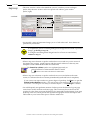
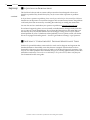
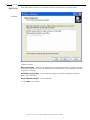
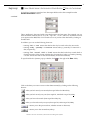
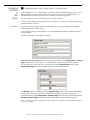
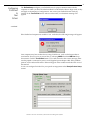
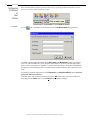
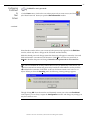
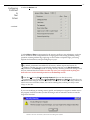
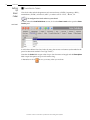
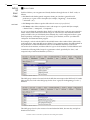
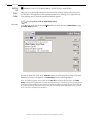
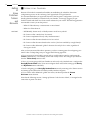
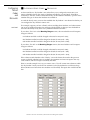
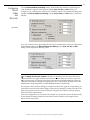
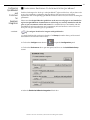
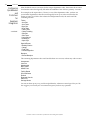
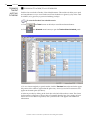
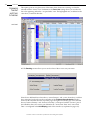
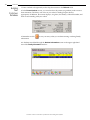
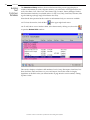
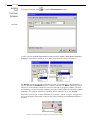
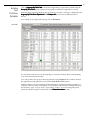
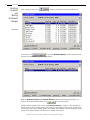
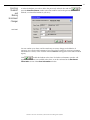
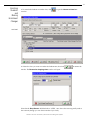
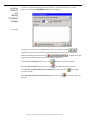
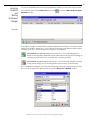
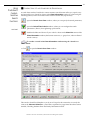
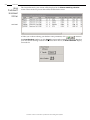
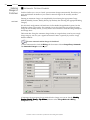
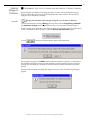
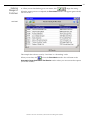
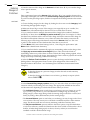
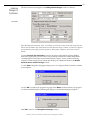
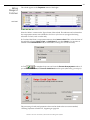
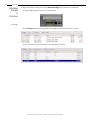
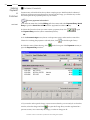
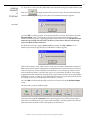
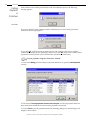
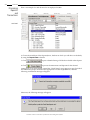
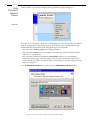
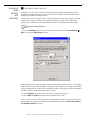
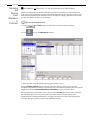
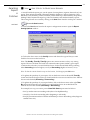
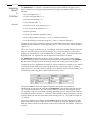
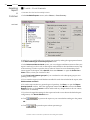
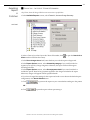
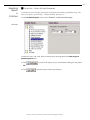
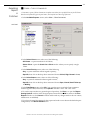
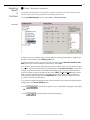
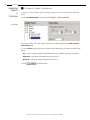
However, bear in mind that if you use a lesser height value, such as the 20 pixels default
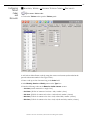
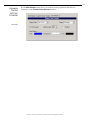
height, you can still easily access an entry’s data simply by clicking on it once to open the
Enter Planner Item window:
-continued-
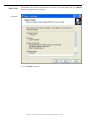
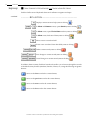
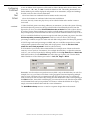
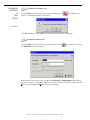
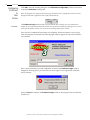
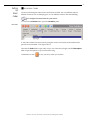
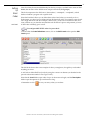
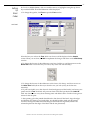
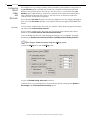
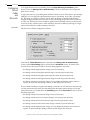
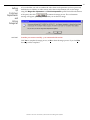
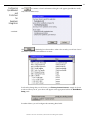
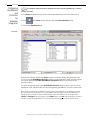
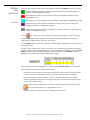
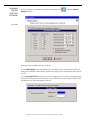
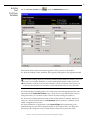
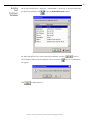
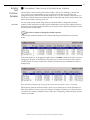
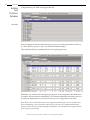
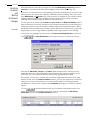
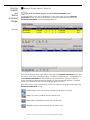
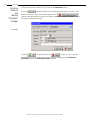
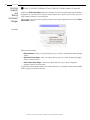
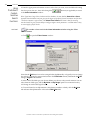
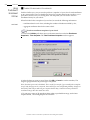
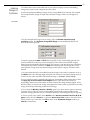
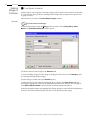
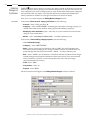
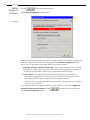
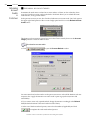
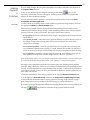
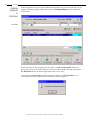
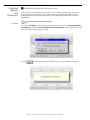
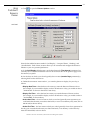
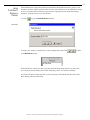
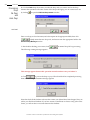
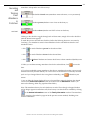
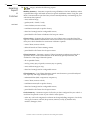
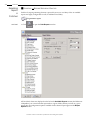
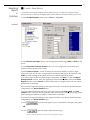
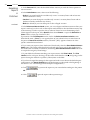
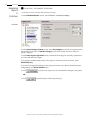
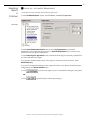
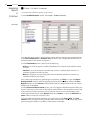
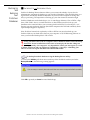
4e. If you want the Planner to display additional information for a given item in a “hint
balloon“ when you roll over it with your mouse, check the Show Item Hints? box.
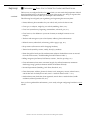
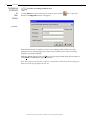
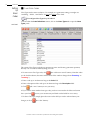
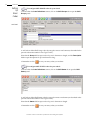
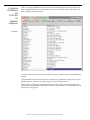
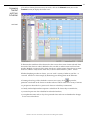
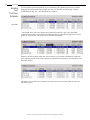
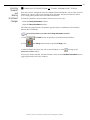
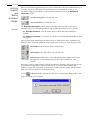
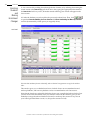
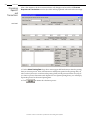
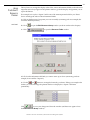
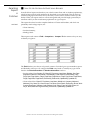
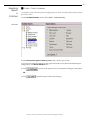
4f. If you want ProSchool to scale the planner so that it fills the window correctly, check the
Scale Planner to Fit Window? box.
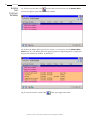
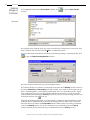
4g. If you want ProSchool to print the Planner in color (as it appears on the screen) instead of
in monochrome (shades of gray), check the Print Planner in Color? box.
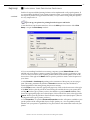
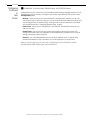
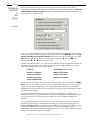
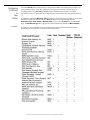
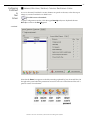
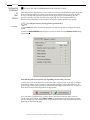
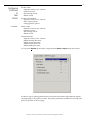
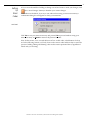
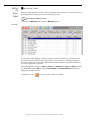
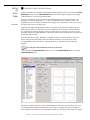
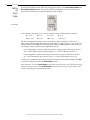
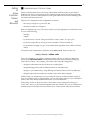
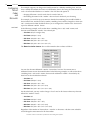
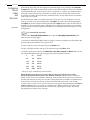
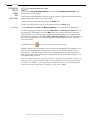
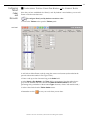
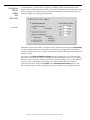
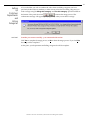
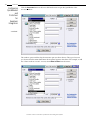
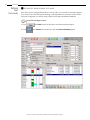
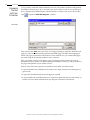
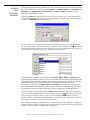
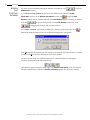
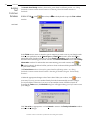
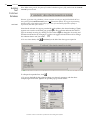
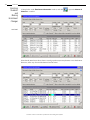
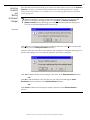
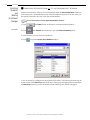
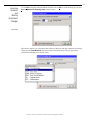
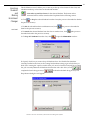
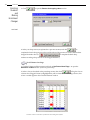
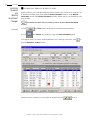
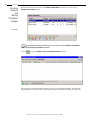
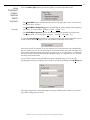
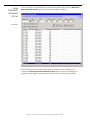
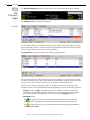
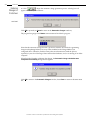
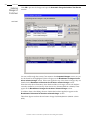
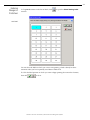
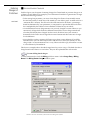
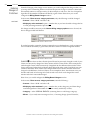
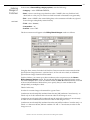
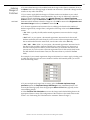
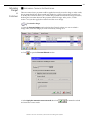
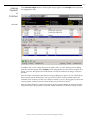
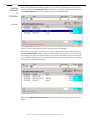
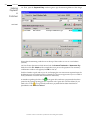
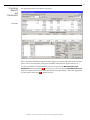
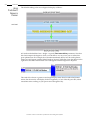
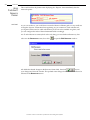
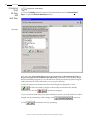
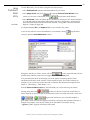
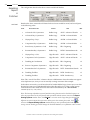
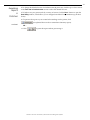
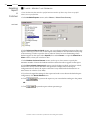
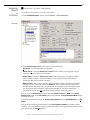
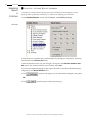
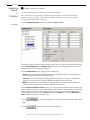
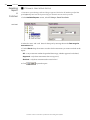
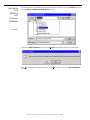
5a. In the Occupied Times tabbed section, you can select whether you want to have
“occupied” time slots represented in a different color scheme to set them apart:
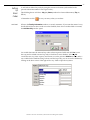
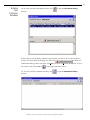
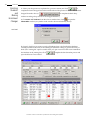
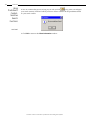
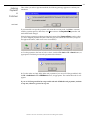
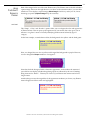
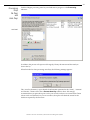
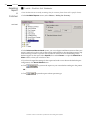
If so, click the Show Occupied Times? check box and choose the colors you prefer.
ProSchool –The Next Generation of School and Class Management Software