1
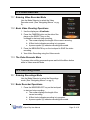
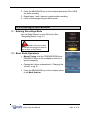
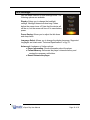
9.3 Skip to the previous or next photo file by pressing the FORWARD/DOWN or REWIND/UP keys on the touchpad. Return to the previous lists and menus by pressing the MENU/BACK key on the touchpad. My Pictures Menu Commands To access picture editing commands, like rotate, zoom, and delete press and hold the Menu button while viewing a picture. 10.0 Shooting Photographs 10.1 Entering Camera Mode Use the Mode Selector to select the Camera mode. (See “Navigating Menus” on pg. 9.) 10.2 Basic Photo Shooting Operations 1. Use the display as a Viewfinder. 2. To Zoom: a. IN: Press the FORWARD/DOWN key on the touchpad. b. OUT: Press the REWIND/UP key on the touchpad. 3. Press the CAMERA button on the side of the player to take a picture. 4. Press the MENU/BACK key on the touchpad to return to the Main Menu. 5. View Pictures using the Pictures mode. 10.3 Camera Menu Commands To access Camera commands like brightness and white balance press and hold the Menu button when in Camera Mode. eSport Clip User Manual Page 14 of 22