1
Updating your Graphics Card Drivers
1.
2.
3.
4.
5.
6.
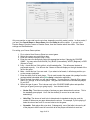
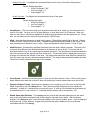
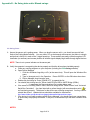
Hold the <Windows Logo key > & <R> to open the Run Menu
In the Open box, type ‘msinfo32’ and press the <ENTER> key
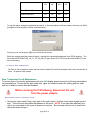
This will open a System Information screen.
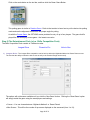
In the right column, Double-click on the Components listing (to expand the list).
Click on the Display listing. This will refresh the right pane.
All information regarding your Graphics will be displayed there. The Graphics Card (or chipset) name will
be listed at the top.
7. You should now go to the manufacturer website to download & install the most recent driver.
The major Graphics Card Manufacturer websites are:
Intel - http://downloadcenter.intel.com/default.aspx?iid=gg_support-EN_01+home_downloadctr
nVidia - http://www.nvidia.com/Download/index.aspx?lang=en-us
ATI or Radeon - http://support.amd.com/us/gpudownload/Pages/index.aspx
Note that these are subject to change at any time.
Flashing Graphics
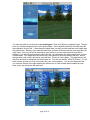
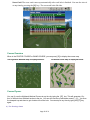
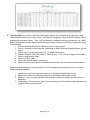
If you see flashing in the smaller views on the right side of the screen:
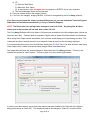
1. Try resizing the windows. The windows can be resized by dragging the lines around the boxes. If
the boxes are not wide enough, they will begin to flash.
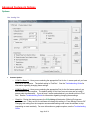
2. Try updating your graphics drivers as outlined above.
3. Try adjusting your graphics settings as outlined above.
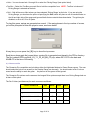
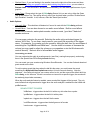
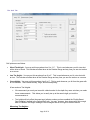
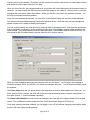
4. Select to Redraw views in the Configuration Options portion of the Options dialog. This should NOT
be used unless necessary, as it will reduce performance of your graphics.
Page 62 of 71