1
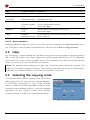
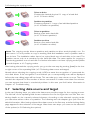
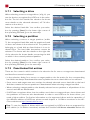
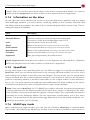
5.6 Selecting the copying mode Drive-to-drive Creates the classical physical 1:1 copy of a hard disk (6.1.3 Drive-to-drive). Partition-to-partition Creates a physical 1:1 copy of an individual partition (6.1.4 Partition-to-partition). Drive-to-partition Backup of an entire hard disk (6.1.5 Drive-to-partition). Partition-to-drive Restore of an entire hard disk (6.1.6 Partition-to-drive). Note: The copying modes drive-to-partition and partition-to-drive work physically, too. For this reason, it is not possible to copy a working hard disk installation onto a partition and to use it there. The installation rather has to be copied back onto a hard drive to be used. The partition serves only as a container for the hard disk data. The same applies for copying a functioning partition onto a hard disk. For further information on these copying modes please consult chapter 6.1 Copying modes. After having selected the copying mode, you go to the next step by pressing [next] in the lower right corner of the operating field (5.7 Selecting data source and target). Already when selecting the copying mode, HDClone starts the recognition of connected devices and drives. If the recognition is not finished yet, a corresponding note will be displayed before the next dialog page will be shown. This can take up to one minute or more. The time needed also depends on the number of drives connected. If it takes more than five minutes, you can assume that there is a technical problem. In this case you find further information in chapter 7 Troubleshooting. 5.7 Selecting data source and target In the two following steps, you select the data source and the target for the copying process. The left half of the operating field shows a selection list. On the right side is an info box containing details on the currently selected element. According to the selected copying mode, you can select either a drive or a partition. The following two sub-chapters give you more detailed information. After having selected the data source in the first step, a similar looking dialog page appears for the selection of the target. After these two steps, you come to the selection of the options (5.8 Selecting the options). 27