1
Chapter 7 Writing Data in Microsoft
Access 2003 at XP Operating System
Before creating testing example, make sure to change the upload and download option
(Options > Environment) on DOPSoft first. The default setting of upload and download is via
USB. If the users need to use Ethernet, please change the default setting by referring to
Appendix A.
7.1 Example
This example is used to help the users to understand how to use eServer to read the data of
the register addresses $3 and $6 every second, record the data in Microsoft Access database
via ODBC interface, and save the collected data into the specified folder (C:\Data).
7.1.1
Database Setting
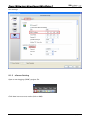
1. Installing MSDE
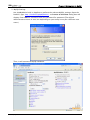
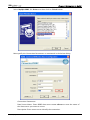
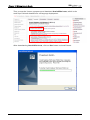
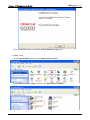
First download the free software MSDE from the Microsoft web site. To download it, go
to http://www.microsoft.com/downloads/details.aspx?familyid=413744d1-a0bc-
479f-bafa-e4b278eb9147&displaylang=zh-tw#filelist and a download link will redirect
the users to download it.
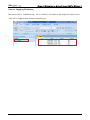
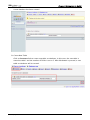
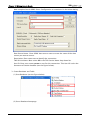
After running the self-extracting file, open setup.ini file within MSDE subdirectory for
editing.
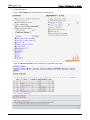
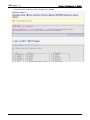
In the setup.ini file under the [Options] tag insert:
SAPWD=”0000”
SECURITYMODE=”SQL”
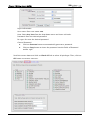
The SAPWD is the password required for the system administrator (SA) login account. In
this case, the SA login password is set to 0000. The users can set the desired password
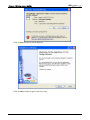
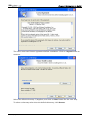
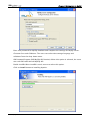
freely. Once the setup.ini file is saved, double-click setup.exe to complete MSDE
installation.
Revision July, 2012
7-1