1
Product Model: WT-215W
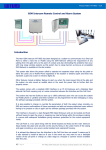
User Manual For WT‐215W WIFI Switch Applications Simply plug the WIFI Switch, run the software and now anybody can switch on/off the devices via the PC. The unit also supply with scheduler function. You can set the schedule in your PC, Androids, IPhones and Smart Phones to turn on / turn off the devices connected. Witura’s model WT‐215W is a 1 relay output solution that connects to the internet. The equipment which connected to it can be controlled by the web based software provided. All you need is PC or your Smart Phones and you can control anything 1 | P a g e User Manual V1.4 Updated Aug 2013
Power Supply Power Supply: AC220V/AC110V Connection Diagram 1. Restore the factory settings and connect to a wireless network signal wifino1 Open the WT‐215W WIFI Switch casing’s cover, connect with the power source, the RED LED light will lit, press the switch next to the LED lights, you will hear the sound from the relay ‘tick’, this means that the relay is now on, at the same time the green LED light will lit. When press the same switch, you will hear the sound from the relay ‘tick’, this means the relay is now off and at the same time the GREEN LED light will off. Now, press the switch next to the LED light and hold for 10 seconds. The BLUE LED light will blink. Wait till the BLUE LED light stop blinking. The module is now restoring to factory default status. Factory Default Status as per below; 2 | P a g e User Manual V1.4 Updated Aug 2013
Factory Mode: AP The default network name: wifino1 Default IP: 192.168.1.100 After restore to the factory default, search for the available WIFI networks with the name network name wifino1, and make the connection. As show below; Next, at the IE browser type 192.168.1.100, and you will go to the login in page. 3 | P a g e User Manual V1.4 Updated Aug 2013
After log in, you will go into the setting page for the WIFI Router as shown below; 2. Network parameter setting Note 1. MAC Address is the MAC Address Of your WT‐215W 2. Work Type is Sta (Not required to Change) 3. SSID is the name of the your wireless network name, please enter with the case‐sensitive 4. Encryption as Disable (Not required to change whether your wireless network is WPA, WPA2, WEP, WPA Enterprise, WPA2 Enterprise) 5. Encryption Key is the password for your wireless network. 6. After setting parameter points Save to save, display the page will automatically refresh 7. Click the system restart in order to Reset the WIFI Switch (WT‐215W) 4 | P a g e User Manual V1.4 Updated Aug 2013
8. Network parameter setting is completed, WIFI wireless router start connecting WIFI Switch (WT‐215W), the blue LED light will lit after the successful connected to the WIFI router 3. Remote Control From PC Go to URL: http://www.myswitchstore.com/new.html User Name: Password: 4. User Account Registration New users need to register a user account, visit our Web site: http://www.myswitchstore.com/new.html For the first time user, click on the page "Registered" button in the pop‐up window fill in the user registration information (If you have already registered an account before, you just need to fill up the User Name and Password and click the Log In button), as shown below; 5 | P a g e User Manual V1.4 Updated Aug 2013
User Registration Need to take notes: 1. A user name and password are the sole user login credentials; please take good care of their own user name and password. 2. User registration user name is already registered, please change other user name 3. Registered users must enter a valid e‐mail address in order to retrieve the user forgets the password the user password. 5. User Add Product Users enter their user name, password, at the main page login control window. Example user name: witura04, password: 123456 as shown on below; 6 | P a g e User Manual V1.4 Updated Aug 2013
After you successful log in, you will see the page as shown on below; Go to the setting page to make the setting to connect the WT‐215W, simply click the setting button at the right bottom button as shown on below; Users add the WIFI Switch, please ensure "WIFI network for the WIFI Switch parameters have been set, WIFI Blue LED light is lit, and the WIFI Switch’s MAC address copied down", otherwise it will not be successfully added. 7 | P a g e User Manual V1.4 Updated Aug 2013
Please get the unit MAC Address from the WIFI module as show below; After you click the setting button, you will go into the setting page as show on below; Click the “+” and you will need to fill up the mac address column mac password column, and name column. As show below; 8 | P a g e User Manual V1.4 Updated Aug 2013
mac address: Enter the 12 MAC address (From the WIFI Module at the WT‐215W) mac password: 123 (Fixed Password) name: Enter Name (based on the name you desired) After fill up the information of the mac address, mac password, name, and then click the ok button. You will see the below after successful added. 9 | P a g e User Manual V1.4 Updated Aug 2013
If you see the picture as shown per below, this is means that the unit did not connect to the MAC Address. The reason will be the MAC Address already been used (Please make sure that 1 MAC Address only can be use in 1 Account User) or the unit did not connect to the wireless network. You can press the “Pencil” sign if you need to delete off the particular WT‐215W. You will see the page as shown on below; 10 | P a g e User Manual V1.4 Updated Aug 2013
Press the back button from the setting page to go back to the main control page as show on below; The GREEN Light at the upper left corner as shown on the below means that the WIFI module is now online or have been connected and you can control the WIFI Switch now. If the Light showing GREY colour as show below which means that the WIFI module is not online or not connected and you are not able to control the WIFI switch at this moment. 11 | P a g e User Manual V1.4 Updated Aug 2013
When WIFI module online, touch the icon in the upper right corner of the switch, the icon will be illuminated, indicates WIFI switch is turned on; once again touch switch icon, the icon will turn gray, WIFI switch off. As show on below; OR
12 | P a g e User Manual V1.4 Updated Aug 2013
6. Scheduler Function WIFI Switch supports timer, the user can arbitrarily set according to their needs WIFI timer switch. Users can do the setting the timer clicking on the blank space below to set the WIFI switch switch‐on time and switch‐
off time. As shown below; Click the Turn On column and you can see as per below; 13 | P a g e User Manual V1.4 Updated Aug 2013
Fill up the date, hours, minutes column that you need to let the WT‐215W to Turn On. Click the confirm button to confirm the Turn On time. 14 | P a g e User Manual V1.4 Updated Aug 2013
Click the Turn Off column and you can see as per below; Fill up the date, hours, minutes column that you need to let the WT‐215W to Turn Off. Click the confirm button to confirm the switch off time. 15 | P a g e User Manual V1.4 Updated Aug 2013
When it is the Turn On time that you set to make the unit Turn On, the unit will switch on and you will see the light for the power button will lit. As shown below; When reach the Turn Off time, the unit will Turn Off and you will see the light for the power button will switch off. As shown below; 16 | P a g e User Manual V1.4 Updated Aug 2013
You can change the password by click the user name at the upper right corner and go into the changing password’s page. As shown per below; Fill up the current password at the old PWD column, new PWD, retype PWD and click the modify button. If you decide not to change the password, you can just click the cancel button. As show on below; 17 | P a g e User Manual V1.4 Updated Aug 2013