1
Using Templates
3
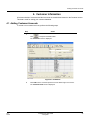
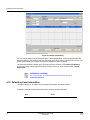
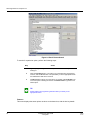
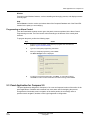
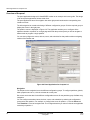
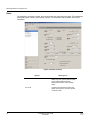
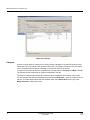
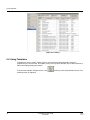
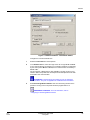
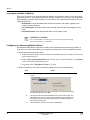
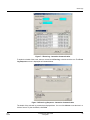
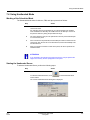
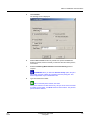
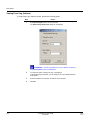
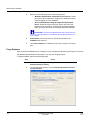
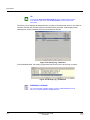
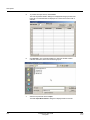
To edit the data you have saved, click Edit to the top-left of the Template
Name column (refer to Figure 6-18 Available Templates).
The Panel Template Data dialog box opens again and allows you to make
changes to the Revision and Template Name.
ATTENTION: The Panel selection cannot be changed using Edit.
Modifying Templates
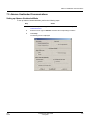
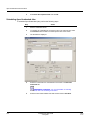
To modify an existing template, perform the following steps:
Step
Action
1
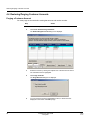
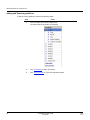
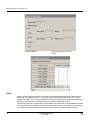
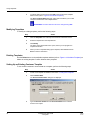
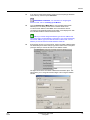
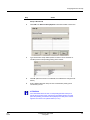
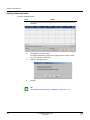
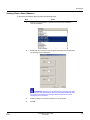
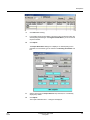
Click the Templates icon at the top of the Customer Information screen.
2
Select the template from the Templates list.
3
Click Modify.
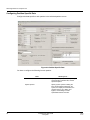
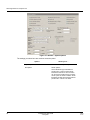
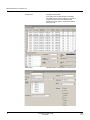
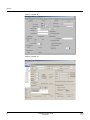
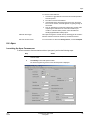
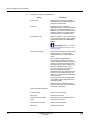
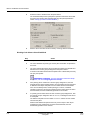
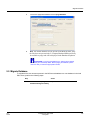
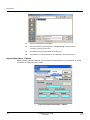
The alarm control Panel Edit screen opens, where you can program the
template information.
4
When you have completed setting up the template, select Close and then
Save to save the information.
Deleting Templates
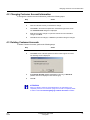
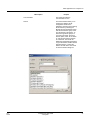
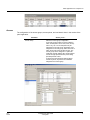
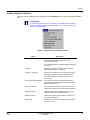
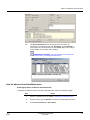
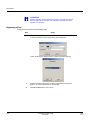
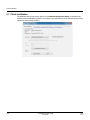
Use the Delete button on the available templates window (refer to Figure 6-18 Available Templates) to
delete an existing template. Confirm deletion when prompted.
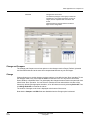
Setting Up an Existing Customer Template
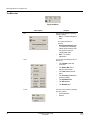
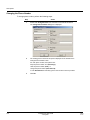
To use another customer’s account data as a template, perform the following steps:
Step
Action
1
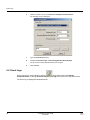
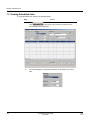
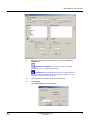
Create a new template as detailed in the section Creating New Templates .
2
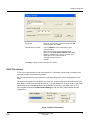
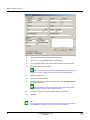
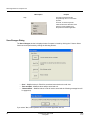
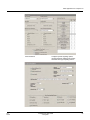
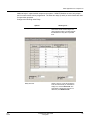
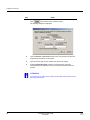
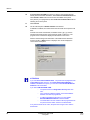
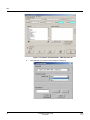
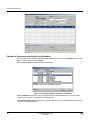
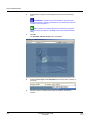
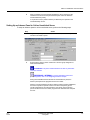
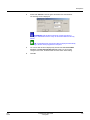
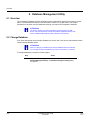
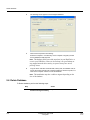
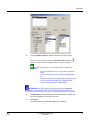
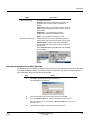
Click Customer Data.
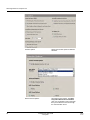
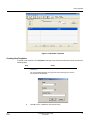
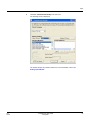
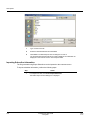
The Select Customer Data.. dialog box is displayed.
3
78
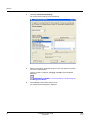
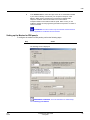
Type the Receiver Number and the Account Number of the customer
account to be copied.
Compass 2.0 User Guide
Honeywell
R2.0
07/10