1
5.8
Registering new instruments
A new instrument with LM-Instruments’ information may be registered with the reader by performing an activity
permitted for it. This kind of activity is usually Maintenance or Autoclaving in.
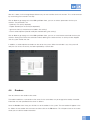
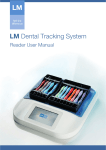
When a new instrument is read by a reader for the first time, the counter will turn red. After completing the first
activity, the instrument will be registered and follow cycles.
You can check to see whether the instrument has been successfully registered by re-reading the instrument
after completing the first activity. Press the i button to ensure that the instrument is no longer unknown. Once
this is done, the counter will no longer turn red.
Normally, the reader does not issue error notifications. It may, however, issue an error notification if the first
activity is a ‘Clinical use’ type, as this kind of activity requires sterilised instruments.
5.9
HID mode use and registering new instruments through the server
When the reader is in HID mode, it is connected to a computer. In HID mode, unknown instruments, such as
those from a manufacturer other than LM-Instruments Oy, may be added to the system. Instruments are added
to the system through the server in the following manner:
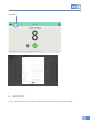
Select HID mode by pressing the HID icon found in the upper left-hand corner of the reader display. Also, ensure
that the reader is connected to the computer.
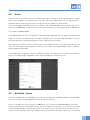
Log in to the server and go to the Instruments view. Click on the Add button. This will open the Edit instruments
box. Activate the Tag ID field by clicking on it.
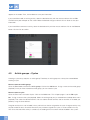
Place the desired instrument(s) on the reader. The reader will display the number of instruments it recognises
and the Tag IDs will appear in the Edit server box in the Tag ID field. Enter the required information in the other
Edit box fields and then click on the Save button. This will close the Edit box and the server will return to the
Instruments. The added instruments will now appear in the instrument table.
Once this is done, you can take the reader out of HID mode, log in to the reader and then select and perform
activities in the normal manner.
20