1
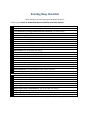
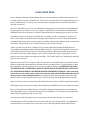
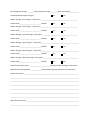
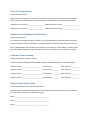
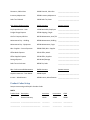
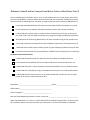
New Shop Checklist
Shops starting to use MaxxTraxx Pro CE as of their first day of business
*These sections MUST BE COMPLETED PRIOR TO WRITING YOUR FIRST INVOICE
*Company Information (see under Setup)
*Repair Order and Parts Invoice Setup (see under Setup)
*This Workstation Printing and Miscellaneous Info Setup (see under Setup)
*Sales Tax Rates (see under New User Setup)
*Security Groups Setup (see under Setup)
*Employees and Employee Permissions (see Add An Employee under Payroll)
Customer Sources Setup (see under Setup, Marketing Setup)
Repair Order Status Setup (see under Setup, Lists)
Parts Invoice Status Setup (see under Setup, Lists)
Cancellation Reasons Setup (see under Setup, Lists)
Cash Drawers (see under New User Setup)
Departments (see under New User Setup)
Product Codes (see under New User Setup)
Payment Methods (see under New User Setup)
Database Backup Setup (see under Setup)
Enter Vendors (see Add A Vendor under Accounts Payable)
Enter Custom Labor Services (see Add A New Labor under Service Counter)
Enter Custom Kits (see Add A New Kit under Service Counter)
For Accounting Users:
*Fiscal Year Start Date (see under New User Setup)
*Default Account Posting (see under New User Setup)
*Product Codes (see under New User Setup)
Company Payroll (see under New User Setup)
Beginning Checking Balances (see under New User Setup)
Beginning General Ledger Balances (see under New User Setup)
Order computer checks**
**Computer checks for MaxxTraxx can be ordered through All Valley Printing at (559) 453-6950