1
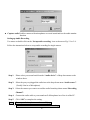
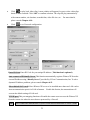
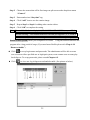
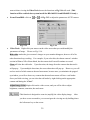
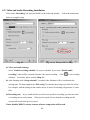
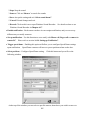
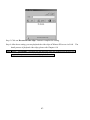
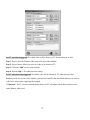
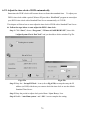
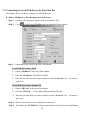
Step 4: Press “OK” to register your number to an IP identify server.
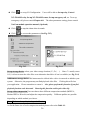
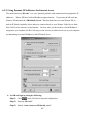
z Enable “Connection limit to”: local server could set the duration time which allows remote
users connect to local server.
•
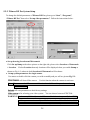
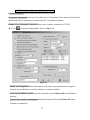
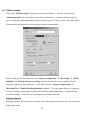
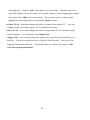
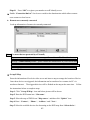
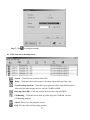
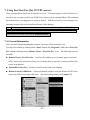
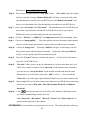
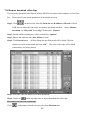
Remote users currently connected
Look up information of remote site currently connected.
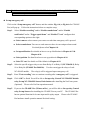
Note: (For users that are protected by a Firewall)
If you are encountering either the error message “Cannot locate IP address” or the error
message “Cannot identify server”, please contact the manufacturer of your Firewall and
ask them how to create a PORT MAPPING. This will create a hole in your firewall. This
Port Mapping will enable the remote user to access the Witness XP from the remote site.
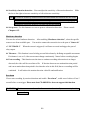
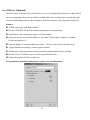
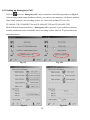
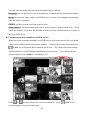
z Set up E-Map
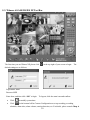
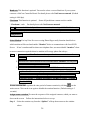
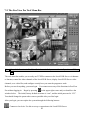
Enter the information of local site video server and insert a map to arrange the location of device.
Once these devices are triggered, the information can be transferred to a remote site PC via
modem or Internet. The triggered devices will be flashed on the map at the same time. Follow
the instructions below to complete setup.
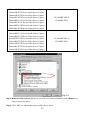
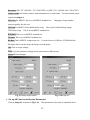
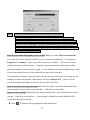
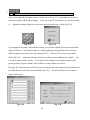
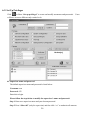
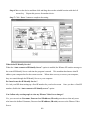
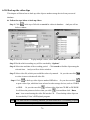
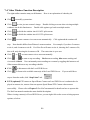
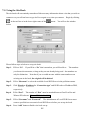
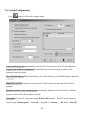
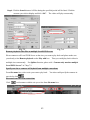
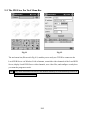
Step 1. Click ” Set up E-Map “ icon and below picture will be shown.
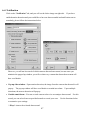
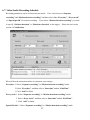
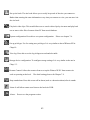
Step 2. Enter the DVR name into “ Site name “.
Step 3. Select the map of DVR from “ Map source “ and then click “Update” icon.
Step 4. Enter “ Contact “, “ Phone “, “ Address “ and “ Note “.
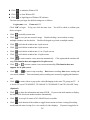
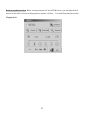
Step 5. Select the available devices for decorating on the DVR map from “Select device“.
65