1
Table of Contents
SEC TIONS
1
2
3
4
5
6
Operation
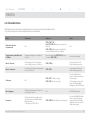
List of Available Actions
KVM Combiner in User mode can be controlled via touch screen, mouse clicks and keyboard shortcuts.
In System mode only mouse clicks and keyboard shortcuts are available.
Action
Touch screen
Keyboard
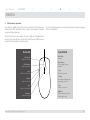
Mouse
Define Custom Presets
in System mode
N/A
CTRL, CTRL, F1-F4
Note: CTRL, CTRL, F4 sets the custom preset for
Tile mode.
CTRL, CTRL, Q will always show the default Tile
mode with 4 equally sized panes in display
N/A
Toggle between System Mode and
User Mode
Tap uppermost right corner of display for
4 seconds
Move to System mode: CTRL, CTRL, O , Move to
User mode: CTRL, CTRL, U
Press Side Mouse Button
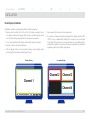
Move to Tile mode:
In Tile mode press 4 Sec on lower right
corner of display to move to Scale mode
CTRL, CTRL, Q
In System mode Select Tile
button in bottom grey menu
Move to Scale mode:
In Scale mode click 4 times on primary pane
to move to Tile mode
CTRL, CTRL, S
In System mode Select Scale
button in bottom grey menu
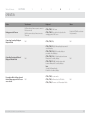
Scale panes
N/A
CTRL, CTRL, ”-“ : Reduce Scaling
CTRL, CTRL, ”+” : Increase Scaling
Press and hold Side mouse
button + Scroll wheel to reduce/
increase scaling.
For Fast scaling use mouse Side
button & Scroll wheel while
holding pressed Left CTRL button
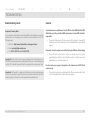
Move/drag panes
In Tile mode tap the upper left corner of a
specific pane to move it
N/A
Left-Click Mouse button
Resize pane
In Tile mode tap the lower right corner of
a specific pane to resize window without
fitting the content.
To fit content use CTRL, CTRL, W
CTRL, CTRL, W: Fit the desktop to the resized pane
Press and hold Right-Click Mouse
button to resize pane. Maybe
only part of the desktop will be
displayed (see mouse actions for
further resize options).
HSL SC62HU-3/SC102HU-3 Secure KVM Combiner
33