1
5
Programming The AreaList Pro User Interface
Internal Sorting
When you are displaying arrays, the default behaviour is for arrays to be physically sorted. However, you can turn
physical sorting off using the ALP_Area_DontSortArrays property - for example:
AL_SetAreaLongProperty (area; ALP_Area_DontSortArrays;1)
This is required (it is set internally) when displaying a hierarchy (the hierarchy can be sorted).
When ALP_Area_DontSortArrays is on:
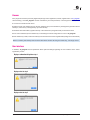
When the user clicks a row, the real row number in your arrays is reported - independently from the position
on-screen:
C — 1
B — 2
A — 3
D — 4
A click on “A” will report 3 as the clicked row
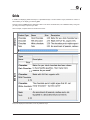
If the data is sorted on the first column, the user will see:
A — 3
B — 2
C — 1
D — 4
A click on “A” will report 3 as the clicked row (and because the arrays are untouched, the third element is “A”).
You can request the internal sort order as follows:
ARRAY LONGINT($aIndex;0)
$err:=AL_GetObjects (area;ALP_Area_Sort;$aIndex)
You will get 3, 2, 1, 4 in $aIndex.
In other words, if internal sorting is on, arrays are not sorted - the row order is sorted internally by AreaList Pro. If
internal sorting is off, the arrays are all sorted.
Why might you want to turn internal sorting on?
Because it will give improved performance.
For example, let’s suppose you have 40 parallel arrays, and the user is presented with just 3 of those arrays.
But because it can be sorted, you have to add the rest of the arrays as invisible, and AreaList Pro has to sort
(physically move all data in) all 40 arrays.
You don’t have to add all the arrays; you can add just one index array and access all the other arrays indirectly.
When you use this feature, you only have to add the 3 displayed arrays - the order of the arrays will not change.
AreaList Pro will sort only the internal index array.
Note: when a hierarchical list is shown, internal sorting is always turned on when a sort is performed.
Sorting
79