1
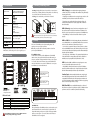
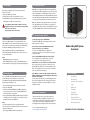
(1) Specifications
Inserting: Gently pull the lever and open the door. Insert/remove
drive into bay. To close, pull the lever and push the door all the way
closed. Release the lever when the door is closed.
Locking: Use the included key to lock the door if desired.
3.5” SATA I/II/III HDD/SSD (Must be
RAID qualified. Check with mfg.)
Supported Drives
(5) RAID Modes
(3) Inserting or Removing Drives
FireWire 400
RAID 0 Striping
RAID 1 Mirroring
RAID 10 Striping+Mirroring
RAID 3
RAID 5
CLEAR RAID (JBOD)
RAID Modes
We recommend using only enterprise or NAS drives. Drives such as
WD Green, Blue, Black, and Seagate Barracuda are NOT recommended
and may inhibit performance & limit technical support.
(4) Setup
Package Includes: Mobius 5-Bay, USB 3.0 cable, FW800 cable,
FW400 cable, eSATA cable, power cord, user guide, key set
Clear RAID Procedure:
Set the switches on the back of the RAID unit to Clear RAID (all
switches down). Press and hold the SET button while turning on
the power. Hold the SET button until the 2nd beep occurs (approx.
10 seconds). Release the SET button. Any previous RAID mode is
removed and the drives are now set for JBOD mode. You may set a
new RAID mode, or leave in JBOD mode.
(2) Detailed View
1
3
4
Set the RAID switches to
the desired mode.
10
Press and hold SET button
and turn on the power.
12 8 7
6
(JBOD)
3.Drive Bay
4. Voltage Select Switch
LEDs and Sound:
Condition
Drive LED
Powered & ready
Read/Write activity
Drive Error
HDD Sleep / Eject
RAID 1 Rebuilding
Solid blue
When set to RAID 1 or RAID 10 mode
RAID 1: Insert only 2 HDDs (Bay 1-2)
RAID 10: Insert 4 HDDs (Bay 1-4)
= Switch Position
Rapid blinking purple
Solid red or purple; Sounder will beep (press SET to silence)
Off
Slow blinking purple (approximately 3 blinks per second)
Note: The sounder will beep when the unit is powered up.
Set the Mobius upright on its feet. The Mobius does not
function properly when laying on its side.
across all disks (RAID 5) or one disk (RAID 3). RAID 5 is the most common
mode due to the combination of redundancy and speed.
• 3 or more drives are required. If hotspare is desired, insert 3 or 4 drives
and create the RAID. Then insert a 4th or 5th drive(s) in bay 4 and/or 5 to be
used as a hotspare. When a drive fails, the spare drive will automatically be
rebuilt to replace the failed drive.
• The total capacity = all disks minus 1. The capacity is limited by the size
of the smallest disk. For example, if three 2 TB and two 3 TB drives are
installed, the total capacity will be 8 TB ((2 TB x 5 disks) - 1 disk).
RAID 10 combines RAID 0 and RAID 1 in one single system. It creates
two sets of striped disks and then mirrors these sets.
• Only 4 HDDs are allowed for the function to perform. If 5 HDDs are
inserted, the 5th drive will be used as a hotspare. When a drive fails, the
5th drive will automatically be rebuilt to replace the failed drive.
Combine (Span) combines multiple hard drives into a single logical
unit. Unlike Striping, it writes data to the first drive until it reaches full
capacity. When the first disk reaches full capacity, data is written to the
second disk. Spanning provides the maximum possible storage capacity,
but does not increase performance or safety.
5
9
the same data. In this mode, the data is simultaneously written to two
disks. The speed of operation is slow in comparison to other RAID modes.
• Only 2 HDDs (bay 1 and 2) are allowed for the function to perform
properly.
RAID 3 or RAID 5 use block-level striping with parity data distributed
Perform a “Clear RAID” procedure after installing drives. This
applies to new or previously used drives.
Note: This procedure will not delete the partition or data from
previously used JBOD drives.
10.5 x 5.1 x 7.4 inches
11
combines data evenly across multiple drives simultaneously, dramatically
increasing performance.
• In Striping mode, it will be viewed as one single storage unit. If one disk
in the RAID System fails, all data in installed disks will be lost.
• The total capacity = smallest drive X the total number of drives. For
example, if the smallest drive is 1TB, the capacity will be 5 TB when 5
drives are installed.
RAID 1 (Mirroring) consists of two drives storing duplicate copies of
Windows XP/7/8 or higher
Mac OS 10.4 or higher
2
RAID 0 (Striping) is a non-redundant data mapping technique. It
Set RAID Mode:
After performing the Clear RAID procedure, set the switches on the
back of the Mobius to the desired mode. Press and hold the SET
button while turning on the power. Hold the SET button until the
2nd beep occurs (approx. 10 seconds). Release the SET button.
The RAID mode is now configured.
JBOD (Clear RAID) is not actually a RAID. It simply is a collection of
drives that are recognized as separate drives by the OS. JBOD provides no
performance increase or redundancy. This is the default setting.