1
Field Installation Guide
Orchestrator 1.0
12-Feb-2014
Notice
Copyright
Copyright 2014 Nutanix, Inc.
Nutanix, Inc.
1740 Technology Drive, Suite 150
San Jose, CA 95110
All rights reserved. This product is protected by U.S. and international copyright and intellectual property
laws. Nutanix is a trademark of Nutanix, Inc. in the United States and/or other jurisdictions. All other marks
and names mentioned herein may be trademarks of their respective companies.
License
The provision of this software to you does not grant any licenses or other rights under any Microsoft
patents with respect to anything other than the file server implementation portion of the binaries for this
software, including no licenses or any other rights in any hardware or any devices or software that are used
to communicate with or in connection with this software.
Conventions
Convention
Description
variable_value
The action depends on a value that is unique to your environment.
ncli> command
The commands are executed in the Nutanix nCLI.
user@host$ command
The commands are executed as a non-privileged user (such as nutanix)
in the system shell.
root@host# command
The commands are executed as the root user in the hypervisor host
(vSphere or KVM) shell.
> command
The commands are executed in the Hyper-V host shell.
output
The information is displayed as output from a command or in a log file.
Default Cluster Credentials
Interface
Target
Username
Password
Nutanix web console
Nutanix Controller VM
admin
admin
vSphere client
ESXi host
root
nutanix/4u
SSH client or console
ESXi host
root
nutanix/4u
SSH client or console
KVM host
root
nutanix/4u
Field Installation Guide | NOS 3.5 | 2
Interface
Target
Username
Password
SSH client
Nutanix Controller VM
nutanix
nutanix/4u
IPMI web interface or ipmitool
Nutanix node
ADMIN
ADMIN
IPMI web interface or ipmitool
Nutanix node (NX-3000)
admin
admin
Version
Last modified: February 12, 2014 (2014-02-12-19:22 GMT-08:00)
Field Installation Guide | NOS 3.5 | 3
Contents
Overview....................................................................................................... 5
Preparing Installation Environment........................................................... 7
Imaging a Cluster (standard method)..................................................... 12
Fixing IPMI Configuration Problems..................................................................................................15
Fixing Imaging Problems...................................................................................................................16
Cleaning Up After Installation........................................................................................................... 18
Imaging a Cluster (manual method)........................................................ 19
Preparing Nutanix Nodes.................................................................................................................. 19
Completing Installation...................................................................................................................... 22
Imaging a Node..........................................................................................25
Installing a Hypervisor....................................................................................................................... 25
Installing the Controller VM...............................................................................................................28
Orchestrator Portal....................................................................................31
Orchestrator Configuration File............................................................... 33
Setting IPMI Static IP Address................................................................. 34
4
Overview
Nutanix installs the Nutanix Operating System (NOS) Controller VM and the KVM hypervisor at the factory
before shipping each node to a customer. To use a different hypervisor (ESXi), nodes must be re-imaged
in the field. This guide provides step-by-step instructions on how to re-image nodes (install a hypervisor
and then the NOS Controller VM) after they have been physically installed at a site.
Note: Only Nutanix sales engineers, support engineers, and partners are authorized to perform a
field installation.
A field installation includes the following steps:
•
Imaging a Cluster (standard method) on page 12:
1. Set up the installation environment as follows:
a. Connect the Ethernet ports on the nodes to a switch.
b. Download Orchestrator (multi-node installation tool) and Phoenix (Nutanix Installer ISO) image
files to a workstation. Also, acquire an ESXi installer from the customer and download it to the
workstation.
c. Install Oracle VM VirtualBox on the workstation.
2. Open the Orchestrator GUI on the workstation and configure the following:
a. Enter hypervisor and IPMI address and credential information.
b. Select the Phoenix and hypervisor ISO image files to use.
c. Start the imaging process and monitor progress.
•
Imaging a Cluster (manual method) on page 19:
1. Set up the installation environment (same as above).
2. Invoke the Orchestrator discovery.py utility from the command line to do the following:
a. Run the node discovery command and then review and update (if needed) the output file.
b. Run the IPMI address configuration command.
3. Create a configuration file that provides IPMI and hypervisor information for each node. The
discovery.py utility produces an initial version of this file.
4. Invoke Orchestrator from the command line using the desired Phoenix and hypervisor ISO image
files.
•
Imaging a Node on page 25:
1. Download the Phoenix and hypervisor ISO image files to a workstation.
2. Sign into the IPMI web console for that node, attach the hypervisor ISO image file, provide required
node information, and then restart the node.
3. Repeat step 2 for the Phoenix ISO image file.
Field installation can be used to cleanly install new nodes (blocks) in a cluster or to install a different
hypervisor on a single node. It should not be used to upgrade the hypervisor or switch hypervisors of
nodes in an existing cluster. The following table lists the hypervisors that can be installed through this
method.
Field Installation Guide | NOS 3.5 | 5
Supported Hypervisors
Product (Series)
ESXi 5.0U2
ESXi 5.1U1
ESX 5.5
NX-1000
NX-2000
NX-3000
NX-3050
NX-6000
NX-7000
Field Installation Guide | NOS 3.5 | 6
Preparing Installation Environment
Imaging a cluster in the field requires first installing certain tools and setting the environment to run those
tools.
Installation is performed from a workstation (laptop or desktop machine) with access to the IPMI interfaces
of the nodes in the cluster. Configuring the environment for installation requires setting up network
connections, installing Oracle VM VirtualBox on the workstation, downloading ISO images, and using
VirtualBox to configure various parameters. To prepare the environment for installation, do the following:
1. Connect the first 1GbE network interface of each node (middle RJ-45 interface) to a 1GbE Ethernet
switch. The nodes must be connected through shared IPMI ports.
Another option is to connect a 10 GbE port and the IPMI 10/100 port or the first 1GbE port. This
provides more bandwidth for installation but requires additional cabling.
Figure: Port Locations (NX-3050)
2. Connect the installation workstation (laptop or desktop machine used for this installation) to the same
1GbE switch as the nodes.
The installation workstation requires at least 3 GB of memory (Orchestrator VM size plus 1 GB), 25 GB
of disk space (preferably SSD), and a physical (wired) network adapter.
3. Go to the Orchestrator portal (see Orchestrator Portal on page 31) and copy the
orchestrator_bundle_version#.tar.gz file (using the scp or wget copy utility) to a temporary directory
on the installation workstation. The version# in the file name is the version number, for example
orchestrator_bundle_1.0.tar.gz for version 1.0.
Orchestrator is the name of the multi-node installation tool. Each Orchestrator bundle file includes the
following:
•
•
Nutanix Orchestrator installation folder (VM descriptions in .vbox and .vmx format and two vmdk
files, a small one and a large "flat" one). The Nutanix Orchestrator VM is used to perform cluster
imaging.
Oracle VM VirtualBox installer (.exe and .dmg VirtualBox installers for Windows and Mac OS,
respectively). Oracle VM VirtualBox is a free open source tool used to create a virtualized
environment on the workstation.
4. Go to the copy location on the workstation and extract the contents of the tar file:
tar [-C output_directory] -xzvf orchestrator_bundle_version#.tar.gz
If you have a Windows machine that does not support the tar command, use the 7-Zip utility. Open
orchestrator_bundle_version#.tar.gz from the 7-Zip GUI and extract the contents (to any convenient
location).
Field Installation Guide | NOS 3.5 | 7
5. Using the Oracle VM VirtualBox installer provided in the bundle, install Oracle VM VirtualBox using the
default options.
See the Oracle VM VirtualBox User Manual for installation and start up instructions (https://
www.virtualbox.org/wiki/Documentation).
6. Create a new folder called VirtualBox VMs in your home directory.
On a Windows system this is typically C:\Users\user_name\VirtualBox VMs.
7. From the location of the extracted Orchestrator bundle, copy the Orchestrator_VM folder to the
VirtualBox VMs folder that you created in step 6.
8. Start Oracle VM VirtualBox.
Figure: VirtualBox Welcome Screen
9. Click the Machine option of the main menu and then select Add from the pull-down list.
10.Navigate to the Orchestrator_VM folder, select the Orchestrator_vm_version# file, and then click Open.
The version# in the file name is the version number, for example Orchestrator_vm_1.0 for version 1.0.
11.Select Nutanix_Installer (which is the Orchestrator VM) in the left panel of the VirtualBox screen.
12.Click Settings (left panel) and do the following:
a. Click Network in the left panel of the Settings screen.
b. Click the Adapter 1 tab (right panel).
c. Verify the following items:
•
•
•
Enable Network Adapter box is checked (enabled).
Attached to field is set to Bridged Adapter.
Name is set to your workstation's physical (wired) network adapter, not a wireless adapter.
d. When the values are correct, click the OK button (bottom of screen) to save any changes and exit
the settings screen.
Field Installation Guide | NOS 3.5 | 8
Figure: VirtualBox Network Settings Screen
13.In the left column of the main screen, select Nutanix_Installer and click Start.
The Orchestrator VM console launches and the VM operating system boots.
14.At the login screen, login as the Nutanix user with the password nutanix/4u.
The Orchestrator VM desktop appears (after it loads).
15.Open a terminal session and run the ifconfig command to determine if the Orchestrator VM was able
to get an IP address from the DHCP server.
If the Orchestrator VM has a valid IP address, skip to the next step. Otherwise, configure a static IP as
follows:
Note: Normally, the Orchestrator VM needs to be on a public network in order to copy selected
ISO files to the Orchestrator VM in the next two steps. This might require setting a static IP
address now and setting it again when the workstation is on a different (typically private)
network for the installation (see Imaging a Cluster (standard method) on page 12).
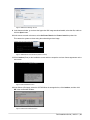
a. Double click the set_orchestrator_ip_address icon on the Orchestrator VM desktop.
Figure: Nutanix_Installer VM: Desktop
b. In the pop-up window, click the Run in Terminal button.
Field Installation Guide | NOS 3.5 | 9
Figure: Orchestrator VM: Terminal Window
c. In the Select Action box in the terminal window, select Device Configuration.
Figure: Orchestrator VM: Action Box
d. In the Select a Device box, select eth0.
Figure: Orchestrator VM: Device Configuration Box
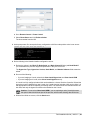
e. In the Network Configuration box, remove the asterisk in the Use DHCP field (which is set by
default), enter appropriate addresses in the Static IP, Netmask, and Default gateway IP fields, and
then click the OK button.
Field Installation Guide | NOS 3.5 | 10
Figure: Orchestrator VM: Network Configuration Box
f. Click the Save button in the Select a Device box and the Save & Quit button in the Select Action
box.
This save the configuration and closes the terminal window.
16.Copy the desired Phoenix ISO image file from the Orchestrator portal (see Orchestrator Portal on
page 31) to the /home/nutanix/orchestrator/isos/phoenix folder.
Phoenix is the name of another installation tool used in this process. There is a Phoenix ISO image
file for each supported NOS release. See the Phoenix Releases section in Orchestrator Portal on
page 31 for a list of the available Phoenix ISO images.
Caution: Phoenix release 1.0.1 is the earliest supported release; do not use a Phoenix ISO
image from an earlier release.
17.Download the desired hypervisor ISO image to the /home/nutanix/orchestrator/isos/hypervisor
folder.
Customers must provide the ESXi ISO image from their purchased copy; it is not provided by
Nutanix. Check with your VMware representative or download it from the VMware support site (http://
www.vmware.com/support.html). The following table lists the supported hypervisor images.
Hypervisor ISO Images
File Name
MD5 Sum
Hypervisor
Version
VMware-VMvisorInstaller-5.0.0.update02-914586.x86_64.iso
fa6a00a3f0dd0cd1a677f69a236611e2
ESXi
5.0U2
VMware-VMvisor2cd15e433aaacc7638c706e013dd673a
Installer-5.1.0.update01-1065491.x86_64.iso
ESXi
5.1U1
VMware-VMvisorInstaller-5.5.0-1331820.x86_64.iso
ESXi 5.5
9aaa9e0daa424a7021c7dc13db7b9409
Field Installation Guide | NOS 3.5 | 11
Imaging a Cluster (standard method)
This procedure describes how to install the NOS Controller VM and a selected hypervisor on all the new
nodes in a cluster from an ISO image on a workstation.
Before you begin.
•
•
•
Physically install the Nutanix cluster at your site. See the Physical Installation Guide for your model type
for installation instructions.
Set up the installation environment (see Preparing Installation Environment on page 7).
Have ready the appropriate IP address and netmask information needed for installation. You can use
the following table to record the information prior to installation.
Note: The Orchestrator IP address set previously assumed a public network in order
to download the approrpriate files. If you are imaging the cluster on a different (typically
private) network in which the current address is no longer correct, repeat step15 in Preparing
Installation Environment on page 7 to configure a new static IP address for the Orchestrator
VM.
Installation Parameter Values
Parameter
Value
Global Parameters
IPMI netmask
IPMI gateway (IP address)
IPMI username (default is ADMIN)
IPMI password (default is ADMIN)
Hypervisor netmask
Hypervisor gateway
Hypervisor name server (DNS server IP address)
Node-Specific Parameters
Starting IP address for IPMI port range
Starting IP address for hypervisor port range
To install the Controller VM and hypervisor on the cluster nodes, do the following:
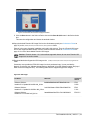
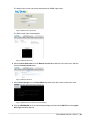
1. Click the Nutanix Orchestrator icon on the Orchestrator VM desktop to start the Nutanix Installer GUI.
Note: See Preparing Installation Environment on page 7 if Oracle VM VirtualBox is not started
or the Nutanix Orchestrator VM is not running currently. You can also start the Nutanix Installer
GUI by opening a web browser and entering http://localhost:8000/gui/index.html.
Field Installation Guide | NOS 3.5 | 12
Figure: Orchestrator VM Desktop
The Nutanix Installer screen appears. The screen contains three sections, global hypervisor and IPMI
details at the top, node information in the middle, and ISO image links at the bottom. Upon opening the
Nutanix Installer screen, Orchestrator beings searching the network for unconfigured Nutanix nodes
and displays information in the middle section about the discovered nodes. The discovery process can
take several minutes (or longer) if the cluster is large. Wait for the discovery process to complete before
proceeding.
Figure: Nutanix Installer: Full Screen
2. In the top section of the screen, enter appropriate values in the indicated fields:
Note: The parameters in this section are global and will apply to all the discovered nodes.
Field Installation Guide | NOS 3.5 | 13
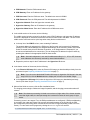
a. IPMI Netmask: Enter the IPMI netmask value.
b. IIPMI Gateway: Enter an IP address for the gateway.
c. IPMI Username: Enter the IPMI user name. The default user name is ADMIN.
d. IIPMI Password: Enter the IPMI password. The default password is ADMIN.
e. Hypervisor Netmask: Enter the hypervisor netmask value.
f. Hypervisor Gateway: Enter an IP address for the gateway.
g. Hypervisor Name Server: Enter the IP address of the DNS name server.
3. In the middle section of the screen, do the following:
The middle section includes columns for the block, node, IPMI IP address, and hypervisor IP address.
A section is displayed for each discovered block with lines for each node in that block. The size of the
middle section varies and can be quite large when many blocks are discovered.
a. In the top line of the IPMI IP column, enter a starting IP address.
The entered address is assigned to the IPMI port of the first node, and consecutive IP addresses
(starting from the entered address) are assigned automatically to the remaining nodes. Discovered
nodes are sorted first by block ID and then by position, so IP assignments are sequential. If you
do not want all addresses to be consecutive, you can change the IP address for specific nodes by
updating the address in the appropriate fields for those nodes.
Note: Automatic assignment is not used for addresses ending in 0, 1, 254, or 255, because
such addresses are commonly reserved by network administrators.
b. Repeat the previous step for the IP addresses in the Hypervisor IP column.
4. In the bottom section of the screen, do the following:
a. In the Phoenix ISO Image field, select the Phoenix ISO image you downloaded previously from the
pull-down list (see Preparing Installation Environment on page 7).
Note: If you do not see the desired Phoenix ISO image (or hypervisor ISO image in the next
step) in the list, click the Refresh button to display the current list of available images.
b. In the Hypervisor ISO Image field, select the hypervisor ISO image you downloaded previously
from the pull-down list (see Preparing Installation Environment on page 7).
5. When all the fields are correct, click the Run Installation button.
The imaging process begins. Nodes are imaged in parallel, and the imaging process takes about 45
minutes.
Note: Simultaneous processing is limited to a maximum of eight nodes. If the cluster contains
more than eight nodes, the total processing time is about 45 minutes for each group of eight
nodes.
Processing occurs in two stages. First, the IPMI port addresses are configured. If IPMI port addressing
is successful, the nodes are imaged. No progress information appears in the GUI during the IPMI
port configuration processing (which can take several minutes or longer depending on the size of the
cluster). You can watch server progress by viewing the service.log file in a terminal:
cd /home/nutanix/orchestrator/log && tail -f service.log
Field Installation Guide | NOS 3.5 | 14
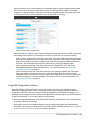
When processing moves to node imaging, the GUI displays dynamic status messages and a progress
bar for each node. A blue bar indicates good progress; a red bar indicates a problem. Processing
messages for starting, installing, rebooting, and succeeded (installed) appear during each stage. Click
on the progress bar for a node to display the log file for that node (on the right).
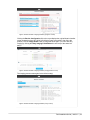
Figure: Nutanix Installer: Progress Bars
When processing is complete, a green check mark appears next to the node name if IPMI configuration
and imaging was successful or a red x appears if it was not. At this point, do one of the following:
•
•
•
Status: There is a green check mark next to every node. This means IPMI configuration and imaging
(both hypervisor and NOS Controller VM) across all the nodes in the cluster was successful. At this
point you can configure the cluster normally as you would after receiving pre-installed nodes from
the factory. See the Nutanix Setup Guide for instructions on configuring a Nutanix cluster.
Status: At least one node has a red check mark next to the IPMI address field. This means
the installation failed at the IPMI configuration step. To correct this problem, see Fixing IPMI
Configuration Problems on page 15.
Status: At least one node has a red check mark next to the hypervisor address field. This means
IPMI configuration was successful across the cluster but imaging failed. The default per-node
installation timeout is 30 minutes, so you can expect all the nodes (in each run of up to eight nodes)
to finish successfully or encounter a problem in that amount of time. To correct this problem, see
Fixing Imaging Problems on page 16.
Fixing IPMI Configuration Problems
When the IPMI port configuration fails for one or more nodes in the cluster, the installation process
stops before imaging any of the nodes. (Orchestrator will not go to the imaging step after an IPMI port
configuration failure, but it will try to configure the IPMI port address on all nodes before stopping.) The
installation screen reappears with a red check next to the IPMI port address field for any node that was not
configured successfully. To correct this problem, do the following:
1. Review the displayed addresses for the failed nodes, determine if that address is valid, and change the
IP address in that field if necessary.
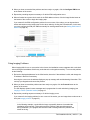
Hovering the cursor over the address displays a pop-up message (see figure) with troubleshooting
information. This can help you diagnose and correct the problem. In addition see the service.log file (in
/home/nutanix/orchestrator/log) for more detailed information.
Field Installation Guide | NOS 3.5 | 15
2. When you have corrected all the problems and are ready to try again, click the Configure IPMI button
at the bottom of the screen.
3. Repeat the preceding steps as necessary to fix all the IPMI configuration errors.
4. When all nodes have green check marks in the IPMI address column, click the Image Nodes button at
the bottom of the screen to begin the imaging step.
If you cannot fix the IPMI configuration problem for one or more of the nodes, you can bypass those
nodes and continue to the imaging step for the other nodes by clicking the Proceed button. In this case
you must configure the IPMI port address manually for each bypassed node (see Setting IPMI Static IP
Address on page 34).
Figure: Nutanix Installer: IPMI Configuration Error
Fixing Imaging Problems
When imaging fails for one or more nodes in the cluster, the installation screen reappears with a red check
next to the hypervisor address field for any node that was not imaged successfully. To correct this problem,
do the following:
1. Review the displayed addresses for the failed nodes, determine if that address is valid, and change the
IP address in that field if necessary.
Hovering the cursor over the address displays a pop-up message with troubleshooting information. This
can help you diagnosis and correct the problem.
2. When you have corrected the problems and are ready to try again, click the Proceed button at the
bottom of the screen.
The GUI displays dynamic status messages and a progress bar for each node during imaging (see
Imaging a Cluster (standard method) on page 12.
3. Repeat the preceding steps as necessary to fix all the imaging errors.
If you cannot fix the imaging problem for one or more of the nodes, you can image those nodes one at a
time (see Imaging a Node on page 25).
In the following example, a node failed to image successfully because it exceeded the
installation timeout period. (This was because the IPMI port cable was disconnected
during installation.) The progress bar turned red and a message about the problem was
written to the log.
Field Installation Guide | NOS 3.5 | 16
Figure: Nutanix Installer: Imaging Problem (progress screen)
Clicking the Back to Configuration link at the top redisplays the original Nutanix Installer
screen updated to show 192.168.20.102 failed to image successfully. After fixing the
problem, click the Image Nodes button to image that node again. (You can also retry
imaging by clicking the Retry Imaging Failed Nodes link at the top of the status bar
page.)
Figure: Nutanix Installer: Imaging Problem (configuration screen)
The imaging process starts again for the failed node(s).
Figure: Nutanix Installer: Imaging Problem (retry screen)
Field Installation Guide | NOS 3.5 | 17
Cleaning Up After Installation
This procedure describes how to return the Orchestrator VM to a fresh state after an installation.
Some information persists after imaging a cluster through Orchestrator. If you want to use the same
Orchestrator VM to image another cluster, the persistent information must be removed before attempting
another installation. To remove the persistent information after an installation, do the following:
1. Open a terminal window and go to the Orchestrator home directory:
cd /home/nutanix/orchestrator
2. Remove the persistent information by entering the following command:
rm persisted_config.json
3. Restart the Orchestrator service by entering the following command:
sudo /etc/init.d/orchestrator_service restart
Field Installation Guide | NOS 3.5 | 18
Imaging a Cluster (manual method)
This procedure describes how to manually install the NOS Controller VM and selected hypervisor on all the
new nodes in a cluster from an ISO image on a workstation.
Before you begin.
•
•
Physically install the Nutanix cluster at your site. See the Physical Installation Guide for your model type
for installation instructions.
Set up the installation environment (see Preparing Installation Environment on page 7).
Note: The standard method (see Imaging a Cluster (standard method) on page 12) is
recommended in most cases. The manual procedure is available when the standard method is not
an option.
Manually installing the Controller VM and hypervisor on the cluster nodes involves the following tasks:
1. Prepare the cluster nodes for installation.
This requires identifying all the nodes in the cluster and then configuring a static IP address for the IPMI
interface on each node (see Preparing Nutanix Nodes on page 19).
2. Complete the installation.
This requires creating a configuration file and then running the Orchestrator installation tool (see
Completing Installation on page 22).
Preparing Nutanix Nodes
Manually imaging a cluster in the field requires first configuring the IPMI ports of all the new nodes in the
cluster to a static IP address.
The Orchestrator installation tool includes a discovery.py utility that can find the nodes on a LAN or VLAN
and configure their IPMI addresses. To configure the IPMI port addresses in a cluster using this utility, do
the following:
1. Power on all the nodes in the cluster.
Wait at least 10 minutes after powering up a node for the hypervisor and Controller VM to finish booting.
2. In the Nutanix Orchestrator VM, right click on the desktop and select Open in Terminal from the pulldown menu.
Note: See Preparing Installation Environment on page 7 if Oracle VM VirtualBox is not started
or the Nutanix Orchestrator VM is not running currently.
3. In the terminal window, go to the Orchestrator directory.
$ cd /home/nutanix/orchestrator
This directory contains Orchestrator-related files.
4. Enter the following command to discover any new nodes in a cluster:
$ ./discovery.py discover
This command finds nodes on the same LAN (or VLAN) segment that are not yet part of a cluster and
writes their names and IPv6 addresses to the file discovered_nodes.txt (located in ~/orchestrator).
Field Installation Guide | NOS 3.5 | 19
The discovery process typically takes a few minutes depending on the size of the network. For
example, it took about 10 minutes to discover 60 nodes on a crowded VLAN.
The output file includes a line for each node containing node information (block ID, model type, node
position, IPv6 address, and IPv6 interface). The lines are sorted first by block ID and then by node
position. The content of this file is used as input in the next step.
•
•
•
•
You can add or edit entries in this file if necessary. However, make sure the changes conform to the
block ID and node position sort ordering. Otherwise, the IPMI IP address assignments will not be
consecutive. In addition, do not leave blank lines in the file.
If you suspect nodes are being missed, you can extend the number of retries by adding an "-n
number_of_retries" option to the command. This parameter sets the number of consecutive retries
discovery.py must run without finding a new node. The retries number is set to 10 by default.
You can extend the browsing timeout (to account for a congested network) by adding a "-t
time_in_seconds" option to the command. This sets the maximum wait time for a browsing call to
return before advancing to the next retry. The default value is 40 seconds.
You can change the name of the output file by adding an "-f file_name" option to the command.
Note: The discovery.py command syntax is:
discovery.py [options] [discover | configure]
5. Enter the following command to configure the IPMI port addresses on the discovered nodes:
$ ./discovery.py --ipmi_ip_start ip_start_number --ipmi_netmask netmask_value configure
This command configures the IPMI interface IP addresses for all the nodes discovered in the previous
step. It starts at the ip_start_number address and increments by one for each node. The netmask_value
sets the netmask for all the IPMI interfaces. IP addresses are assigned based on the node order listed
in discovered_nodes.txt. This means the IP addresses will be assigned in order of block ID and node
position. You can specify additional options as needed. The following table describes the options
available for this command.
Note: This command assumes the input file is named discovered_nodes.txt. If the -f option
was used in the previous step to change the output file name, you must specify that file by
adding an "-f file_name" option to this command.
Field Installation Guide | NOS 3.5 | 20
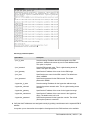
Discovery.py Command Options
Option Name
Description
--ipmi_ip_start
Sets the starting IP address that will be assigned to the IPMI
interfaces. Addresses increment by one for each additional node.
This option is required.
--ipmi_netmask
Sets the IPMI netmask value. This is a global setting across all
nodes. This option is required.
--ipmi_gateway
Specifies the IP address of the router for the IPMI range.
--ipmi_user
Specifies the user name for the IPMI console. The default user
name is ADMIN.
--ipmi_password
Specifies the password for the IPMI console. The default
password is ADMIN.
--hypervisor_ip_start
Sets the starting IP address for the hypervisor address range.
--hypervisor_netmask
Sets the hypervisor netmask value. This is a global setting across
all nodes.
--hypervisor_gateway
Specifies the IP address of the router for the hypervisor range.
--hypervisor_nameserver
Specifies the IP address of the name server in the hypervisor
range. The default value is 8.8.8.8.
--hypervisor_password
Specifies the password for the hypervisor console. The default
(and required) name is nutanix/4u.
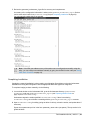
6. Verify that the IP addresses were assigned correctly by pointing a web browser at the expected IPMI IP
address.
It may take up to a minute after the completion of assignment for the IPMI interfaces to be available.
Field Installation Guide | NOS 3.5 | 21
7. Review the generated_orchestrator_cfg.txt file for accuracy and completeness.
A summary of the configuration information is written to the generated_orchestrator_cfg.txt file that
can be used as the basis for an orchestror.config file (see Completing Installation on page 22).
You can manually update this file as needed.
Note: If the IPMI port address on any of the nodes was not configured successfully using this
utility, you can configure that address manually by going into the BIOS on the node (see Setting
IPMI Static IP Address on page 34).
Completing Installation
Completing a manual installation involves creating a configuration file and then running the Orchestrator
installation tool using that configuration with the appropriate NOS and hypervisor image files.
To complete imaging a cluster manually, do the following:
1. In a terminal window on the Orchestrator VM, go to the Orchestrator directory (/home/nutanix/
orchestrator) and copy generated_orchestrator_cfg.txt (see Preparing Nutanix Nodes on
page 19) as orchestrator.config.
Orchestrator targets the nodes specified in orchestrator.config. If there is an existing
orchestrator.config, save it before overwriting with the generated_orchestrator_cfg.txt contents.
2. Open orchestrator.config for editing (using an editor of choice), review the entries, and update them if
necessary.
Syntax is one parameter per line in the form parameter_name=value (no spaces). The top section is for
global variables:
Field Installation Guide | NOS 3.5 | 22
•
•
•
•
•
•
ipmi_user: This is the IPMI user name.
ipmi_password: This is the IPMI user password.
hypervisor_netmask: This is the hypervisor netmask value.
hypervisor_gateway: This is the gateway IP address for the hypervisor.
hypervisor_nameserver: This is the name server IP address for the hypervisor.
hypervisor_password: This is the hypervisor password, which must be nutanix/4u.
The following section is for node-specific parameters. The following lines should be present for each
node to be imaged:
•
•
•
The IPMI IP address is on the first line.
The hypervisor_ip parameter is indented on the next line.
The generated_orchestrator_cfg.txt contents may include an optional indented line for the node
position parameter.
When all the values are correct, save the file.
Note: See Orchestrator Configuration File on page 33 for a sample orchestrator.config
file.
3. Verify the desired Phoenix and hypervisor ISO image files are in the /home/nutanix/orchestrator
directory (see Preparing Installation Environment on page 7).
4. Enter the following command to stop the Orchestrator service:
$ sudo service orchestrator_service stop
5. Enter the following command to start the installation:
$ ./orchestrator orchestrator.config --esx=esx_iso_filename -phoenix=phoenix_iso_filename
Replace esx_iso_filename with the full absolute path name of the target ESXi ISO image file and
phoenix_iso_filename with the full absolute path name of the target Phoenix ISO image file.
6. Monitor the progress of the NOS and ESXi installation from the Orchestrator output and/or a VGA
monitor connected to the physical nodes.
The entire installation process takes approximately 45 minutes. (Installation runs in parallel across all
nodes. However, when there are more than eight nodes in the cluster, installation is 45 minutes per
block of eight nodes.) The following is sample output during the installation process. A status message
is printed every 20 seconds indicating the number of nodes in each state. (The sum of numbers on a
line should be the total number of nodes.)
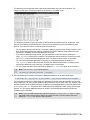
[nutanix@localhost orchestrator] $ ./orchestrator thor.config -esx=VMware-VMvisor-Installer-5.1.0.update01-1065491.x86_64.iso -phoenix=phoenix_esx_dev_orchestrator_3.5.2-01312014.iso
Detecting node classes.
Processing ESX iso
Processing phoenix iso
Installation in progress. Will report aggregate node status
every 20 seconds.
Node status: starting: 4
Node status: starting: 4
...
Node status: esx_installing: 1, starting: 3
...
Node status: esx_rebooting: 1, esx_installing: 3
...
Node status: esx_installed: 3, svm_download: 1
...
Node status: phoenix_complete: 1, imaging: 3
...
Node status: phoenix_complete: 3, firstboot_complete: 1
Field Installation Guide | NOS 3.5 | 23
Installation was successful on all nodes.
Run time: 38.2 minutes.
[nutanix@localhost orchestrator] $
7. When the installation completes and Orchestrator exits, wait for one final reboot of ESXi before using
the nodes.
This final reboot should occur within a few minutes after Orchestrator exits.
8. After a successful installation, configure the cluster as described in the Nutanix Setup Guide.
9. If an error occurs during installation, do the following:
a. Check the /home/nutanix/orchestrator/log directory for HTTP and node level error logs and make
adjustments as indicated in the logs.
b. If you are unable to correct the problem(s), re-run Orchestrator for just the failed nodes by editing
the Orchestrator configuration file and removing the node information for the nodes that were
successfully installed. (You can comment out a line by starting it with a # sign.)
Field Installation Guide | NOS 3.5 | 24
Imaging a Node
This procedure describes how to install the NOS Controller VM and selected hypervisor on a new or
replacement node from an ISO image on a workstation (laptop or desktop machine).
Before you begin.
•
If you are adding a new node, physically install that node at your site. See the Physical Installation
Guide for your model type for installation instructions.
Imaging a new or replacement node can be done either through the IPMI interface (network connection
required) or through a direct attached USB (no network connection required). In either case the installation
is divided into two steps:
1. Install the desired hypervisor version (see Installing a Hypervisor on page 25).
2. Install the NOS Controller VM and provision the hypervisor (see Installing the Controller VM on
page 28).
Installing a Hypervisor
This procedure describes how to install a hypervisor on a single node in a cluster in the field.
To install a hypervisor on a new or replacement node in the field, do the following:
1. Connect the IPMI port on that node to the network.
A 1 or 10 GbE port connection is not required for imaging the node.
2. Assign an IP address (static or DHCP) to the IPMI interface on the node.
To assign a static address, see Setting IPMI Static IP Address on page 34.
3. Download the appropriate hypervisor ISO image to a temporary folder on the workstation.
Customers must provide the ESXi ISO image from their purchased copy; it is not provided by
Nutanix. Check with your VMware representative or download it from the VMware support site (http://
www.vmware.com/support.html). The following table lists the supported hypervisor images.
Hypervisor ISO Images
File Name
MD5 Sum
Hypervisor
Version
VMware-VMvisorInstaller-5.0.0.update02-914586.x86_64.iso
fa6a00a3f0dd0cd1a677f69a236611e2
ESXi
5.0U2
VMware-VMvisor2cd15e433aaacc7638c706e013dd673a
Installer-5.1.0.update01-1065491.x86_64.iso
ESXi
5.1U1
VMware-VMvisorInstaller-5.5.0-1331820.x86_64.iso
ESX 5.5
9aaa9e0daa424a7021c7dc13db7b9409
4. Open a Web browser to the IPMI IP address of the node to be imaged.
5. Enter the IPMI login credentials in the login screen.
Field Installation Guide | NOS 3.5 | 25
The default value for both user name and password is ADMIN (upper case).
Figure: IPMI Console Login Screen
The IPMI console main screen appears.
Figure: IPMI Console Screen
6. Select Console Redirection from the Remote Console drop-down list of the main menu, and then
click the Launch Console button.
Figure: IPMI Console Menu
7. Select Virtual Storage from the Virtual Media drop-down list of the remote console main menu.
Figure: IPMI Remote Console Menu (Virtual Media)
8. Click the CDROM&ISO tab in the Virtual Storage display and then select ISO File from the Logical
Drive Type field drop-down list.
Field Installation Guide | NOS 3.5 | 26
Figure: IPMI Virtual Storage Screen
9. In the browse window, go to where the hypervisor ISO image was downloaded, select that file, and then
click the Open button.
10.In the remote console main menu, select Set Power Reset in the Power Control drop-down list.
This causes the system to reboot using the selected hypervisor image.
Figure: IPMI Remote Console Menu (Power Control)
11.Click Continue (Enter) at the installation screen and then accept the end user license agreement on the
next screen.
Figure: ESXi Installation Screen
12.In the Select a Disk page, select the SATADOM as the storage device, click Continue, and then click
OK in the confirmation window.
Figure: ESXi Device Selection Screen
Field Installation Guide | NOS 3.5 | 27
13.In the keyboard layout screen, select a layout (such as US Default) and then click Continue.
14.In the root password screen, enter "nutanix/4u" as the root password.
Note: The root password must be nutanix/4u or the installation will fail.
15.Review the information on the Install Confirm screen and then click Install.
Figure: ESXi Installation Confirmation Screen
The installation begins and a dynamic progress bar appears.
16.When the Installation Complete screen appears, go back to the Virtual Storage screen (see step 9),
click the Plug Out button, and then return to the Installation Complete screen and click Reboot.
After the system reboots, you can install the NOS Controller VM and provision the hypervisor (see
Installing the Controller VM on page 28).
Installing the Controller VM
This procedure describes how to install the NOS Controller VM and provision the previously installed
hypervisor on a single node in a cluster in the field.
Before you begin.
•
Install a hypervisor on the node (see Installing a Hypervisor on page 25).
To install the Controller VM (and provision the hypervisor) on a new or replacement node, do the following:
1. Copy the appropriate Phoenix ISO image file from the Orchestrator portal (see Orchestrator Portal on
page 31) to a temporary folder on the workstation. (You can download it to the same folder as the
hypervisor ISO image .)
Phoenix is the name of the installation tool used in this process. There is a Phoenix ISO image file for
each supported NOS release. See the Phoenix Releases section in Orchestrator Portal on page 31
for a list of the available Phoenix ISO images.
Caution: Phoenix release 1.0.1 is the earliest supported release; do not use a Phoenix ISO
image from an earlier release.
2. In the IPMI web console, attach the Phoenix ISO to the node as follows:
a. Go to Remote Control and click Launch Console (if it is not already launched).
Accept any security warnings to start the console.
b. In the console, click Media > Virtual Media Wizard.
c. Click Browse next to ISO Image and select the ISO file.
d. Click Connect CD/DVD.
Field Installation Guide | NOS 3.5 | 28
e. Go to Remote Control > Power Control.
f. Select Reset Server and click Perform Action.
The host restarts from the ISO.
3. At the prompt enter Y to accept the factory configuration or N if the node position value is not correct.
4. Do the following in the Nutanix Installer configuration screen:
a. Review the values in the Block ID, Node Serial, and Node Cluster ID fields (and Node Model if
you entered N in the previous step) and update them if they are not correct.
The Hypervisor Type, Hypervisor Version, Node Model, and Nutanix Software fields cannot be
edited.
b. Do one of the following:
•
•
If you are imaging a U-node, select both Clean Install Hypervisor and Clean Install SVM
If you are imaging an X-node, select Clean Install Hypervisor only.
A U-node is a fully configured node which can be added to a cluster. Both the Controller VM and the
hypervisor must be installed in a new U-node. An X-node does not includes a NIC card or disks; it is
the appropriate model when replacing an existing node. The disks and NIC are transferred from the
old node, and only the hypervisor needs to be installed on the X-node.
Caution: Do not select Clean Install SVM if you are replacing a node (X-node) because
this option cleans the disks as part of the process, which means existing data will be lost.
c. When all the fields are correct, click the Start button.
Field Installation Guide | NOS 3.5 | 29
Installation begins and takes about 20 minutes.
5. In the Virtual Media window, click Disconnect next to CD Media.
6. At the restart prompt in the console, type Y to restart the node.
The node restarts with the new image. After the node starts, additional configuration tasks run and
then the host restarts again. During this time, the host name is installing-please-be-patient. Wait
approximately 20 minutes until this stage completes before accessing the node.
Warning: Do not restart the host until the configuration is complete.
Field Installation Guide | NOS 3.5 | 30
Orchestrator Portal
The Orchestrator portal site provides access to many of the files required to do a field installation.
Portal Access
Nutanix maintains a site where you can download Nutanix product releases. To access the Orchestrator
portal on this site, do the following:
1. open a web browser and enter:
http://releases.nutanix.com
2. This displays a login page. Enter your Nutanix account or partner portal credentials to access the site.
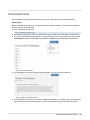
3. The Current NOS Releases page appears. In the pull-down list next to your name (upper right), select
Orchestrator to download Orchestrator-related files or Phoenix to download Phoenix-related files.
Figure: NOS Releases Screen
4. The Orchestrator (or Phoenix) releases screen appears. Click on the target release link.
Figure: Orchestrator Releases Screen
5. The Orchestrator (or Phoenix) files screen for that release appears. (For Phoenix you must first select a
hypervisor before the files screen appears.) Access or download the desired files from this screen.
Field Installation Guide | NOS 3.5 | 31
Figure: Orchestrator Files Screen
Orchestrator Releases
The following table describes the files for each Orchestrator release.
Orchestrator Files
File Name
Description
Orchestrator Release 1.0
orchestrator_bundle_1.0.tar.gz
This is the compressed tar file of the Orchestrator
components. It contains the Oracle VirtualBox
installer and the components needed for the
Orchestrator VM (vmdk and vbox and vmx VM
description files)
orchestrator_bundle_1.0.md5sum.txt
This is the associated MD5 file to validate against
after downloading the Orchestrator bundle.
Phoenix Releases
Caution: Phoenix release 1.0.1 is the earliest supported release; do not use a Phoenix ISO image
from an earlier release.
The following table describes the files for each supported Phoenix release.
Phoenix Files
File Name
Description
Phoenix Release 1.0.1
phoenix-1.0.1_ESX_NOS-3.1.3.3-xxxxxx.iso
This is the Phoenix ISO image for NOS release
3.1.3.3 when the hypervisor is ESXi. (The xxxxxx
part of the name is replaced by a build number.)
phoenix-1.0.1_ESX_NOS-3.1.3.3xxxxxx.md5sum.txt
This is the associated MD5 file to validate against
after downloading the Phoenix ISO image for NOS
release 3.1.3.3.
phoenix-1.0.1_ESX_NOS-3.5.2.1-xxxxxx.iso
This is the Phoenix ISO image for NOS release
3.5.2.1 when the hypervisor is ESXi.
phoenix-1.0.1_ESX_NOS-3.5.2.1xxxxxx.md5sum.txt
This is the associated MD5 file to validate against
after downloading Phoenix ISO image for NOS
release 3.5.2.1.
phoenix-1.0-facory_KVM_NOS-3.5.2-xxxxxx.iso
This is the Phoenix ISO for NOS release 3.5.2
when the hypervisor is KVM.
Field Installation Guide | NOS 3.5 | 32
Orchestrator Configuration File
Cluster information used for imaging the nodes is stored in a configuration file called orchestrator.config.
Contents of the orchestrator.config file are either generated automatically (see Imaging a Cluster
(standard method) on page 12) or entered manually by the user (see Imaging a Cluster (manual method)
on page 19). The following is a sample orchestrator.config file for four nodes.
ipmi_user = ADMIN
ipmi_password = ADMIN
hypervisor_netmask = 255.255.252.0
hypervisor_gateway = 10.1.60.1
hypervisor_nameserver = 8.8.8.8
hypervisor_password = nutanix/4u
10.1.60.41
hypervisor_ip = 10.1.60.33
10.1.60.42
hypervisor_ip = 10.1.60.34
10.1.60.43
hypervisor_ip = 10.1.60.35
10.1.60.44
hypervisor_ip = 10.1.60.36
Field Installation Guide | NOS 3.5 | 33
Setting IPMI Static IP Address
You can assign a static IP address for an IPMI port by resetting the BIOS configuration.
To configure a static IP address for the IPMI port on a node, do the following:
1. Connect a VGA monitor and USB keyboard to the node.
2. Power on the node.
3. Press the Delete key during boot up when prompted to enter the BIOS setup mode.
The BIOS Setup Utility screen appears.
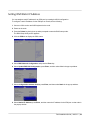
4. Click the IPMI tab to display the IPMI screen.
5. Select BMC Network Configuration and press the Enter key.
6. Select Update IPMI LAN Configuration, press Enter, and then select Yes in the pop-up window.
7. Select Configuration Address Source, press Enter, and then select Static in the pop-up window.
8. Select Station IP Address, press Enter, and then enter the IP address for the IPMI port on that node in
the pop-up window.
Field Installation Guide | NOS 3.5 | 34
9. Select Subnet Mask, press Enter, and then enter the corresponding submask value in the pop-up
window.
10.Select Gateway IP Address, press Enter, and then enter the IP address for the node's network
gateway in the pop-up window.
11.When all the field entries are correct, press the F4 key to save the settings and exit the BIOS setup
mode.
Field Installation Guide | NOS 3.5 | 35