1
CHAPTER 17. PRIMERS
332
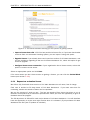
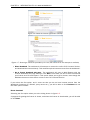
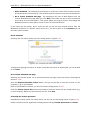
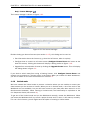
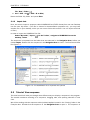
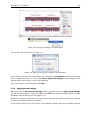
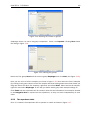
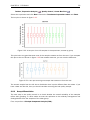
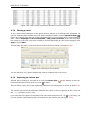
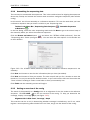
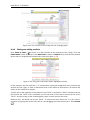
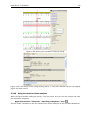
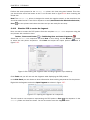
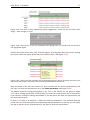
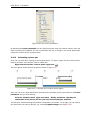
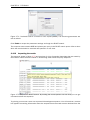
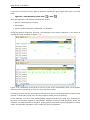
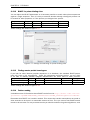
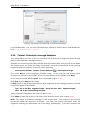
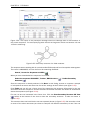
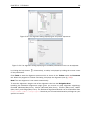
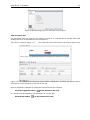
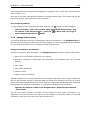
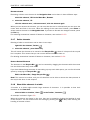
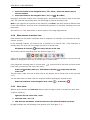
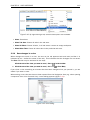
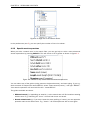
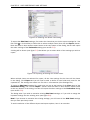
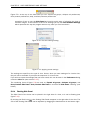
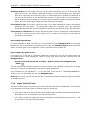
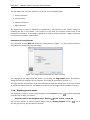
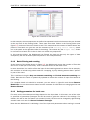
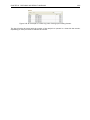
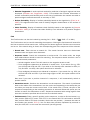
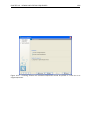
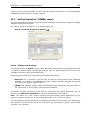
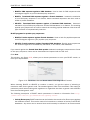
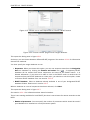
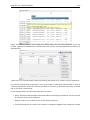
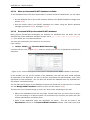
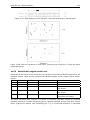
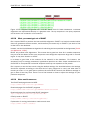
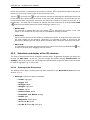
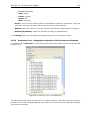
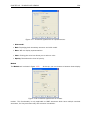
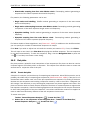
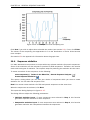
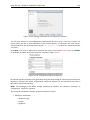
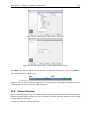
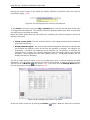
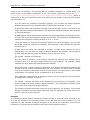
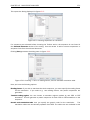
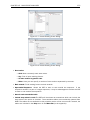
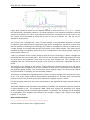
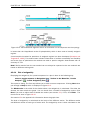
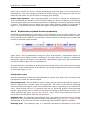
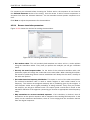
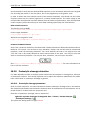
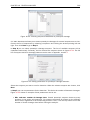
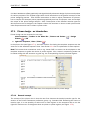
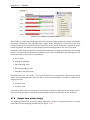
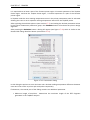
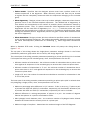
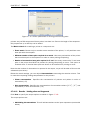
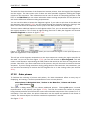
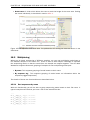
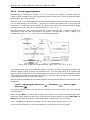
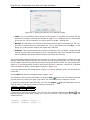
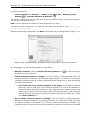
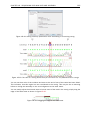
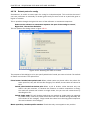
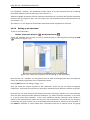
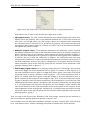
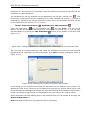
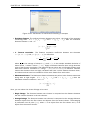
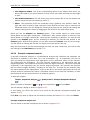
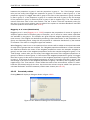
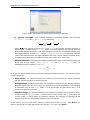
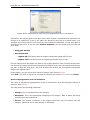
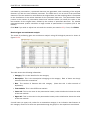
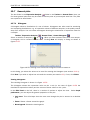
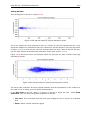
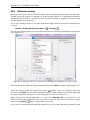
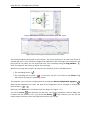
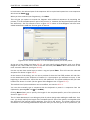
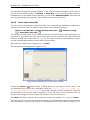
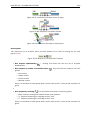
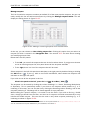
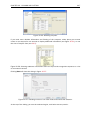
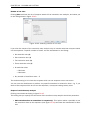
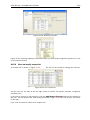
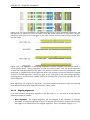
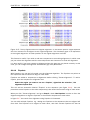
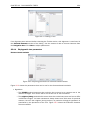
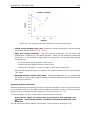
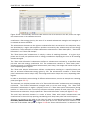
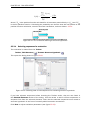
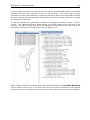
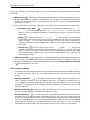
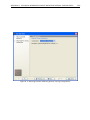
Figure 17.18: Output options include reporting of binding sites and fragments.
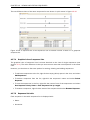
• Create binding site table. Creates a table of all binding sites. Described in details below.
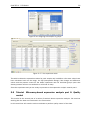
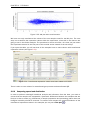
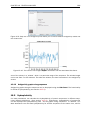
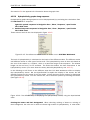
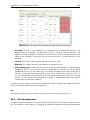
• Create fragment table. Showing a table of all fragments that could result from using the
primers. Note that you can set the minimum and maximum sizes of the fragments to be
shown. The table is described in detail below.
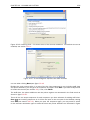
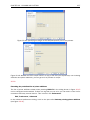
Click Next if you wish to adjust how to handle the results (see section 9.2). If not, click Finish.
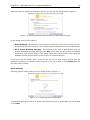
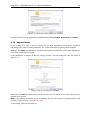
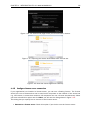
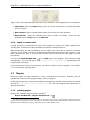
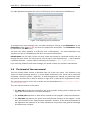
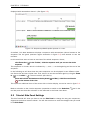
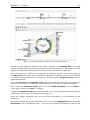
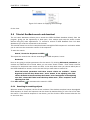
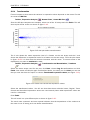
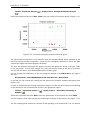
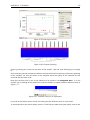
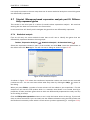
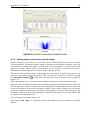
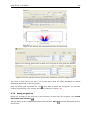
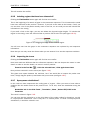
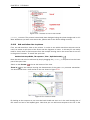
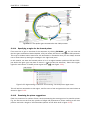
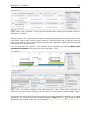
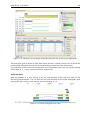
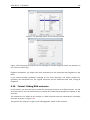
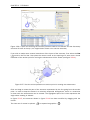
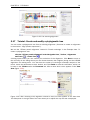
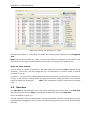
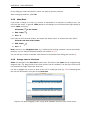
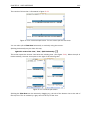
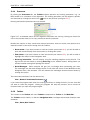
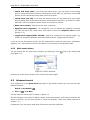
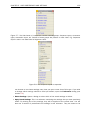
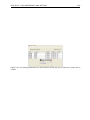
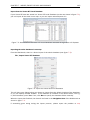
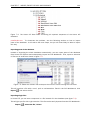
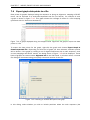
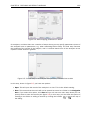
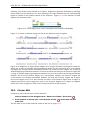
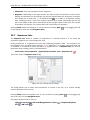
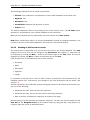
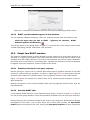
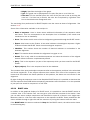
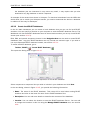
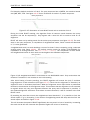
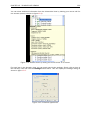
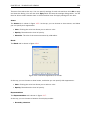
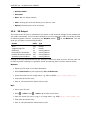
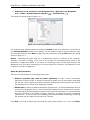
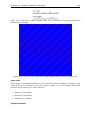
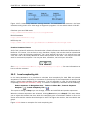
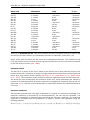
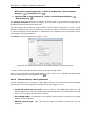
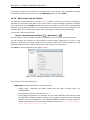
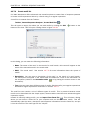
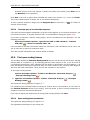
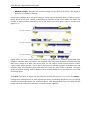
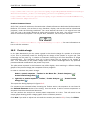
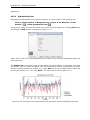
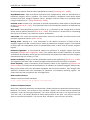
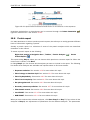
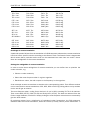
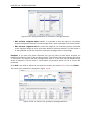
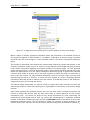
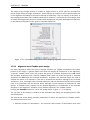
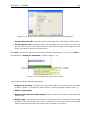
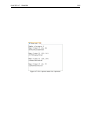
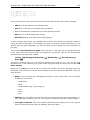
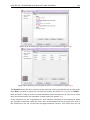
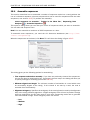
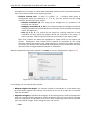
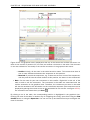
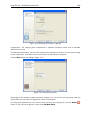
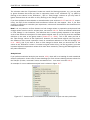
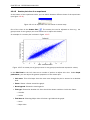
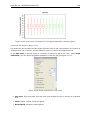
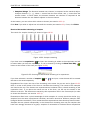
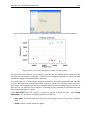
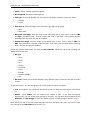
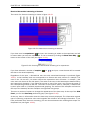
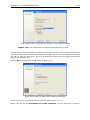
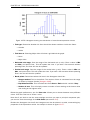
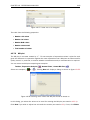
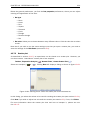
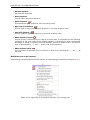
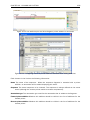
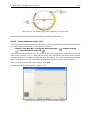
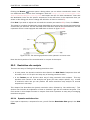
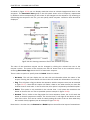
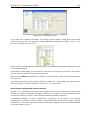
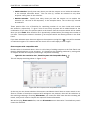
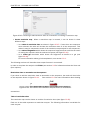
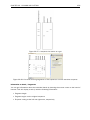
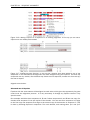
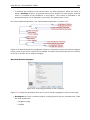
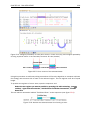
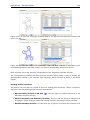
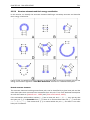
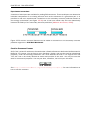
An example of a binding site annotation is shown in figure 17.19.
Figure 17.19: Annotation showing a primer match.
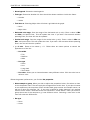
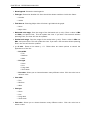
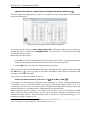
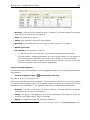
The annotation has the following information:
• Sequence of the primer. Positions with mismatches will be in lower-case (see the fourth
position in figure 17.19 where the primer has an a and the template sequence has a T).
• Number of mismatches.
• Number of other hits on the same sequence. This number can be useful to check specificity
of the primer.
• Binding region. This region ends with the 3' exact match and is simply the primer length
upstream. This means that if you have 5' extensions to the primer, part of the binding
region covers sequence that will actually not be annealed to the primer.