1
Chapter 6
Printing
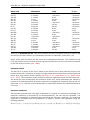
Contents
6.1
Selecting which part of the view to print . . . . . . . . . . . . . . . . . . . . 137
6.2
Page setup . . . . . . . . . . . . . . . . . . . . . . . . . . . . . . . . . . . . . 138
6.2.1
6.3
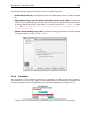
Header and footer . . . . . . . . . . . . . . . . . . . . . . . . . . . . . . 139
Print preview . . . . . . . . . . . . . . . . . . . . . . . . . . . . . . . . . . . . 139
CLC Main Workbench offers different choices of printing the result of your work.
This chapter deals with printing directly from CLC Main Workbench. Another option for using the
graphical output of your work, is to export graphics (see chapter 7.3) in a graphic format, and
then import it into a document or a presentation.
All the kinds of data that you can view in the View Area can be printed. The CLC Main Workbench
uses a WYSIWYG principle: What You See Is What You Get. This means that you should use the
options in the Side Panel to change how your data, e.g. a sequence, looks on the screen. When
you print it, it will look exactly the same way on print as on the screen.
For some of the views, the layout will be slightly changed in order to be printer-friendly.
It is not possible to print elements directly from the Navigation Area. They must first be opened
in a view in order to be printed. To print the contents of a view:
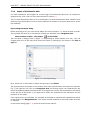
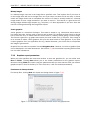
select relevant view | Print (
) in the toolbar
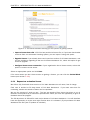
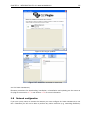
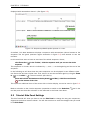
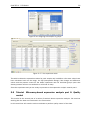
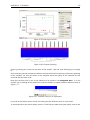
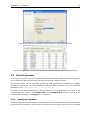
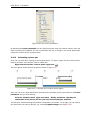
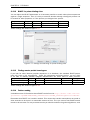
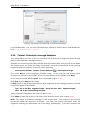
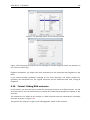
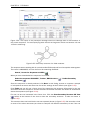
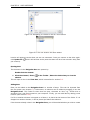
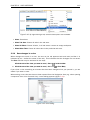
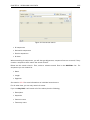
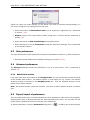
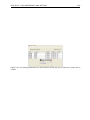
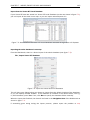
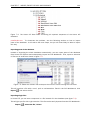
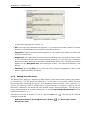
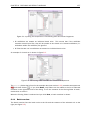
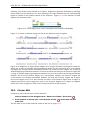
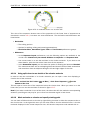
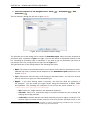
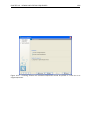
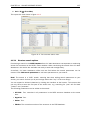
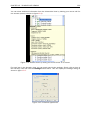
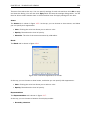
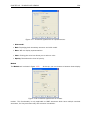
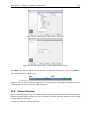
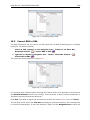
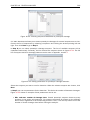
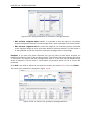
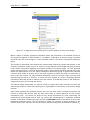
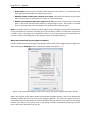
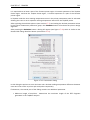
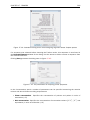
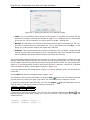
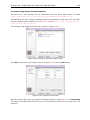
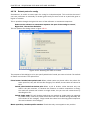
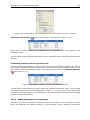
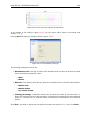
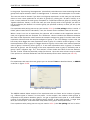
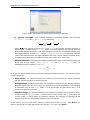
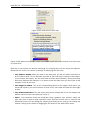
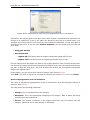
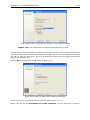
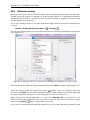
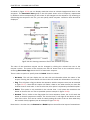
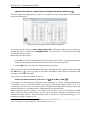
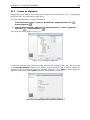
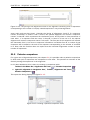
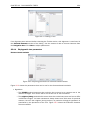
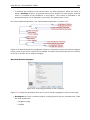
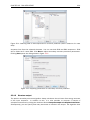
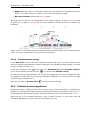
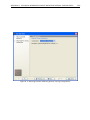
This will show a print dialog (see figure 6.1).
In this dialog, you can:
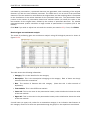
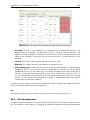
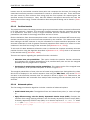
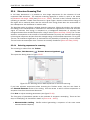
• Select which part of the view you want to print.
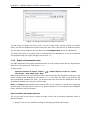
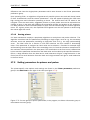
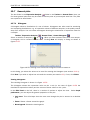
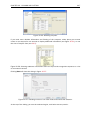
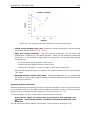
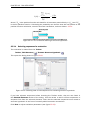
• Adjust Page Setup.
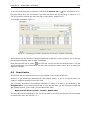
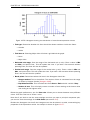
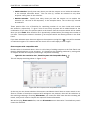
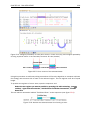
• See a print Preview window.
These three options are described in the three following sections.
136