1
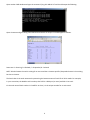
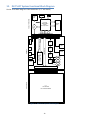
8. Demonstration Software Main Menu The Demonstration Software has the following options: • Slideshow Loads up to nine slides from the flash drive and allows the user to scroll up and down through the material. Slide back to the load screen to return to the main menu. See Setting up a Slideshow for details on how to customize. • Draw A very simple art program is provided. Use the touch screen to draw lines in the box to the right. Click on Color to rotate through a list of color choices. Save stores the graphic image as the file IMAGE.RAW on the USB Flash drive. Load recalls the saved graphic image from the USB Flash drive. • Console Presents an output screen showing what a remote user sees when Telnetting into the console. On a Windows PC, configure the PC as explained in PC to Demonstration Network Configuration, then open a CMD window and type “telnet 192.168.10.20” to connect to the DK‐TS‐KIT. Type “dir” to show the contents of the Flash drive that is plugged into the DK‐TS‐KIT. Type “quit” to disconnect. • Time & Temperature Displays the current time and date from the external Real Time Clock (RTC) and the temperature from the LM75 temperature sensor on the CARRIER board. • Accelerometer Demonstrates the accelerometer by moving a simulated ball across the screen as the CARRIER board is tilted along the X and Y axis. • Settings Displays the submenu screen. • Calibrate Calibrates the Touch Screen and stores the new calibration information in the EEPROM on the SOMDIMM. • Functional Test Provides a step by step test of all basic features of the DK‐TS‐KIT. Requires additional hardware to test all features. See Functional Test Software section for more details. • FCT Loopback Puts the unit into a mode that will communicate with another DK‐TS‐KIT running the Functional Test. See Functional Test Software section for more details. 7