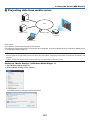
1
3. Convenient Features
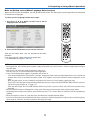
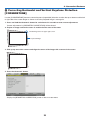
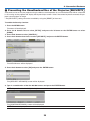
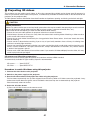
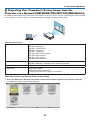
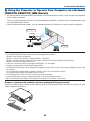
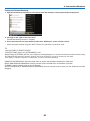
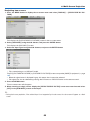
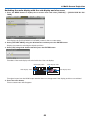
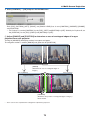
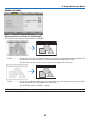
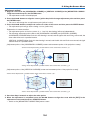
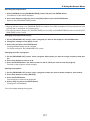
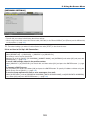
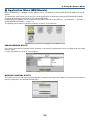
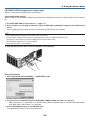
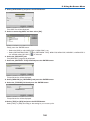
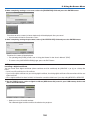
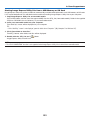
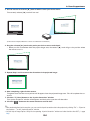
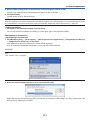
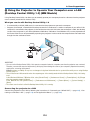
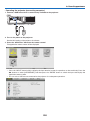
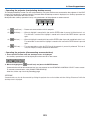
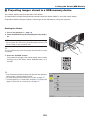
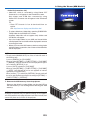
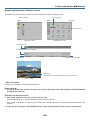
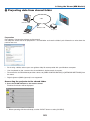
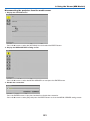
• When operating with the main body, press briefly the “INPUT” button to display the [INPUT TERMINAL] screen
of the on-screen menu.
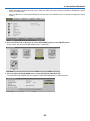
Press the ▼ button to select [8:ETHERNET] and then press the “ENTER” button to display the application menu
screen.
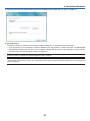
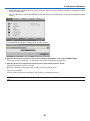
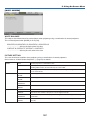
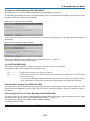
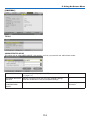
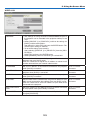
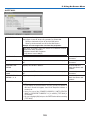
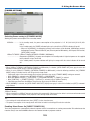
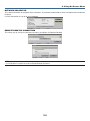
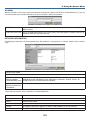
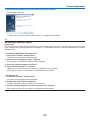
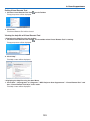
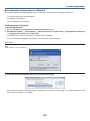
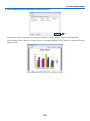
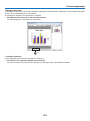
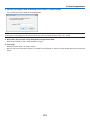
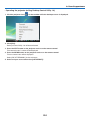
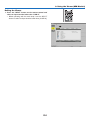
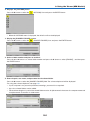
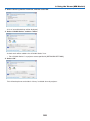
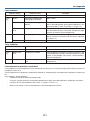
The [REMOTE DESKTOP CONNECTION] window appears.
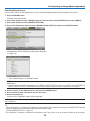
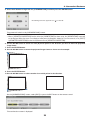
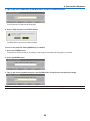
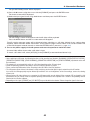
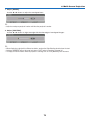
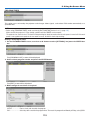
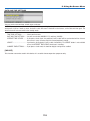
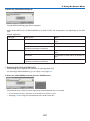
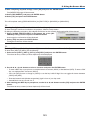
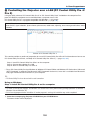
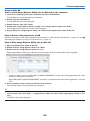
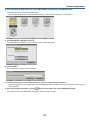
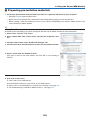
2. Operate the wireless keyboard to input the IP address of Windows 7 and click [CONNECTION].
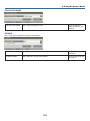
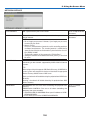
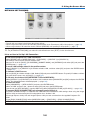
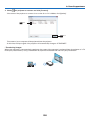
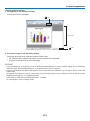
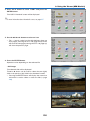
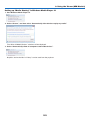
The log-on screen of Windows 7 is displayed in the screen projected by the projector.
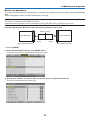
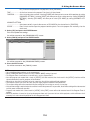
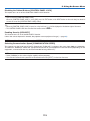
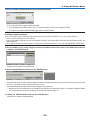
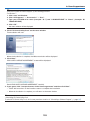
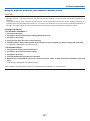
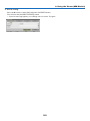
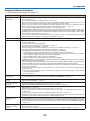
3. Operate the wireless keyboard to input the user’s password and press “Enter”.
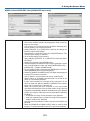
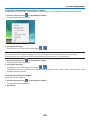
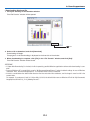
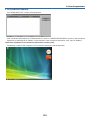
The remote desktop function is started.
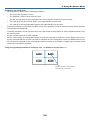
Windows 7 desktop is displayed in the screen projected by the projector.
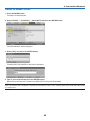
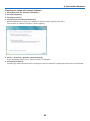
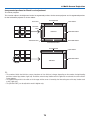
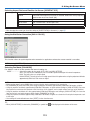
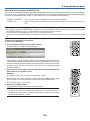
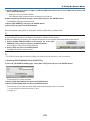
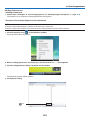
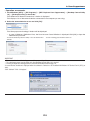
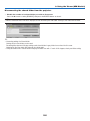
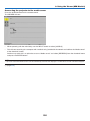
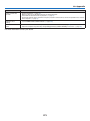
Log out the computer.
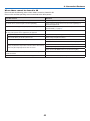
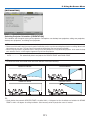
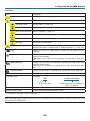
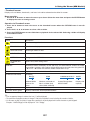
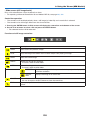
Use the wireless keyboard connected to the projector to operate Windows 7.
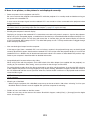
NOTE: When the projection is made with the remote desktop function, the background color of the desktop is changed to solid
color.
61