1
PPS OVERVIEW
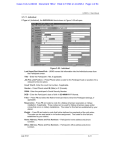
NOTIFICATION REVIEW BROWSE SCREEN.
Step 3: Notification Selection
To select the specific notification you want to review:
1. On the Notification Review Browse screen, tab to the
notification you want to view. Type S. Press Enter. If you
have more than one page of notification summaries, you may
use F7 Backward and F8 Forward to scroll through the list.
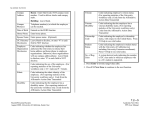
This screen lists the following summary information for each
notification:
System
Abbreviation indicating the Subsystem where
the notification originated. (PPP is the
abbreviation for the Payroll/Personnel
System.)
Tran
The function code of the screen or bundle on
which data was changed.
Prepared By
The name of the preparer who updated the
employee record.
Date
The date the update took place.
Comments
Indication (Yes or No) of whether notification
includes comments typed by the user.
Summary
Description of the screen or bundle on which
the data was changed.
Name
The name of the Employee whose record was
updated.
2. To scroll through each page of the notification, use the F8
Forward key. To return to a previous page, use the F7
Backward key.
• If the message U0204 Not authorized to view the
selected notification is displayed, you do not have
access to the employee record displayed in the PAN
notification. Security Access to notifications is the
same as is allowed in EDB Inquiry.
3. You can forward the notification by pressing F6 FwdNotif.
(See subsection Forwarding Notifications for additional
details.)
4. When you finish reviewing the notification, press F3 Return
to return to the Notification Review Browse screen.
5. You can select another notification for review, or you can
return to the Notification Review Selection screen by pressing
F3 Return. (Press F3 again to return to the main PAN menu.)
1.8—18
Payroll/Personnel System
May 2003, University of California, Santa Cruz
PAN Overview
PPS User Manual