1
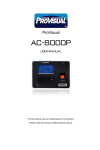
FINGERPRINT TERMINAL HARDWARE USER'S MANUAL Rev 1.1 1 Table of Contents 1. INTRODUCTION 1.1 SUPPLIED PART LIST 1.2 ABOUT FINGERPRINT TERMINAL 1.3 HARDWARE SPECIFICATION 2. PRODUCT OVERVIEW 2.1 COMMUNICATION 2.2 POWER MANAGEMENT 2.3 KEYPAD FUNCTIONS 2.4 USER MANAGEMENT 2.5 USER ENROLLMENT 2.6 HARDWARE DESCRIPTION 3. BASIC SETTINGS 3.1 SYSTEM SETTINGS 3.1.1 TOTAL NUMBER OF ADMINISTRATORS 3.1.2 MACHINE NUMBER 3.1.3 BAUD RATE 3.1.4 LANGUAGE 3.1.5 AUTO POWER OFF 3.1.6 VOICE INDICATION 3.1.7 RESTORE FACTORY DEFAULT 3.2 EVENT SETTINGS 3.2.1 ADMINISTRATIVE EVENT FULL WARNING 3.2.2 ATTENDANCE EVENT FULL WARNING 3.2.3 VAID ATTENDANCE TIME INTERVAL 3.3 MENU HIERARCHY 3.3.1 FIRST LEVEL MENU ITEMS 3.3.2 SECOND LEVEL MENU ITEMS 3.3.3 “SETTING” CONFIGURES THE MAJOR FUNCTION OF FINGERPRINT TERMINAL MACHINE 3.4 MACHINE OPERATION FOR ADMINISTRATOR 3.4.1 TO SHOW THE FIRST LEVEL MENU 3.4.2 MACHINE MANAGERMENT 3.4.3 PASSWORD REGISTRATION 3.4.4 ID CARD REGISTRATION (OPTIONAL FUNCTION FOR SPECIAL MODEL) 3.4.5 DELETE USER 2 3.5 ATTENDANCE LOG AND SYSTEM LOG MANAGEMENT 3.5.1 QUERY ATTENDANCE LOG 3.5.2 QUERY THE SYSTEM LOG 3.5.3 DELETE ALL RECORD 3.5.4 SETTINGS 3.5.5 MACHINE ID 3.5.6 MANAGERS 3.5.7 LANGUAGE 3.5.8 VOICE INDICATION 3.5.9 LCD CONTRAST 3.5.10 AUTO POWER OFF 3.5.11 RESTORE FACTORY SETTING 3.5.12 LOG MANAGEMENT 3.5.13 SYSTEM LOG WARNING 3.5.14 ATTENDANCE LOG WARNING 3.5.15 REVERIFY 3.5.16 LOG QUERY 3.5.17 ENROLL INFO 4. QUICK SETUP GUIDE 4.1 HARDWARE 4.1.1 POWER ON/OFF 4.1.2 COMPUTER CONNECTION A. THROUGH RS232 B. THROUGH RS485 C. THROUGH TCP/IP 4.2 SOFTWARE 4.2.1 PACKING LIST 4.2.2 FINGERPRINT REGISTRATION 4.2.3 SOFTWARE INSTALLATION 4.2.4 SOFTWARE CONFIGURATION 3 CHAPTER ONE INTRODUCTION 4 1.1 SUPPLIED PART LIST 1. 2. 3. 4. 5. Main Unit 9V/1A Power Supply RS232 Cable (1m) Hardware User's Manual Attendance Management System CD 1pcs 1pcs 1pcs 1pcs 1pcs 1.2 ABOUT THE TERMINAL The Fingerprint Terminal is a flexible and reliable design to meet the market requirement for a robust and secure biometric Time & Attendance solution at a reasonable cost. It allows you to register up to 2,000 fingerprints and store up to 50,000 transactions. 1.3 HARDWARE SPECIFICATION Fingerprint Template Capacity Transaction Capacity 2,000 50,000 Verification Mode 1:1 or 1:N Communication RS232/RS485(up to 32 channels) Keyboard and Display TCP/IP Power Supply 128x64 LCD with blue back light and 16F Identification speed key keypad FRR (False Rejection Ratio) 9 VDC, standby current: 2.5A, operating FAR (False Acceptance current: 400mA Ratio) Operating Environment <=2 seconds Language Support <=0.01% Dimension <=0.0001% 5 CHAPTER TWO PRODUCT OVERVIEW 6 2.1 COMMUNICATION Fingerprint Terminal Provides RS232, RS485 and TCP/IP communication interfaces and depicted below: RS232 RS485 TCP/IP 2.2 POWER MANAGEMENT When machine is in power down mode, the device is brought into operational mode once Power Key is pressed and ready for clocking. When the device is in operational mode, the device is brought into power down mode once Power Key is pressed and held for 4 seconds. If the automatic power down has been set, the device will be brought into power down mode according to defined time schedule. 2.3 KEYPAD FUNCTIONS ESC MENU OK ▲ ▼ 0...9 ⊙ 1 4 7 2 5 8 3 6 9 ⊙ 0 OK ESC MENU ▲ ▼ Move one level up from the menu hierarchy Get into the system setting menu Confirm the current setting Move the cursor up Move the cursor down Numeric keys Power ON/OFF switch 7 2.4 USER MANAGEMENT Two User roles are defined in the machine, namely manager or normal user. − Normal users can clock on the device but can NOT access the settings. − Managers can clock on the device as well as do system management: 1. Register/delete normal users' fingerprints and passwords. 2. Browser attendance records as well as other system information. 3. Set up system configurations 2.5 USER ENROLLMENT Enrollment is the process of creating an ID, assigning a password (optional) and scanning a user’s fingers to create the fingerprint templates. All these associated information are stored in the device. During user verification, the stored fingerprint templates are compared to the current scanned fingerprint to confirm the user’s identity. Enrollment takes approximately 2 seconds for each user. Up to 3 fingers can be enrolled for the same ID number. Ideally, at least one finger on each hand should be enrolled in case of injures. 8 2.6 Hardware Description LCD Display Show the Current Date & Time Attendance Information ESC Key Cancel or return to upper menu the menu up Number Key Input Number and choose items in menu LED Indicator Indicate the Power Status And Operation Status Menu Key Show the operation menu up Fingerprint Scanner The Fingerprint scanning area Power Key Power On or Power Off the machine ▲▼Key Scrolling the menu OK Key Confirm the operation 9 CHAPTER THREE BASIC SETTINGS 10 3.1 SYSTEM SETTINGS 3.1.1 Total Number of Administrators Setting 1 -10 Factory Default Description set total number of administrators in machine 5 3.1.2 Machine Number Setting 1 -255 Description set an unique address ID to the unit to network with multiple machines Factory Default 1 3.1.3 Baud Rate Setting 9600 19200 38400 Factory Default Description Set the communication speed to 9,600 bps (Bit Per Second) Set the communication speed to 19,200 bps Set the comm 38400 Speed setting should be the same with PC, otherwise communication shall fail. 3.1.4 Language Setting English Traditional Chinese Factory Default Description set all display information in English Set all display information in Traditional Chinese English 3.1.5 Auto Power Off Setting NO 1 - 255 Factory Default Description auto power off function is disabled Auto power off when there are no activities on the device. The unit is in minute. NO * 11 3.1.6 Voice Indication Setting YES NO Factory Default Description Activate the voice indication Inactivate the voice indication YES 3.1.7 Restore Factory Default If OK key is pressed, all the current setting will lose and restore to the factory default settings. 12 3.2 EVENT SETTINGS 3.2.1 Administrative Event Full Warning The machine will give a “FULL” warning signal when the administrative event buffer is below the set threshold. Setting Description NO There's no warning if there's no administrative event buffer left, and no further administrative events will be logged. 1 - 255 Factory Default 100 3.2.2 Attendance Event Full Warning The machine will give a “FULL” warning signal when the attendance event buffer is below the set threshold. Setting Description NO There's no warning if there's no attendance event buffer left, and no further attendance events will be logged. 11500 Factory 1000 Default 3.2.3 Valid Attendance Time Interval If this time interval is set, only ONE attendance event will be logged if there are multiple attendance events within this time interval for the same user. Setting Description NO All attendance events will be counted as valid one. 1 - 255 Factory NO Default 13 3.3 MENU HIERARCHY There are three kinds of menus: 1. Operation Menu 2. Setting Menu 3. Status Menu 3.3.1 First Level Menu Items The first level menu items show up when MENU key is pressed if there is no available administrators, affirmation will be done otherwise. MENU 1. Enroll 2. Delete 3. Download 4. Time Set 5. Settings 6. Info View 14 3.3.2 Second Level Menu Items User Registration Management The Item “Enroll” includes 4 Sub Items which are “User Enroll”, “Manager Enroll”, “Sec Level Set” and “USB Upload” The Sub Items will show up after user select “Enroll”, which under the first level menu, and Press “OK”. Enroll 1. User Enroll 2. Manager Enroll 3. Sec Level Set 4. USB Upload Select the level of user registration (User Enroll / Manager Enroll) and Press “OK”. The Third Level Menu Items show up as the figure below. “New Enroll” is for new user registration. “Backup Enroll” is for enrolling *“Backup Record” of registered user. User Enroll / Manager Enroll 1. New Enroll 2. Backup Enroll (*p.s.: “Backup Record” means the 2nd or 3rd Finger Print template, Password and ID card”) 15 The registration method shows up after “New Enroll” or “Backup Enroll” is selected. New Enroll / Backup Enroll 1. Finger 2. Password 3. Card “Sec Level Set” There are 2 options under “Sec Level Set” which are “1:1 Verify” and “1:N Identify”. “1:1 Verify” - Compare the user’s fingerprint and the fingerprint template stored in card. (Optional Setting depends on the model) “1:N Identify” - Compare the user’s fingerprint with the fingerprint template of all registered user stored in machine. Sec Level Set 1. 1:1 Verify 2. 1:N Identify ”USB Upload” The Backup of Menu Setting can be uploaded from USB storage device to the Fingerprint Machine. (Optional Setting depends on the model) 16 Delete User The “Delete Menu” shows up after select “Delete” under the First Level Menu and pressed “OK”. Enter the UserID by number or direction key. Press “OK” to confirm the deletion. Delete ID ESC 00001 ENTER Data Download The Sub Items show up after select “Download” user First Level Menu. Download 1. USB Download 2. RS232 Set 3. RS485 Use 4. Etnernet Set USB Download There are two options under the “USB Download”, which are “GLog” and “Enroll Data”.(Optional Function depends on the model) “Glog” Attendance Record Download “Enroll Data” Fingerprint Template Download 17 Time Setting The Time Setting Menu shows up after select “Time Set” under the First Level Menu and pressed “OK”. Date & Time 2007-03-14 14:22:25 WED Move the cursor location by direction key. Enter the correct value by number key. (The weekday value is generated by machine automatically). 18 3.3.3 “Setting” configures the major function of terminal. There are two items under “Setting”, which are “Terminal” and “Log”. Settings 1. Terminal 2. Log “Terminal” configures the settings of machine operation. “Log” configures the settings of data logging The sub items are shown below. Terminal Set 1. Machine ID 2. Managers 3. Language 4. Voice Out 5. LCD Con 6. Auto Off 7. Lock Ctrl 8. Restore Def 19 Log Set 1. SLog Wrn 2. GLog Wrn 3. Reverify Machine ID: The Unique ID of the machine on the same communication channel. Managers: The maximum number of machine administrator. Language: and English. The language of operation menu supports 2 languages which are Traditional Chinese Voice Out: Enable or disable the function of voice indication. LCD Con: The contrast of between the display and back-light. Auto Off: The machine will shut down after a certain idle time. (The function is disabled on the default setting). Lock Ctrl: The duration of Open door signal. Restore Def: Restore all settings which under “Settings” to factory default setting. Slog Wrn: To set the limit of residue system log memory. If the number of residue system log memory reach the limit. Warning occurred. (All administrators’ operation is record as system log.) Glog Wrn: To set the limit of residue attendance record memory. If the number of residue attendance record memory reach the limit. Warning occurred. Reverify: The duration of 2 successful attendances which from the same fingerprint. All duplicate attendance record doesn’t be recorded. Detail Information “Info View” shows the registration code, records, manufacturer and firmware version. The sub items are shown below. 20 Info View 1. Enroll Info 2. Log Info 3. Sys Info Enroll Info: To show the information about user registration such as the number of registered user, number of registered administrator, number of fingerprint template, number of registered password and number of registered ID Card. Log Info: To show or operate the machine record such as number of attendance record, number of system log, attendance record of user, system log of administrator, and delete all record. Sys Info: To show hardware information which includes Manufacturer, Machine Name, Release Date; Serial Number, Engine Version and Soft Version. 21 3.4 Machine Operation for administrator 3.4.1 To show the First Level Menu Without registered Administrator Press Finger... 16:21:34 MENU 1.Enroll 2.Delete 3.Download FingerPrint Verification Press "Menu" 2007-03-18 SUN MENU 1.Enroll 2.Delete 3.Download Manager Confirm With registered Administrator Menu Login ... Enter Administrator ID i.e. "4" EnterPassword and Press "OK" 1:1 FP Verify Press "OK" ID ESC 00004 ENTER-Pwd PWD Verify ID 00004 PWD ESC ENTER-Verify If the “manager confirm” is requested on the operation and the user didn’t enroll any administrator, please shut down the machine and contact with retailer. If confirmation is fail, “Illegal” is shown and request the reconfirmation. FP Identify Take Off ... Illegal! FP Identify Again Press ... 22 3.4.2 Machine Management New User Registration / New Administrator Registration Step 1 Enter the First Level Menu (Refer to Page.) Step 2 Press “1” to choose “Enroll” MENU 1.Enroll 2.Delete 3.Download Step 3 Press “1” to choose “User Enroll” for normal user registration Or Press”2” to choose “Manager Enroll” for administrator registration Level Selection 1.User Enroll 2.Manager Enroll 3.Sec Level Set Step 4 Press “1” to choose “New Enroll” Enroll Method 1.New Enroll 2.Backup Enroll Step 5 Press “1” to choose “Finger” for Fingerprint Enrolling. Enroll Object 1.Finger 2.Password 3.Card Step 6 Enter the User ID (i.e) 00001 and Press “OK”. New FP ID ESC 00001 ENTER Step 7.Show you finger on the window Press Finger! First 23 Step 8.Show you finger on the window again Press Finger! Second Step 9.Show you finger on the window again Press Finger! Third Successful Registration Step 10 Press “ESC” to quit the registration process. New FP ESC More New? ENTER Enrolled User Registration (Backup Enroll) X629U allow administrator enroll 2 more fingerprint temple, password and Card for the same user as Backup. 3.4.3 Password Registration Step 1 Enter the Menu “Enroll Object” Step 2 Press”2” to choose “Password” Enroll Object 1.Finger 2.Password 3.Card Step 3 Enter the User ID (i.e) 00001 and Press “OK”. New PWD ID ESC 00001 ENTER 24 Step 4 Enter the Password (4 digits) and Press “Enter” New PWD ID 00001 PWD In ESC ENTER Step 5 Re-enter the password to confirm. PWD Confirm PWD ReInput! PWD I n Successful Registration Step 6 Press ”ESC” to quit the registration process. New PWD More New? ESC ENTER 25 3.4.4 ID Card Registration (Optional function for special model) Step 1 Enter the Menu “Enroll Object” Step 2 Press “3” to choose Card Enroll Object 1.Finger 2.Password 3.Card Step 3 Enter the User ID (i.e) 00001 and Press “OK”. New CARD ID ESC 00001 ENTER Step 4 Please show Card on the detecting area. Card In ESC ENTER Step 5 Card ID is shown on the screen and Press “OK” to confirm. Card In 50741209 ESC ENTER Successful Card Registration Step 6 Press ”ESC” to quit the registration process. New CARD More New? ESC ENTER 26 3.4.5 Delete User Step 1 Enter the First Level Menu (Refer to Page.) Step 2 Press “2” to choose “Delete” MENU 1.Enroll 2.Delete 3.Download Step 3 Enter the User ID and Press “OK” Delete ID ESC 00001 ENTER Step 4 Press “OK” to confirm Delete ID 00001-0 Sure Delete? ESC ENTER Successful Deletion If any backup record belong the deleted User ID, the alert of deletion of backup record will show on the screen. Delete ID 00001-1 Sure Delete? ESC ENTER The type of record is indicated by the last digit. “0” means 1st Fingerprint template. “1” means 2nd Fingerprint template “2” means 3rd Fingerprint template “P” means Password “C” means Card 27 3.5 Attendance Log and System Log Management 3.5.1 Query Attendance Log Step 1 Enter the First Level Menu (Refer to Page.) Step 2 Press”6” to choose “Info View” MENU 4.Time Set 5.Settings 6.Info View Step 3 Press“2” to choose “Log View” Info View 1.Enroll Info 2.Log Info 3.Sys Info Step 4 Press”3” to choose “GLog View” Log View 1.GLog 0 2.SLog 0 3.GLog View Step 5 Press “OK” to query all attendance log. (In order by time) Or Enter the User ID to query a certain user‘s record. Press “OK” Glog View ID ESC 00000 ENTER Step 6 Press “▲”or “▼”to view the previous or next record. C-00022 Glog View N-00001 07/03/10 13:23 V_F ESC 00001 ENTER C→ total amount of attendance record (C-00022 means there are 22 records) N → the sequence of attendance record (N-00001 means it is the first record) V_F → by fingerprint V_P → by password 00001 → User ID of the current record 07/03/10 13:23 → attendance time 28 3.5.2 Query the System Log Step 1 Enter the Menu “Log View” Step 2 Press”4” to choose “SLog View” Log View 2.SLog 0 3.GLog View 4.SLog View Step 3 Press “OK” to query all system log. (In order by time) Or Enter the User ID to query a certain user’s system log. Press”OK” Slog View ID 00000 ESC ENTER Step 4 Press “▲”or “▼”to view the previous or next record. C-00022 N-00001 07/03/10 13:23 E_U Slog View 00004 00001 ESC ENTER E_U → E_M → E_DF→ E_DP→ D_L → S_T → S_S → Normal user registration Administrator registration Delete Fingerprint template Delete Password Delete all record Time Setting System Setting 29 3.5.3 Delete all Record Step 1 Enter the Menu “Log View” Step 2 Press “5” to choose “Delete All Log” Log View 3.GLog View 4.SLog View 5.Delete All Log Step 3 Press”OK” to confirm the deletion AllLog Delete AllLog Delete? ESC ENTER Successful Deletion 3.5.4 Settings Follow the steps below to access Terminal Setting Menu. Step 1 Enter First Level Menu Step 2 Press”6” to choose “Setting” MENU 4.Time Set 5.Settings 6.Info View Step 3 Press”1” to choose Terminal Settings 1.Terminal 2.Log 3.5.5 Machine ID The machine ID of each machine on the same channel should be unique. (No matter Using RS485 or TCP/IP protocol). Step 1 Press “1” to choose Machine ID Terminal Set 1.Machine ID 1 2.Managers 5 3.Language ENG Step 2 Enter the NEW ID with range between 1-255 (i.e “2”) and press “OK” to confirm. 30 Terminal Set 1.Machine ID 2 2.Managers 5 3.Language ENG 3.5.6 Managers Step 1 Press “2” to choose “Managers” Terminal Set 1.Machine ID 1 2.Managers 5 3.Language ENG Step 2 Enter the maximum no. of machine administrator (i.e. 6) and press “OK” to confirm. Terminal Set 1.Machine ID 1 2.Managers 6 3.Language ENG 3.5.7 Language Step 1 Press”3” to choose “Language” Terminal Set 1.Machine ID 1 2.Managers 5 3.Language ENG Step 2 Press “▲”or “▼”to choose Language and press “OK” to confirm. Terminal Set 1.Machine ID 1 2.Managers 6 3.Language TCHN 3.5.8 Voice Indication Step 1 Press”4” to choose “Voice Out” Terminal Set 4. Voice Out Yes 5. LCD Con 47 6. Auto Off No Step 2 Press “▲”or “▼”to enable or disable the function Yes - Enable No - Disable Press “OK” to confirm. 31 Terminal Set 4. Voice Out No 5. LCD Con 47 6. Auto Off No 3.5.9 LCD Contrast Step 1 Press”5” to choose “LCD Con” Terminal Set 4. Voice Out Yes 5. LCD Con 47 6. Auto Off No Step 2 Enter the contrast value and press “OK” to confirm (“0” - Blank Display, “63” - Black Display) 3.5.10 Auto Power Off Step 1 Press”6” to choose “Auto Off” Terminal Set 4. Voice Out Yes 5. LCD Con 47 6. Auto Off No Step 2 Press “▲”or “▼”to disable the function or set the delay time (1 - 255mins) 3.5.11 Restore Factory Setting Step 1 Press “8” to choose “Restore Def” and confirm the restoring. Terminal Set 6.Auto Off No 7.Lock Ctrl 5s 8.Restore Def All setting under terminal settings will be recovered to default factory setting. (Except System Log and Attendance Log) 32 3.5.12 Log Management Follow the steps below to access Log Setting Menu. Step 1 Enter First Level Menu Step 2 Press”5” to choose “Setting” MENU 4.Time Set 5.Settings 6.Info View Step 3 Press”2” to choose “Log” Settings 1.Terminal 2.Log 3.5.13 System Log Warning Step 1 Press”1” to choose “SLog Wrn” Log Set 1.SLog Wrn 2.GLog Wrn 3.Reverify 100 1000 No Step 2 Enter the number of residue system log memory (1 - 255) before the warning occur. And press “OK” to confirm. (i.e. “100” means the warning will occur if the residue system log memory reaches 100.) 3.5.14 Attendance Log Warning Step 1 Press”2” to choose “GLog Wrn” Log Set 1.SLog Wrn 2.GLog Wrn 3.Reverify 100 1000 No Step 2 Enter the number of residue attendance record (1 - 1500) before the warning occur. And press “OK” to confirm. (i.e. “1000” means the warning will occur if the residue attendance log memory reaches 1000) 3.5.15 Re-verify Step 1 Press”3” to choose “Re-verify” Log Set 1.SLog Wrn 2.GLog Wrn 3.Reverify 100 1000 No 33 Step 2 Press “▲”or “▼”to disable the function or set the duration between 2 successful attendances (1 -255mins) 3.5.16 Log Query Follow the steps below to access Information View Menu. Step 1 Enter First Level Menu Step 2 Press”6” to choose “Info View” MENU 4.Time Set 5.Settings 6.Info View 3.5.17 Enroll Info It shows all amount of Enrolled record storage such as the number of enrolled user, the number of enrolled administrator, enrolled fingerprint template, enrolled password and enrolled card. Step 1 Press”1” to choose “Enroll Info” Info View 1.Enroll Info 2.Log Info 3.Sys Info Step 2 Press “▲”or “▼”to view the information 34 CHAPTER FOUR QUICK SETUP GUIDE 35 4.1 Hardware 4.1.1 Power on/off Terminal 1. 2. 3. Connect the bundled Power Adaptor to a 220V/110V socket. Connect the terminal, and then press Power Button to power on terminal. Hold the Power Button for 2 seconds to power off terminal. 4.1.2 Computer Connection There are three ways to establish the connection between Terminal and Computer. A. Through RS232 1. Press “MENU” to enter menu. Press 3>>2>>1 Download 1 USB Download 2 RS232 Set 3 RS485 Use On 、 、 、 2. Set the baud rate to 38400 by pressing ▲ or ▼ and then press “OK” to save. RS232 Set Baudrate Set 38400 ESC Enter-Save 3. 4. 5. 6. 7. Power off terminal. Connect RS232 cable to the 9-pin port or connect the bundled RJ45-RS232 cable to the RJ45 port on terminal. Connect the other end of RS232/ RJ45-RS232 cable to computer COM-PORT. Power on terminal. B. Through RS485 1. Press “MENU” to enter menu. Press 3>>3 2. Set “RS485 Use” to “On”pressing ▲ or ▼ and then press “OK” to save. (Note: Terminal can either enable RS485 connection or TCP/IP connection at the same time) Download 1 USB Download 2 RS232 Set 3 RS485 Use On 、 、 、 3. 4. 5. 6. 7. Power off terminal. Connect RS485 cable to the RJ45 port on terminal. (Note: please refer to 5. RJ45 Port Pin Assignment for details of the required RS485 cable) Connect the other end of RS485 cable to a RS232/RS485 Converter Connect the other end of RS232/RS485 to computer COM-PORT. Power on terminal. 36 C. Through TCP/IP 1. Press “MENU” to enter menu. Press 3>>4>>1 to enter IP setup page. IP Address 192. 168. ESC 2. 3. 4. 5. 6. 001. 224 ENTER-Save Configure the IP according to your network settings. The default IP of terminal is 192.168.1.224. Please make sure that the IP of terminal is within the same network with your computer. Thus, if IP of your computer is 192.168.001.xxx, then IP of terminal must be 192.168.001.xxx also. Power off terminal. Connect computer directly with Ethernet 10/100Base-T Crossover Cable, or connect to network Hub/Switch with Ethernet 10/100Base-T Straight Thru Cable. Power on terminal. Pin Assignment refer to below diagram RJ45 Port Pin Assignment Pin Function 1 TCP---TX+ 2 TCP---TX3 TCP---RX+ / RS485A 4 RS485B 5 GND 6 TCP—RX 7 RS232---R 8 RS232---T Top View Front View 37 4.2 Software 4.2.1 Packing List Finger Print Machine 9V/1A Power Adapter RJ45-RS232 Connection Cable Hardware Manual Software CD-Rom x1 x1 x1 x1 x1 4.2.2 Fingerprint Registration 1. 2. 3. 4. 5. Connect the Power Adapter to terminal and power socket, power on terminal. Press “MENU”, and followed by 1>>1>>1>>1 to enter staff finger print registration page. Input the user ID and then place the finger on scanner for three times. Press “MENU”, and followed by 1>>2>>1>>1 to enter manager finger print registration page. Once there is a user registered as Manager, the menu function will be locked. Thus no one can access to menu without manager authentication. 4.2.3 Software Installation 1. 2. 3. Put the Software CD-Rom into CD/DVD Drive of Computer. Browse the root directory of the CD-ROM, and then double click on the Setup File. The installation Wizard will guide you through out the whole installation process. 4.2.4 Software Configuration 1. 2. 3. Run the software and then login with following information: User Name: system Password: (blank, i.e. no password) Go to menu “Device Management” >> “Device Management”. Click “Add” to add new device. 4. Input “Device No.” and “Device Name”. “Device No.” is 1 by default. 5. Put a tick in box “Networked?” if you are using TCP/IP. For RS232/RS485 connection, please leave box “Networked?” blank. 6. Input “Port” and “Baudrate” for RS232/RS485. “Port” is the number of COM-PORT that the RS232 Cable connected; “Baud rate” is 38400 or refer to the value set in Hardware >> Computer Connection >> A. Through RS232 >> Step 2. 38 7. Input “IP Address”, “Port No.” and “Password” for TCP/IP connection. The IP should be the one set in Hardware >> Computer Connection >> C. Through TCP/IP >> Step 2. The “Port No.” is “5005” and then “Password” is “0”. 8. Click “Save” to save the settings. 9. Go to menu “Device Management” >> “Device Communication”. 10. Select the device on the left side. 11. Click “Set Time” to set the computer time to the device. 12. If the connection is fine, the device clock will be set. The End Thank You for purchasing our product 39