1
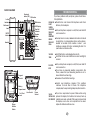
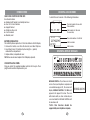
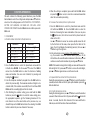
MAIN DIAGRAM
TROUBLESHOOTING
One-touch
button (VIP) DEL button
In Use
Indicator
DIAL button
Wall mount
hook
LCD Display
New Call
Indicator
Speaker
button
Redial/Pause
button
MUTE
button
Handset
If you have problems with your phone, please check below
for helpful hints:
BLANK OR
FAINT
SCREEN
CALLER ID
WILL NOT
WORK
PROPERLY
PHONE
WILL NOT
RING
button
R button
NO DIAL
TONE
NO DATA
SENT
Support
Bracket
l Check
the line cord. Connect the telephone cord. Check
batteries, Check adaptor.
l Call
your telephone company to verify that your Caller ID
services are active.
l You
may have too many communication devices hooked
to a single line. A communication device can be a phone,
modem or facsimile (FAX) machine. Contact your
telephone company for help in calculating the limit for
your residence or business line.
l Verify that the line cord is plugged in correctly.
l Verify
that the line cord connection is correct and tightly
secured.
l Call
your telephone company to verify that your caller ID
services are active.
l If you have an answering machine connected to this
Phone, ensure that your answering machine is set to
answer after at least two rings.
l You answer the call before two rings.
l Contact
your telephone company if the problem
continues for more than 24 hours. The telephone
company may be experiencing temporary disconnection.
Battery
Compartment
Coil Cord
Jack
Ringer
Volume
Switch
Line Socket
Power
Socket
l If you have experienced a power failure when using
NO RESPONSE ON optional AC adaptor, the batteries for memory back up
LCD DISPLAY could become weak or dead. If the power is restored and
the display screen does not respond then You must
replace the batteries with new ones.
16