1
Personnel Queries (Reporting)
This option allows the user to build user defined reports. This is a very powerful tool, but requires an understanding of
how the database is made up.
•
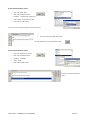
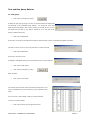
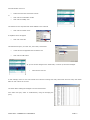
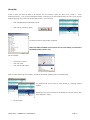
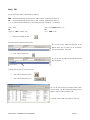
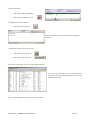
Click onto the Personnel
•
Scroll down to Reports
•
Click onto Personnel Queries
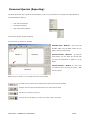
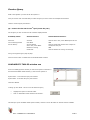
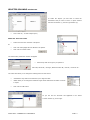
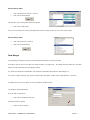
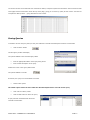
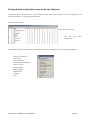
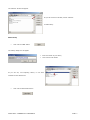
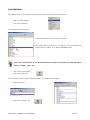
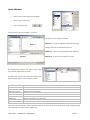
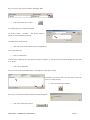
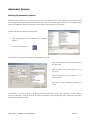
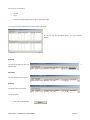
The Personnel Queries window will appear
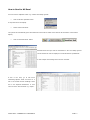
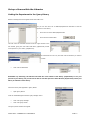
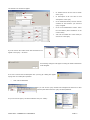
As you can see you have three windows
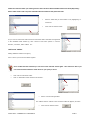
Available Fields - Window 1 - gives you all the
available tables and sub-tables within the Fire
Safety, Personnel and Training.
Window 1
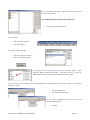
Window 2
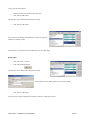
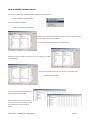
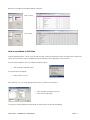
Selected Columns – Window 2 – By using the
Select button you can create the columns that
you want the information to appear in on the
Report.
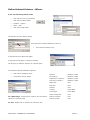
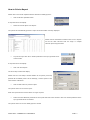
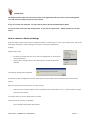
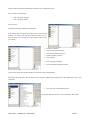
Selected Columns – Window 3 – this is were
you define the query by using the ‘Where’, ‘AND’
Window 3
and ‘OR’ options.
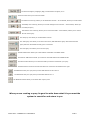
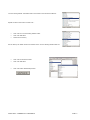
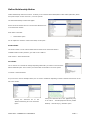
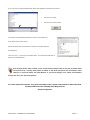
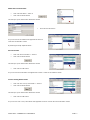
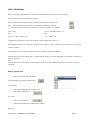
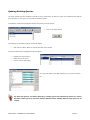
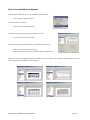
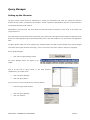
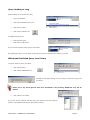
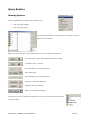
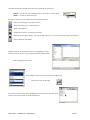
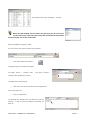
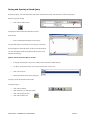
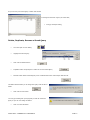
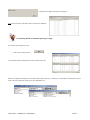
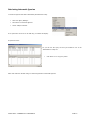
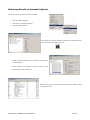
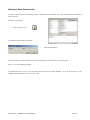
Before we go any further, let’s see what the icons do in the toolbar
The Clear icon will remove all text that has been entered into all of the windows
The Open Icon will open the Libraries where your queries will be saved
The Save icon will save your query
The Save As icon will allow you to Save your query under a new name
SOPHTLOGIC – COMMERCIAL IN CONFIDENCE
PAGE: 5