1
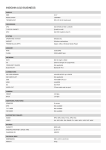
User Manual DPF-830 Please read these instructions before use and retain for future reference 1 CONTENTS 1. Safety Precautions ------------------------------------------------------------------------------3 2. INTRODUCTION ----------------------------------------------------------------------------------4 2.1. Panel control -------------------------------------------------------------------------------4 2.2. Remote Control ----------------------------------------------------------------------------4 3. SELECTION MODE AND READING OF FILES ----------------------------------------------------5 3.1. Example (Photos) ---------------------------------------------------------------------------5 3.2. Example Preview & Display)-------------------------------------------------------------5 4. PERSONAL ADJUSTMENT ------------------------------------------------------------------------6 4.1. Enter Setup ---------------------------------------------------------------------------------6 4.1.1. Language ----------------------------------------------------------------------------6 4.1.2. Slideshow Time ---------------------------------------------------------------------6 4.1.3. Transition effect -------------------------------------------------------------------7 4.1.4. Music repeat mode ----------------------------------------------------------------7 4.1.5. Movie repeat mode ----------------------------------------------------------------8 4.1.6. Display mode -----------------------------------------------------------------------8 4.1.7. Start up mode ----------------------------------------------------------------------9 4.1.8. Date and clock ---------------------------------------------------------------------9 4.1.9. Power off ---------------------------------------------------------------------------10 4.1.10. Power on ---------------------------------------------------------------------------10 4.1.11. Alarm -------------------------------------------------------------------------------11 4.1.12. TFT Brightness --------------------------------------------------------------------11 4.1.13. TFT Contrast -----------------------------------------------------------------------12 4.1.14. TFT Saturation ---------------------------------------------------------------------12 4.1.15. Load Default -----------------------------------------------------------------------13 5. Calendar Model ----------------------------------------------------------------------------------13 6. Movie, Music, Photo Menu----------------------------------------------------------------------14 7. HELP IN CASE OF PROBLEMS ------------------------------------------------------------------15 8. TECHNICAL SPECIFICATIONS ------------------------------------------------------------------16 9. RECYCLING ELECTRICAL PRODUCT-----------------------------------------------------------17 For further information on the TEXET range, please refer to www.texet.com We would like to thank you for your purchase of the Texet DPF-830. The user manual should be thoroughly read to understand all functionality of the Texet DPF-830. 2 1. SAFETY PRECAUTIONS FOR HOUSEHOLD AND INDOOR USE ONLY PLACE THE APPLIANCE ON A FLAT, STABLE SURFACE WITH ADEQUATE VENTILATION AND AWAY FROM OTHER SOURCES OF HEAT. MINIMUM DISTANCES AROUND THE APPLIANCE FOR ADEQUATE VENTILATION IS 5CM. DO NOT COVER OR RESTRICT VENTILATION OPENINGS. CHILDREN SHOULD BE SUPERVISED TO ENSURE THEY DO NOT PLAY WITH THE APPLIANCE, AND THE APPLIANCE AND CABLE SHOULD BE KEPT COMPLETELY OUT OF REACH OF YOUNG CHILDREN. THIS APPLIANCE IS NOT DESIGNED FOR USE BY CHILDREN, OR PERSONS WITH REDUCED PHYSICAL, SENSORY OR MENTAL CAPABILITIES, AND SHOULD NOT BE USED BY SUCH PERSONS UNLESS THEY CAN DO SO SAFELY. WHERE NECESSARY, SUCH PERSONS (OR ANYONE WITH LACK OF EXPERIENCE OR KNOWLEDGE) SHOULD FIRST BE GIVEN SUPERVISION OR INSTRUCTION CONCERNING USE OF THE APPLIANCE BY A PERSON RESPONSIBLE FOR THEIR SAFETY. FULLY UNWIND THE CABLE BEFORE PLUGGING IN AND ENSURE THE CABLE IS POSITIONED AWAY FROM AREAS WHERE IT IS LIKELY TO GET DAMAGED OR CAUSE A TRIP HAZARD. THE OUTPUT CORD OF THIS MAINS ADAPTOR CANNOT BE REPLACED. IN THE EVENT OF DAMAGE TO THE CABLE, JACK PLUG OR ADAPTOR, THE ENTIRE ADAPTOR UNIT SHOULD BE REPLACED. CONNECTIONS MUST ONLY BE MADE VIA THE MAINS ADAPTOR SUPPLIED, NEVER CONNECT THE APPLIANCE DIRECTLY TO THE 240V MAINS SUPPLY. NEVER USE THE ADAPTER SUPPLIED WITH ANY OTHER APPLIANCE. THE MAINS ADAPTOR WILL BECOME WARM IN USE; DO NOT COVER OR PLACE ON OR NEAR SURFACES THAT COULD BE AFFECTED BY HEAT SUCH AS TABLE TOPS AND CARPETS. DO NOT PULL ON CABLE TO DISCONNECT FROM MAINS SUPPLY. KEEP APPLIANCE, CABLE, MAINS ADAPTOR PLUG DRY AND AWAY FROM AREAS WHERE IT IS LIKELY TO GET SPLASHED. AVOID USING IN HOT, HUMID ENVIRONMENTS. DO NOT PLACE ITEMS WITH NAKED FLAMES OR CONTAINERS WITH LIQUIDS ON THIS APPLIANCE. SWITCH OFF AND UNPLUG WHEN NOT IN USE AND BEFORE CLEANING OR SERVICING THE APPLIANCE. SERVICING OF THIS APPLIANCE MUST ONLY BE CARRIED OUT BY A QUALIFIED ELECTRICIAN. ALWAYS ENSURE THE MAINS ADAPTOR PLUG IS READILY UNPLUGGABLE – DO NOT USE WITH ‘LOCKABLE’ SOCKETS OR PERMANENTLY WIRE TO MAINS. The lightning flash with arrow-head symbol, within an The equilateral exclamation point within an triangle, is intended to alert the user WARNING: TO REDUCE THE RISK OF ELECTRIC equilateral triangle is intended to alert to the presence of un-insulated SHOCK, DO NOT REMOVE COVER (OR BACK). the user to presence of important "dangerous NO USER SERVICEABLE PARTS INSIDE, REFER operating and maintenance (servicing) product's enclosure that may be of SERVICING TO QUALIFIED SERVICE instructions sufficient magnitude to constitute a PERSONNEL. accompanying the appliance voltage" within the risk of electric shock. 3 in the literature 2. INTRODUCTION 2.1. Panel control 1 2 3 4 5 6 7 8 9 10 11 12 Back button Up button Left button Down button Right button Power button Aux in jack DC in jack USB port SD/MMC/MS card reader jack Mini USB jack Enter/play button 2.2. e control 1. Power ON/OFF switch and standby 2. Switch Aux In mode 3. Mute 4. Adjust volume or UP/DOWN 5. Previous chapter/Next chapter 6. Enter or play your selection 7. Rotate the image 8. Zoom the image 9. Return to the previous menu 10. Slideshow photo & music 11. Switch to music mode 12. Switch to video mode 13. Switch to full screen 14. Switch to edit mode 15. Switch to calendar mode 4 3. SELECTION MODE AND READING OF FILES If there are no cards, please Insert the card / usb and it will show you the inserted card / usb as below picture. Example: 3.1. Select Photo Select CARD/USB by pressing or buttons and then confirm by ENTER. 3.2. Preview & Display Photo Select PHOTO, to obtain preview of 15 photos, use the Vol+, Vol-, , buttons to choose the photo to display, press “Enter/Play” key to confirm. 5 4. PERSONAL ADJUSTMENT 4.1. Enter Setup mode Select SETUP from Main menu by pressing ENTER. or buttons and then confirm by 4.1.1. Language Select LANGUAGE by pressing the button and then confirm by ENTER. Select your language, and then confirm by ENTER. Exit the menu by RETURN button. 4.1.2. Slideshow Time Select SLIDESHOW TIME by pressing the Vol+ Vol- button, then press button to select slideshow time and then confirm by ENTER. Exit the menu by RETURN button. 6 4.1.3. Transition effect Select TRANSITION EFFECT by pressing the Vol+ Vol- button, then press ► button to select transition effect. And then confirm by ENTER. Exit the menu by RETURN button. 4.1.4. Music repeat mode Select MIUSIC REPEAT MODE by pressing the Vol+ Vol- button, then press ► button to select music repeat mode and then confirm by ENTER. Exit the menu by RETURN button. 7 4.1.5. Movie repeat mode Select MOVIE REPEAT MODE by pressing the Vol+ Vol- button, then press ► button to select movie repeat mode and then confirm by ENTER. Exit the menu by RETURN button. 4.1.6. Display mode Select DISPLAY MODE by pressing the Vol+ Vol- button, then press button to select display mode and then confirm by ENTER. Exit the menu by RETURN button. 8 4.1.7. Start up mode Select START UP MODE by pressing the Vol+ Vol- button, then press button to select start up mode and then confirm by ENTER. Exit the menu by RETURN button. 4.1.8. Time Select TIME(DATE & TIME) by pressing the Vol+ Vol- button, then press button to select the date and time, press the Vol+ Vol- button to set, and then confirm by ENTER. Exit the menu by RETURN button. 9 4.1.9. Auto power off Select POWER OFF by pressing the Vol+ Vol- button, then press button to select the hour of minute, press the Vol+ Vol- button to set, and then confirm by ENTER. Exit the menu by RETURN button. 4.1.10. Auto power on Select POWER ON by pressing the Vol+ Vol- button, then press button to select the hour of minute, press the Vol+ Vol- button to set, and then confirm 10 by ENTER. Exit the menu by RETURN button. 4.1.11. Alarm Select ALARM by pressing the Vol+ Vol- button, then press button to select the time, ring type and alarm on/off, press the Vol+ Vol- button to set, and then confirm by ENTER. Exit the menu by RETURN button. 4.1.12. TFT Brightness Select TFT Brightness by pressing the Vol+Vol- button, then press button to select the brightness of TFT screen and then confirm by ENTER. Exit the menu by RETURN button. 11 4.1.13. TFT Contrast Select TFT Contrast by pressing the Vol+ Vol- button, then press button to select the Contrast of TFT screen and then confirm by ENTER. Exit the menu by RETURN button. 4.1.14. TFT Saturation Select TFT Saturation by pressing the Vol+ Vol- button, then press button to select the Saturation of TFT screen and then confirm by ENTER. Exit the menu by RETURN button. 12 4.1.15. Load Default Select DEFAULT by pressing the Vol+ Vol- button, then confirm by ENTER. Exit the menu by RETURN button. Notice:Load Default will lose all your PERSONAL ADJUSTMENTS. 5. CALENDAR MODE When you are at the main MENU, select CALENDAR, and press ENTER to activate the date and hour function. Also you can press the CALENDAR button at the Remote. 13 Press ENTER to enter calendar with picture mode. 6. MOVIE, MUSIC, PHOTO, FILES MENU Select the supported Storage (SD/MMS/MS/XD USB) by pressing the buttons and then confirm by ENTER. 6.1. MOVIE Select MOVIE by pressing the or or buttons and then confirm by ENTER, then 14 select the supported movie files to play by Vol+ Vol- button, play by enter. 6.2. MUSIC Select MUSIC by pressing the or buttons and then confirm by ENTER, then select the supported music files to play by Vol+ Vol- button, play by enter. 6.3. PHOTO Select PHOTO by pressing the or buttons and then confirm by ENTER, then select the supported photo files to play by Vol+ Vol- button, play by enter. 15 Notice: Also, you can use remote control to choose MUSIC MODE or VIDEO MODE and the SLIDESHOW to start playing music or movie and the SLIDESHOW functions. 6.4. FILES Select FILES by pressing the or buttons and then confirm by ENTER. Then select the supported files to edit by Vol+ Vol- button, press to choose, you can also choose the other files by press , then select COPY or DELETE to edit the files that you chosen. 16 7. HELP IN CASE OF PROBLEMS If the photo frame does not function correctly, you need to read the following information carefully. Before requesting for technical assistance, you need to verify the following matters: Failure symptom Probable cause and possible solution No power supply If there is no power supply, verify that the photo frame is well connected to its power supply block and if the latter is connected to the sector, and try once more. No display Verify that you have inserted a memory card or a USB key properly into the appropriate readers and that the latter contain files legible by the apparatus ? only JPG and TXT formats are supported. The remote control does not function. 1. The distance is too long or the angle exceeds 30 degrees. 2. The battery of the remote control is discharged. 3. The infrared sensor is perturbed by another luminous source Your photo frame dies or goes back to its welcome screen. This may be provoked by an electrostatic environment. You need to make a stop/forward step of your photo frame, if you know its origin, and keep the frame away from the source generating electrostatic problems (ESD). It does not functions with a PC The digital photo frame is not provided to function when connected to a PC. The USB port is intended to receive USB keys uniquely in order to read .JPG or any other support files. Observation Potential cause / solution The frame does not work Does the socket that is being used have power? Is the frame switched on at the plug? Is the adaptor correctly / fully connected? Has the FUNCTION switch been moved to ON? No start up screen Has the memory card device been inserted? No photo displayed. Has the memory card been correctly inserted? Have photos been saved on the memory card or internal memory? Has correct photograph source (e.g. memory or card) been selected in the control menu? Incompatible file format – is the photo saved in JPG or JPEG formats? being 8. TECHNICAL SPECIFICATIONS Screen size: 8 inches 800*600 4:3 ratio Speaker Output: 8W (2W*2+4W)RMS 17 Supported file format: .JPG, AVI, MP3, MP4, DIVX,WMA. Acceptable photo cards: MS, MS Pro, MMC, SD, XD, USB2.0, Mini USB. USB ports: USB 1.1 and USB 2.0 Power supply: AC 110V-240V~60/50Hz (DC 9V2A) Max power consumption: 15 W Disposition: placed or suspended Dimensions (with frame): 260(L) x 230(W) x 244(H) mm Weight: 1016 g 9. RECYCLING ELECTRICAL PRODUCTS You can now recycle your waste electrical goods and in doing so help the environment. This symbol means an electrical product is designed for recycling when finished with. Visit www.recycle-more.co.uk, click on “bank locator” and enter your postcode to find your nearest recycling site. 18