1
Delinquency Calculator
108
Judgment Form
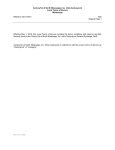
Figure 7, Judgment Form
The Judgment form allows you to enter the date of the judgment, obligation amounts, attorney's fees
and costs and the contractual interest rate and grace period (if applicable).
To enter information about a judgment:
1. Enter the date that the judgment was rendered in the Date Rendered field.
2. In the Amount of judgment EXCLUDING attorney's fees and costs field, enter the amount
of the judgment minus the amount that was awarded for attorney's fees and costs.
3. Enter the amount of the judgment that was due on or after January 1, 1995 in the Amount of
judgment for obligations due on or after 1/01/1995 field.
4. The amount of the judgment for obligations that were due before January 1, 1995 appears in the
Amount of judgment for obligations due before 1/01/1995 field. This field's total is
automatically calculated from the answers that were provided in Steps 2 and 3.
5. Enter the amount that was awarded in attorney's fees and costs in Amount field of the Amount
in Judgment for Attorney's Fees and Costs section.
6. If contractual interest is applied, place a check in the Contractual Interest checkbox.
a. Enter the interest rate to be applied in the Interest Rate field.
b. Enter the number of days to wait before applying interest in the Grace Period field.