1
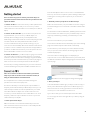
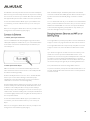
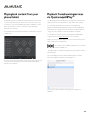
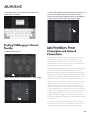
Scroll to the bottom of the menu and you will now see an item called
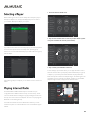
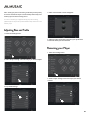
The Musaic system allows music to be selected in various ways and
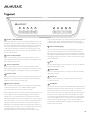
Link Player to account. Press this button to link this Player to your
added to a playback queue as below.
personal Musaic account. If you have more than one Player link each
one to your account in turn.
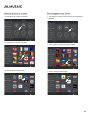
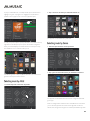
1. Tap Albums
2. Choose the album you want to listen to.
Musaic works with your home network to play music from NAS drives,
Macs or PCs which have a UPnP™/DLNA™ server installed. A NAS
(Network Attached Storage) drive is a stand-alone, always-on,
networked hard-drive that has such a server pre-installed. These
drives allow an always available music library for the whole home.
Alternatively it is possible to run a server on a Mac or Windows PC
(desktop or laptop) and achieve the same functionality. The only
downside of this approach is that the desktop/laptop will need to be
on for its music library to be available to the Musaic units in your
house.
Windows PCs generally include a free UPnP server built in, this
functionality is turned off by default but can be easily turned on.
See our website for more details on NAS drives, how to turn on the
server functionality for Windows PCs and for help on installing servers
in general.
You have multiple options when playing an album. If you have nothing
in your queue, play the whole album by tapping Add Album to Queue.
If there is already music in the queue, this will add the album to the
bottom of the queue. If you have music in the queue and wish to
replace it with the album, tap Replace Queue with Album.
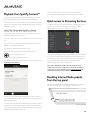
To play from a music library on a suitable server first select the Music
Libraries menu in the Musaic app.
15