1
20
Lorex Player for Mac: Viewing
Backed up Video on Mac
Lorex Player for Mac allows you to view your backed up video files on a Mac computer.
To install Lorex Player for Mac:
1. Go to www.lorextechnology.com and search for the model number of your DVR (look
at the label underneath your DVR for the model number).
2. Navigate to the product page for your DVR model and download Video Player for
MAC.
0
3. Extract the file and double-click the Lorex Player for Mac installer (.pkg) file. Follow the
on-screen instructions to install the software.
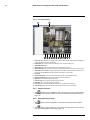
Launching Lorex Player for Mac:
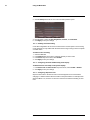
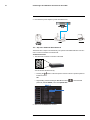
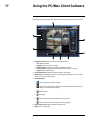
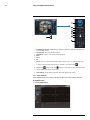
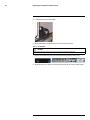
• Click the Lorex Player for Mac icon (
Finder.
) in the Dock or in your Applications List in
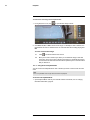
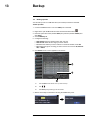
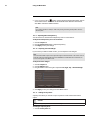
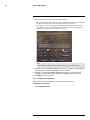
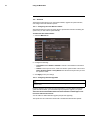
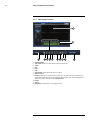
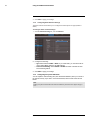
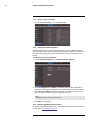
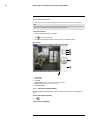
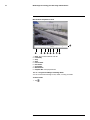
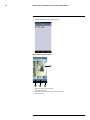
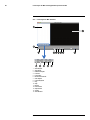
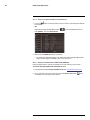
20.1 Opening Individual Video Files
3
1
2
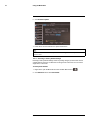
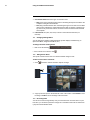
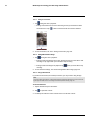
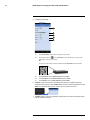
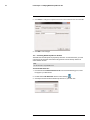
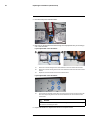
1. Click the Load new file button (
).
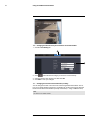
2. Browse and select the desired file. Click Open to add the file to the video playlist.
Note
The default save directory is in your Home folder/dvr.
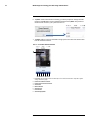
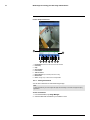
3. Double-click the video file in the playlist to begin playback.
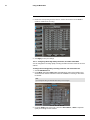
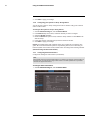
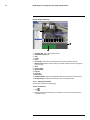
20.2 Loading Multiple Video Files
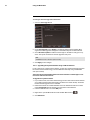
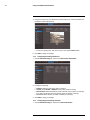
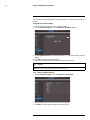
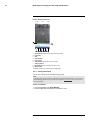
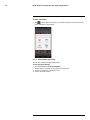
You can load an entire folder of video files.
To load multiple video files saved onto your hard drive:
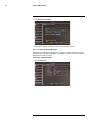
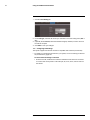
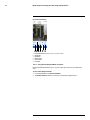
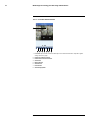
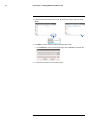
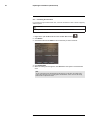
1. Click the Load folder button (
).
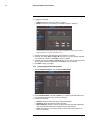
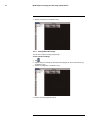
2. Select the desired folder you wish to add to the playlist. Click Open to add all the videos in the folder.
3. Double-click the video file in the playlist to begin playback.
#LX400012; r. 2.0/12066/12066; en-US
133