1
9
Using the On-Screen Display
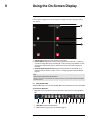
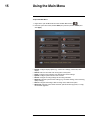
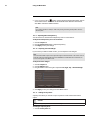
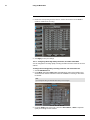
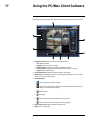
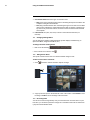
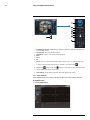
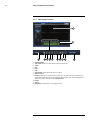
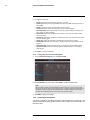
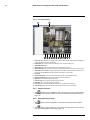
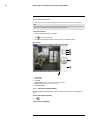
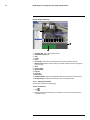
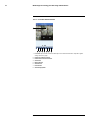
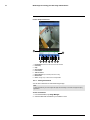
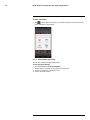
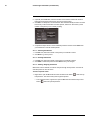
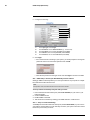
3. Split Screen buttons: Select the desired split-screen mode (available options depend on the number of channels your DVR has).
4. PTZ: Opens the PTZ controls.
5. Start/Stop PTZ Cruise: Start or stop the PTZ cruise function.
6. Zoom: Opens digital zoom. Must be in Full-screen / Live Viewing Mode.
7. Record Search: Opens the DVR Search Menu. This allows you to search for video
recorded on the DVR.
8. Start/Stop Recording: Start or stop DVR recording on all channels. Password required; does not override scheduled recording.
9. Start/Stop SEQ: Start or stop Sequence Mode. In Sequence Mode, DVR automatically switches between channels every few seconds.
10. PIP 1X1: Enable Picture in Picture Mode with one camera in full screen and one in
a small window.
11. PIP 1X2: Enable Picture in Picture Mode with one camera in full screen and two in
small windows.
12. Volume: Adjust the DVR volume (audio-capable cameras required, not included).
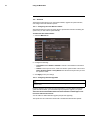
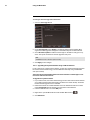
9.2 Using the Virtual Keyboard and Mini-Keyboard
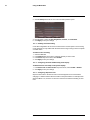
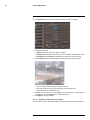
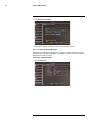
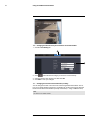
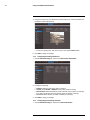
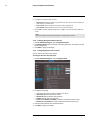
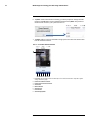
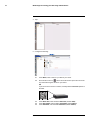
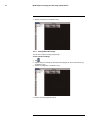
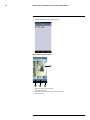
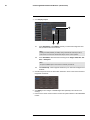
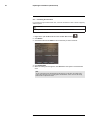
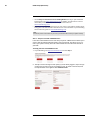
You can input numeric or text values using the on-screen virtual keyboard. You will need to
use the Virtual Keyboard when entering your User ID and Password. The Virtual Mini-Keyboard is used to input numeric values, such as the time and date.
To use the Virtual Keyboard:
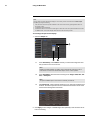
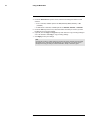
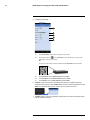
1. Using the mouse, click on an option or field, such as the User ID and Password fields.
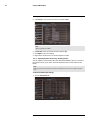
• The Virtual Keyboard opens.
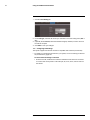
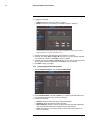
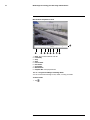
• Click Shift to switch between upper and lowercase letters.
• Click
to move the cursor between letters.
• Click <— to backspace/delete.
• Click Enter to enter your selection.
• Click ESC to close the virtual keyboard.
#LX400012; r. 2.0/12066/12066; en-US
22