1
7 Options – General Settings
The option settings in the menu Administration / Configuration / Options adapt the
program to the system present and the preferences of the user.
7.1 Browser
You require a browser to display the alarm reports and configure the Convision Video
Webserver . Calling either of these functions automatically opens a browser window
for display of the pages. For this purpose, it is necessary for the program to be able
to call a browser directly.
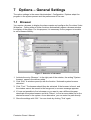
Figure 7: Selection of a browser
1. Activate the entry “Browser“. In the right part of the window, the setting "System
browser“ opens in the delivery state.
2. Click “Edit“. A window opens up with the function “Automatic system browser
detection“.
3. Click “Test“. The browser should then be activated. If the browser is found, and
the window cannot be moved to the foreground, a success message appears.
4. If it was not possible to find a browser or you want to use a different browser,
deactivate the system browser and click “Select“, to find an executable file for the
desired browser in the system. As an alternative, you can enter the path directly.
5. Store the settings with “OK“. You can check by clicking “Test“ again.
Convision Guard - Manual
15