1
C O NFERENCE
CA LENDA R
USER’S
GUIDE
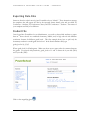
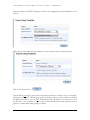
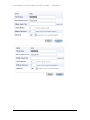
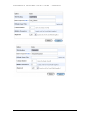
Change Student Info
The button
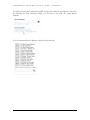
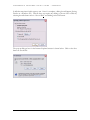
will first show a list of all students in the school
as well as a button to add a new student. Selecting a student will display the personal information
on this student and will allow the administrator to change any of it (except for the ID number of
students already in the database). Students cannot be deleted from the database.
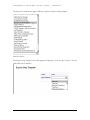
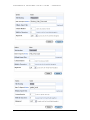
For new and existing students, fields are provided to add two classes. The teacher must be
selected from the drop-down list; the title of the course is a free text field. If more than two
classes are desired, you can save the information and then go back and select the same student
again, thus entering two at a time as many times as you wish. Once classes are entered, they
cannot be edited but can be deleted.
A button is also provided to allow the school administrator to assign random passwords to
students that have no password. After running the set-up and loading the student data, if one or
more students do not have passwords extracted from the school database, this button will
generate random numeric passwords.
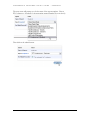
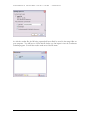
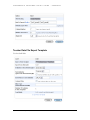
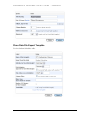
Change Teacher Info
The button
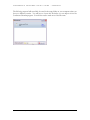
will first show a list of all teachers in the school
as well as offer a button to add a new teacher. Selecting a teacher will display the personal
information on this teacher and will allow the administrator to change any of it (except for the ID
number of teachers already in the database).
Teachers can be deleted from the database if they do not teach any classes. This allows the
administrator to remove non-teaching staff members from the program.
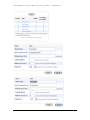
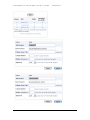
Change Admin Info
The button
will allow the administrator to create other
administrator accounts and change the passwords they log in with. Multiple administrator
account can be created. At this time, all accounts have equal permissions and privileges.
Provisions have been made for expanding the role of a “super” user. The setting chosen for this
is currently not active.
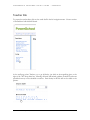
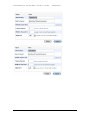
Statistics
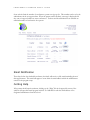
The button
will show some information gathered from the
databases. The total number of students and teachers/staff will be presented along with the
number of students (families) signed up for conferences.
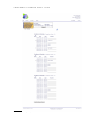
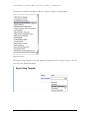
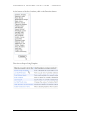
Next to the teachers is a link called (more…). Clicking on that will show a list of all teachers and
will show the number of scheduled timeslots per day and the number of timeslots blocked per
day along with the total number of conferences and total number of blocked timeslots.
© 2007-2012 SchoolSystems, LLC
19