1
Chapter 5
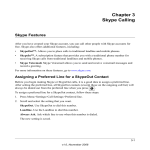
Contacts
Entering Text and Numbers
You can use the alphanumeric keys on your phone to enter text and numbers.You can enter
lowercase, uppercase, numeric characters, and symbols.
To enter text, numbers, or symbols:
1. Press
to change to uppercase, lowercase, or numeric entry.
The lower right corner displays the method you have currently selected. A for uppercase; a for
lowercase; 1 for numeric mode.
2. Find the button with the character that you want.
3. Press it as many times as needed for the character to display on the screen.
The preview area shows the available characters of the button.
Tip: Use
(Left or Right) to move the cursor. To enter symbols, press
•
To erase a single character, press Cancel.
•
To erase all characters, press and hold Cancel.
.
5-1
v1.0, November 2006
Cordless Internet Phone with Skype Model SPH200D User Manual
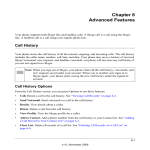
Contact Options
The Contacts screen shows your contacts in alphabetical order.
To view or work with contacts, follow these steps:
1. Press Menu>Contacts.
For a description of status, see “Viewing or Changing
Your Skype Status” on page 3-9.
2. You can select Options to call a contact, see more detail,
or work with contacts.
Figure 5-1
On the Contacts screen, the following features are available:
•
Call. Choose the type of call that you want to make: Skype, SkypeOut or Landline.
•
Send Voicemail. You can send Skype Voicemail or landline voicemail. See “Skype
Voicemail” in Chapter 3 and “Landline Voicemail” in Chapter 4.
•
View Profiles. View the Skype profile of a contact.
•
Rename. Change the display name of a contact. Edit the name and press OK. Your edited
contact is saved.
•
Remove. Remove a contact from the list. A confirmation request is displayed. Press Yes to
confirm. The contact is removed.
•
Block. Block a user from contacting you. You will always appear as offline to the user that you
have blocked. See “Blocking a Contact” on page 5-4 and “Unblocking a Contact” on page 5-4.
•
Request Auth. Request authorization from a Skype Contact.
5-2
Contacts
v1.0, November 2006
Cordless Internet Phone with Skype Model SPH200D User Manual
Adding Contacts
Note: Your phone can store a total of 500 Skype and SkypeOut contacts. If you try to add
more, the phone displays a Memory Full message. Delete unnecessary contacts
before adding new ones.
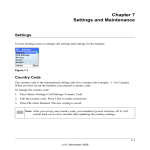
To add a Skype or SkypeOut Contact, follow these steps:
1. Press Menu>Add Contact>Skype.
2. Choose Skype or SkypeOut:
•
Skype. Enter the Skype name or full name. To let
this contact see when you are online, select Yes.
•
SkypeOut. Enter the name and phone number
(including international calling code and area code).
3. Press OK.
Figure 5-2
Note: Contacts with identical numbers cannot be saved. Press
upper case, lower case, or numeric entry
to change to
The new contact is added to the contact list. For Skype contacts, the phone sends a request to
the contact for authorization.
Finding a Contact
You can search the contact list by scrolling or by quick filtering.
•
Scrolling. While at the contact list, press
(Up or Down) to scroll.
•
Quick filtering contacts. While at the contact list, press the button with the letter that you
want to search. For example, if you want to search a contact starting with N, press [6] twice.
Contacts that begin with the letter N display in alphabetical order.
Contacts
5-3
v1.0, November 2006
Cordless Internet Phone with Skype Model SPH200D User Manual
Searching for a Skype User
You can search for a Skype user that is not on your contact list. After finding the user, you can
make a call, view the profile or add the user to your contact list.
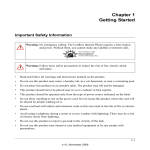
To search for a Skype user, follow these steps:
1. Press Menu>Search.
2. Enter the Skype name or full name and press OK.
A list of matching names is displayed.
3. Scroll to the user that you want, and then press Options
for more functions.
Figure 5-3
Blocking a Contact
You can block a user from contacting you. You will always appear as offline to the user that you
have blocked. You can unblock the contact if you change your mind.
To block a contact, follow these steps:
1. Press Menu>Contacts.
2. Scroll and select the contact.
3. Press Options>Block.
4. Press Yes to confirm.
Unblocking a Contact
To unblock a contact, follow these steps:
1. Press Menu>Settings>Privacy>Blocked Users.
2. Scroll to the contact that you want to unblock.
3. Press Options>Unblock.
The contact is unblocked.
5-4
Contacts
v1.0, November 2006