1
Once the input parameters are validated, the script opens the first sound file in the path, and checks whether a manual
correction (a .pitch file) is already available. If this is the case, the script plots its f0 contour according to the plot
parameters. If a manual correction is not already available, the soundfile is opened in the Sound window, the f0 contour
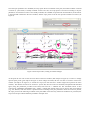
is extracted and visualized in the Pitch window, and the script pauses to let the user provide a manual correction (see
Figure 4).
Figure 4. Pitch object editor, waiting for manual changes.
At this point the user can use the Selection menu of the Pitch window (blue ellipsis in Figure 4) to remove or change
spurious pitch points (green ellipses in Figure 4). Once changes are made, the user can click on Continue in the Pause
window (red ellipsis in Figure 4) to resume the script (note that the Pause window might end up below the Pitch
window). The manual corrections are stored in a .pitch file, then the contour is smoothed, interpolated and smoothed
again (using the parameters provided in the form) and stored in a .smooth file. The smoothed contour is then
converted to a HEaderless SPreadsheet file (.hesp), a simple table format which can be used in other environments
(e.g. R or Matlab). Then the contour is plotted in Praat according to the plot parameters. Once the contour is plotted,
the script processes the following sound file in the path folder in the same way. When all sound files are processed, the
script saves the plot with the filename provided in the input form.