1
Terminal
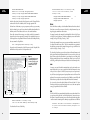
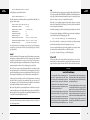
For user-friendliness fans, Terminal doesn’t get off to a very good start; this prompt
looks about as technical as computers get. It breaks down like this:
•• office-mac: is the name of your Mac (at least, as Unix thinks of it). It’s usually the
Mac’s computer name (as it appears in the Sharing pane of System Preferences),
but it’s occasionally the name your Mac goes by on the Internet.
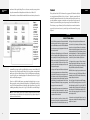
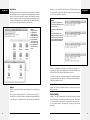
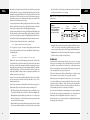
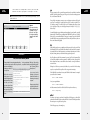
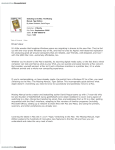
Figure 2:
On the Web, Mac OS X’s Terminal
is one of the most often-discussed
elements of Mac OS X. Dozens of
step-by-step tutorials for performing certain tasks circulate online,
usually without much annotation
as to why you’re typing what
you’re typing. As you read this
chapter, remember that capitalization matters in Terminal, even
though it doesn’t in the Finder. As
far as most Unix commands are
concerned, “Hello” and “hello”
are two different things.
•• ~ indicates what folder you’re “in” (Figure 2). It denotes the working directory—that
is, the currently open folder. (Remember, there are no icons on the command line.)
Essentially, this notation tells you where you are as you navigate your machine.
Terminal
The very first time you try out Terminal, the working directory is set to the symbol
~. That tilde symbol is important shorthand; it means “your own Home folder.”
It’s what you see the first time you start up Terminal, but you’ll soon be seeing the
names of other folders here—office-mac: /Users or office-mac: /System/Library, for
example. (More on this slash notation on page 26.)
Note: Before Apple came up with the user-friendly term folder to represent an electronic holding tank for
files, folders were called directories. In this chapter, you’ll encounter the term directory almost exclusively. In
any discussion of Unix, “directory” is simply the correct term.
Besides, using a term like “working folder” within earshot of Unix geeks is likely to get you lynched.
•• chris$ begins with your short user name. It reflects whoever’s logged into the shell
(see the box on the facing page), which is usually whoever’s logged into the Mac
at the moment. As for the $ sign, think of it as a colon. In fact, think of the whole
prompt shown in Figure 2 as Unix’s way of saying, “OK, Chris, I’m listening.
What’s your pleasure?”
Unless you’ve fiddled with Terminal’s preferences, the insertion point looks like a
tall rectangle at the end of the command line. It trots along to the right as you type.
up to speed
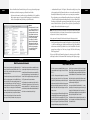
What’s Been Lionized in Terminal
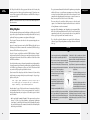
Terminal received a makeover in Lion/Mountain Lion. For
example, its scroll bars are usually hidden, and the ƒ button sits in the corner of the window so you can make its
window go full screen.
Terminal windows’ new proxy icon (in the title bar) works
like it has in other programs, too: You can c-click it to see
the parent folders of the current working directory; click
one, and that folder opens in the Finder. There are even
new window themes in PreferencesÆSettings, like Silver
Aerogel: It lets you see through your Terminal window to
whatever is behind it (the background appears blurry when
your Aerogel window is active, or crisp when it’s inactive.)
Terminal also benefits from Lion’s Resume feature: When
you reopen Terminal, all windows from your previous
4
mac os x: the missing manual
Terminal session reopen to their same working directories;
any text output from the previous session is preserved, too.
Terminal’s tabs and Dock icons have become animated: They
now indicate status changes of any inactive windows, and
Terminal’s Dock icon displays a running count of any alerts
(“bell”) signals received by inactive windows.
Finally, windows you’ve minimized to the Dock show Terminal activity live, right on their icons. Try it: Execute a long
running command like ls -R / (which lists the contents of
your entire drive) and then minimize that window. Now look
at the Dock icon and watch the tiny lines fly by!
up to speed
Bash, Terminal, and Shells
One Unix program runs automatically when you open a
Terminal window: bash. It’s Apple’s chosen shell for Mac
OS X 10.7.
A shell is a Unix program that interprets the commands
you’ve typed, passes them to the kernel (the operating
system’s brain), and then shows you the kernel’s response.
In other words, the shell is the Unix Finder. It’s the program
that lets you navigate the contents of your hard drive, see
what’s inside certain folders, launch programs and documents, and so on.
There are actually several different shells available in Unix,
each with slightly different command syntax. All the popular
ones—like tcsh, ksh, and zsh—come with Mac OS X. (You can
choose among them as your default shell using, of all things,
the Users & Groups pane of System Preferences. Click the l,
enter your Administrator password, and then Control-click or
right-click your account name in the list; choose Advanced
Options. There, on the Advanced Options panel, you’ll find
the Login Shell box, where you can make the change.) But on
a clean installation of Lion, Terminal comes set to use bash.
Bash evolved from the original sh shell, which was named
the Bourne shell after its inventor. Bash got its name, then,
as the Bourne Again Shell (get it?).
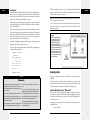
You can open additional Terminal windows (100 or more,
depending on how many other programs are running) by
choosing ShellÆNew WindowÆBasic. Even slicker, Terminal lets you open multiple sessions in tabs (just like with
Safari) by choosing ShellÆNew TabÆBasic.
Each window and tab runs independently of any others. For
proof, try opening several windows and then running the
cal command in each.
bonus chapter: the unix crash course
5