1
5d. Creating and Using Copy
Copy Manager
Warning! The Copy manager never, by itself, causes anything to be logged. All the NL8 Copy manager
does is determine exactly which piece of copy should run when an order calls for items to be logged.
Automation Warning - Natural Log 8 allows CopyID's of 1 to 20 characters [letters and/or numbers] to
uniquely identify a piece of copy in NL8 and in your automation system. Some automation systems have
additional restrictions. See your automation manual and automation in chapter 11 of the Natural Log 8
manual for more information on these CopyID restrictions particularly Scott Studios and MediaTouch.
Unless you have a specific need for CopyID's longer than 8 characters, we recommend you use no more
than 8 characters since many standard automation log files only have space for 8 characters in the CopyID
field. If you do use more than 8 characters, you may need to use a special log interface file format to
transfer the log to your automation system. This 8-characater restriction does not apply to identifiers of copy
rotators, copy packets, or copy schedules in NL8 because these items are converted into actual copyIDs'
during log generation.
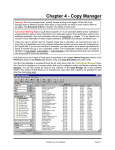
The NL8 Copy Manager is accessed through the NL main menu under the [Traffic][Copy Manager] menu.
The Copy list is displayed on a browser screen that can be configured, sorted, and filtered as desired. See
Browsers. You can also access the Copy for any customer on the Copy Manager tab on the Customer
Screen. This section of NL8 allows you to manage your Copy within NL8. CopyID's are specified for each
order line during order entry
Copy Types - NL8 allows you to use 4 types of Copy items. They are Normal Copy, Rotator, Packet and
Schedule.
Normal Copy - This is the simplest Copy item in NL8. It consists of a single piece of Copy. During order
entry you just specify the exact CopyID of the individual piece of copy to be scheduled when that order line
runs. This CopyID should exactly match the AudioCut ID (or Filename) within your automation system. See
Automation.
Note: When Copy is displayed, the [Listen] button launches your default MediaPlayer if you have one (e.g.
Windows MediaPlayer, RealPlayer, WinAmp, etc.) so you can listen to the copy. This work only if the audio
cut is available to the NL8 computer through a network connection. NL8 will open a browse window so you
can locate the actual audio cut. The audio must also be in a format understood by the Windows
MediaPlayer.
Note: Copy Rotators, Copy Packets and Copy Schedules are created using the same steps. The only
difference is in the ”Copy Item” box of each type.
20