1
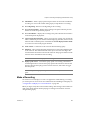
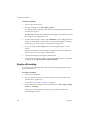
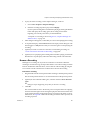
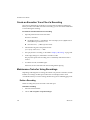
Workstation User’s Manual Uninstall VMware Tools Occasionally, an update of VMware Tools is incomplete. You can usually solve the problem by uninstalling VMware Tools and then reinstalling. To uninstall VMware Tools Depending on the guest operating system, do one of the following: On a Windows guest, use the guest operating system’s Add/Remove Programs item to remove VMware Tools. On any UNIX guest, log on as root (su) and enter the following command: vmware-uninstall-tools.pl On a Linux guest that has VMware Tools installed by using an RPM installer, you can uninstall by using the following command: rpm -e VMwareTools Repair or Change Installed Modules If features like enhanced file sharing do not work after a VMware Tools update, you might need to change or repair installed modules. Be sure to follow these steps. Do not use the guest’s Add/Remove Programs item in the Windows Control Panel. To repair or change installed modules 1 In Workstation, select the virtual machine and choose VM > Reinstall VMware Tools. 2 On the Welcome page, click Next and do one of the following: Click Change to repair or modify which components of VMware Tools are installed. Click Modify to specify which modules are installed. Occasionally, some new modules are not installed during an update. You can manually install new modules by using the Modify option. 3 Complete the rest of the pages of the wizard. If features still do not work, uninstall VMware Tools and reinstall. 116 VMware, Inc.