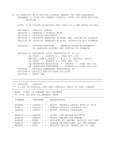
Download C08 TIME EXCEPTIONS panel cheat sheet

Transcript
PAYROLL TIME AND ATTENDANCE
Page
2-4
C08. TIME EXCEPTIONS
9. (Balancing Time Exceptions For One Employee)
After you see the message
UPDATES APPLIED...NEXT?
Notice that numbers have appeared next to the equal signs on the right side of the panel.
The computer has added all the time that you entered for each employee and entered the sum
for each employee on the right side of the equal signs. These numbers can now be compared
(balanced) against the manual addition of these numbers from the source document. If the
numbers do not match then possibly a typographical error has occurred during data entry or
the manual arithmetic on the source document is in error. Correct (rekey) the data in error
and hit the enter key. This balancing process can serve as a way to correct typographical
errors before the payroll is run.
10. After all employees on the panel are balanced
Hit the PF5 key to clear the panel for entry of the next group of employees for this run nbr /
PLD nbr. (Note: PF5 only clears the screen when the screen is full)
On the bottom line of the panel you should now see the message:
PANEL CLEARED. ENTER NEW RECORDS.
You can now continue entering data as described previously until all data is entered.
Remember, if you place the cursor on the first position of any exception code field on the panel
and hit the PF1 key you will see a list of exception codes which are allowed to be used.
Entering an exception code that is not allowed will result in an error message on the bottom line
of the panel.
Also, put the cursor on the first position of any exception time field and hit the PF1 key to see
how to enter the time. Entering time incorrectly may result in incorrect pay.
exception code field
exception time field
PAYROLL TIME AND ATTENDANCE USER GUIDE
6/97, revised: 09/27/99