1
will just remove his access to the report. The Find field allows you to find a specific User ID. The
scrolling window will then display only that User ID.
Validate List
This button, when pressed, will validate the list of Users in the scrolling window. If a User has
been deleted from Microsoft Dynamics Plains™, Reporting Extensions will remove the User from
the scrolling window when the Validate List button is pressed. If a new User has been added to
Microsoft
Dynamics Great Plains™, Reporting Extensions will update the scrolling window with the User’s
details when the Validate List button is pressed.
By User Class
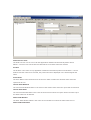
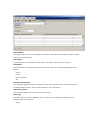
This option, if selected, opens the Reporting Extensions User Class Permissions window. This
window is used to grant the User Classes
permissions to the report selected. The Report Name is the name of the report. The Description is
the description of the report. The User Class is the ID assigned to the User Class in the User Class
Setup window. Refer to your Microsoft Dynamics Great Plains™ documentation for more
information. The Description is the description of the User Class. Allowed will be marked if the
User
Class has been given access to the report. The tickbox next to Allowed, if marked, will mark all the
User Classes in the scrolling window. A User Class can be deleted from the window. This will not
delete the User Class from Microsoft Dynamics Great Plains™. It will just remove the User Classes
access to the report. The Find field allows you to find a specific User Class. The scrolling window
will then display only that User Class. Both permissions windows can be displayed by User Class or
by User ID.
Wizard
This option, if selected, will open the Report Setup Wizard. The Wizard is exactly the same as the
Report Setup, but broken down into 7 steps.
5.8.
Report Scheduling
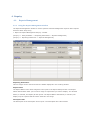
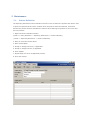
The Report Scheduling window is used to schedule reports to run at specific times on specific days.
These reports will then run automatically when set to and they do not require any User actions to
trigger them. This is only available if Enable Report Scheduling has been marked in the Reporting
Extensions Setup window. Refer to Reporting Extensions Setup for more information.
1. Open the Report Scheduling window.
(Cards >> Parity Software >> Reporting Extensions>> Report Scheduling)
(Cards >> Reporting Extensions >> Report Scheduling)