1
PVM ARCH - The machine architecture, as dened by PVM, for example, "LINUX" or "SUN4SOL2",
both for PVM and for the simulator
The user is then ready to install the software in their directory, and to begin a simulation.
2.2.1 Installing Software in User's Directory
In order to install the software in the user's directory (USERDIR), after having compiled RAPIDS as
above, complete this step:
Cd to SIMDIR, and perform an \aimk build exe". \build exe" copies the necessary les to the
USERDIR/exe as well as copy the appropriate binaries into the user's $HOME/pvm3/bin/$PVM ARCH/
directory. Incidently, that is where pvm looks to spawn the binaries when running the simulator.
The following commands do the trick:
cd $SIMDIR
$PVM_ROOT/lib/aimk build_exe
2.2.2 Starting the Simulator
Cd to $USERDIR/exe and continue to the next section...
Starting the Console
First, Start pvm, and add to the PVM any machines which have the same version of pvm, and also
have access to the simulator software. Then cd to the USERDIR/exe directory. Be sure to set you
DISPLAY enviroment variable.
There are two ways to start the simulator from the commandline: Typing the command:
./sim
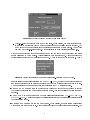
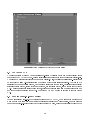
The Simulator GUI, with the default system conguration, is displayed on the screen. The default
system conguration is specied in a le called "default.stp" in the rapids/exe directory. As other
congurations are saved the user may chose to overwrite this le with a conguration of their choice.
Or the simulator may be supplied various initial conguration parameters via conguration les
specied on the commandline as follows:
./sim config.stp
Where cong.stp is called a setup le for the simulator, just like the default.stp le. System setups
may also be loaded to the simulator while it is running, as described below. Once Started, the
Simulator Console GUI, with the specied system conguration appears on the screen. An example
window is shown in Figure 1.
3