1
and the simulation starts immediately. When a node fails, the system takes the optimal action
provided by the selected recovery le.
{ Stop Current Simulation This button is \enabled" only when there is a simulation in progress (or
while one is paused). Pressing it causes the running simulation to be stopped, and the simulator
returned to the state it was in (conguration wise) just prior to its having been \started". The
Recovery Algorithm (RAMP) is discussed in greater detail in section 2.9.
QUIT is a menubutton which can be pressed at any time. The User has two options.
{ Stop Current Simulation This button is identical to the Stop Current Simulation button described above. It is provided in two places in the GUI as a matter of convinence.
{ Quit Simulator Selecting this option quits, entirely, the console GUI, ending any currently
running simulation, and potentially causing unsaved changes to be lost in simulator setups,
taskles and fault les.
PAUSE is a command button which is disabled before the simulation is started. After the simulation
is started, it can be used to pause the simulation (the text and the command associated with this
button are changed from pause to continue) or continue the simulation (the text and the command
are changed back to pause).
CREATE VIEWERS is a menubutton with a menu of a set of names of hosts/displays (from the
le{display.le) This is used for the multiple displays facility. Before the simulation is started, this
button is disabled. Once it becomes normal, a user can select a host/display to create a Viewer GUI
on that terminal. The Viewer GUI contains a limited set of \read-only" functionality and is described
under section 2.4. To ensure that there is only one Viewer GUI created on each host, the selected
display entry is disabled. After the user quits from that Viewer GUI, the menu entry becomes active
again.
LOAD SETUP This button which allows the user to load a setup le, similar to the one which may
be given on the commandline. The user is prompted to select a setup le with which to congure
the simulator, from the \/exe" directory. on the commandline.
SAVE SETUP This button allows the user to save the current setup of the simulator to a le. They
are prompted for a lename to which to save. The le is created, by default, in the \/exe" directory.
2.3.2 Conguration
There are four buttons under Conguration subsection. A user can specify the conguration of the system
by those buttons.
TOPOLOGY is a menubutton with a menu of two entries. Here the user is able to specify the
desired network topology.
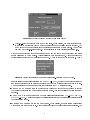
{ Fully Connected is a command menu entry. When it is pressed, an \input parameters" window
shown in Figure 3 appears. The user can change the number of virtual nodes and virtual
networks in the simulation. In the current simulator, the number of virtual networks is always
one, regardless of the number entered. Also, in a "fully connected" network, the user has the
option of choosing the network protocol: either FDDI or TOKEN RING.
6