1
3.10.3.16
Language
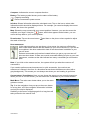
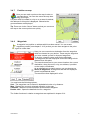
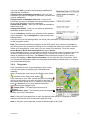
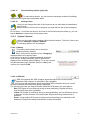
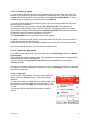
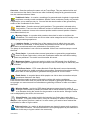
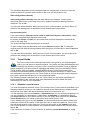
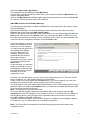
Tap on Language to select the menu language
and a speaker. First select the language in which you want
to be guided through the menus in the Falk Navigator. The
language is always specified in the respective national
language.
If several speakers are preinstalled in a language on your
device, select the speaker you want. Confirm your selection
with Ok.
3.10.3.17
Screen
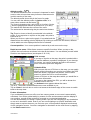
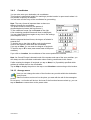
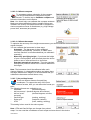
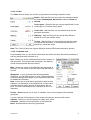
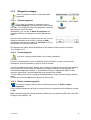
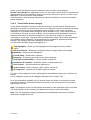
If the screen no longer reacts to being tapped on without any errors, it needs to be
recalibrated. To do so, you need a stylus (optional) or another blunt object. To avoid
damaging the display, never tap it with any pointed object.
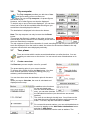
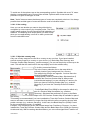
Choose the Screen option and start calibration by confirming the following display screen
with Ok. If you do not want to carry out the calibration, exit the display by tapping on Cancel.
Tap and hold the stylus for a short while on the cross. Repeat the process for each position
at which the cross is located.
The calibration process is complete as soon as there is no longer any cross displayed. Tap
on the screen again to return to the menu.
3.10.3.18
Info about
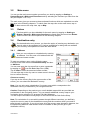
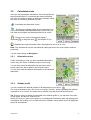
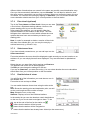
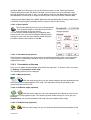
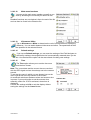
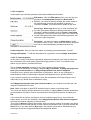
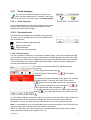
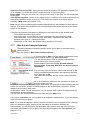
You can use the Info about option to display system information, in particular about
the version of the navigation software used, about the map material and map data
used. The Extra functions button gives you an overview of the software functions
available to you for a limited period of time.
To exit the display, tap on Back.
Tap on the Copyrights button to display information about copyrights for the software used.
Here you will also find country-specific copyright notices.
3.10.3.19
Arrange menu
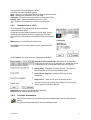
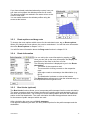
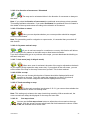
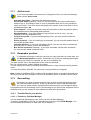
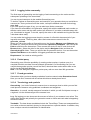
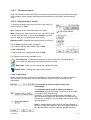
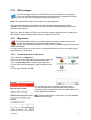
This function allows you to determine your own personal menu order in order to be
able to access the functions which are important to you quickly and with ease.
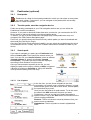
With the arrow keys on the left you can scroll through the list. Select the function whose
position you would like to change by tapping on it. With the angular arrows on the right you
can move the previously selected function to another point on the list. Confirm your entry by
tapping on Ok. You can use the Restore button to restore the standard order.
User Manual
28