1
P
PA
AT
FWD
P
TO
RECO
S
RD
CO
LAY
USE
LAY
RD
PIP
B
ON D
N
ME
AND
EM
SE
OW
BR
ED TV
GO INT
EW
EO
TV/
PO
R
&T
U
ACTIVE
ER
K
AC
OK
INFO
C
EXIT T
O
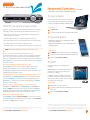
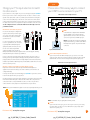
Aspect ratio is the relationship of the screen’s width to its height. Standard TVs have a
4:3 aspect ratio; widescreen and HDTVs are 16:9. The steps below show how to switch
your AT&T U-verse receiver’s aspect ratio.
Widescreen
VID
FF
RE P
Switch your TV screen setting
from standard to widescreen
X
AU
D
DV
W ER
TV
RE
quick resolution
quick
fix guide
guide
standard
1 Press the rectangular meNU button on your remote control, scroll right
(using the ArroWs) to select options, then system options, and press oK.
Next, select Aspect ratio.
2 Use UP/DoWN ArroWs to choose 4:3 standard Definition, Widescreen
standard Definition, 720p High Definition, or 1080i High Definition,
depending on what your TV supports.
3 Select Continue.
4 On most HD TVs, the format is indicated on the front of the television frame. Press
oK to test your settings. If the test is not successful you will see a black screen.
Select another setting and retest. Once successful, be sure to save your format.
You should now see a blue light on your receiver.
TV
A
L
CH
PG
E
ID
GU
+
VO
Program your remote to
control up to four devices
+
B
–
LAST
TE
MU
3
DEF
–
2
6
C
AB
1
O
MN
5
9
JKL
4
Z
WXY
8
HI
TER
EN
V
TU
G
7
0
RS
OM
ZO
E
AC
SP
PQ
ETE
DEL
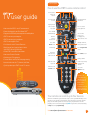
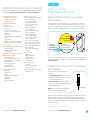
During installation, the AT&T button was set up to control your AT&T U-verse HD-ready
receiver. You can also control a TV plus up to two other devices such as a DVD player,
stereo receiver, or home theater in a box by programming the TV, DVD, and AUX mode
buttons. Once the devices are programmed, press the corresponding mode key on the
remote to control that device. To watch a video on how to program your remote, visit
att.com/uverseremote.
NoTe: The instructions below don’t require you to enter a manufacturer’s device
code because most codes are stored in the AT&T U-verse remote’s memory. If you’re
unable to add a device, or want to learn about advanced features like reassigning
mode buttons, refer to the remote’s manual provided at installation. For more info,
visit att.com/userguides.
How to assign devices to TV-DVD-AUX mode buttons
1 Power on the device to be programmed.
2 Point the remote control at the selected device.
3 Press and hold the mode key that matches the device you want to program (TV,
DVD, or AUX) along with the eNTer key. Hold both keys for one second, then
release. The four mode keys on the remote control flash twice to indicate you
are in search mode.
4 Search by pressing the sCAN/ff key repeatedly until the device turns OFF (the
selected mode key will flash once for each press of the sCAN/ff key). Pause briefly
between each key press to allow your device enough time to respond.
5 Press the PoWer button on the remote to turn the device back on.
NoTe: If the device does not turn off and you have searched all available codes, the
selected mode key will flash eight times. If this happens, please start over.
NoTe: If the device does not turn on, you may have pressed the sCAN/ff key too many
times. Press the reW/sCAN key to scan backwards and test the PoWer button again.
6 Check VolUme and mUTe. Do not test using reW/sCAN, sCAN/ff, fWD, or
eXiT. If there is any problem with any of the keys, press the sCAN/ff button and
search until you find a code that will operate all the functions properly.
7 Press the eNTer key to save the programming. The appropriate mode key will give a
long flash, indicating successful programming.
NoTe: If the programming is interrupted or inactive for more than 30 seconds, the mode keys
will flash eight times. This indicates the remote has left the programming mode and returned to
normal operation without saving any changes.
If you have an integrated or combination unit such as TV-DVD, TV-DVD-VCR, etc., each component
of the unit may need to be programmed separately by using the mode keys. For instance, for a
TV-DVD, search for the device code of TV and program into the TV mode key, then search for the
device code of DVD and program into the DVD mode key.
Want more help? If you’re unable to add a device or want to learn about controlling
the volume on all devices using your remote, visit att.com/userguides. You can also
check the remote’s user manual provided at installation, or watch Help On Demand on
TV: Press meNU, select Help, then Help on Demand to see all program titles.
Find answers 24/7: att.com/uversesupport
pg_22_UVE384_PS_Starter_Guide_Round 6
Find answers 24/7: att.com/uversesupport
pg_23_UVE384_PS_Starter_Guide_Round 6
23