1
WebSAMS
User Manual
Version 1.3
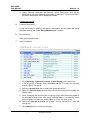
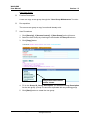
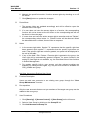
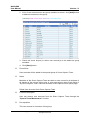
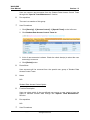
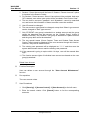
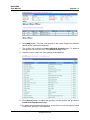
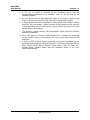
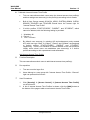
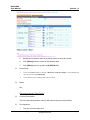
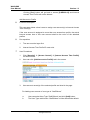
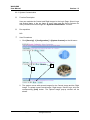
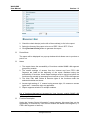
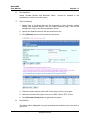
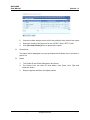
3. Enter the English and Chinese image names, and then click [Browse] button
to select an image file. Click [Upload] button to upload the image to
WebSAMS. After successful uploading, the image name will appear in the
corresponding image’s drop down list box.
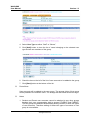
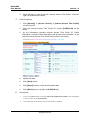
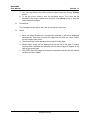
4. After the image has been successfully uploaded, it will not be displayed
automatically. User has to select the image file in the drop down list box and
click [Save] button to save the change for the image to take effect.
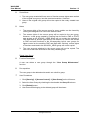
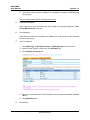
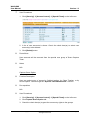
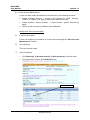
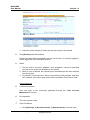
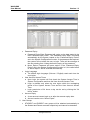
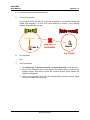
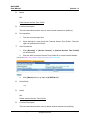
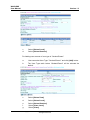
5. To delete an uploaded Central Image / Right Image / School Logo, select the
image to be deleted from the drop down list box and click [Delete] button.
The image would be permanently removed.
6i
6ii
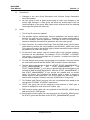
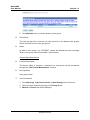
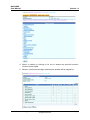
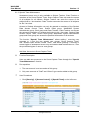
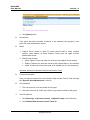
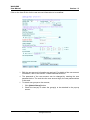
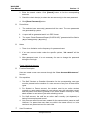
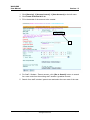
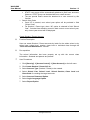
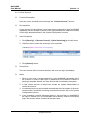
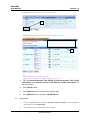
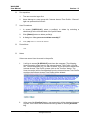
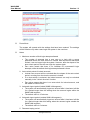
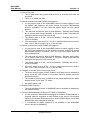
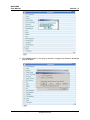
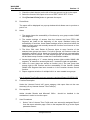
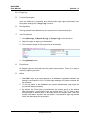
6. You can customize the school’s English and Chinese names by using either
text format or image format school names.
i. To use text format school name, click the “Text” option and enter the
name in the adjacent input box.
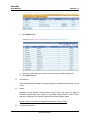
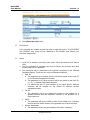
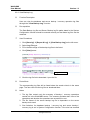
ii. To use image format school name, click “Image” option and then click
[Browse] button to select an image file for uploading. Click [Upload]
button to upload the image. At any time, the system only keeps one
English and one Chinese school name image in the WebSAMS server
and the newly uploaded image will overwrite the existing one.
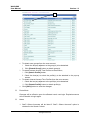
iii. Click [Save] button to save the school name changes.
Copyright © 2007. Education Bureau. The Government of the HKSAR.
All Rights Reserved.
Page 65