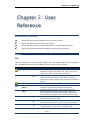
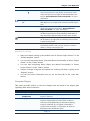
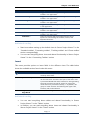
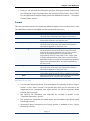
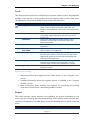
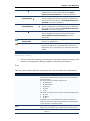
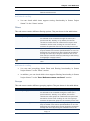
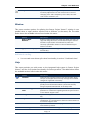
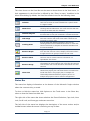
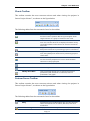
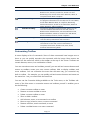
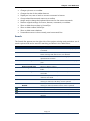
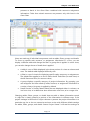
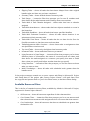
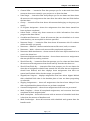
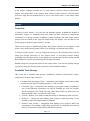
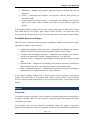
1
Contents Page | 1 Seavus Project Viewer User Manual Contents Contents INTRODUCTION 4 WHAT’S NEW IN USING SEAVUS PROJECT VIEWER™ 5 BENEFITS OF USING SEAVUS PROJECT VIEWER™ 5 MENUS 7 TOOLBARS 19 RIBBONS 27 WALKTHROUGH SEAVUS PROJECT VIEWER™ RIBBONS 35 VIEWS 64 CHARTS 95 TABLES 104 FILTERS 107 GROUPS 111 REPORTS 112 SAVE MY SETTINGS 115 LANGUAGES 116 CUSTOM BARS 116 Page | 2 Seavus Project Viewer User Manual Contents ADDITIONAL FEATURES 118 INTRODUCTION 138 MICROSOFT PROJECT SERVER INTEGRATION 138 MICROSOFT SHAREPOINT INTEGRATION 139 SKYDRIVE INTEGRATION 140 IMPORT FROM GOOGLE DRIVE 141 INTRODUCTION 143 COMPARE TASKS AND RESOURCES 144 INTRODUCTION 146 BENEFITS FROM TASK UPDATE 146 CREATING UPDATES 147 Page | 3 Seavus Project Viewer User Manual Chapter : Welcome To Seavus Project Viewer™ Chapter 1.: Welcome To Seavus Project Viewer™ In this section you will learn: What is Seavus Project Viewer™ Who can use Seavus Project Viewer™ Introduction Seavus Project Viewer™ is a complete viewer for Microsoft® Project plans stored in .mpp files. It facilitates excellent collaboration in those projects where people and teams need to view and share information from project managers. Seavus Project Viewer™ is a lightweight and fast standalone application that reads the native .mpp file format and does not require a previous installation of Microsoft® Project on the user’s computer. It is capable of reading project information from project plans created in 2003, 2007, 2010 and 2013 and displays an extensive set of views over the project information. The new version of Seavus Project Viewer™, 10.2, closely matches the capabilities of Microsoft® Project 2003, Microsoft® Project 2007, Microsoft® Project 2010 and Microsoft® Project 2013 when working with read-only project plans. It also provides a very close look & feel/implementation of the features in Microsoft® Project and requires no additional training for those users with previous Microsoft® Project experience. If you would like to read about the new enhancements in version 10.2, see section “What’s New in Using Seavus Project Viewer™” in this manual. For additional information about the benefits of Seavus Project Viewer™ that individual users and organizations can gain by using Seavus Project Viewer™, see the section titled "Benefits of Using Seavus Project Viewer™" in this manual. Page | 4 Seavus Project Viewer User Manual Chapter : Welcome To Seavus Project Viewer™ What’s New in Using Seavus Project Viewer™ Seavus Project Viewer™ 10.2 contains an extensive set of additional features for working with project plans. Below is the list of supported options categorized by view types: Additional Improvements Improved work with Hyperlinks for all views Improved project's visual presentation in the Gantt Chart view Improved work with Print functionality for Team Planner view Improved work with Gantt Chart table Improved ribbon's touch surfaces for Touch input mode of work Benefits of Using Seavus Project Viewer™ With Seavus Project Viewer™, users are able to open native Microsoft® Project files (.mpp) and read/view and print project plans while eliminating the need to purchase the more expensive Microsoft® Project suite of products. Typically, Users can be categorized into three groups: Team Members (personnel involved in the project implementation), Executives (executive management supervising the projects) and External users (vendors, distributors, sub-contractors, customers, i.e. all personnel outside the organization involved in project implementation or monitoring). Analysis shows that the number of users with project plan viewing needs is significantly greater than the number of users that create project plans. Due to high cost involved in using a full copy of Microsoft® Project for users with occasional need to view project plans, many organizations decide to provide project information to them by using exported files or static copies (pictures) of the plans. These static views often leave out critical information that can only be seen by looking at several different views of the same project. For example, a user might need to look at the Gantt chart and then look at the ‘task information’ for a selected task and then look at the resources assigned to that particular task. This information is often missing when static views are given to users. There is a more productive way for companies to share this information. By using Seavus Project Viewer™ with its complete viewing capabilities, organizations can improve their project execution, control and monitoring processes by providing the same information to all users involved in a project. Seavus Project Viewer™ enables Page | 5 Seavus Project Viewer User Manual Chapter : Welcome To Seavus Project Viewer™ project managers to communicate with the rest of the project users by showing all formatting, drawings, highlighting, grouping, and data organization in general as defined in Microsoft® Project. Finally, Seavus Project Viewer™ displays project information and views with 100% accuracy, presenting the same project views as the project manager created them in Microsoft® Project. Page | 6 Seavus Project Viewer User Manual Chapter : User Reference Chapter 2.: User Reference In this section you will learn: About the menus and toolbars in Seavus Project Viewer™ About the ribbons in Seavus Project Viewer™ About the filters, groups, tables and reports in Seavus Project Viewer™ About the additional features available in Seavus Project Viewer™ Menus File This menu allows you to open project plans, print the opened plan, exit the program, etc. The table below shows the available actions found under this menu. Feature Open… Recent Files Close Open from SharePoint Server Save Pack Custom Layer Import from Export to Description Shows the Open File dialog where you can browse for and select a project plan (.mpp, .xml, .mpx, .mpd, .ssv or .mdb file) to open in Seavus Project Viewer™. This is a sub-menu that contains a list of files you have recently opened, providing a quick shortcut option for opening them again without going through the Open File dialog. Closes the currently opened file. Shows the Open File dialog where you can browse for and select a project plan uploaded on Microsoft SharePoint Server to open in Seavus Project Viewer™. Saves the changes that are made on the project plan using some of the Seavus Project Viewer™ features such as: Text Styles properties, User Profile and Custom Layer Creates a .zip file containing the original .mpp file and the customizations that are made This sub-menu contains a list of applications from which Seavus Project Viewer™ can import entire project plans. This sub-menu contains a list of formats and applications to which Seavus Project Viewer™ can export the Page | 7 Seavus Project Viewer User Manual Chapter : User Reference Page Setup… Print Preview Print… Send to Properties Exit information from the currently active view, i.e. its associated table. Opens the Page Setup dialog for the currently active view. Shows the Print Preview window for the currently active view. Shows the Print dialog where you can choose a printer to print the currently active view. This sub-menu contains a list of features that allow users to send the project files trough Microsoft® Outlook Opens the File Properties dialog for the currently opened file, where you can find information like document title, author and company name, file name, location and size. Closes the main windows and exits the program Additional reading Go to the “Printing” section for more information about printing and printing options Importing functionality is described in the “Import” section Exporting functionality is described in the “Exporting” section Sending functionality is described in the “Send To” section Go to the “Window” menu reference for information about opening multiple files in Seavus Project Viewer™ at once Edit This menu allows you to search through the task and resource information or directly go to a task or a position on the timeline in the selected view. The table below shows the available actions found under this menu. Feature Undo Redo Find… Go To… Hyperlink Description Undo the last action Redo the previously undone action Provides an opportunity to search through the tasks or resources in the currently active view by using different criteria Provides an option to directly go to a task (by its ID) or position on a timeline (by date) in the currently active view Opens a sub-menu with options to work with the associated hyperlink (if any) of the selected task or resource from the current view. See section “Hyperlink” for more information. Additional reading You can read everything about views in Seavus Project Viewer™ in the “Views” section of this manual. Page | 8 Seavus Project Viewer User Manual Chapter : User Reference Hyperlink This sub-menu provides several options to work with hyperlinks associated with tasks and resources. The table below shows the available actions found under this menu. Feature Open Open in New Window Copy Hyperlink Add to Favorites… Description Opens the hyperlink associated with the selected task or resource in the current view Like the previous action, this one opens the hyperlink as well, but in a new window Copies the hyperlink (e.g. the URL it points to) associated with the selected task or resource in the current view to the clipboard, so it can be pasted in other applications Adds a link in the favorites list to the hyperlink associated with the selected task or resource in the current view Additional reading You can read everything about views in Seavus Project Viewer™ in the “Views” section of this manual. View This menu provides options for the user to switch between the different views, switch the tables associated with a view, view reports, zoom the current view, etc. The table below shows the available actions found under this menu. Feature [Task Views] [Resource Views] Chart View… More Views… Description In this section of the View menu, a list of task views (views showing tasks in different ways) which are selected to be shown in the menu for a quick access (e.g. most frequently used ones) is listed. Usually, i.e. by default, this group of views contains the following views: Calendar, Gantt Chart, Task Usage, Network Diagram, and Tracking Gantt. In this section of the View menu, a list of resource views (views showing resources in different ways) which are selected to be shown in the menu for a quick access (e.g. most frequently used ones) is listed. Usually, i.e. by default, this group of views contains the following views: Resource Graph, Resource Sheet, and Resource Usage. Opens up a dialog with selection of charts organized in 3 categories (Bar Charts, Line Charts and Pie Chart). Opens up a dialog that lists all available views, regardless if they are visible in the menu or not. You can choose to display a view in the View menu by checking the checkbox next to the view name in the list or show a view by selecting the view in the list and clicking on the Apply button. Page | 9 Seavus Project Viewer User Manual Chapter : User Reference Table: [CurrentTable] Reports… Toolbars View Bar Search Zoom… This item shows the currently associated table with the view currently active in the display. It also opens a submenu with options to change the associated table. See section "Error! Reference source not found." for more nformation. Opens up a sub menu with options for selecting to work with Reports or to compare two versions of sama project plan. Opens up a sub-menu with options to manipulate the application toolbars. See section "Error! Reference ource not found." for more information. Toggles between showing and hiding the view bar, i.e. the left bar showing the most frequently used views, as they are setup to appear under the View menu as well. Toggles between showing and hiding the search bar, i.e. bar located on the right side for searching various terms in tasks and resources. Opens up a dialog with different options to zoom the information shown in the view, e.g. zoom to 1 week, 2 weeks, 1 month, entire project, etc. Additional reading Read more about setting up the default views in Seavus Project Viewer™ in the “Global template” section You can read everything about views and related functionality in Seavus Project Viewer™ in the “Views” section You can read everything about charts and related functionality in Seavus Project Viewer™ in the “Charts” section Deeper coverage of reports and options for working with them is given in the “Reports” section You can find more information how to use the View Bar in the “View bar” section Compare Project This menu provides options to view the changes that are made in the project plan regarding tasks and/or resources. Feature Compare Project [Task/Resource Comparison] Display Items Description Activate the Compare Project feature Switching between compating project's tasks and project's resources In this section of the Compare Project sub-menu, a list of items for viewing different information of task's or resource's status (depending of selected comparing mode) is presented. (e.g. changed, unchanged or common items). Usually, i.e. by default, all items are displayed in the comparison report Page | 10 Seavus Project Viewer User Manual Chapter : User Reference View Columns In this section of the Compare Project sub-menu, a list of column types for presenting different task or resource information in the Gantt table/Resource Sheet table is presented. Usually, i.e. by default, all columns are displayed in the comparison report Shows the legend for the Comparing report Show legend Tables This menu provides options to change the table associated with a view and switch to some of the other available tables or create a completely new table of your own. The table below shows the available actions found under this menu. Feature [Tables] Description In this section of the Tables sub-menu, a list of task or resource tables (depending of the view currently active) which are selected to be shown in the menu for a quick access (e.g. most frequently used ones) is listed. Usually, i.e. by default, this group contains the same tables as in Microsoft® Project when started for the first time. Clicking on one of the tables changes the table associated with the currently active view. Opens up a dialog with all available task and resource tables, regardless if they are visible in the Tables submenu or not. You can choose to display a view in the Tables sub-menu by checking the checkbox next to the table name in the list or show a view by selecting the view in the list and clicking on the Apply button. In this dialog, you can also manipulate the tables by editing/deleting the existing ones or create new one. More Tables… Additional reading Read more about setting up the default views in Seavus Project Viewer™ in the “Global template” section You can read everything about views and related functionality in Seavus Project Viewer™ in the “Views” section Deeper coverage of reports and options for working with them is given in the “Reports” section You can find more information how to use the View Bar in the “View bar” section Toolbars This menu provides options to manipulate the available toolbars in the application. The table below shows the available actions found under this menu. Page | 11 Seavus Project Viewer User Manual Chapter : User Reference Feature Standard Description Toggles between showing and hiding the “Standard” toolbar in the application. Toggles between showing and hiding the “Formatting” toolbar in the application. Toggles between showing and hiding the “Tracking” toolbar in the application. Toggles between showing and hiding the “Charts” toolbar in the application. Toggles between showing and hiding the “Custom Forms” toolbar in the application. Toggles between showing and hiding the “Collaborate” toolbar in the application. Opens up a dialog which provides extensive set of options for customizing the toolbars, menus, and keyboard shortcuts. Formatting Tracking Charts Custom forms Collaborate Customize… Additional reading Read more about setting up the default views in Seavus Project Viewer™ in the “Standard toolbar”, “Formatting toolbar”, “Tracking toolbar” and “Charts toolbar” section correspondingly You can read everything about views and related functionality in Seavus Project Viewer™ in the “Customizing Toolbar” section Insert This menu provides options to insert fields in the different views. The table below shows the available actions found under this menu. Feature Column [Custom Bars] Page Break/Remove Page Break Description Inserts a new field (column) in the associated table of the currently active view. In this section of the Insert menu, a list of task types that can be inserted in the Gantt chart part of the Gantt view is presented. Beside the tasks, features for saving/loading, inserting comments as well as option for setting the visual effects are presented. Usually, i.e. by default, this group of views contains the following task types: task, summary task, and milestone. Insert/Remove Page Breaks in the project plan Additional reading You can read everything about tables and related functionality in Seavus Project Viewer™ in the "Tables" section In addition, you can read everything about views and related functionality in Seavus Project Viewer™ in the “Views” section Page | 12 Seavus Project Viewer User Manual Chapter : User Reference Now you can add and view Enterprise columns (Enterprise Custom Fields) from you Enterprise Project imported from the Microsoft Office Project Server 2007. For the supported Enterprise fields, please see Additional Features – “Enterprise Custom Fields” section. Format This menu provides options for formatting different aspects of the currently active view. The table below shows the available actions found under this menu. Feature Timescale… Description Opens up a dialog for formatting the timescale of the currently active view (if the view supports this feature). Opens a dialog with a task list for showing/hiding tasks Timeline Tasks on/from the timeline in the Timeline view [Detail Styles] Opens up a dialog for formatting the detail styles of the currently active view (if the view supports this feature). This feature depends on the active view. Shows a sub-menu containing a list of detail fields that can be shown for the currently active view (if the view supports this feature). Depending on the view, the submenu will be populated with time-phased fields supported by the view to be shown in the “usage” table or graph and selected for quick access in this sub-menu. More detail fields can usually be accessed using the Detail Styles action, described above. This feature depends on the active view. Opens up a dialog for configuring the layout of the currently active view (if the view supports this feature). This feature depends on the active view. Opens up a dialog for changing the visual style of the text in the Gantt table for specific type of category in the view Opens up a dialog for changing the visual style of random selected text, cell or column in the Gantt table Details Layout… Text Styles Font Additional reading You can read everything about views and related functionality in Seavus Project Viewer™ in the “Views” section. This section also gives you an overview of the supported layout, formatting and styles options, as well as supported detail field for each view type The options for formatting the timescale are covered in details in the “Timescale formatting” section The options for formatting the detail styles are described in the “Detail styles formatting” section Information about configuring the layout options is available in the “Layout formatting” section Page | 13 Seavus Project Viewer User Manual Chapter : User Reference Tools This menu provides options for configuring the program options, menus, language and toolbars, or set-up one or more progress lines for tracking tasks in Gantt Chart views. The table below shows the available actions found under this menu. Feature Progress Lines… Links Between Projects Customize… Options… Save My Settings User Profile Language Graphic User Interface Style Description Opens up a dialog for configuring the progress line(s) shown in the currently active Gantt Chart view. This feature is not available for other views, except Gantt Chart views. Opens up a dialog which provides information regarding the external tasks predecessors and successors in the project plan Opens up a dialog which provides extensive set of options for customizing the toolbars, menus, and keyboard shortcuts. Opens up a dialog with configuration options for the application. Opens a sub-menu with features for saving the settings that are made in the application Opens a sub-menu with languages that are available for Seavus Project Viewer™. You can switch the application language by simple click on the desired language and restarting of the application. This sub-menu contains the options for switching the graphical user interface of the application. You can choose between ribbons and standard user interface This sub-menu contains options for changing application’s color. Additional reading Read more about the progress lines and their options in the “Progress Lines” section Detailed information about the program options is available in the “Program Options” section More information about creating own toolbars, or customizing the existing ones can be found in the "Customizing toolbars" section Project This menu provides various functions for organizing the project information in the active view and accessing the information dialogs for the project or the selected task, resource, or assignment. The table below shows the available actions found under this menu. Feature Description Page | 14 Seavus Project Viewer User Manual Chapter : User Reference Sort Filtered for: [CurrentFilter] Group by: [CurrentGroup] Outline [Task/Res./Ass. Information] [Task/Res./Ass. Notes] Project Information… Opens up a sub-menu containing various sort options available for the current view. See section "Error! eference source not found." for more information. Shows the currently active filter and opens up a submenu containing various filtering options available for the current view. See section "Error! Reference source ot found." for more information. Shows the currently active group and opens up a submenu containing various grouping options available for the current view. See section "Error! Reference source ot found." for more information. Opens up a sub-menu containing various outline options available for the current view. See section "Error! Reference source not found." for more nformation. Opens up the information dialog for the selected task, resource, or assignment. Just like the previous command, it opens up the information dialog for the selected task, resource, or assignment, but it goes directly to the Notes tab of the dialog. Opens up the Project Information dialog. Additional reading Section “Information dialogs” provides more information about the project, task, resource, and assignment dialogs available in Seavus Project Viewer™. Sort This sub-menu contains different sorting options. They are shown in the table below. Feature [Sorts] Sort by… Description Depending on the view type (showing tasks or resources), this section of menu items contains a list of pre-defined sorting options. For task views, the available options are: by Start Date by Finish Date by Priority by Cost by ID For resource views, the list contains the following options: by Cost by Name by ID Clicking on one of the options, the tasks or resources shown in the active view are sorted by the field specified in the options in ascending order. Opens up a dialog for specifying custom sorting criteria, where you can choose up to three fields for sorting and Page | 15 Seavus Project Viewer User Manual Chapter : User Reference choose the direction in which the values in the selected fields should be sorted. Additional reading You can check which views support sorting functionality in Seavus Project Viewer™ in the “Views” section Filters This sub-menu contains different filtering options. They are shown in the table below. Feature [Filters] More Filters… AutoFilter Description This section of menu items contains a list of filters that are selected to be accessible through the menu (as a quick access list). Usually, i.e. by default, this section contains the same filters as in Microsoft® Project when started for the first time. Clicking on one of the filters activates the particular filter for the currently active view. Opens up a dialog with all available filters, regardless if they are visible in the section specified above or not. This dialog lets you choose which filters should be accessible through the menu (by ticking the checkbox next to the filter name) or activate a filter (by selecting it and clicking the Highlight or Apply button). Activates the “AutoFilter” feature for the currently active view. Additional reading You can read everything about filters and filtering functionality in Seavus Project Viewer™ in the “Filters” section In addition, you can check which views support filtering functionality in Seavus Project Viewer™ in the "Error! Reference source not found." section Groups This sub-menu contains different grouping options. They are shown in the table below. Feature [Groups] More Groups… Description This section of menu items contains a list of groups that are selected to be accessible through the menu (as a quick access list). Usually, i.e. by default, this section contains the same groups as in Microsoft® Project when started for the first time. Clicking on one of the groups activates the particular group for the currently active view. Opens up a dialog with all available groups, regardless if they are visible in the section specified above or not. This dialog lets you choose which groups should be accessible through the menu (by ticking the checkbox next to the Page | 16 Seavus Project Viewer User Manual Chapter : User Reference group name) or activate a groups (by selecting it and clicking the Apply button). Additional reading You can read everything about groups and grouping functionality in Seavus Project Viewer™ in the “Groups” section In addition, you can check which views support grouping functionality in Seavus Project Viewer™ in the “Views” section Outline This sub-menu contains different outlining options. They are shown in the table below. Feature Show Subtasks Hide Subtasks [Show/Hide Assignments] Show [Show/Hide Outline Symbols] Description Clicking this action expands the subtasks of the selected task in a task view, causing them to show on the view Clicking this action collapses the subtasks of the selected task in a task view, causing them to be hidden from the view Toggles between expanding and collapsing the assignments in the Resource Usage and Task Usage views. When assignments are hidden, only summary work grouped by resources/tasks is shown in the view. Opens up a sub-menu for choosing the maximum outline level at which tasks should be shown (expanded) in the view. The sub-menu contains an option to choose to show all subtasks or select an outline level of 1-9 at which tasks should be shown, i.e. expanded. Toggles between showing/hiding the and outline symbols in the view. Additional reading You can check which views support outlining functionality in Seavus Project Viewer™ in the “Views” section Custom Layer This menu contains options for inserting custom bars in the Gantt Chart view. The table shows the available actions found under this menu. Feature [Insert] Show/Hide Layer Description Opens up a sub-menu for choosing the type of task that will be entered in the Gantt Chart (user can insert the following task types: ordinary task, summary task, milestone), to insert deadline or insert comments regarding the project’s tasks. Loads all custom bars and text box in the project plan Page | 17 Seavus Project Viewer User Manual Chapter : User Reference Properties Opens the Property dialog, where you can make the necessary adjustments for the custom bars in term of changing color and transparency of the bars, font and color of the comments, etc. Window This menu contains options for splitting the Seavus Project Viewer™ window in two parallel views or open another window with a different (or the same) file. The table below shows the available actions found under this menu. Feature Open in New Window… [Split/Remove Split] Description Similar to functionality with Open, but when you open an .mpp file using this action, a new Seavus Project Viewer™ window is opened with the selected file, while the currently opened file remains in the old Seavus Project Viewer™ window. Toggles between activating/removing the split views functionality. Additional reading You can read more about split views functionality in section “Combined views”. Help This menu provides you with access to the integrated help system in Seavus Project Viewer™ and the Live Update functionality for Seavus products. The table below shows the available actions found under this menu. Feature Contents Index… E-mail our support team Change License Propose a feature Related solutions Run Live Update Description Opens up the Contents menu of the context help, which lets you to navigate the entire help through the available categories organized in hierarchy Opens up the index of the context help which lets you quickly access information about a particular issue by using a keyword based search of the help index Opens a dialog form where user can submit issues, questions or comments regarding Seavus Project Viewer™ to the Seavus support team. Opens a dialog form where user can enter new license key Opens a dialog form which allows user to email suggestions on a new feature or feature’s improvement to the Seavus support team. Opens the official Seavus web page where user can see other Seavus products. Runs a check of available upgrades of the program and Page | 18 Seavus Project Viewer User Manual Chapter : User Reference Customer Support… About Seavus Project Viewer™… downloads them through the Seavus Live Update system. Opens the Customer Support dialog, where you can find information how to contact the Seavus Customer Support center. Opens up the About dialog for the product. Additional reading Section “How to get new upgrades with Live update” provides detailed description about using the Live Update functionality and program upgrade options in Seavus Project Viewer™ Toolbars Standard Toolbar This toolbar contains the most common actions used when viewing the projects in Seavus Project Viewer™, as shown on the figure below: The following tables lists the commands found in the toolbar. Feature Open/Open recent Close Save Import from Project Serve Page Setup Print Print Preview [Task/Res./Assign. Information] Description Displays the Open dialog box so that you can open an existing project file. In addition, when clicking on the arrow, a sub-menu that contains a list of files you have recently opened is shown, providing a quick shortcut option for opening them again without going through the Open dialog Closes the currently opened project file. Saves the changes that are made on the project plan using some of the Seavus Project Viewer™ features such as: Text Styles properties, User Profile and Custom Layer Opens a dialog box with project plans that are published on Microsoft Project Server 2007/2010. Displays the Page Setup dialog, where you can set different print configuration options for the currently active view. Displays the Print dialog where you can choose a printer to print the active view. Displays each page of the active view as it will look when printed. The status bar at the bottom of the screen shows the current page number and the total number of pages in the selected view. Displays task, resource, or assignment information in the standard Information dialogs. Page | 19 Seavus Project Viewer User Manual Chapter : User Reference [Task/Res./Assign. Notes] Group by View Search Zoom in Zoom out Entire Project Go to selected task Help Displays the Notes tab in the Information dialog box of the task, resource, or assignment. Displays the name of the grouping applied to the active view and lists the groupings available for the view. Opens a search bar that allows searching various terms in tasks and resources. Shows a smaller time increment on the timescale Shows a larger time increment on the timescale Presents entire project plan on the screen Moves to the area on the Gantt Chart containing the bar for the selected task Displays the Seavus Project Viewer™ help window Additional reading Go to the “Printing” section for more information about printing and printing options You can read everything about views in Seavus Project Viewer™ in the “Views” section of this manual Section “Information dialogs” provides more information about the project, task, resource, and assignment dialogs available in Seavus Project Viewer™. You can read everything about groups and grouping functionality in Seavus Project Viewer™ in the “Groups” section More information about creating own toolbars, or customizing the existing ones can be found in the “Customizing toolbars” section Formatting Toolbar This toolbars contains the most common options for formatting the information in the views in Seavus Project Viewer™, as shown on the figure below: The following tables lists the commands found in the toolbar. Feature Show subtasks Hide subtasks [Show/Hide Assignments] Show [outline level selection] Description Displays the subtasks that are one level below the selected summary tasks Hides the subtasks of the selected summary tasks Toggles between displaying and hiding the assignments in the usage views Opens up a sub-menu for choosing the maximum outline level at which tasks should be shown (expanded) in the view. The sub-menu contains an option to choose to show all subtasks or select an outline level of 1-9 at which tasks should be shown, i.e. expanded Page | 20 Seavus Project Viewer User Manual Chapter : User Reference Filter Displays the name of the filter applied to the active view and lists the filters available for the view Displays or hides the AutoFilter of the column headings, which appear in the sheet views Opens up a sub-menu containing various sort options available for the current view Opens up a dialog with selection of reports organized in categories AutoFilter Sort By... Reports… Additional reading You can read everything about views in Seavus Project Viewer™ in the “Views” section of this manual You can check which views support outlining functionality in Seavus Project Viewer™ in the “Views” section You can read everything about filters and filtering functionality in Seavus Project Viewer™ in the “Filters” section More information about creating own toolbars, or customizing the existing ones can be found in the "Customizing toolbars" section Tracking Toolbar This toolbar contains features which are useful when tracking the project progress using Seavus Project Viewer™. The following tables lists the commands found in the toolbar. Feature Project Statistics Progress Lines Add Progress Line Using Resource Description Displays the Project Statistics dialog box, which shows the project start and finish dates, duration, work, and cost Opens up a dialog for configuring the progress line(s) shown in the active Gantt Chart view. Progress lines connect those tasks that are currently scheduled to have started but are not yet finished to a vertical line on the Gantt Chart that represents the progress date. Allows you to add a progress line to one of the Gantt views. The pointer becomes a . Drag the pointer and click the desired date in the chart portion of the view to set the progress line. Filters your view with the Using Resource filter, which is an interactive filter that prompts you for the resource whose tasks you want to view. This filter is especially helpful for evaluating the progress of a specific resource. Additional reading Page | 21 Seavus Project Viewer User Manual Chapter : User Reference You can read everything about views in Seavus Project Viewer™ in the “Views” section of this manual Read more about the progress lines and their options in the “Progress Lines” section You can read everything about filters and filtering functionality in Seavus Project Viewer™ in the “Filters” section More information about creating own toolbars, or customizing the existing ones can be found in the " Customizing toolbars" section Custom Bars Toolbar This toolbars contains the most common options for inserting, saving and loading custom bars in the Gantt Chart part of the Gant Chart view in Seavus Project Viewer™, as shown on the figure below: The following tables lists the commands found in the toolbar. Feature Task Bar Summary Task Milestone Deadline Add Comment Show/Hide Customization Properties Description Inserts custom ordinary task in the Gantt chart Inserts custom summary task in the Gantt chart Inserts custom milestone in the Gantt chart Inserts custom deadline in the Gantt chart Inserts custom text box where you can inserts your comments Loads all custom bars and text box in the project plan Opens the Property dialog, where you can make the necessary adjustments for the custom bars in term of changing color and transparency of the bars, font and color of the comments, etc. View The View Bar appears along the left edge of the Project window and provides a convenient means of changing views by just clicking the icons that appear on the View Bar. If the view you want to display does not appear on the View Bar, click More Views on the View Bar, and then select the view from the More Views dialog box. If you do not want Seavus Project Viewer™ to display the View Bar, click View Bar on the View menu. Alternatively, you can click Options on the Tools menu. In the Show box, select or clear the View bar check box. Page | 22 Seavus Project Viewer User Manual Chapter : User Reference The views shown on the View Bar are the same as those shown in the View menu, i.e. their appearance in the View Bar is defined by the “Show in menu” checkbox in the More Views dialog. By default, the View Bar contains icons for the following views: Feature Calendar Gantt Chart Network Diagram Task Usage Tracking Gantt Resource Graph Resource Sheet Resource Usage Chart View Description A monthly calendar showing tasks and durations. Use this task view to show the tasks scheduled in a specific week or range of weeks A list of tasks and related information, and a chart showing tasks and durations over time. Use this task view to the list of tasks and their schedule A diagram showing all tasks and task dependencies. Use this task view to view your schedule in a flowchart format A list of tasks showing assigned resources grouped under each task. Use this task view to see which resources are assigned to specific tasks A list of tasks and related information, and a chart showing baseline and scheduled Gantt bars for each task. Use this task view to compare the baseline schedule with the actual schedule. A graph showing resource allocation, cost, or work over time. Use this resource view to display information about a single resource or group of resources over time. A list of resources and related information. Use this resource view to review resource information in a spreadsheet-like format. A list of resources showing allocation, cost, or work information for each resource over time. Use this resource view to show cost or work allocation information for each resource Set of charts that give visual presentation of numerical values from project plan. Use these charts to examine the trends that exist in the project plan, to analyze the relationships between different project’s parts or to analyze the project’s costs or resource assignments. Status Bar The status bar displays information at the bottom of the Microsoft Project window about the current activity or mode. To show or hide the status bar, click Options on the Tools menu. In the Show box, select or clear the Status bar check box. The right side of the status bar shows whether the Extend Selection, Caps Lock, Num Lock, Scroll Lock, and Overtype, modes are turned on. The left side of the status bar displays the description of the menu actions and/or toolbar buttons when the mouse is hovering on top of them. Page | 23 Seavus Project Viewer User Manual Chapter : User Reference Charts Toolbar This toolbar contains the most common actions used when viewing the projects in Seavus Project Viewer™, as shown on the figure below: The following tables lists the commands found in the toolbar. Feature Bar Chart Chart Timescale In Description A chart showing resource’s cost or works over time. Use this chart view to present data using rectangular about single resource or a group of resources over time. A chart showing summary resource’s cost or works over time. You can use this chart to display information using rectangular about single resource or group of resources over time A graph showing resources cost or works over time, using data points and lines for presenting project’s information. A graph showing summary resources cost or works over time, using data points and lines for presenting project’s information. A chart that emphasize resources cost or works. You can use this view the proportion of cost or work between resources in the project plan. Shows a smaller time increment on the chart’s timescale Chart Timescale Out Shows a larger time increment on the chart’s timescale Modify Chart Data Chart wizard that allows you to change the project’s parameters (task attributes or resources) that are presented in the graph Bar Chart Stacked Line Chart Line Chart Stacked Pie Chart Custom Forms Toolbar This toolbar contains the most common actions used when viewing the projects in Seavus Project Viewer™, as shown on the figure below: The following tables lists the commands found in the toolbar. Feature Entry Cost Tracking Description Displays the Entry window where you can view the main task’s information such as: Name, Duration, Start and Finish Date. Displays the Cost Tracking window where you can view Page | 24 Seavus Project Viewer User Manual Chapter : User Reference the cost information for the task, such as: Total Cost, Baseline Cost, Variance, Fixed Cost, Actual Cost and Remaining Cost, as well as the task’s Duration, Work, % Complete and % Work Complete. Displays the Work Tracking window where you can view the progress information for the task, such as: Total Work, Actual Work Baseline Work, % Complete, Remaining Work and Variance, as well as the Task Name, Resource Name, Duration, and % Complete. Displays the Schedule Tracking window where you can view the schedule information for the task, such as: Baseline Start Schedule Start, Variance, Baseline Finish, Baseline Schedule, Variance, as well as the Task Name, Resource Name, Duration, and % Complete. Displays the Task Relationship window where you can view the task’s predecessors and successors. Displays the Tracking window where you can view the information for the task, such as: Task Name, % Complete, Actual Start, Actual Finish, Start, Finish, Duration and Remaining Work. Work Tracking Schedule Tracking Task Relationship Tracking Customizing Toolbar A menu displays a list of commands. Some of these commands have images next to them so you can quickly associate the command with the image. Most menus are located on the menu bar, which is the toolbar at the top of the screen. Toolbars can contain buttons, menus, or a combination of both. You can customize menus and toolbars yourself; you can add and remove buttons and menus on toolbars, create your own custom toolbars, hide or display toolbars, and move toolbars. You can customize the menu bar the same way you customize any built-in toolbar – for example, you can quickly add and remove buttons and menus on the menu bar – but you cannot hide the menu bar. You can use the Customize dialog available on the Tools menu, or the Toolbars submenu of the View menu to customize menus and toolbars yourself. It enables you to do the following: Create a custom toolbar or menu Rename a custom toolbar or menu Delete a custom toolbar or menu Show or hide a toolbar Add a button, menu, or a command to a toolbar Move or copy a button, menu, or menu command Rename a button, menu command, or menu Delete a toolbar button or a menu command Page | 25 Seavus Project Viewer User Manual Chapter : User Reference Change a picture on a toolbar Change the size of the toolbar buttons Display an icon, text or both on a menu command or button Group related buttons and menus on a toolbar Assign and/or change the keyboard shortcuts for the menu commands Restore original settings for menus, buttons, commands, or toolbars Show or hide shortcut keys in ScreenTips Show or hide toolbar ScreenTips Show or hide menu shadows Personalize menus to show recently used commands first Search The Search Bar appears on the right side of the project window and provides a set of search options that can be used for searching, as shown in the Table below: Feature Search Field Start New Search Case Sensitive Match Exactly Search for Resource/Task only Task Only Resource Only Both Task Search Results Resource Search Results Back Forward Home Description Space where the term that is searched in the project plan is entered. The results from the previous search option, as well as search settings and search term, are deleted. Search terms in task and resource category that are capitalization sensitive. Search the exact name of a task or resource in the project plan. Search terms only in the Task Name column and Resource Name column. The search option will be performed only in the task text fields. The search option will be performed only in the resource text fields. The search option will be performed both in the task and resource text fields. Field where search results are presented as links. By clicking on the link, Task Entry view is opened. Field where search results are presented as links. By clicking on the link, Resource Form view is opened. Takes you several steps back until the first searched term. Takes you from the first searched term until the last. Presents the main Search window. List of all searched made while Seavus Project Viewer™ is opened. Page | 26 Seavus Project Viewer User Manual Chapter : User Reference Ribbons Introduction Beside the Standard Graphical User Interface (GUI), that consists of menus and toolbars, Seavus Project Viewer™ giving you the possibility to work with Ribbon GUI. By its definition, Ribbon is a single tab bar that contains graphical elements as representation for different functionalities. Several application’s control with similar functionalities can form a Group inside the Ribbon. The Seavus Project Viewer™ Ribbon GUI consists of Application menu, where all features from the File menu from the Standard GUI are placed and Ribbons containing the other viewing features. There is no difference between Standard and Ribbon GUI from functionality point of view: all features from the first workaround are implemented in the other one. Figure 1. Ribbon elements Backstage view Introduction The Backstage view is the first ribbon in Seavus Project Viewer™ viewing from left to right. It consists of functions and tabs arranged in vertical order. Named as “File”, it is a place where you can manage your project plans .Through the Backstage view you can open/close project plans, take a closer look on the project details using the print preview or make printout of the project plan. Export and Import features are placed inside the Backstage view along the features for collaboration with Microsoft Outlook. The look of the Backstage view is presented in the figure below. Page | 27 Seavus Project Viewer User Manual Chapter : User Reference Figure 2. Backstage view in SPV It contains 5 tabs in the following order: Info Recent Print Export/Import Help As well 5 functions for managing project and application’s preferences: Open Save Close Options Exit Info The “Info” tab, presented on the figure below, displays information of the project plan. It is divided into two sections: the left section consist of features for presenting detailed project information while the right sections contains project’s dates such as Star and Finish date, Status and Current date as well as project calendar and its priority. The functions that are available in the Info tab are: Feature Description Page | 28 Seavus Project Viewer User Manual Chapter : User Reference Project Information Project Statistic Opens up the Project Information dialog with general information for the project plan Opens up the Project Statistic dialog with statistical overview on project’s work, duration and costs Recent “Resent” tab contains list of recently opened files in Seavus Project Viewer™. On left mouse-click, the seplected project will be opened. Print To manage a project effectively, you may need to communicate project information to a variety of people. With Seavus Project Viewer™, you can print views and reports that present the exact information you want. The process of printing the information you need can be as simple as clicking a button or as refined as customizing and previewing the existing views. No matter how simple or refined the process, printing a view or report consists of essentially the same steps: Select the view or report that best presents the information you want – If a predefined view or report does not meet your exact needs, you can apply different tables or filters, or change the way tasks, resources, or assignments are grouped or sorted. Make display changes to the view or report – For example, you may want to scale information to fit on a single page. Preview a view or report before it is printed – Previewing a view or report can help you verify content and display changes you made so you can adjust them again if necessary. Print the view or report – To make printing as efficient as possible you can specify the options you want. For example, you can print a range of pages (defined by page numbers or dates), suppress blank pages, and print multiple copies. You can make changes to the way a printed view or report looks by specifying page setup options such as page orientation, scale, or paper size. The Page Setup dialog for a view is directly accessible through the Page Setup command on the File tab. The page setup options for a report, on the other hand, are accessible through the following procedure: 1. In the Project ribbon, click Reports. 2. Click the report type you want, and then click Select. 3. Click the report you want, and then click Select. 4. Click Page Setup link. Page | 29 Seavus Project Viewer User Manual Chapter : User Reference Once you open the Page Setup dialog, you can follow the steps below to specify the page and other printing options for a view or a report. Note that some of the options in the Page Setup dialog available for views may not be available for the reports. Some options may differ between different views as well: 1. Click the Page tab in the Page Setup dialog. 2. To change page orientation, under Orientation, click Portrait (vertical) or Landscape (horizontal). 3. To scale pages, under Scaling, click Adjust to, and then type the percentage at which you want information to appear on your printed pages in the % normal size box. 4. To adjust page fit (some views only), under Scaling, click Fit to, and then specify the number of pages you want in the pages wide by and tall boxes. 5. To change the paper size, click the paper size you want in the Paper Size box. 6. Click the Margins tab. 7. In the Top, Bottom, Left, and Right boxes, type or select the new margin settings 8. To display or hide page borders, under Borders around, click Every page, or None. 9. Click on the Header tab 10. Select the type of the header in the Choose Header frame. 11. To select the font of the Custom header, click on the Font button 12. To insert an image in the Custom header, click on the Image button 13. To select the alignment of the header’s text or image, click on the Right, Center or Left button 14. Click on the Footer tab 15. Select the type of the footer in the Choose Footer frame 16. To select the font of the Custom header, click on the Font button 17. To insert an image in the Custom footer, click on the Image button 18. To select the alignment of the footer’s text or image, click on the Right, Center or Left button 19. Click the View tab (gantt, sheet and calendar views only). 20. If you are printing a gantt or a sheet view, you can: a. Tick the Print all sheet columns box if you would like to print all columns in the sheet portion of the view, even though they are not visible on the screen, e.g. hidden behind the chart portion of the view. b. Tick the Print first N columns on all pages and specify the number of columns if you wish to have the specified number of leftmost columns printed on every page of the view. c. Tick the Print notes if you would like to print the notes entered in the notes tab in the Task information window on separate page in the Gantt Chart. Page | 30 Seavus Project Viewer User Manual Chapter : User Reference d. Tick the Print blank pages box if you wish to print the pages in a view that contain no data. 21. If you are printing a calendar view, you can: a. Select the Months per page option if you want months displayed on your printed calendar. Select either one or two months per page. b. If you selected the above option, you can also tick the Only show days in month box to display dates in date boxes for the printed month only, and/or the Only show weeks in month box to displays dates in date boxes for only the weeks that include days in the printed month. c. Select the Weeks per page option and then type the number of weeks in the box to print the specified number of weeks per page. d. Select the Week height as on screen option to print the weeks at the same height as they are shown in the Calendar view. 22. In the Legend section choose where to print the legend by selecting Every page, Legend page or None. 23. In the same section specify the width of the legend in the Width box. Before printing a view or report, in addition to the page setup options, you can specify print options such as the printer and its properties, the print range for pages, the number of copies, and the date range. 1. In the File tab, click on the Print sub-tab. 2. From the Printer drop-down menu select the appropriate printer. 3. In the Settings portion of the Print sub-tab select the print range of the project plan, page orientation and paper size. 4. To change printer properties, click Printer Properties, select the options you want, and then click OK. 5. To print the view or report click on the Print button In addition, users can print the project plan using the Print with Seavus Project Viewer™ feature, with the following procedure: Open the Window Explorer Select the .mpp file that you want to print Click on the right mouse button and select the Print with Seavus Project Viewer™ feature After performing this procedure the Print window will open. You may then make changes to print the document the way you want. Page | 31 Seavus Project Viewer User Manual Chapter : User Reference Import/Export “Import/Export” tab is divided in 3 major sub-tabs that allows opening project plans in formats different than .mpp options for sending project plan trough Microsoft Outlook. The implemented features in the “Import/Export” tab are described in the sections below. Send As “Send As” sub-tab contains the following options: Feature Mail recipient (As Attachment) Mail recipient (As Schedule Notes) Description Opens the Untitled Message window, with the project plan attached in the Attachment field. Gives an opportunity to the users to send messages with an image of the selected task(s) from the project plan or send the entire project plan as an attachment. Import The following features are implemented in the “Import” tab: Feature Microsoft Excel (XLS) SkyDrive Description Imports the information in XLS format. Previously, the project information is entered in special Microsoft® Excel template and saved in .xls format. After importing in Seavus Project Viewer™, the project plan looks like it was created in Microsoft® Project Imports the information from the “Task” tab in Microsoft® Outlook into Seavus Project Viewer™. After importing in Seavus Project Viewer™, the project plan looks like it was created in Microsoft® Project Import project plans that are published on Microsoft Project Server version 2003 Import project plans that are published on Microsoft Project Server 2007/2010. Imports project plans that are published on Microsoft® SharePoint Server 2007/2010/2013 as well as Microsoft® SharePoint Server 365 Imports project plans that are uploaded on SkyDrive Google Drive Imports project plans that are uploaded on Google Drive Microsoft Outlook ODBC Project Server SharePoint Server Export “Export” tab contains the following options: Feature Microsoft Excel (XML) Description Exports the information in an XML Spreadsheet format. The exported file can be opened in Microsoft® Excel, just like any Excel spreadsheet file. This format will preserve the outline information and format the data for better Page | 32 Seavus Project Viewer User Manual Chapter : User Reference Microsoft Excel (CSV) Microsoft Outlook HyperText Mark-up Language (HTML) Microsoft® PowerPoint viewing. Exports the information in a textual, comma-delimited format. The exported file can be opened in Microsoft® Excel or any text editor. This format exports the task or resource information in raw table format, with no formatting or outline information. Exports the information in the “Task” tab in Microsoft® Outlook. Exports the information in HTML (HyperText Mark-up Language) format. This format allows the users to publish the project plan on World Wide Web pages. Exports project information into Microsoft® PowerPoint Pack Custom Layer “Pack Custom Layer” tab contains the following options: Feature Export Description Creates a .zip file containing the original .mpp file and the customizations that are made Help The “Help” tab provides you with access to the integrated help system in Seavus Project Viewer™ and the Live Update functionality for Seavus products. Divided into 4 sections, the “Help” tab offers links to the Help file, live update feature, web page with Seavus related solutions and so on. The table below shows the available actions found under this menu. Feature Contents Index… Related solutions Run Live Update Customer Support… E-mail our support team Description Opens up the Contents menu of the context help, which lets you to navigate the entire help through the available categories organized in hierarchy Opens up the index of the context help which lets you quickly access information about a particular issue by using a keyword based search of the help index Opens the official Seavus web page where user can see other Seavus products. Runs a check of available upgrades of the program and downloads them through the Seavus Live Update system. Opens the Customer Support dialog, where you can find information how to contact the Seavus Customer Support center. Opens a dialog form where user can submit issues, questions or comments regarding Seavus Project Viewer™ to the Seavus support team. Page | 33 Seavus Project Viewer User Manual Chapter : User Reference Propose a feature Options Opens a dialog form which allows user to email suggestions on a new feature or feature’s improvement to the Seavus support team. Opens up a dialog with configuration options for the application. Ribbon overview Seavus Project Viewer™ contains five standard ribbons: Task Resource Project View Seavus Add-ins Depending from the selected view, at the end of the standard ribbon arrangement, a new ribbon appears. This ribbon contains features that are unique for the selected view or unique to the category that the selected view belongs. Detailed description of the Seavus Project Viewer™ ribbons is given in the “Walkthrough Seavus Project Viewer™ ribbons” section. Working space After installing and starting Seavus Project Viewer™ you will see user interface as it is presented on the figure below. Page | 34 Seavus Project Viewer User Manual Chapter : User Reference Figure 3. Seavus Project Viewer™ with Ribbons The main elements of the Seavus Project Viewer™ user interface are: Ribbons – containing all commands available in Seavus Project Viewer™ grouped by the type of action. Detail explanation of the commands is given later in this chapter. Quick Access Toolbar – set of commands that allows user to perform the same actions as using the Application menu, but much quicker. Quick Access toolbar can be customized allowing user to adjust it according its needs. View bar – special type of bar that contains only views. The view bar in Seavus Project Viewer™ contains the default views as Microsoft Project as well as option for inserting views that are not visible at the moment of work in the View Bar. Working area – space where the project plan is viewed. Walkthrough Seavus Project Viewer™ ribbons Task ribbon Task ribbon in Seavus Project Viewer™ contains commands that are related with the tasks in the project plan. You can select the view to work with, change the font of the inserted text, view specific tasks and their properties, etc. All features are categorized according their similarity and functionality and organized in four groups. Page | 35 Seavus Project Viewer User Manual Chapter : User Reference Figure 4. Task ribbon in Seavus Project Viewer™ The available subset of functions placed in the Task ribbon classified in groups is presented below: View group The look of the View group in the Task ribbon is presented on the figure below: Figure 5. View group in Task ribbon The View group contain one drop-down button with all available views in Seavus Project Viewer™. At the end of the list with the views, there is feature for applying the views that are not visible in the ribbon/view bar. Default view for the Task ribbon is the Gantt Chart view. Font group The look of the Font group in the Task ribbon is presented on the figure below: Figure 6. Font group in Task ribbon All necessary functions for editing text styles are placed in the Font group. The following actions are available: Feature Font Type Description Change the font type of the selected text in the project plan Page | 36 Seavus Project Viewer User Manual Chapter : User Reference Font Size Bold Italic Underline Change Font Color Fill Color Change the font size of the selected text Make text bold Make text italic Underline the selected text Change the color of the selected text Change the color of the cell’s background Properties group Properties group with the implemented functionalities is presented on the figure below: Figure 7. Properties group in Task ribbon The main information for the project’s tasks can be viewed using the features from the Properties group. The following actions are available: Feature Task Info Task Notes Task Details Description Opens up the Task Information dialog for the selected task Just like the previous command, it opens up the information dialog for the selected task, but it goes directly to the Notes tab of the dialog Splits the main window in two windows, where in the lower window the Task Details Form view is applied Edit group The look of the Edit group in the Task ribbon is presented on the figure below: Figure 8. Edit group in Task ribbon The Edit group contains three features that allow users to go to specific task, open hyperlinks or find task(s) according specific keywords. The actions that are implemented in the Edit group are: Feature Description Page | 37 Seavus Project Viewer User Manual Chapter : User Reference Find Go To [Hyperlink] Provides an opportunity to search through the tasks or resources in the currently active view by using different criteria Provides an option to directly go to a task (by its ID) or position on a timeline (by date) in the currently active view Opens a sub-menu with options to work with the associated hyperlink (if any) of the selected task or resource from the current view Resource ribbon Resource information, selected resource view, additional resource’s properties are just few features from the set of features that Resource ribbon contains. Similar to the Task ribbon, the Resource ribbon has four groups that are categorized according their similarity and functionality. Figure 9.Resource ribbon in Seavus Project Viewer™ Detailed description of the commands that are implemented in the Resource ribbon’s groups is presented below. View group The look of the View group in the Resource ribbon is presented on the figure below: Figure 10. Team Planner group in Resource ribbon The View group contain one drop-down button with all available views in Seavus Project Viewer™. At the end of the list with the views, there is feature for applying the views that are not visible in the ribbon/view bar. Default view for the Resource ribbon is the Team Planner view. Page | 38 Seavus Project Viewer User Manual Chapter : User Reference Properties group Properties group with the implemented functionalities is presented on the figure below: Figure 11. Properties group in Resource ribbon The main information for the resource’s tasks can be viewed using the features from the Properties group. The following actions are available: Feature Info Description Opens Resource Information window Resource Notes Opens the notes tab from the Resource Information window Splits the main window in two windows, where in the lower window the Resource Form view is applied Resource Details Edit group The look of the Edit group in the Resource ribbon is presented on the figure below: Figure 12. Edit group in Resource ribbon The Edit group contains three features that allow users to go to specific resource, open hyperlinks or find resource(s) according specific keywords. The actions that are implemented in the Edit group are: Feature Find Description Provides an opportunity to search through the tasks or resources in the currently active view by using different criteria Go To Provides an option to directly go to a task (by its ID) or position on a timeline (by date) in the currently active view Page | 39 Seavus Project Viewer User Manual Chapter : User Reference [Hyperlink] Opens a sub-menu with options to work with the associated hyperlink (if any) of the selected task or resource from the current view Project ribbon The first group in the Project ribbon contains commands that allow user to view the main project’s information. The second Project ribbon group contains command regarding project’s reports. Figure 13. Project ribbon in Seavus Project Viewer™ Detailed description of the commands that are implemented in the Project ribbon’s groups is presented below. Properties group The look of the Properties group in the Resource ribbon is presented on the figure below: Figure 14. Properties group in Project ribbon The main information for the project plan can be viewed using the features from the Properties group. The following actions are available: Feature Project Information Description Opens up the Project Information dialog with general information for the project plan Link Between Projects Opens up a dialog which provides information regarding the external tasks predecessors and successors in the project plan Page | 40 Seavus Project Viewer User Manual Chapter : User Reference Project Statistic Opens up the Project Statistic dialog with statistical overview on project’s work, duration and costs Reports group The look of the Reports group in the Resource ribbon is presented on the figure below: Figure 15. Reports group in Project ribbon For viewing and analyzing different project’s parameters you can use the report feature in Seavus Project Viewer™. The actions that are implemented in the Reports group are: Feature Reports Compare Projects Description Opens up a dialog with selection of reports organized in categories Compare two versions of a project. A comparison report is created to show you the differences between the two projects, such as if new tasks were added or existing tasks were deleted/modified. View ribbon View ribbon comprises of five groups with features that are related with the Seavus Project Viewer™’s views as well as with the features that are closely connected with the visual presentation of the project’s information. In the first two groups, features for viewing different project’s properties are placed. Features for manipulating with the project data are placed in the third group, followed by the zoom group. The last one contains features for splitting the view. Figure 16. View ribbon in Seavus Project Viewer™ Detailed description of the commands that are implemented in the View ribbon’s groups is presented below. Page | 41 Seavus Project Viewer User Manual Chapter : User Reference Task Views group The look of the Task Views group in the View ribbon is presented on the figure below: Figure 17. Task Views group in View ribbon For viewing different task(s) and assignment(s) information, you can use the commands that are located in the Task Views group. The following features are implemented in this group: Feature [Gantt Chart] [Task Usage] [Network Diagram] [Calendar] [Other Views] Description This command contains list for views based on the Gantt Chart, for viewing those project’s information that are available in Gantt Chart based views. Usually, i.e. by default, this group of views is consists of Gantt Chart and Tracking Gantt and option for starting the More Views dialog for selecting other task view Task Usage command contains the Task Usage view, for viewing project’s information in time-phase data. Usually, i.e. by default, this group of views is consists of Task Usage view and option for starting the More Views dialog for selecting other task view This command contains the Network Diagram view, for viewing project’s flow. Usually, i.e. by default, this group of views is consists of Network diagram view and option for starting the More Views dialog for selecting other task view Calendar command contains the Calendar view, for viewing project’s tasks in calendar format. Usually, i.e. by default, this group of views is consists of Calendar view and option for starting the More Views dialog for selecting other task view Opens up a dialog that lists all available views, regardless if they are visible in the menu or not. You can choose to display a view in the View menu by checking the checkbox next to the view name in the list or show a view by selecting the view in the list and clicking on the Apply button. Resource Views group The look of the Resource Views group in the View ribbon is presented on the figure below: Page | 42 Seavus Project Viewer User Manual Chapter : User Reference Figure 18. Resource Views group in View ribbon For viewing different resource(s) and assignment(s) information, you can use the commands that are located in the Task Views group. The following features are implemented in this group: Feature [Team Planner] [Resource Usage] [Resource Sheet] [Other Views] Description This command contains the Team Planner view, for viewing resource assignments presented with bars in timeline. Usually, i.e. by default, this group of views is consists of Team Planner view and option for starting the More Views dialog for selecting other task view Resource Usage command contains the Task Usage view, for viewing resource(s) information in time-phase data. Usually, i.e. by default, this group of views is consists of Resource Usage view and option for starting the More Views dialog for selecting other task view This command contains the Task Sheet view, for viewing the resources that works on project’s assignments. Usually, i.e. by default, this group of views is consists of Resource Sheet view and option for starting the More Views dialog for selecting other task view Opens up a dialog that lists all available views, regardless if they are visible in the menu or not. You can choose to display a view in the View menu by checking the checkbox next to the view name in the list or show a view by selecting the view in the list and clicking on the Apply button. Data group The look of the Data group in the View ribbon is presented on the figure below: Figure 19. Data group in View ribbon Page | 43 Seavus Project Viewer User Manual Chapter : User Reference For organizing the project information in the active view and accessing the information dialogs for the project or the selected task, resource, or assignment you can use the commands from the Data group. The following features are implemented in the Data group: Feature [Sort] [Show Outline] [Tables] [Filter] [Group] Description Depending on the view type (showing tasks or resources), this section of menu items contains a list of pre-defined sorting options. For task views, the available options are: by Start Date by Finish Date by Priority by Cost by ID For resource views, the list contains the following options: by Cost by Name by ID Clicking on one of the options, the tasks or resources shown in the active view are sorted by the field specified in the options in ascending order. Opens up a drop-down list containing various outline options available for the current view Table command contains a list of task or resource tables (depending of the view currently active) which are selected to be shown in the menu for a quick access (e.g. most frequently used ones) is listed. Usually, i.e. by default, this group contains the same tables as in Microsoft® Project when started for the first time. Clicking on one of the tables changes the table associated with the currently active view. Filter command contains a list of filters that are selected to be accessible through the menu (as a quick access list). Usually, i.e. by default, this section contains the same filters as in Microsoft® Project when started for the first time. Clicking on one of the filters activates the particular filter for the currently active view. Group feature contains a list of groups that are selected to be accessible through the menu (as a quick access list). Usually, i.e. by default, this section contains the same groups as in Microsoft® Project when started for the first time. Clicking on one of the groups activates the particular group for the currently active view. Zoom group The look of the Zoom group in the View ribbon is presented on the figure below: Page | 44 Seavus Project Viewer User Manual Chapter : User Reference Figure 20. Zoom group in View ribbon Zoom group contains features for viewing project details in various timescale arrangements. The following commands are implemented in this group: Feature Entire Project Description Presents entire project plan on the screen Zoom Opens up a drop-down list with different options to zoom the information shown in the view, e.g. zoom to 1 week, 2 weeks, 1 month, entire project, etc. Opens up a drop-down list with different options for formatting the timescale of the currently active view (if the view supports this feature), e.g. set bottom tier to days, weeks, hours, etc. Timescale Split View group The look of the Split group in the View ribbon is presented on the figure below: Figure 21. Split View group in View ribbon To view more detailed information about a selection of task or resources in one of the available views, you can use the features that are implemented in Split view group. It contains the following actions: Feature Split Description Splits the window into two views, where the top and the bottom pane contains combination of views that is supported by Seavus Project Viewer™ Seavus Add-ins ribbon Seavus Add-ins ribbon encloses features . You can view different project’s information in one of the Seavus Charts, draw custom layers and add comments in project plan using the Custom Layer functionality, create and save your workaround using the Save User Profile feature, etc. Page | 45 Seavus Project Viewer User Manual Chapter : User Reference Figure 22. Seavus Add-ins ribbon in Seavus Project Viewer™ Detailed description of the commands that are implemented in the Seavus Add-ins ribbon’s groups is presented below. Seavus Charts group The look of the Seavus Charts group in the Seavus Add-ins ribbon is presented on the figure below: Figure 23. Seavus Charts group in Seavus Add-ins ribbon The Seavus Charts group contains views that present different parameters of the project plan. The views are similar with the charts in Microsoft Excel and you can compare, for example, project’s costs, actual work that is spend on the tasks by specific resource, etc. The features that are implemented in this group are: Feature Bar Chart Bar Chart Stacked Line Chart Line Chart Stacked Pie Chart Description A chart showing resource’s cost or works over time. Use this chart view to present data using rectangular about single resource or a group of resources over time. A chart showing summary resource’s cost or works over time. You can use this chart to display information using rectangular about single resource or group of resources over time A graph showing resources cost or works over time, using data points and lines for presenting project’s information. A graph showing summary resources cost or works over time, using data points and lines for presenting project’s information. A chart that emphasize resources cost or works. You can use this view the proportion of cost or work between resources in the project plan. Page | 46 Seavus Project Viewer User Manual Chapter : User Reference Modify Chart Data Chart wizard that allows you to change the project’s parameters (task attributes or resources) that are presented in the graph Custom Layer group The look of the Custom Layer group in the Seavus Add-ins ribbon is presented on the figure below: Figure 24. Custom Layer group in Seavus Add-ins ribbon The Custom Layer group contains features for inserting custom bars and comments in the Gantt Chart. These features will not modify the project plan. You can use them to visualize your thoughts and give comments regarding tasks and assignments. The features that are implemented in Custom Layer group are: Feature Task Bar Description Inserts custom ordinary task in the Gantt chart Summary Task Inserts custom summary task in the Gantt chart Milestone Inserts custom milestone in the Gantt chart Deadline Inserts custom deadline in the Gantt chart Text Box Inserts custom text box where you can inserts your comments Show/Hide all custom bars and comments in the project plan Opens the Property dialog, where you can make the necessary adjustments for the custom bars in term of changing color and transparency of the bars, font and color of the comments, etc. Show/Hide Customization Properties User Profile group The look of the User Profile group in the Seavus Add-ins ribbon is presented on the figure below: Page | 47 Seavus Project Viewer User Manual Chapter : User Reference Figure 25. User Profile group in Seavus Add-ins ribbon This group contains features for saving and loading the workaround that you have created it by selecting the view and the columns in which the project plan will be shown. The features that are implemented in this group are: Feature Save User Profile Load User Profile Description Saves the customization that you have made on application level Visualize the workaround that you have created under the specific name Custom Forms group The look of the Custom Forms group in the Seavus Add-ins ribbon is presented on the figure below: Figure 26. Custom Forms group in Seavus Add-ins ribbon This group contains dialogs for presenting different project information. The dialogs that are implemented in this group are: Feature Entry Cost Tracking Work Tracking Description Displays the Entry window where you can view the main task’s information such as: Name, Duration, Start and Finish Date. Displays the Cost Tracking window where you can view the cost information for the task, such as: Total Cost, Baseline Cost, Variance, Fixed Cost, Actual Cost and Remaining Cost, as well as the task’s Duration, Work, % Complete and % Work Complete. Displays the Work Tracking window where you can view the progress information for the task, such as: Total Work, Actual Work Baseline Work, % Complete, Remaining Work and Variance, as well as the Task Name, Resource Page | 48 Seavus Project Viewer User Manual Chapter : User Reference Name, Duration, and % Complete. Displays the Schedule Tracking window where you can view the schedule information for the task, such as: Baseline Start Schedule Start, Variance, Baseline Finish, Baseline Schedule, Variance, as well as the Task Name, Resource Name, Duration, and % Complete. Displays the Task Relationship window where you can view the task’s predecessors and successors. Displays the Tracking window where you can view the information for the task, such as: Task Name, % Complete, Actual Start, Actual Finish, Start, Finish, Duration and Remaining Work. Schedule Tracking Task Relationship Tracking Page Break group The Page Break group inside the Seavus Add-in ribbon contains command for creating/removing page breaks that exist in the project plan. Figure 27. Page Break group in Seavus Add-ins ribbon Search group Similar to the Page Break group, the Search group inside Seavus Add-in ribbon contains feature that activates/deactivates the Search bar, located on the right side of the application. Figure 28. Search group in Seavus Add-ins ribbon Compare Projects ribbon Compare Project is a dynamic ribbon that appears next to the “Task ribbon” when the “Compare Project” feature is activated. It contains set of functions that allows users to compare task’s and resource’s parameters and view these differences through tables and chart. Page | 49 Seavus Project Viewer User Manual Chapter : User Reference Figure 29. Compare Projects ribbon in Seavus Project Viewer™ View group The look of the View group in the Compare Project ribbon is presented on the figure below: Figure 30. View group in Compare Project ribbon The features that are implemented in View group are: Feature Task Comparison Description Show the task view in the project plan to compare tasks Resource Comparison Show the resource view in the project plan to compare the resources Show group The look of the Show group in the Compare Project ribbon is presented on the figure below: Figure 31. Show group in Compare Project ribbon The features that are implemented in View group are: Feature Items Description Lists which items will be displayed in the comparison report Page | 50 Seavus Project Viewer User Manual Chapter : User Reference Columns Lists which columns will be displayed in the comparison report Compare group The Compare group inside the Compare Projects ribbon contains command for closing the comparison functionality. Figure 32. Compare group in Compare Project ribbon Task Update ribbon Task Update ribbon is a dynamic ribbon that appears next to the “View” ribbon when the Task Update add-in is installed within Seavus Project Viewer™. It contains set of functions that allows users to update tasks and assignments, insert or delete comments regarding their daily activities, view the comments that are inserted by project managers, etc. Figure 33. Task Update ribbon in Seavus Project Viewer™ Collaboration group The look of the Collaboration group in the Compare Project ribbon is presented on the figure below: Figure 34. Collaboration group in Task Update ribbon The features that are implemented in Collaboration group are: Page | 51 Seavus Project Viewer User Manual Chapter : User Reference Feature Description Turn on/Turn off the collaboration feature within Seavus Project Viewer™ Change the updating method from “Update Assignments” into “Update Tasks” and vice versa. When changing the updating method, all previously created updates for the current update method will be deleted. Edit group The look of the Edit group in the Task Update ribbon is presented on the figure below: Figure 35. Edit group in Task Update ribbon The features that are implemented in Edit group are: Feature Copy Selection Delete Insert Value Clear All Values Reset to Referent Values Description Copy the value from the selected cell in the Gantt Chart view or in Usage views. Insert the copied value in the selected field(s). In case of multi selection, where fields from different columns are selected, the value will be copied in the those fields from which the value is copied Opens the “Insert Value” dialog where you user can insert the appropriate value for updating selected task(s) / assignment(s) Deletes the created updates for selected task(s)/assignment(s) Resets all updates to the referent value. Marked As Completed group The look of the Marked As Completed group in the Task Update ribbon is presented on the figure below: Figure 36. Marked As Completed group in Task Update ribbon Page | 52 Seavus Project Viewer User Manual Chapter : User Reference The features that are implemented in Comments group are: Feature Marked As Completed Description Marked the assignment as 100% complete, although there are still days left for completing it. Comments group The look of the Comments group in the Task Update ribbon is presented on the figure below: Figure 37. Comments group in Task Update ribbon The features that are implemented in Comments group are: Feature Insert Delete Description Opens the “Add comments” widow where user can insert its comments regarding the task/assignment and reads the comments that are inserted by the project manager Deletes previously inserted comments for the task/assignment Tools ribbons Tools ribbons are dynamic ribbons i.e. the features that are implemented in them depends from the selected view. Views that belong to the Gantt Chart family (Gantt Chart, Multiple Baseline Gantt Chart, Leveling Gantt, Tracking Gantt, Milestone Rollup, Milestone Date Rollup) have same Tools ribbon while the assignment views (Task Usage view and Resource usage view) have similar Tools ribbon. Calendar tools ribbon Layout The look of the Layout group in the Calendar Tools ribbon is presented on the figure below: Page | 53 Seavus Project Viewer User Manual Chapter : User Reference Figure 38. Layout group in Calendar tools ribbon The following actions are available in this group: Feature Text Styles Adjust Week Height Description Change the visual style of the text in the Gantt table for specific type of category in the view Adjust the height of the row that represent the working week in order all tasks to be visible in all cells Timescale Gantt tools ribbon Gantt tools ribbon contains functions that allow you to modify the output of the Gantt Chart as well as the Gantt table. Using the features inside this ribbon you can modify the color of the task bars i.e. to the Gantt Chart style of the project plan, to show or hide different project’s information such as critical tasks, late tasks or summary tasks or to change the details of the Gantt table’s text (font, size, color…) Format The look of the Format group in the Gantt tools ribbon is presented on the figure below: Figure 39. Columns group in Gantt Chart tools ribbon Changing the font, size, color and other attributes of the text in the tables can be done with the commands located in the Format group. The following actions are available in this group: Feature Text Styles Progress Lines Description Change the visual style of the text in the Gantt table for specific type of category in the view Opens up a dialog for configuring the progress line(s) shown in the currently active Gantt Chart view. This feature is not available for other views, except Gantt Chart views Page | 54 Seavus Project Viewer User Manual Chapter : User Reference Layout Opens up a dialog for configuring the layout of the currently active view (if the view supports this feature). This feature depends on the active view. Columns The look of the Columns group in the Gantt tools ribbon is presented on the figure below: Figure 40. Columns group in Gantt Chart tools ribbon The following actions are available in this group: Feature Insert Column Align Text Left Center Align Text Right Wrap Text Column Settings Description Inserts a new field (column) in the associated table of the currently active view Align the text of the selected column to the left Center the text in the selected column Align the text of the selected column to the right Make the column’s content visible by displaying it in multiple lines Contains expandable menu with functions for inserting, hiding or updating column in the view Network Diagram tools ribbon Display The look of the Display group in the Network Diagram tools ribbon is presented on the figure below: Figure 41. Display group in Network Diagram tools ribbon The following action is available in this group: Feature Collapse Boxes Description Zoom out the project plan in order to fit more project’s tasks in the view for viewing/analyzing/printing the tasks relationships Page | 55 Seavus Project Viewer User Manual Chapter : User Reference Resource Graph tools ribbon Text Styles The look of the Text Styles group in the Graph tools ribbon is presented on the figure below: Figure 42. Text Styles group in Resource Graph tools ribbon The following actions are available in this group: Feature Text Styles Description Change the visual style of the text in the Gantt table for specific type of category in the view Navigate The look of the Navigate group in the Graph tools ribbon is presented on the figure below: Figure 43. Navigate group in Resource Graph tools ribbon The following action is available in this group: Feature Previous Resource Next Resource Description Navigate from the currently selected resource to the previous resource that has assignments in the project plan Navigate from the current selected resource to the next resource that has assignments in the project plan Details The look of the Details group in the Graph tools ribbon is presented on the figure below: Page | 56 Seavus Project Viewer User Manual Chapter : User Reference Figure 44. Details group in Resource Graph tools ribbon The following action is available in this group: Feature [Graph] Description Display drop-down list with the type of data that can be presented in the graph. You can selected the following data: Cost, Cumulative Cost, Cumulative Work, Overallocation, Peak Units, Percent Allocation, Remaining Availability, Unit Availability, Work, Work Availability Resource Sheet tools ribbon Text Styles The look of the Text Styles group in the Resource Sheet tools ribbon is presented on the figure below: Figure 45. Text Styles group in Resource Sheet tools ribbon The following actions are available in this group: Feature Text Styles Description Change the visual style of the text in the Gantt table for specific type of category in the view Columns The look of the column group in the Resource Sheet tools ribbon is presented on the figure below: Figure 46. Columns group in Resource Sheet tools ribbon The following action is available in this group: Page | 57 Seavus Project Viewer User Manual Chapter : User Reference Feature Insert Column Align Text Left Center Align Text Right Wrap Text Column Settings Description Inserts a new field (column) in the associated table of the currently active view Align the text of the selected column to the left Center the text in the selected column Align the text of the selected column to the right Make the column’s content visible by displaying it in multiple lines Contains expandable menu with functions for inserting, hiding or updating column in the view Resource Usage tools ribbon Text Styles The look of the Text Styles group in the Resource Usage tools ribbon is presented on the figure below: Figure 47. Text Styles group in Resource Usage tools ribbon The following actions are available in this group: Feature Text Styles Description Change the visual style of the text in the Gantt table for specific type of category in the view Columns The look of the column group in the Format ribbon is presented on the figure below: Figure 48. Columns group in Resource Usage tools ribbon The following action is available in this group: Feature Insert Column Align Text Left Center Align Text Right Description Inserts a new field (column) in the associated table of the currently active view Align the text of the selected column to the left Center the text in the selected column Align the text of the selected column to the right Page | 58 Seavus Project Viewer User Manual Chapter : User Reference Wrap Text Column Settings Make the column’s content visible by displaying it in multiple lines Contains expandable menu with functions for inserting, hiding or updating column in the view Details The look of the Details group in the Format ribbon is presented on the figure below: Figure 49. Details group in Resource Usage tools ribbon The following actions are available in the Details group: Feature Work Actual Work Cumulative Work Overallocation Cost Remaining Work Add Details Description Show/Hide the Work detail field in the time-phase part of the view for all tasks in the project plan Show/Hide the Actual Work detail field in the time-phase part of the view for all tasks in the project plan Show/Hide the Cumulative Work detail field in the timephase part of the view for all tasks in the project plan Show/Hide the Overallocation detail field in the timephase part of the view for all tasks in the project plan Show/Hide the Cost detail field in the time-phase part of the view for all tasks in the project plan Show/Hide the Remaining Work detail field in the timephase part of the view for all tasks in the project plan Opens up a dialog for formatting the detail styles of the currently active view Assignments The look of the Assignment group in the Format ribbon is presented on the figure below: Figure 50. Assignments group in Resource Usage tools ribbon The following actions are available in this group: Feature Description Page | 59 Seavus Project Viewer User Manual Chapter : User Reference Info Displays assignment information in the standard Information dialogs Displays the Notes tab in the Assignment Information dialog box for the selected assignment Notes Task Usage tools ribbon Text Styles The look of the Text Styles group in the Resource Usage tools ribbon is presented on the figure below: Figure 51. Text Styles group in Task Usage tools ribbon The following actions are available in this group: Feature Text Styles Description Change the visual style of the text in the Gantt table for specific type of category in the view Columns The look of the column group in the Format ribbon is presented on the figure below: Figure 52. Columns group in Task Usage tools ribbon The following action is available in this group: Feature Insert Column Align Text Left Center Align Text Right Wrap Text Column Settings Description Inserts a new field (column) in the associated table of the currently active view Align the text of the selected column to the left Center the text in the selected column Align the text of the selected column to the right Make the column’s content visible by displaying it in multiple lines Contains expandable menu with functions for inserting, hiding or updating column in the view Page | 60 Seavus Project Viewer User Manual Chapter : User Reference Details The look of the Details group in the Format ribbon is presented on the figure below: Figure 53. Details group in Task Usage tools ribbon The following actions are available in this group: Feature Work Actual Work Cumulative Work Baseline Work Cost Actual Cost Add Details Description Show/Hide the Work detail field in the time-phase part of the view for all tasks in the project plan Show/Hide the Actual Work detail field in the time-phase part of the view for all tasks in the project plan Show/Hide the Cumulative Work detail field in the timephase part of the view for all tasks in the project plan Show/Hide the Baseline Work detail field in the timephase part of the view for all tasks in the project plan Show/Hide the Cost detail field in the time-phase part of the view for all tasks in the project plan Show/Hide the Actual Cost detail field in the time-phase part of the view for all tasks in the project plan Opens up a dialog for formatting the detail styles of the currently active view Assignments The look of the Assignment group in the Format ribbon is presented on the figure below: Figure 54. Assignments group in Task Usage tools ribbon The following actions are available in this group: Feature Info Notes Description Displays assignment information in the standard Information dialogs Displays the Notes tab in the Assignment Information dialog box for the selected assignment Page | 61 Seavus Project Viewer User Manual Chapter : User Reference Task Form tools ribbon Type The look of the Type group in the Format ribbon is presented on the figure below: Figure 55. Type group in Task Form tools ribbon The following actions are available in this group: Feature Task Form Task Details Form Task Name Form Description Opens the Task Form view, showing basic information for the task and details that are selected Opens the Task Details Form view, showing detailed information for the task and details that are selected Opens the Task Name Form view, showing only the task name and the details that are selected Details The look of the Details group in the Format ribbon is presented on the figure below: Figure 56. Details group in Task Form tools ribbon The following actions are available in this group: Feature Schedule Work Cost Notes Predecessors & Successors Resources & Predecessors Description Displays the Schedule task table for the view, presenting scheduling information for one task at time Displays the Work task table for the view, presenting work information for one task at time Displays the Cost task table for the view, presenting costs information for one task at time Displays the notes that are inserted for the selected task Displays two tables for the selected task: one table with information for the task’s predecessor(s) and the other for the task’s successor(s) Displays two tables for the selected task: one table with information for the task’s resource(s) and the other for Page | 62 Seavus Project Viewer User Manual Chapter : User Reference the task’s predecessor(s) Displays two tables for the selected task: one table with information for the task’s resource(s) and the other for the task’s successor(s) Resources & Successors Resource Form tools ribbon Type The look of the Type group in the Format ribbon is presented on the figure below: Figure 57. Type group in Resource Form tools ribbon The following actions are available in this group: Feature Resource Form Resource Name Form Description Opens the Resource Form view, showing basic information for the resource and details that are selected Opens the Resource Name Form view, showing only resource name and details that are selected Details The look of the Details group in the Format ribbon is presented on the figure below: Figure 58. Details group in Resource Form tools ribbon The following actions are available in this group: Feature Schedule Work Cost Notes Description Displays the Schedule resource table for the view, presenting scheduling information for one resource at time Displays the Work resource table for the view, presenting work information for one resource at time Displays the Cost resource table for the view, presenting costs information for one resource at time Displays the notes that are inserted for the selected resource Page | 63 Seavus Project Viewer User Manual Chapter : User Reference Timeline tools ribbon Insert The look of the Insert group in the Format ribbon is presented on the figure below: Figure 59. Insert group in Timeline tools ribbon The following action is available in this group: Feature Timeline Tasks Description Displays dialog for inserting tasks from the project plan into the timeline. The same dialog can be used for removing the tasks from the timeline bar Current Selection The look of the Current selection group in the Format ribbon is presented on the figure below: Figure 60. Current Selection group in Timeline tools ribbon The following actions are available in this group: Feature Display as Bar Description Presents the project task as bar inside the timeline bar Display as Callout Takes out the project task from the timeline bar and displays as callout Views Overview Views are Microsoft® Project’s way of communicating with you. Therefore, they are fully supported in Seavus Project Viewer™. They display in a particular format a subset of the information you typically enter in Microsoft Project. That subset of information Page | 64 Seavus Project Viewer User Manual Chapter : User Reference gets stored in Microsoft Project plan (.mpp file) and can be displayed in any view in Seavus Project Viewer™ that calls for that information. You use a view in Seavus Project Viewer™ to display information about tasks, resources, or assignments. Because a view displays closely related information in a logical and easy-to-read format, you can quickly see and understand the status of a particular aspect of your project. For example, a bar graph view of resource allocation shows you which of your resources are overallocated. Views can be displayed one at a time or as a combination view, which contains two views. When you select a task or resource in the top pane of a combination view, the view in the bottom pane shows detailed information about the selected task or resource. Seavus Project Viewer™ supports the following types of views: Gantt Chart view presents information graphically. It consists of a table on the left and a chart showing the tasks as bars on a timeline on the right: Network Diagram view presents information graphically as well. However, it consists only of a chart showing the tasks as cards on a cardboard: Page | 65 Seavus Project Viewer User Manual Chapter : User Reference Calendar view presents information graphically in a classical calendar display. It shows the tasks as bars on a calendar display organized by days and weeks: Resource Graph view presents information on a graph. It consists of a resource selector window on the left and a graph showing the work, i.e. allocation of the selected resource on a timeline: Page | 66 Seavus Project Viewer User Manual Chapter : User Reference Sheet views (such as the Task Sheet and Resource Sheet) present information in rows and columns, i.e. they resemble a spreadsheet or table of information. Rows contain information about tasks or resources. Columns are fields with specific information about tasks or resources. (Columns in Seavus Project Viewer™, similarly to Microsoft® Project, are typically referred to as fields.) Usage views (such as Task Usage and Resource Usage) present time phased assignment information in rows and columns. They consist of two tables. The left table shows the task or resource information at first outline level and assignment information at the second outline level. The right table shows the Page | 67 Seavus Project Viewer User Manual Chapter : User Reference selected details like work and cost information for the task or resources and corresponding assignments time phased in units like days, weeks or similar: Relationship diagram view displays predecessors and successors of the tasks in the project plan. It can be used in the Split feature, placed at the bottom of the task view or as single view. When it is used with the combined view, the relationship diagram shows immediate predecessors and successors for the task that is selected in the top pane. Form views (such as Task Form view and Task Entry view) belong to the nongraphical views category. They are focused on a single task and provide more Page | 68 Seavus Project Viewer User Manual Chapter : User Reference detailed information compared with the other views, for example Gantt Chart. In some cases they can be combined with Gantt Chart for better overview on the project. When the Form views are used in combination with Gantt Chart usually they are placed in the bottom pane of the split screen. Timeline View presents the project information in horizontal linear diagram. It consists of horizontal bars organized according the selection the viewable tasks as well as from selected features for displaying the tasks. Team Planner view combines the information about the resources assignments in the project plan and the tasks that missed resources. It consists of tasks Page | 69 Seavus Project Viewer User Manual Chapter : User Reference presents as bards in the Gantt Chart combined with resource’s assignment information. Tasks that missed resources are presents only with bars in the Gantt Chart Views are made up of individual components such as tables, filters, groups, and details. To focus on specific task, resource, or assignment information in a view, you can display a different table and change the filter or group that is applied. In some views, you can also change the set of details that is applied. A table is a set of fields displayed in the sheet portion of a view as columns and rows. The default table displayed differs by view. A filter is a set of criteria for displaying specific tasks, resources, or assignments. The default filter applied to a view is either the All Tasks filter (for task views) or the All Resources filter (for resource views). A group displays a specific category of project information. By grouping, you can categorize and view rolled-up tasks, resource, or assignment information in a variety of ways. No group is applied by default. Details consist of closely related fields that are displayed either in columns, as in a form view, or in tables that show information over time, as in a usage view. Changing tables, filters, groups, or details does not add or delete information stored in .mpp file; it merely presents a portion of the information in different ways. If the project manager in Microsoft® Project chooses to present the project information in a particular way, he or she can customize and save a view with different default settings for tables, filters, groups, and details. Seavus Project Viewer™ will read the settings as Page | 70 Seavus Project Viewer User Manual Chapter : User Reference saved by the project manager and show you the view in the same way as it appears in Microsoft® Project. As discussed above, task and resource views appear in several formats, including graph, chart, form, and sheet (or table) formats. Assignment views show task cost and work broken down by resource. Choose the format you find most suitable. For example, you can view resource allocation information either in a graph format (the Resource Graph view) or in a table format (the Resource Sheet view or the Resource Usage view). Before project managers distribute information about their project in .mpp files after having selected a view, they may want to format the view to better meet their needs or apply an organizational standard for presenting projects. To make the project easier to read, project managers usually highlight milestones, change the colors of task bars to match corporate standards, or change field titles to match organization's terminology. When the project manager saves the project in an .mpp file, the formatting information is stored along the project information in the same file. Seavus Project Viewer™ reads this information when opening .mpp files, showing the same formatting and visual styles as in Microsoft® Project. Calendar Description Using the Calendar view, you can review your project tasks in a calendar format: Task bars span the days or weeks that the tasks are scheduled. This familiar format enables you to quickly see which tasks are scheduled on particular days, weeks, or months. Standard (default) views Seavus Project Viewer™ supports the standard Calendar view, available in Microsoft® Project by default. Additional (custom) views No additional Calendar views, custom-created in Microsoft® Project, are supported in Seavus Project Viewer™. Best uses Use the Calendar view to: Show the tasks scheduled in a specific week or range of weeks. Review the tasks that are scheduled on particular days, weeks, or months. Customization Page | 71 Seavus Project Viewer User Manual Chapter : User Reference You are also able to customize the Calendar view in Seavus Project Viewer™, using one of the following opportunities: Resize the week rows and/or day columns to show more tasks/information in the calendar cells. Tables The Calendar view does not make use of any tables. Filters The Calendar view can use any of the task filters to display only the tasks you want to see. When you select a filter, the Calendar view displays the information as defined by that filter's criteria. To print a calendar with all of the tasks that a specific resource needs to perform, you can apply the Using Resource filter. Note that only a limited number of task bars will display or print on a given date in the Calendar view (depending on the row height). To make sure you can review or print the tasks you are interested in, you can apply a filter to display only those tasks before you review or print the Calendar. The default filter is the All Tasks filter. Grouping The Calendar view does not support grouping. Gantt Chart Description The Gantt Chart view displays project information in two ways: The left side displays information as a sheet and the right side displays information as a chart. The sheet portion displays information about the project's tasks, such as when they start and end, how long they are, and the resources assigned to them. The chart portion displays each task graphically, most often as a task bar. The bar's length and position on the timescale indicate when that task begins and ends. In addition, the position of one task bar in relation to another indicates whether the tasks follow one another or overlap. Standard (default) views The following standard Gantt Chart views, available in Microsoft® Project by default, are supported in Seavus Project Viewer™: Page | 72 Seavus Project Viewer User Manual Chapter : User Reference Bar Rollup – With large projects, you may have a number of subtasks grouped under summary tasks to help keep your project better organized. The Bar Rollup view, when used after the project manager runs the Rollup_Formatting macro in Microsoft® Project, displays subtasks rolled up and overlaid as bars on top of their respective summary tasks. Milestone Rollup – Like with Bar Rollup view, the Milestone Rollup view displays subtasks rolled up as milestones that are marked with each task's name and overlaid on top of their respective summary tasks Milestone Date Rollup – This is a variation of the Milestone Rollup view, differing only by the fact that for the subtasks rolled up as milestones it shows not only the task's name but the start date as well. Detail Gantt – The Detail Gantt view is a variation of the Gantt Chart view, and it depicts slack and slippage in your project. It does so by portraying slack and slippage as thin bars between tasks. These depictions serve as visual cues when you are scanning the progress of a project. Leveling Gantt – The Leveling Gantt view is a variation of the Gantt Chart view, where the sheet portion displays a list of tasks and information about task delays, while the chart portion shows the before and after effects of leveling. Tracking Gantt – The Tracking Gantt view displays two task bars, one on top of the other, for each task. The lower bar shows baseline start and finish dates, and the upper bar shows scheduled start and finish dates. (Or, if the task has already started, meaning that the percent work complete is greater than zero; the upper bar shows the actual start and the date through which work has been completed. If the task is 100% complete, the upper bar shows the actual start and finish dates.) Multiple Baselines Gantt – The Multiple Baselines Gantt view displays different colored task bars for the first three baselines (Baseline, Baseline1, and Baseline2) on summary tasks and subtasks in the chart portion of this view. Additional (custom) views If the project manager creates additional Gantt Chart views in Microsoft® Project, they can be viewed in Seavus Project Viewer™ along with the standard ones as well. Best uses Use the different Gantt Chart views to: View tasks graphically while still having access to detailed information about the tasks. (Gantt Chart view) View tasks as rolled-up bars or milestones on their respective summary task bars, enabling you to see your whole project without losing sight of the tasks. (Bar, Milestone, and Milestone Date Rollup views) Page | 73 Seavus Project Viewer User Manual Chapter : User Reference See how tasks progress across time and evaluate the slack and slippage between tasks. You can track progress by comparing planned and actual start and finish dates, and by checking the completion percentage of each task. (Detail Gantt view) Review changes made to tasks during levelling and the effects of resource leveling on task completion. (Leveling Gantt view) See how tasks progress across time. Review progress by comparing planned (baseline) dates and actual start and finish dates, and by checking the progress of each task. (Tracking Gantt view) See the baselines the project manager saved for the project. (Multiple Baselines Gantt view) Customization Seavus Project Viewer™ is able to read the following formatting and style customizations made by the project manager for each of the Gantt Chart views in Microsoft® Project and saved in the .mpp file: Layout options – options for drawing the links between tasks, date format, bar height, etc. Bar styles – the styles for drawing the bars and displaying information about bars in the particular view Text styles – the font styles for the various texts in the view Bar formatting – the specific formatting of a particular bar in the chart, in case the project manager intentionally changed the format to make the task standout from the others by its visual presentation Row, Column, and Cell Font formatting – the specific font formatting of a particular row, column, or cell in the sheet portion of the view, in case the project manager intentionally applied a different format to highlight the particular task, field, or value Progress Lines formatting – the progress lines activated for the view and formatting options related to them Timescale formatting – the formatting of the different timescale tiers, as well as the calendar and presentation of the working and non-working days Gridlines formatting – the formatting of the different gridlines for the sheet and chart portions of the view Drawings – the different drawings and text boxes placed on the chart by the project manager, in order to place additional information for the tasks or emphasise a certain phase in the plan. You are also able to customize the Gantt Chart views in Seavus Project Viewer™, using one of the following opportunities: Change the different Layout options for the active Gantt Chart view. Page | 74 Seavus Project Viewer User Manual Chapter : User Reference Display, hide, or change the appearance of the timescale tiers. Display, hide, or change the appearance of nonworking time. Create a combination view for the Gantt Chart view to display additional information about the tasks or about the resources assigned to those tasks in a different view Tables The sheet portion displays categories of information about the tasks, arranged in tables. The default table for the Gantt Chart views depends on the view. For example, the default table for the standard Gantt Chart view is the Entry table, for the Bar and Milestone Rollup – the Rollup table, for the Tracking Gantt – the Tracking table, etc. You can also select any of the task tables to display information about the project's tasks. Filters The Gantt Chart view can use any of the task filters to display only the tasks you want to see. When you select a filter, both the sheet and chart portions of the Gantt Chart display the information as defined by that filter's criteria. The default filter is the All Tasks filter. Grouping The Gantt Chart view allows you to group tasks. Timeline View Description The Timeline view presents high-level overview of the date range of your project plan. All project assignments and tasks can be presented in one or several horizontal lines depending from the combination of the selected tasks. Tasks and milestones can be added on the timeline for highlighting their importance or to mark the deliverables in the project plan. To improve the collaboration inside the team or between the teams and the stakeholders, the timeline can be copied and send via e-mail or placed inside PowerPoint presentation. Standard (default) views Seavus Project Viewer™ supports both cases for showing Timeline view, available in Microsoft Project by default: Timeline view as stand-alone view and in combination with Gantt Chart view, which is default view in Microsoft Project 2010. Page | 75 Seavus Project Viewer User Manual Chapter : User Reference When it is in combination with Gantt Chart view (or with any view that has timescale), the timeline can be used to pan and zoom around tasks dates. Pan and zoom functionality is missing when the timeline view is applied alone. Additional (custom) views If the Project Manager creates additional Timeline views in Microsoft Project, they can be viewed in Seavus Project Viewer™ as well. Best Uses Use the Timeline view to: View the timeframe of the entire project plan along with all summary tasks, assignments and milestones; View the milestones in the project plan when important are scheduled; Improve communication inside the team and/or with the external stakeholders by sharing the project’s timeline using some of the Microsoft Office applications. Customization You are able to customize the Timeline view in Seavus Project Viewer™, using one of the following opportunities: Text formatting - the font styles for the various texts in the view Styles formatting - the specific formatting of a particular bar in the chart, in case the project manager intentionally changed the format to make the task stand-out from the others by its visual presentation You are also able to customize the Timeline views in Seavus Project Viewer™, using one of the following opportunities: Show or hide the project’s tasks; Tables The Timeline view does not make use of any table. Filters The Timeline view does not support filtering. Grouping The Timeline view does not support grouping. Page | 76 Seavus Project Viewer User Manual Chapter : User Reference Team Planner View Description The Team Planner view belongs to the resource assignment category of views presenting the assigned tasks as well as the tasks that are not assigned to anyone (such as milestones or ordinary tasks). The Team Planner view is split in two frames arranged vertically in the view. In the upper frame of the view are presented all assigned tasks in the project plan while in the lower portion of the view are presented the tasks that missed resources. In each frame the project information is presented as a sheet on the left side of the view and as a chart on the right side of the view. The sheet portion presents resource information in a sheet format, in which you can review information about each resource. The chart portion displays each task graphically, most often as a task bar. The bar's length and position on the timescale indicate when that task begins and ends. In addition, if there is resource overallocation on particular tasks, the background on those tasks will be colored red. Standard (default) views Seavus Project Viewer™ supports the standard Team Planner view, available in Microsoft Project by default. Additional (custom) views If the Project Manager creates additional Team Planner views in Microsoft Project, they can be viewed in Seavus Project Viewer™ as well. Best Uses Use Team Planner view to: View tasks graphically while still having access to detailed information about the assigned resources; View the tasks in the project plan that are unassigned; View which resource is overallocated and on which tasks the overallocation occur; View the unassigned areas and unscheduled areas in the project plan. Customization Page | 77 Seavus Project Viewer User Manual Chapter : User Reference You are able to customize the Team Planner view in Seavus Project Viewer™, using one of the following opportunities: Text formatting - the font styles for the various texts in the view Gridlines formatting - the formatting of the different gridlines for the sheet and chart portions of the view Styles formatting - the specific formatting of a particular bar in the chart, in case the project manager intentionally changed the format to make the task stand-out from the others by its visual presentation You are also able to customize the Team Planner views in Seavus Project Viewer™, using one of the following opportunities: Show or hide the unassigned tasks; Show or hide the unscheduled tasks; Expand or collapse the resource rows. Tables The Team Planner view does not make use of any table. Filters The Team Planner view can use any of the resource filters to display only the information you want to see. When you select a filter, the Team Planner view displays the information as defined by that filter's criteria. The default filter is the All Resources filter. Grouping The Team Planner view allows you to group the resources Network Diagram Description Using the Network Diagram view, you can review, create, or edit your project tasks and task dependencies as a network diagram (or flowchart). A box (also called a node) represents each task, and a line connecting two boxes represents the dependency between two tasks. By default, the Network Diagram view displays one diagonal line through a task that is in progress and crossed diagonal lines through a completed task. Standard (default) views Page | 78 Seavus Project Viewer User Manual Chapter : User Reference Seavus Project Viewer™ supports both standard Network Diagram views, available in Microsoft® Project by default: Network Diagram and Descriptive Network Diagram. The main difference between these two views is the size, and the detail of the boxes that represent tasks. The boxes on the Descriptive Network Diagram view are larger than those in the Network Diagram view and can contain labels for the data elements in the box. These larger boxes take up more space, and thus fewer boxes fit on a printed page. Additional (custom) views If the project manager creates additional Network Diagram views in Microsoft® Project, they can be viewed in Seavus Project Viewer™ as well. Best uses Use the Network Diagram view to: Review your schedule in a flowchart format. Graphically show completed, in-progress, and not-yet-started tasks. Customization Seavus Project Viewer™ is able to read the following formatting and style customizations made by the project manager for each of the Network Diagram views in Microsoft® Project and saved in the .mpp file: Layout options – options for drawing the order of appearance of the boxes, links between the boxes, etc. Box styles – the styles for drawing the boxes in the particular view Data templates – the templates for showing information in the boxes Box formatting – the specific formatting of a particular box in the diagram, in case the project manager intentionally changed the format to make the task stand-out from the others by its visual presentation You are also able to customize the Network Diagram views in Seavus Project Viewer™, using one of the following opportunities: Change the different Layout options for the active Network Diagram view. Tables The Network Diagram view does not make use of any tables. Filters Page | 79 Seavus Project Viewer User Manual Chapter : User Reference The Network Diagram view can use any of the task filters to display only the tasks you want to see. When you select a filter, the Network Diagram view displays the information as defined by that filter's criteria. The default filter is the All Tasks filter. Grouping The Network Diagram view does not support grouping. Task Sheet Description The Task Sheet view displays information about each task (such as task duration, start and finish dates, and cost) in a sheet format. Standard (default) views Seavus Project Viewer™ supports the standard Task Sheet view, available in Microsoft® Project by default. Additional (custom) views If the project manager creates additional Task Sheet views in Microsoft® Project, they can be viewed in Seavus Project Viewer™ as well. Best uses Use the Task Sheet view to: View the list of tasks and task information quickly when you do not need to see the information graphically over time. Review progress by comparing planned (baseline) dates and actual start and finish dates, and by checking the progress of each task. Customization Seavus Project Viewer™ is able to read the following formatting and style customizations made by the project manager for each of the Task Sheet views in Microsoft® Project and saved in the .mpp file: Text styles – the font styles for the various texts in the view Row, Column, and Cell Font formatting – the specific font formatting of a particular row, column, or cell in the view, in case the project manager intentionally applied a different format to highlight the particular task, field, or value Page | 80 Seavus Project Viewer User Manual Chapter : User Reference Gridlines formatting – the formatting of the different gridlines for the view You are also able to customize the Task Sheet views in Seavus Project Viewer™, using one of the following opportunities: Create a combination view for the Task Sheet view to display additional information about the tasks or about the resources assigned to those tasks in a different view Tables The Task Sheet view displays categories of information about the tasks, arranged in tables. The default table for the Task Sheet view is the Entry table, but you can select any of the task tables to display information about the project's tasks. Filters The Task Sheet view can use any of the task filters to display only the tasks you want to see. When you select a filter, the Task Sheet view displays the information as defined by that filter's criteria. The default filter is the All Tasks filter. Grouping The Task Sheet view allows you to group tasks. Relationship Diagram Description Using the Relationship Diagram view, users can review the project tasks and task dependencies as a relationship diagram. A box (also called a node) represents each task, and a line that connects the boxes represents the dependency between the tasks in the project. By default, the Relationship Diagram view displays the selected task in the middle of the view, colored black and on the left and right side are placed the predecessor(s) and successor(s) of the selected task. Near the task box, under the dependency line, the type of dependency is placed. Standard (default) views From the Relationship diagram category, Seavus Project Viewer™ supports the standard Relationship Diagram view, available in Microsoft® Project by default. The boxes in the Relationship Diagram view contain only the name of the task and the ID number. Additional (custom) views Page | 81 Seavus Project Viewer User Manual Chapter : User Reference If the project manager creates additional Relationship Diagram views in Microsoft® Project, they can be viewed in Seavus Project Viewer™ as well. Best uses Use the Relationship Diagram view to: Review the predecessors and successors of every task. In combination with the Gantt Chart with the Split window feature, to view predecessor(s) and successor(s) of a particular task selected in the Gantt Chart. Tables The Relationship Diagram view does not make use of any tables. Filters The Relationship Diagram view can use any of the task filters to display only the tasks you wish to see. When you select a filter, the Relationship Diagram view displays the information as defined by that filter's criteria. The default filter is the All Tasks filter. Grouping The Relationship Diagram view does not support grouping. Task Usage Description The Task Usage view lists for each task the resources assigned to it and the amount of work that each resource has performed over time, whether per day, week, month, or other time increment. If you are more interested in cost than work, you can use the Task Usage view to display the cost of each resource assigned to a task over time. You can also display multiple pieces of information simultaneously, such as work and actual work, so that you can compare the various sets of information. The sheet portion of the Task Usage view displays tasks with the resources indented underneath the task to which they are assigned. By default, the information displayed in the sheet portion is more oriented toward the task (work, duration, start, and finish). The timescale portion of the view is more oriented toward the resources, displaying information about work effort per resource or cost per resource. However, you can customize the Task Usage view to display a variety of information about the tasks (by applying a different table) or about the resources (by changing the details displayed in the timescale). Page | 82 Seavus Project Viewer User Manual Chapter : User Reference This view is used by the Collaborate option for entering task update information and its previewing. Standard (default) views Seavus Project Viewer™ supports the standard Task Usage view, available in Microsoft® Project by default. Additional (custom) views If the project manager creates additional Task Usage views in Microsoft® Project, they can be viewed in Seavus Project Viewer™ as well. Best uses Use the Task Usage view to: View people and other resources assigned to tasks. View task and resource information together, such as work, start and finish dates, cost, work allocation, and work availability. Find out how many hours each resource is scheduled to work on particular tasks. Customization Seavus Project Viewer™ is able to read the following formatting and style customizations made by the project manager for each of the Task Usage views in Microsoft® Project and saved in the .mpp file: Detail styles – the font and background styles for the various detail fields in the view Text styles – the font styles for the various texts in the view Timescale formatting – the formatting of the different timescale tiers, as well as the calendar and presentation of the working and non-working days Row, Column, and Cell Font formatting – the specific font formatting of a particular row, column, or cell in the view, in case the project manager intentionally applied a different format to highlight the particular task/assignment, field, or value Gridlines formatting – the formatting of the different gridlines for the view You are also able to customize the Task Usage views in Seavus Project Viewer™, using one of the following opportunities: Display, hide, or change the appearance of the detail fields using the Detail Styles dialog and the Details sub-menu available under the Format menu. Page | 83 Seavus Project Viewer User Manual Chapter : User Reference Display, hide, or change the appearance of the timescale tiers. Display, hide, or change the appearance of the nonworking time. Create a combination view for the Task Usage view to display additional information about the tasks or about the resources assigned to those tasks in a different view Details The default detail used by the Task Usage view is Work, but you can apply other details by pointing to Details on the Format menu, and then clicking the details you want to apply. You can also select additional usage details, such as actual cost, actual work, or baseline cost, by clicking Detail Styles on the Format menu, and then moving the details you want to the Show these fields list. This is the complete list of available details in Seavus Project Viewer™: Actual Cost Actual Overtime Work Actual Work ACWP Baseline Cost Baseline Work Baseline1-10 Cost Baseline1-10 Work BCWP BCWS Cost CV Fixed Cost Percent (%) Complete Regular Work SV Work Tables The Task Usage view displays categories of information about the tasks, arranged in tables. The default table for the Task Usage view is the Usage table, but you can select any of the task tables to display information about the project's tasks and associated resources. Filters Page | 84 Seavus Project Viewer User Manual Chapter : User Reference The Task Usage view can use any of the task filters to display only the tasks you want to see. When you select a filter, both the sheet and timescale portions of the Task Usage view display the information as defined by that filter's criteria. The default filter is the All Tasks filter. Grouping The Task Usage view does not support grouping. Resource Graph Description The Resource Graph view graphically displays information about the allocation, work, or cost of resources over time. By displaying the Resource Graph in a combination view, with a resource view in the top pane and the Resource Graph in the bottom pane, you can review the resource information for one resource at a time, for the selected resources, or for a single resource and the combined selected resources simultaneously. When you display a task view in the top pane, the Resource Graph shows resource information for each task or selected tasks, and for each resource assigned to those tasks. Standard (default) views Seavus Project Viewer™ supports the standard Resource Graph view, available in Microsoft® Project by default. Additional (custom) views If the project manager creates additional Resource Graph views in Microsoft® Project, they can be viewed in Seavus Project Viewer™ as well. Best uses Use the Resource Graph view to: Evaluate which resources are overallocated and by how much. See the work capacity (in terms of a percentage) for each resource. Find out how many hours each resource is scheduled to work. Determine how much time a resource has available for additional work assignments. Review resource costs. Customization Page | 85 Seavus Project Viewer User Manual Chapter : User Reference Seavus Project Viewer™ is able to read the following formatting and style customizations made by the project manager for each of the Resource Graph views in Microsoft® Project and saved in the .mpp file: Bar styles – the bar styles for the various detail fields in the view Text styles – the font styles for the various texts in the view Timescale formatting – the formatting of the different timescale tiers Gridlines formatting – the formatting of the different gridlines for the view You are also able to customize the Resource Graph views in Seavus Project Viewer™, using one of the following opportunities: Display, hide, or change the appearance of the detail fields using the Bar Styles dialog and the Details sub-menu available under the Format menu. Display, hide, or change the appearance of the timescale tiers. Create a combination view for the Resource Usage view to display additional information about the resources or about the tasks assigned to those resources in a different view Details The default detail used by the Resource Graph view is Peak Units, but you can apply other details by pointing to Details on the Format menu, and then clicking the details you want to apply. This is the complete list of available details in Seavus Project Viewer™: Peak Units Work Cumulative Work Overallocation Percent (%) Allocation Remaining Availability Cost Cumulative Cost Work Availability Unit Availability Tables The Resource Graph view does not make use of any tables. Filters The Resource Graph view can use any of the resource filters to display only the information you want to see. When you select a filter, the Resource Graph view Page | 86 Seavus Project Viewer User Manual Chapter : User Reference displays the information as defined by that filter's criteria. The default filter is the All Resources filter. Grouping The Resource Graph view does not support grouping. Resource Sheet Description The Resource Sheet view displays resource information in a sheet format, in which you can review information about each resource. Such information includes the payment rate, the number of work-hours assigned, and the planned (baseline) and actual cost. A resource can be an individual, a company or department, a piece of equipment, a room, or any other resource used for the project. Standard (default) views Seavus Project Viewer™ supports the standard Resource Sheet view, available in Microsoft® Project by default. Additional (custom) views If the project manager creates additional Resource Sheet views in Microsoft® Project, they can be viewed in Seavus Project Viewer™ as well. Best uses Use the Resource Sheet view to: View the resource information. Compare a resource's planned costs and work against actual costs and work. Review the number of work-hours assigned to each resource. Review resource costs. Evaluate the effectiveness of a person on the project. Customization Seavus Project Viewer™ is able to read the following formatting and style customizations made by the project manager for each of the Resource Sheet views in Microsoft® Project and saved in the .mpp file: Text styles – the font styles for the various texts in the view Page | 87 Seavus Project Viewer User Manual Chapter : User Reference Row, Column, and Cell Font formatting – the specific font formatting of a particular row, column, or cell in the view, in case the project manager intentionally applied a different format to highlight the particular resource, field, or value Gridlines formatting – the formatting of the different gridlines for the view You are also able to customize the Resource Sheet views in Seavus Project Viewer™, using one of the following opportunities: Create a combination view for the Resource Sheet view to display additional information about the resources or about the tasks assigned to those resources in a different view Tables The Resource Sheet view displays categories of information about the resources, arranged in tables. The default table for the Resource Sheet view is the Entry table, but you can select any of the resource tables to display information about the project's resources. Filters The Resource Sheet view can use any of the resource filters to display only the information you want to see. When you select a filter, the Resource Sheet view displays the information as defined by that filter's criteria. The default filter is the All Resources filter. Grouping The Resource Sheet allows you to group resources. Resource Usage Description The Resource Usage view lists for each resource the assigned tasks and the total amount of work that the resource is scheduled to perform on each task, whether per day, week, month, or other time increment. If you are more interested in cost than work, you can use the Resource Usage view to display the cost of a resource's tasks over time, or you can display both cost and work at the same time. This view is also used by the Collaborate option for entering task update information and its previewing. Standard (default) views Page | 88 Seavus Project Viewer User Manual Chapter : User Reference Seavus Project Viewer™ supports the standard Resource Usage view, available in Microsoft® Project by default. Additional (custom) views If the project manager creates additional Resource Usage views in Microsoft® Project, they can be viewed in Seavus Project Viewer™ as well. Best uses Use the Resource Usage view to: View information on a resource's task assignment, such as cost, work allocation, and work availability. See which resources are overallocated and by how much. Find out how many hours each resource is scheduled to work. See the work capacity (in terms of a percentage) for each resource. Determine how much time each resource has available for additional work assignments. View each resource's work progress in days, weeks, months, or other time increments. Review resource costs. Customization Seavus Project Viewer™ is able to read the following formatting and style customizations made by the project manager for each of the Resource Usage views in Microsoft® Project and saved in the .mpp file: Detail styles – the font and background styles for the various detail fields in the view Text styles – the font styles for the various texts in the view Timescale formatting – the formatting of the different timescale tiers, as well as the calendar and presentation of the working and non-working days Row, Column, and Cell Font formatting – the specific font formatting of a particular row, column, or cell in the view, in case the project manager intentionally applied a different format to highlight the particular resource/assignment, field, or value Gridlines formatting – the formatting of the different gridlines for the view You are also able to customize the Resource Usage views in Seavus Project Viewer™, using one of the following opportunities: Page | 89 Seavus Project Viewer User Manual Chapter : User Reference Display, hide, or change the appearance of the detail fields using the Detail Styles dialog and the Details sub-menu available under the Format menu. Display, hide, or change the appearance of the timescale tiers. Display, hide, or change the appearance of the nonworking time. Create a combination view for the Resource Usage view to display additional information about the resources or about the tasks assigned to those resources in a different view Details The default detail used by the Resource Usage view is Work, but you can apply other details by pointing to Details on the Format menu, and then clicking the details you want to apply. You can also select additional usage details, such as actual cost, actual work, or baseline cost, by clicking Detail Styles on the Format menu, and then moving the details you want to the Show these fields list. This is the complete list of available details in Seavus Project Viewer™: Actual Cost Actual Overtime Work Actual Work ACWP Baseline Cost Baseline Work BCWP BCWS Cost Cumulative Cost Cumulative Work Overallocation Overtime Work Peak Units Percent Allocation Regular Work Remaining Availability SV Unit Availability Work Work Availability Tables Page | 90 Seavus Project Viewer User Manual Chapter : User Reference The Resource Usage view displays categories of information about the resources, arranged in tables. The default table for the Resource Usage view is the Usage table, but you can select any of the resource tables to display information about the project's resources. Filters The Resource Usage view can use any of the resource filters to display only the information you want to see. When you select a filter, the Resource Usage view displays the information as defined by that filter's criteria. The default filter is the All Resources filter. Grouping The Resource Usage view does not support grouping. Task Entry Description Task Entry view is combination of two views: Gantt Chart view placed in the top pane and the Task Form view placed in the bottom pane. Using the Task Entry view, you can see different types of information: in the top pane, you can view how the task is presented over the timescale and in the bottom pane you can view detailed task’s information. Standard (default) views Seavus Project Viewer™ supports the standard Task Entry View, available in Microsoft® Project by default. Additional (custom) views If the project manager creates additional Task Entry views in Microsoft® Project, they can be viewed in Seavus Project Viewer™ along with the standard ones as well. Best uses Use the Task Entry view to: Have better overview of the project plan. See how resources are assigned to different tasks. Review changes made to tasks during leveling and the effects of resource leveling on task completion. (combination of Leveling Gantt and Task Form view) Page | 91 Seavus Project Viewer User Manual Chapter : User Reference See how tasks progress across time. Review progress by comparing planned (baseline) dates and actual start and finish dates, and by checking the progress of each task. (combination of Tracking Gantt view and Task Form view) Customization You can make a custom Task Entry view using customized Gantt Chart view. Details The default detail used by the Task Entry view is Resources & Predecessors, but you can apply other details by right-click on the mouse button and select the detail you want to apply. This is the complete list of available details in Seavus Project Viewer™: Hide Form View Resources & Predecessors Resources & Successors Successors & Predecessors Resource Schedule Resource Work Resource Cost Notes Tables You can work with the tables that are available for the Gantt Chart View. Filters You can work with the filters that are available for the Gantt Chart View. Grouping You can work with the groups that are available for the Gantt Chart View. Task Form Description You can use the Task Form view for viewing more detailed information regarding the tasks from the project plan. The task information is present in form format and you can see information only for one task at time. The Task Format view presents more task information compared with sheet views, for example Gantt Chart view. Page | 92 Seavus Project Viewer User Manual Chapter : User Reference Standard (default) views Seavus Project Viewer™ supports the standard Task Form view, available in Microsoft® Project by default. Additional (custom) views Project managers can customize the Task Form view by choosing which combination of information will be presented in the view. Best uses Use the Task Entry view to: Have detailed information of every task in the project plan. Customization The customization is available in Seavus Project Viewer™ in term of selecting the details that will be displayed on the screen. Details The default detail used by the Task Form view is Resources & Predecessors, but you can apply other details by right-click on the mouse button and select the detail you want to apply. This is the complete list of available details in Seavus Project Viewer™: Hide Form View Resources & Predecessors Resources & Successors Successors & Predecessors Resource Schedule Resource Work Resource Cost Notes Tables The Task Form view does not support the use of tables. Filters You can work with the filters that are available for the Gantt Chart View. Page | 93 Seavus Project Viewer User Manual Chapter : User Reference Grouping The Task Form view does not support grouping. Resource Form Description You can use the Resource Form view for viewing more detailed information on the resources assigned in your project plan. The resource information is presented in a form format, and you can see information only for one resource at time. For viewing all resources, use the “Next” and “Previous” buttons in the upper right corner of the view. The Resource Form view presents more resource information compared to the Resource View category, such as the Resource Sheet view. Standard (default) Views Seavus Project Viewer™ supports the standard Resource Form view available by default in Microsoft® Project. Additional (custom) Views Project managers can customize the Resource Form view by choosing the combination of information presented in the view. Best Uses Use the Resource Form view to: Have detailed information about all resources that are assigned in the project plan See how one resource is assigned to tasks in one project plan See how one resource is assigned to tasks in several project plans (Master Plan) Customization The customization is available in Seavus Project Viewer™ in terms of selecting the details displayed on the screen. Details The default detail used by the Resource Form view is Schedule, but you can apply other details by right-clicking on the mouse button and selecting the detail you want to apply. The following details are available in the Resource Form: Schedule Page | 94 Seavus Project Viewer User Manual Chapter : User Reference Cost Work Notes Tables The Resource Form view does not support the use of tables. Filters You can work with any resource filter in the Resource Form view. Grouping The Resource Form view does not support grouping. Charts Overview Charts (graphs) are views that give visual presentation of numerical values. These values can have different forms and shapes depending upon which chart category you have chosen. For example, if you choose a Bar Chart, the information is presented with rectangular forms, in the pie chart category the data is proportional with the area defined with the radius of the pie and the arc and in the line chart the information is presented with data points connected with line. You can use Seavus Project Viewer™ charts to view information about tasks, resources and assignments. Since all charts display data that is closely related to the project’s information and presented in a user-friendly format, you can quickly see the status of specific phases of your project plan. Seavus Project Viewer™ supports the following types of charts: Bar Chart presents project information using rectangular forms. It consists of a resource(s)/task window on the left and bars placed in horizontal alignment (one next to other), showing the work/assignment(s) on the right side: Page | 95 Seavus Project Viewer User Manual Chapter : User Reference Bar Chart Stacked presents project information using rectangular forms. It consists of a resource(s)/task window on the left and bars placed in vertical alignment (one over another), showing the work/assignment(s) on the right side: Line Chart presents project information through data points. It consists of a resource(s)/task window on the left and continuous lines showing the work/assignment of every resource on the right side: Page | 96 Seavus Project Viewer User Manual Chapter : User Reference Line Chart Stacked presents project information through data points. It consists of a resource(s)/task window on the left and continuous lines showing the summary work/assignment(s) of the resources on the right side: Pie Chart presents project information using sectors that are integral part of the project’s pie. It consists of a resource(s)/task window on the left and pie areas showing the work/assignment(s) on the right side: Page | 97 Seavus Project Viewer User Manual Chapter : User Reference By selecting different charts you can visualize any project’s information. For example, using the pie chart you can see the relative proportion between the resources assignments; line chart can enable you to observe the project data over time and with the bar chart you have the ability to present a particular set of data. Using Seavus Charts to display project data can help you to examine the trends that exist in the project plan, to analyze the relationships between different project’s parts or to analyze the project’s costs or resource assignments. Bar Chart Description The Bar Chart view graphically displays information about the work or cost of resources over time. The chart is divided into two parts; in the left part you can view the project’s parameters that you have chosen and on the right side the numerical values of the selected parameters are displayed using rectangular forms. The main difference between this view and the Bar Chart Stacked view is in the arrangement of the bars. In this view bars are placed one next to other representing resources costs or assignments on one particular day. Best uses Use the Bar Chart view to: See the work capacity for each resource. Find out how many hours each resource is scheduled to work. Compare the working hours and work capacity between several resources. Page | 98 Seavus Project Viewer User Manual Chapter : User Reference Evaluate resource costs. Details This is the complete list of available details in Seavus Project Viewer™: Task Resource Actual Cost Cost Cumulative Cost Actual Work Regular Work Work Cumulative Work Actual Work Work Cumulative Work Actual Overtime Work Regular Work Work Availability Remaining Work Over-allocation Cost Actual Cost Cumulative Cost Max. Units Peak Percent Allocation Over-allocated Tables The tables are not supported in Bar Chart view Filters The filters are not supported in Bar Chart view. Grouping The Bar Chart view does not support grouping. Bar Chart Stacked Description The Bar Chart Stacked view graphically displays information about the work or cost of resources over time. The chart is divided into two parts; in the left part you can view the project’s parameters that you have chosen and on the right side the numerical values of the selected parameters are displayed using rectangular forms. The main difference between this view and the Bar Chart view is in the arrangement of the bars. Page | 99 Seavus Project Viewer User Manual Chapter : User Reference In this view bars are placed one on top of the other and every bar is summary bar of costs or assignments on one particular day. Best uses Use the Bar Chart Stacked view to: See the summary work capacity for each resource. Find out how many hours each resource is scheduled to work. Compare the working hours and work capacity between several resources. Evaluate summary resource costs. Details This is the complete list of available details in Seavus Project Viewer™: Task Resource Actual Cost Cost Cumulative Cost Actual Work Regular Work Work Cumulative Work Actual Work Work Cumulative Work Actual Overtime Work Regular Work Work Availability Remaining Work Over-allocation Cost Actual Cost Cumulative Cost Max. Units Peak Percent Allocation Over-allocated Tables The tables are not supported in Bar Chart Stacked view Filters The filters are not supported in Bar Chart Stacked view. Grouping The Bar Chart view does not support Stacked grouping. Page | 100 Seavus Project Viewer User Manual Chapter : User Reference Line Chart Description The Line Chart view graphically displays information about the work or cost of resources over time. The chart is divided into two parts; in the left part of the screen you can view the project’s parameters that you have chosen and on the right side the numerical values of the selected parameters are displayed using data points and lines. The main difference between this view and the Line Chart view is in the arrangement of the lines. In this view every line represents data for a single resource’s cost or assignment. Best uses Use the Line Chart view to: See the work capacity for each resource. See the trends that exist between different categories and different parts of the project. Find out how many hours each resource is scheduled to work. Compare the working hours and work capacity between several resources. Evaluate resource costs. Details This is the complete list of available details in Seavus Project Viewer™: Task Resource Actual Cost Cost Cumulative Cost Actual Work Regular Work Work Cumulative Work Actual Work Work Cumulative Work Actual Overtime Work Regular Work Work Availability Remaining Work Over-allocation Cost Actual Cost Cumulative Cost Max. Units Peak Percent Allocation Page | 101 Seavus Project Viewer User Manual Chapter : User Reference Over-allocated Tables The tables are not supported in Line Chart view Filters The filters are not supported in Line Chart view. Grouping The Line Chart view does not support grouping. Line Chart Stacked Description The Line Chart Stacked view graphically displays information about the work or cost of resources over time. The chart is divided into two parts; in the left part of the screen you can view the project’s parameters that you have chosen and on the right side the numerical values of the selected parameters are displayed using data points and lines. The main difference between this view and the Line Chart view is in the arrangement of the lines. In this view every line represents summary data for a resource’s costs or assignments. Best uses Use the Line Chart Stacked view to: See the summary work capacity for each resource. See the summary trends that exist between different categories and different parts of the project. Find out how many hours each resource is scheduled to work. Compare the working hours and work capacity between several resources. Evaluate summary resource costs. Details This is the complete list of available details in Seavus Project Viewer™: Task Resource Actual Cost Cost Actual Work Work Page | 102 Seavus Project Viewer User Manual Chapter : User Reference Cumulative Cost Cumulative Work Actual Work Actual Overtime Work Regular Work Regular Work Work Work Availability Cumulative Work Remaining Work Over-allocation Cost Actual Cost Cumulative Cost Max. Units Peak Percent Allocation Over-allocated Tables The tables are not supported in Line Chart Stacked view Filters The filters are not supported Line Chart Stacked view. Grouping The Line Chart Stacked view does not support grouping. Pie Chart Description The Pie Chart view graphically displays the ratio of work or cost in the project plan. The chart is divided into two parts; in the left part of the screen you can view the project’s parameters that you have chosen and on the right side each selected parameter is presented with one square of the pie, which is proportional to the information through the project plan. Best uses Use the Pie Chart view to: See the work capacity for each resource. Compare the working hours of the resources. Compare work capacity between several resources. Details Page | 103 Seavus Project Viewer User Manual Chapter : User Reference This is the complete list of available details in Seavus Project Viewer™: Task Resource Actual Cost Cost Cumulative Cost Actual Work Regular Work Work Cumulative Work Actual Work Work Cumulative Work Actual Overtime Work Regular Work Work Availability Remaining Work Over-allocation Cost Actual Cost Cumulative Cost Max. Units Peak Percent Allocation Over-allocated Tables The tables are not supported in Pie Chart view Filters The filters are not supported in Pie Chart view. Grouping The Pie Chart view does not support grouping. Tables Overview In Seavus Project Viewer™, you can use the predefined Microsoft Project tables to show only the fields you want or create your own tables. There are two kinds of tables: task tables (which you can apply to task views) and resource tables (which you can apply to resource views). In Seavus Project Viewer™, you can change the table associated by the currently active view by using the Tables sub-menu of the View menu, or the More Tables dialog, Page | 104 Seavus Project Viewer User Manual Chapter : User Reference accessible from the same menu. In this dialog, you can also specify which tables should be available from a quick access through the Tables sub-menu. Besides using the Tables sub-menu of the View menu, you can also quickly change a table by right-clicking on the top-left cell on the sheet portion of the active view. If you would like to manipulate the tables in Seavus Project Viewer™, you can use the More Tables dialog to edit, or even create tables of your own, or you can simply use the Insert menu or the context menu available when you right-click on any column in the header row of the sheet portion of the view, to insert or remove fields from the current table associated with the view. Available Task Tables This is the list of standard task tables, available by default in Microsoft® Project, supported in Seavus Project Viewer™: Baseline – displays estimates for task dates, durations, work, and costs. Constraint Dates – displays task constraints, including constraint type and constraint date. Cost – displays cost information about your project tasks (including cost, planned cost, variance, actual cost, and remaining cost). Delay – shows information that helps you level resources, including leveling, delay, duration, scheduled start and finish dates, successors, and resource names. Earned Value – uses traditional project management categories to compare the relationship between work and costs. For example, you may want to compare your estimated cost of the work performed (BCWP) with what the work is actually costing (ACWP). Entry – displays basic information regarding tasks, including the task name, duration, start date, finish date, predecessors, and resource names. Export – used to display a broad range of task-related fields. Hyperlink – used to show the shortcuts associated with a task Rollup Table – used with the Bar Rollup view, the Milestone Date Rollup view, and the Milestone Rollup view to optimize the display of rolled-up tasks. Schedule – displays scheduling information, including scheduled start and finish dates, late start and finish dates, free slack, and total slack. Summary – provides an overview of basic project information, including task duration, scheduled start and finish dates, percent work complete, cost, and work. Tracking – displays actual information about the project, as opposed to scheduled information. Page | 105 Seavus Project Viewer User Manual Chapter : User Reference Usage – displays project tasks and shows their work, duration, and start and finish dates. Variance – emphasizes the variations between actual start and finish dates and baseline start and finish dates. Work – displays work information, including baseline work, work variance, actual work, overtime work, and remaining work. If the project manager created one or more custom task tables in Microsoft® Project and saved them in the project plan, Seavus Project Viewer™ will read them from the .mpp file and present them to you in the Tables menu, or the More Tables dialog. Available Resource Tables This is the list of standard resource tables, available by default in Microsoft® Project, supported in Seavus Project Viewer™: Cost – displays cost information about your project resources (including cost, planned cost, variance, actual cost, and remaining cost). Earned Value – uses traditional project management categories to compare the relationship between work and costs. For example, you may want to compare your estimated cost of the work performed (BCWP) with what the work is actually costing (ACWP). Entry – displays basic information regarding resources, including the resource type, group, standard rate, overtime rate, cost per use, and accrual method. Entry - Material Resources – displays basic information about material resources, including the resource name, group, standard rate, cost per use, and accrual method. Entry - Work Resources – displays basic information about work resources, including the resource name, type, group, maximum units, standard rate, overtime rate, cost per use, and accrual method. Export – used to display a broad range of resource-related fields (columns). Hyperlink – used to show the shortcuts associated with a resource Summary – provides an overview of the project resources, including the resource name, group, standard and overtime rates, maximum units, and peak units. Usage – displays the project resources and shows how much work is assigned to each of them. Work – displays work information, including baseline work, work variance, actual work, overtime work, and remaining work. If the project manager created one or more custom resource tables in Microsoft® Project and saved them in the project plan, Seavus Project Viewer™ will read them Page | 106 Seavus Project Viewer User Manual Chapter : User Reference from the .mpp file and present them to you in the Tables menu, or the More Tables dialog. Filters Overview There are times when you want to view only a particular type of information in your project. For example, you may want to view only the milestones of your project or see tasks that have not started. If your project has many tasks and involves many resources, filters can be very useful for viewing a specific range of information. Filters allow you to display only the information you are interested in and hide the rest. Selecting a filter does not delete information from your project; it only filters it from your view. Seavus Project Viewer™ supports all standard task filters, available by default in Microsoft® Project, for viewing specific aspects of tasks and resource filters for viewing specific aspects of resources. In addition, project managers can create a new filter or modify an existing filter by customising a filter's criteria in Microsoft® Project. These new filters and customizations of the existing ones can be used in Seavus Project Viewer™ as well. In Seavus Project Viewer™, you can change the filter in the currently active view by using the Filters sub-menu of the Project menu, or the More Filters dialog, accessible from the same menu. In this dialog, you can also specify which filters should be available for a quick access through the Filters sub-menu. Besides using the Filters sub-menu of the Project menu, you can also quickly change a filter by using the Filters drop-down box on the Formatting toolbar. Seavus Project Viewer™ provides you with two options for activating the filters. If you apply filters from the quick-access menu or the Filters drop-down box, they will cause only the task, resources, and assignments satisfying the filter criteria to be shown in the view. However, when using the More Filters dialog, you can also choose to activate a filter in highlight mode by selecting a filter and clicking on the Highlight button. This will cause the task, resources, and assignments satisfying the filter criteria to be highlighted with different color in the sheet portion of the active view. In addition to standard filters, Seavus Project Viewer™ features AutoFilter option, which is visible in most sheet views. Each field in a sheet view has its own AutoFilter. By default, AutoFilter option is turned off, but you can turn it on by clicking on the AutoFilter button on the Formatting toolbar. Page | 107 Seavus Project Viewer User Manual Chapter : User Reference Available Task Filters This is the list of standard task filters, available by default in Microsoft® Project, supported in Seavus Project Viewer™: All Tasks – shows all tasks regardless of their characteristics. Completed Tasks – shows only those tasks that have been finished (marked as 100% complete) Cost Greater Than… – interactive filter that prompts you for a cost amount and then shows those tasks that cost more than that amount Cost Overbudget – shows all tasks that have a scheduled cost greater than the baseline cost Created After… – interactive filter that prompts you for a date and then shows tasks that were created in your project on or after that date Critical – shows all tasks that are on the critical path Date Range… – interactive filter that prompts you for two dates and then shows all tasks that start after the earlier date and finish before the later date In Progress Tasks – shows all tasks that have started but have not been completed Incomplete Tasks – shows all tasks and assignments that have not finished, regardless of whether they have started Late/Overbudget Tasks Assigned To… – interactive filter that prompts you for a resource name and then shows the tasks assigned to that resource that are exceeding the allocated budget or finishing after the finish date in the baseline plan Linked Fields – shows only those tasks to which information from other programs has been linked Milestones – shows only those tasks that are milestones Resource Group… – interactive filter that prompts you to enter the name of a resource group and then displays those tasks that are being carried out by the resources that belong to that group Should Start By… – interactive filter that prompts you for a date and then shows all tasks that should start by that date but have not Should Start/Finish By… – interactive filter that prompts you for two dates: the date that a task or assignment should have started and the date that a task or assignment should have finished, and then displays those tasks or assignments that have not started and finished within the date range you specified Slipped/Late Progress – displays tasks that have either slipped behind their scheduled finish date in the baseline plan or have not been progressing on schedule Page | 108 Seavus Project Viewer User Manual Chapter : User Reference Slipping Tasks – shows all tasks that have been delayed from their original baseline plan and have not yet been completed Summary Tasks – shows all tasks that are summary tasks Task Range… – interactive filter that prompts you for two ID numbers and then shows all the tasks between and including those two numbers Tasks With A Task Calendar Assigned – shows tasks that have a calendar assigned Tasks With Attachments – shows tasks that have objects attached or a note in the Notes box Tasks With Deadlines – shows all tasks that have a specified deadline Tasks With Estimated Durations – shows all tasks whose duration is an estimate and their summary tasks Tasks With Fixed Dates – shows all tasks that do not have the As Soon As Possible constraint or that have an actual start date Tasks/Assignments With Overtime – shows those tasks or assignments that are specified as overtime work Top Level Tasks – shows only the highest-level summary tasks Unstarted Tasks – shows tasks that have not yet started Using Resource In Date Range… – interactive filter that prompts you for three different pieces of information: the name of a resource and two dates, and then shows the tasks assigned to a resource you specify that start or finish after a date you specify and before another date that you specify Using Resource… – interactive filter that prompts you for the resource whose tasks you want to view Work Overbudget – shows all tasks with scheduled work greater than the baseline work If the project manager created one or more custom task filters in Microsoft® Project and saved them in the project plan, Seavus Project Viewer™ will read them from the .mpp file and present them to you in the Filters menu, or the More Filters dialog. Available Resource Filters This is the list of standard resource filters, available by default in Microsoft® Project, supported in Seavus Project Viewer™: All Resources – shows all resources regardless of their characteristics Cost Greater Than… – interactive filter that prompts you for a cost amount and then shows those resources with assignments that cost more than that amount Cost Overbudget – shows all resources that have a scheduled cost greater than the baseline cost Page | 109 Seavus Project Viewer User Manual Chapter : User Reference Created After… – interactive filter that prompts you for a date and then shows resources that were created in your project on or after that date Date Range… – interactive filter that prompts you for two dates and then shows all resources with assignments that start after the earlier date and finish before the later date Group… – interactive filter that shows all resources belonging to the group you specify In Progress Assignment –shows the assignments that have been started but have not been completed Linked Fields – shows only those resources to which information from other programs has been linked Overallocated Resources – shows all resources that are scheduled to do more work than they can accomplish in the time specified Resource Range… – interactive filter that shows all resources with ID numbers within the range you specify Resources – Material – shows material resources like wood, nails, or cement Resources – Work – shows work resources like people and equipment Resources With Attachments – shows resources that have objects attached or a note in the Notes box Resources/Assignments With Overtime – shows those resources or assignments that are specified as working overtime Should Start By… – interactive filter that prompts you for a date and then shows all resources with assignments that should start by that date but have not Should Start/Finish By… – interactive filter that prompts you for two dates: the date that an assignment should have started and the date that an assignment should have finished, and then displays those assignments that have not started and finished within the date range you specified Slipped/Late Progress – displays assignments that have either slipped behind their scheduled finish date in the baseline plan or have not been progressing on schedule Slipping Assignments – shows all assignments that have been delayed from their original baseline plan and have not yet been completed Unstarted Assignments – shows those assignments that have not yet started Work Complete – shows all completed assignments, and resources that have completed all their assigned tasks Work Incomplete – shows all resources with an amount of scheduled work that is less than the amount of baseline work Work Overbudget – shows all resources with scheduled work greater than the baseline work Page | 110 Seavus Project Viewer User Manual Chapter : User Reference If the project manager created one or more custom resource filters in Microsoft® Project and saved them in the project plan, Seavus Project Viewer™ will read them from the .mpp file and present them to you in the Filters menu, or the More Filters dialog. Groups Overview In Seavus Project Viewer™, you can use the standard groups, available by default in Microsoft® Project, to categorize and view rolled up task, resource, or assignment information in a variety of ways. In addition, project managers can also create custom groups that are stored in the .mpp file when saving the project. You are able to use those groups in Seavus Project Viewer™ as well. There are two types of predefined groups: task groups (which you can apply to task sheet views) and resource groups (which you can apply to resource sheet views). In Seavus Project Viewer™, you can change the group in the currently active view by using the Groups sub-menu of the Project menu, or the More Groups dialog, accessible from the same menu. In this dialog, you can also specify which group should be available for a quick access through the Groups sub-menu. Besides using the Groups sub-menu of the Project menu, you can also quickly change a group by using the Groups drop-down box on the Standard toolbar. Available Task Groups This is the list of standard task groups, available by default in Microsoft® Project, supported in Seavus Project Viewer™: Complete and Incomplete Tasks – categorizes and displays your project's tasks in these three % Work Complete groups: 0, 1-99, and 100 Constraint Type – categorizes and displays your project's tasks according to one of the following constraints: As Late As Possible, As Soon As Possible, Finish No Earlier Than, Finish No Later Than, Must Finish On, Must Start On, Start No Earlier Than, and Start No Later Than Critical – displays your project's tasks according to whether the task is critical Duration – categorizes and displays your project's tasks according to the number of days they should take to complete Duration then Priority – categorizes and displays your project's tasks first according to the number of days they should take to complete, and then by priority (in intervals of 100) within each duration group Page | 111 Seavus Project Viewer User Manual Chapter : User Reference Milestones – displays your project's tasks according to whether the task is a milestone Priority – categorizes and displays your project's tasks by their priority (in intervals of 100) Priority Keeping Outline Structure – categorizes and displays your project's tasks first by their outline numbers, and then by their priority within the outline If the project manager created one or more custom task groups in Microsoft® Project and saved them in the project plan, Seavus Project Viewer™ will read them from the .mpp file and present them to you in the Groups menu, or the More Groups dialog. Available Resource Groups This is the list of standard resource groups, available by default in Microsoft® Project, supported in Seavus Project Viewer™: Assignments Keeping Outline Structure – categorizes and displays the resource assignments first by resource name and then by task outline number Complete and Incomplete Resources – categorizes and displays your project's resources in these three % Work Complete groups: 0, 1-99, and 100 Resource Group – categorizes and displays resources by their resource group field Standard Rate – categorizes and displays your project's resources according to their standard rate (their rate of pay for regular, non-overtime work) Work vs. Material Resources – categorizes your project's resources according to whether each is a material resource or a work resource If the project manager created one or more custom resource groups in Microsoft® Project and saved them in the project plan, Seavus Project Viewer™ will read them from the .mpp file and present them to you in the Groups menu, or the More Groups dialog. Reports Overview To manage a project effectively, you may need to communicate project information to a variety of people. With SPV, you can print views and reports that present the exact information you want. Even though views provide extensive information about the project, using even graphical presentation in charts and graphs, sometimes the information presented in Page | 112 Seavus Project Viewer User Manual Chapter : User Reference the view may not be sufficient or easy to use when reviewing and analysing a project by the company management. Therefore, in Seavus Project Viewer™, beside the printing capability for views, you are also able to print the project information using the reports feature. Reports provide a specially formatted and ready to print descriptive overview over the project, and project tasks, resources and assignments. With Seavus Project Viewer™, you can print information about tasks, resources, costs, and progress in a report that suits your needs. Seavus Project Viewer™ includes many predefined task, resource, and crosstab reports and categorizes them by overview, current activities, costs, assignments, workload, and custom reports. Several of these reports, such as the Project Summary, Top Level Tasks, or Budget reports, are especially useful for printing project status information. Available Reports Overview Project Summary – A summary of the number of tasks and resources, project cost, start and finish dates, and total amount of work. Top-Level Tasks – A list of the highest level tasks and summary tasks showing the scheduled start and finish dates, duration, percent complete, cost, and work. Critical Tasks – A list of critical tasks showing the scheduled start and finish dates and the predecessors and successors of each task. Milestones – A list of milestones sorted by start date. Working Days – A list of working times for each day of a week in the base calendar. Current Activities Unstarted Tasks – A list of tasks that have not yet started, their durations, predecessor tasks, start and finish dates, resources, and assignments, all sorted by start date. Tasks Starting Soon – A list of tasks starting within a time period that you specify. Tasks In Progress – A list of tasks that are currently in progress, showing the months in which the tasks occur. Completed Tasks – A list of completed tasks, showing the months in which the tasks occur. Should Have Started Tasks – A list of the tasks that should have started by the date you specify. Page | 113 Seavus Project Viewer User Manual Chapter : User Reference Slipping Tasks – A list of the tasks that have been rescheduled to finish after their baseline finish dates. Costs Cash Flow – A table showing costs per task in weekly increments. Budget – A list of tasks showing the budgeted cost of each task and the variance between budgeted costs and current costs. Overbudget Tasks – A list of tasks whose costs exceed the baseline cost. Overbudget Resources – A list of resources whose costs exceed the baseline cost. Earned Value – A list of tasks showing earned value, in particular whether you are ahead of or behind schedule as compared with the actual costs incurred. Assignments Who Does What – A list of resources showing their assigned tasks, the work scheduled for each task, the start and finish dates, and the resource details. Who Does What When – A list of resources showing their assigned tasks and the daily work scheduled for each task. To Do List – A list of tasks with their durations, start and finish dates, and predecessors broken out by week for a resource you specify. Overallocated Resources – A list of overallocated resources and the tasks to which they are assigned. Workload Task Usage – A list of tasks showing assigned resources and the amount of work scheduled work in weekly increments. Resource Usage – A list of resources showing the tasks to which each resource is assigned and the amount of scheduled work in weekly increments. Custom Resource Usage (material or work) – A list of resources showing the tasks to which each resource is assigned and the amount of scheduled work in weekly increments. Task – A custom report showing task information. Resource (material, work, or both) – A custom report showing resource information. Crosstab – A custom tabular report with task and resource information in rows and time increments in columns. Page | 114 Seavus Project Viewer User Manual Chapter : User Reference Save my Settings Overview ‘Save My Settings’ User Profile functionality will remember the ‘view’ preferences you wish to see when displaying project plan information so you will no longer need to adjust your views when you open a new .mpp file. Additionally, it will allow you to standardize your Seavus Project Viewer™ interface to see only the information you want, in a format that you prefer. Users can change the settings, such as the timescale, they can insert or hide specific columns in the Gantt Chart or view detailed information in the Task Usage view or a filtered Resource Usage view and once they set up their viewing preferences, the preferences can be saved and used for viewing any and all other projects in the future. Available Settings The following list of the ‘view’ settings can be saved in Seavus Project Viewer™: Columns The following information can be saved for this category: Field Name. Align Title. Align Data. Header Text Wrapping Width Views: Gantt Chart, Task Usage, Tracking Gantt, Resource Sheet, Resource Usage Timescale The following information can be saved for this category: Tiers o Tier Type (Top, Middle, Bottom). o Units. o Label. o Count. o Align. o Use Fiscal Year. o Tick Lines. o Size. o Show. Page | 115 Seavus Project Viewer User Manual Chapter : User Reference o Scale Separator. o Field Name. Non-Working time o Draw. o Color. o Pattern Align Title. Views: Gantt Chart, Task Usage, Tracking Gantt, Resource Graph, Resource Usage Details The following information can be saved for this category: Work Actual Work Cumulative Work Baseline Work Cost Actual Cost Views: Task Usage, Resource Usage Languages This is new feature that became available in Seavus Project Viewer™ from version 4.1 build 6610. Now, the option for choosing the application language has been removed from the installation steps and placed within the application – Tools menu, Language option. With this feature the need of reinstalling the application in order to change the application language has been avoided. You can now switch the application language by simple click on the desired language and restarting the application. There are eleven available languages: English (default), German, French, Spanish, Czech, Russian, Polish, Dutch, Italian, Japanese and Chinese (Simplified). Custom Bars Overview Custom Bars functionality will draw new layer(s) over the Gantt Chart part (right side) of the Gantt Chart view, giving users possibility to make their own work around by adding custom bars in the Gantt chart or comments regarding the tasks or assignments. If the Page | 116 Seavus Project Viewer User Manual Chapter : User Reference user wants to make some kind of versioning or tracking the changes in the project plan, custom bars functionality can to offer to the user complete set of functionality for comparing and commenting. Inserted bars and comment boxes are transparent, without any possibilities for hiding information that is inserted in the project plan by the project manager and can be important for the project scope. User can change the settings for the custom layers in the chart by modifying the color and the transparency of the inserted bars, font and color of the text in the comment box Available Features Inserting tasks Inserting tasks feature is the main feature from the entire set of features that constitute this functionality. User can insert all types of tasks that are available in Microsoft Project by default. Selecting the appropriate task type from the menu/ribbon, user can insert task (subtask, ordinary task) to compare his/her view of the project assignment with the original duration, summary task for estimating the duration for the tasks group or creating custom summary task or to insert milestone for marking project deliverance. This feature is available only for the Gantt Chart view. Inserting comments Beside the bars that can be inserted in the Gantt Chart, Custom Bars functionality gives opportunity to the users to insert comments in the project plan. The range for using this functionality is wide: it can be used for inserting comments of custom inserted project’s tasks, commenting the original ones i.e. tasks from the project plan that are inserted by the project manager or simply to make comment, note, suggestion for anything Using the symbol in the upper right corner of the comment box will collapse the comment while the – symbol will minimize entire comment box. When the comment box is minimized, it will be presented with on the Gantt chart. Saving customization After the customization is done or partially done, user can save the created workspace. These changes will be saved on the user’s PC and uploaded on user’s demand. This Page | 117 Seavus Project Viewer User Manual Chapter : User Reference work space is unique, i.e. it is related with the project plan that is opened during the customization process. It cannot be related with another project plan. Saving the custom bar and comments is very easy, by selecting the Save Customization feature from the Custom Bars menu in Standard interface or by selecting the same feature from the Custom Bars group in the Seavus Add-in ribbon in the interface. Show/Hide During the work with the project plan, there will be cases when you want to hide all inserted comments or custom bars in order to print the project plan, make detail analysis and so on. On other occasions, maybe you will want these comments and bars to be visible in order to emphasize the importance of the given suggestions. Showing or hiding the custom layer into the Gantt Chart can be done using the Show/Hide feature from the Custom bars menu or from the Seavus Add-in ribbon, depending from the selected interface presentation. Export Custom Bars functionality allows you to create your own, unique working environment consists of comments and bars with different shapes, patterns, fonts and colors. In case, you want to share your thoughts, ideas or simply share your workaround with your team members, the Export functionality can help you to do that. The .zip file that is the output from the Export feature contains two files: the project plan and file with your customizations. Using e-mail, Skype, share folder, or any other type of communication you can share your workaround, without any worry from missing something or someone. Additional Features Program Options This dialog provides you with several configuration options for the Seavus Project Viewer™ application, as well as the currently opened project file. It can be accessed through the Options command on the Tools menu. Program Option window contains four tabs: General, Display, Advanced and Calendar. General Tab This is the list of all the configuration options you can change in the View tab: Page | 118 Seavus Project Viewer User Manual Chapter : User Reference Date format Specifies the format for displaying dates. Some information, such as time formats and the date separator are set through the Microsoft Windows Control Panel. For more information, see your Microsoft Windows documentation. This is a global setting for the application. Show section Use this section to specify which Project interface elements you want to display or hide. View Bar – see the “View bar” section for a description of the view bar interface element Status Bar – see the “OptionsError! Reference source not found.” section for a escription of the status bar interface element Bars and shapes in Gantt views in 3-D – changes the project’s bar in 3D style like in Microsoft Project 2010 These are global settings. Display tab Custom Currency options Use this section to set options for currency formatting. Currency options are local settings and apply only to the active project. Symbol – Specifies the currency symbol. By default, the currency symbol is $. Decimal digits – Specifies the number of digits after the decimal. The default setting is 2. Placement – Specifies the position the currency symbol occupies. The default setting is $1, with the symbol just before amount. Currency – Specifies the currency name. By default, the field for currency is empty Custom Outline options Use this section to specify outlining options. Outline options are local settings and apply only to the active project. Indent name – Indents the names of subtasks in the Task Name column. Indenting subtasks lets you quickly see the outline of your project. By default, this check box is selected. Page | 119 Seavus Project Viewer User Manual Chapter : User Reference Show outline symbol – Displays outline symbols next to each task name. Project shows a plus sign next to rolled-up summary tasks and a minus sign next to summary tasks showing their subtasks. By default, this check box is selected. Show outline number – Displays the outline number next to each task name. By default, this check box is cleared. Custom Time units options This section sets the default labels that Seavus Project Viewer™ uses to indicate time units. Minutes – Sets the label for minutes. The default setting is min. Hours – Sets the label for hours. The default setting is hr. Days – Sets the label for days. The default setting is day. Weeks – Sets the label for weeks. The default setting is wk. Months – Sets the label for months. The default setting is mon. Years – Sets the label for years. The default setting for this check box is yr. Add space before label – Adds a space between numbers and time unit labels. By default, this check box is selected. Show that tasks have estimated durations – Adds a question mark (?) next to the time unit of the duration field if the task duration is marked as estimated Duration is displayed in – Specifies the unit of time (minutes, hours, days, weeks, or months) used when displaying the Duration field in the current project. The default setting is Days. Work is displayed in – Specifies the default unit of time (minutes, hours, days, weeks, or months) used when displaying the Work field in the current project. The default setting is Hours. Advances tab General Use this section for defining the starting options when Seavus Project Viewer™ is starting. Set AutoFilter on for open project – set the AutoFilter on for all projects that are opened Open Last file on Startup – load the last file that has been opened in the previous working session when Seavus Project Viewer™ is started Template In this section you can change the global template identifying the default views, tables, filters, and groups in Seavus Project Viewer™. You can click Browse to navigate to your Page | 120 Seavus Project Viewer User Manual Chapter : User Reference own template on the disk or a template stored on the network. You must restart the Seavus Project Viewer™ application in order for the change to take effect. You can read more about the functionality behind the global template in the “Template” section of this manual. Default Open Location Use this section to specify the default location for opening project file. Every time when the opening functionality is choose, Seavus Project Viewer™ will open the specified folder. You can click the Browse button to navigate to the specified location or type it inside the empty field near the Browse button. If this option is not selected, then Seavus Project Viewer™ opens the file location from which the last project file is opened. Calendar Tab The following information can be viewed in the Calendar tab: Project Name: – Displays the name of the project plan Week starts on: – Gives information regarding the starting day of the week Fiscal year starts in: – Gives information regarding the starting month of the fiscal year Default Start time: – Gives information regarding the starting time of the working day Default End time: – Gives information regarding the end time of the working day Working hours per day: – Displays number that represent the working hours per day Working hours per week: – Displays number that represent the working hours per week Work days per month: – Displays number that represent the working days per month Template Using the global template helps you standardize the use and appearance of project files when viewed in Seavus Project Viewer™ within a team or across an organization. Information in a template can include views, calendars, tables, filters, and groups. When a project (.mpp) file is opened in Seavus Project Viewer™, the application first loads the views, calendars, tables, filters, and groups that are found in the .mpp file and then adds all of the missing stuff from the global template. This way, each project plan would always have, as a minimum, all of the views and related features that are Page | 121 Seavus Project Viewer User Manual Chapter : User Reference available in the global template, while keeping the modified views found in the .mpp file, i.e. as saves by the project manager in Microsoft® Project. As you can see in section “Program Options” of this manual, the Options dialog in Seavus Project Viewer™ allows you to change the global template to another template (.mpt) file, stored either locally on the disk or available on some network share, thus you are not limited to the standard template file coming through the Seavus Project Viewer™ installation. The global template opens up for several exciting uses of it in Seavus Project Viewer™: Enforcing company standards It is common for many, if not all organizations to have a standard way of presenting project plans, including the selection of data in the task and resource tables, different styles and visual options for the views, organization of the data using filters and groups, etc. By setting up one global template on a network share for all users of Seavus Project Viewer™, organizations will be able to provide the same set of views for everyone, without the need to manually copy the views, tables, filters, groups and calendars into the project (.mpp) file using the Organizer in Microsoft® Project for each project. Simplify the use of the product By deploying one or more “slimmer” global templates for one or more target user groups, the organizations can provide only a limited, i.e. well-known and easy to understand/use, set of views and related features to the different user, without them having to worry about things like “I have no idea what this Network Diagram is here, how can/should I use it?!”. Personalize the views and features in the product Individuals can use their own, personal, templates with the product, by first creating them in Microsoft® Project (e.g. financial officer asking one of the project managers to create a template with custom views showing costs and budget information) and then using them with Seavus Project Viewer™. Customizable distribution Since Seavus Project Viewer™ is distributed as an MSI distributable setup, IT administrators can customize the setup and either deploy their own global template or configure Seavus Project Viewer™ to use a template from a network share, thus requiring no work on the user side to customize the product. Page | 122 Seavus Project Viewer User Manual Chapter : User Reference Proxy Settings Proxy Settings button opens a new dialog box where you must make the necessary adjustments in order to access ProjectOffice.net. You can use this functionality if proxy servers exist in your working environment. By default, Detect proxy automatically radio button is selected. If the IT department provides you with additional information regarding the proxy server in your company, you must select the Use the following proxy radio button and enter the parameters. Combined views Combination views are views that contain two views. The bottom pane view shows detailed information about the tasks or resources in the top pane view. Combination views can be created in Seavus Project Viewer™ by using the Split action on the Window menu. Alternatively, you can activate the combined view functionality by dragging the split bar up, as shown on the figure below, which can be found in the bottom down corner of the application window, between the horizontal and vertical scrollbars. Combination views can be useful when you are interested to view more detailed information about a selection of task or resources in one of the available views. By activating a different view in the bottom pane of the combination view window, you can select one or more tasks in the top view and view the associated task, resources, or assignments in the bottom view. Here are few useful examples when you can use combination views to help you better analyse the project information and schedule: When you display any resource view in the top pane and the Calendar view in the bottom pane, the view in the bottom pane shows the assigned tasks for the resources selected in the top pane, presenting them as they are scheduled on particular days, weeks, or months When you display any resource view in the top pane and the Gantt Chart view in the bottom pane, the view in the bottom pane shows the assigned tasks for the resources selected in the top pane, along with information about those tasks. Page | 123 Seavus Project Viewer User Manual Chapter : User Reference When you display any task view in the top pane and the Network Diagram in the bottom pane, the view in the bottom pane shows the network diagram boxes for the tasks selected in the top pane. When you display any task view in the top pane and the Resource Graph view in the bottom pane, the view in the bottom pane shows allocation information for the first resource assigned to the tasks selected in the top pane. (You can scroll to see information about additional resources assigned to the tasks.) When you display any task view in the top pane and the Resource Usage view in the bottom pane, the view in the bottom pane shows the resources assigned to the tasks selected in the top pane, along with information about those resources. The resource information shown pertains to all assigned tasks for each resource, not just to the tasks selected in the top pane. When you display any resource view in the top pane and the Task Usage view in the bottom pane, the view in the bottom pane shows the resource selected in the top pane with each assigned task, along with information about the assigned tasks. Timescale formatting Some views, such as the Gantt Chart, have a timescale at the top. By default, the timescale displays two tiers, but in Seavus Project Viewer™ you can customize it to show up to three tiers: a top tier, a middle tier, and a bottom tier. You can adjust all timescale tiers independently to view your project at the level of detail you need. You can also hide any or all timescale tiers. The steps to customize the timescale can be summarised as follows: 1. On the Format menu, click Timescale, and then click the Top Tier, Middle Tier, or Bottom Tier tab. 2. On the tab for the displayed timescale tier, in the Units box, click the time unit you want to use. 3. In the Label box, click the label you want for displaying the time unit. 4. In the Align box, click the label alignment you want. 5. In the Count box, type a number to specify the frequency of unit labels on the timescale tier. For example, if the unit is weeks, and you type 2, then the timescale tier is separated into 2-week segments. 6. To display or hide vertical lines between unit labels, select or clear the Tick lines check box. 7. To base the timescale tier labels on your fiscal-year settings, select the Use fiscal year check box, or clear the check box to base your timescale tier labels on the calendar year. Page | 124 Seavus Project Viewer User Manual Chapter : User Reference 8. To display a horizontal line between the timescale tiers, select the Scale separator check box. 9. To condense or spread out the columns of the timescale tier, type or select the percentage you want in the Size box. In addition, for some views you can also specify the options for presenting the nonworking time, like the calendar which defines the working and non-working days and time, the color and pattern that should be used when drawing the non-working time, and how to draw the non-working time in relation to the task bars. If the project manager customized the timescale in Microsoft® Project, the timescale format is saved in the project (.mpp) file and will be displayed as saved by the project manager in Seavus Project Viewer™. Layout formatting In some views (Gantt Chart and Network Diagram), Seavus Project Viewer™ enables you to change the layout of the chart, i.e. the bars/boxes laid out in the chart portion of the view. You can change the layout options for the active view by using the Layout dialog for the corresponding view, by clicking on the Layout command on the Format menu. Gantt Chart In any of the Gantt Chart views, you can change the following layout options for the active view in Seavus Project Viewer™: The style in which links between tasks should be drawn The date format for the date fields shown around the bars The option to always roll-up Gantt bars to the summary bars, regardless of the task setting The option to hide the roll-up bars from the summary bars, when they are expanded Network Diagram In any of the Network Diagram views, you can change the following layout options for the active view in Seavus Project Viewer™: The arrangement of the box layout The alignment, spacing, height and width of the boxes in the rows and columns The option to show summary tasks The style in which links between boxes should be drawn The link color Page | 125 Seavus Project Viewer User Manual Chapter : User Reference The background of the diagram Detail styles formatting In some views (Task and Resource Usage), Seavus Project Viewer™ enables you to change the formatting of the detail fields, i.e. change the detail styles (Task and Resource Usage) for the different detail fields shown in the view. You can change the detail styles for the active view by using the Detail Styles dialog for the corresponding view, by clicking on the Detail Styles command on the Format menu. In any of the Task and Resource Usage views, you can change the font and background formatting (color and pattern) associated with a detail field. In addition, the Detail Styles dialog allows you to choose which fields should be shown in the usage portion of the view, and which fields should be placed in the Details sub-menu of the Format menu for quick access. Progress Lines To create a visual representation of the progress of your project, you can display progress lines on your Gantt Chart. For a given progress date (or the status date) of your project, Seavus Project Viewer™ draws a progress line connecting in-progress tasks and tasks that should have started, creating a graph on the Gantt Chart with peaks pointing to the left for work that is behind schedule and peaks pointing to the right for work that is ahead of schedule. The distance from the vertical line to the peak indicates the degree to which the task is ahead of or behind schedule as of the progress or status date. You can display multiple progress lines for different dates in your project and change the way the lines look. You can also display progress lines relative to your actual plan or to a saved baseline plan. You can manage the progress lines with the help of the Progress Lines dialog, accessible when clicking the Progress Lines command on the Tools menu or the Progress Lines button on the Tracking toolbar. In this dialog you can: Display the current progress lines by choosing between the project status date or current date as a reference Display progress lines at recurring intervals, by specifying the recurrence options from the available settings Display selected progress lines by specifying particular dates at which they should be drawn Page | 126 Seavus Project Viewer User Manual Chapter : User Reference Set the option to display the progress lines in relation to the actual or the baseline plan Change the line type to be drawn for the progress lines from the available options Change the line style, i.e. line and progress point colors and shapes Set the option to display a date for each progress line at the top, right below the timescale Change the format for the date displayed for the progress lines Information dialogs Seavus Project Viewer™ provides the option to quickly review the scheduling option and other information about the project, tasks, resources, and assignments through the various information dialogs available in the application. They match their counterparts in Microsoft® Project, thus anyone with some experience in Microsoft® Project will be able to easily follow the information presented there. This is the complete list of information dialogs in Seavus Project Viewer™: Project Information – presents the basic scheduling information for the project, like start/finish date, if the project tasks are scheduled from the start or the end, and the base calendar used in the project. You can also access the Project Statistics dialog from this dialog as well. Project Statistics – presents the overall project statistics for start and finish dates, duration, work, and costs Task Information – presents detailed information about the selected task like name, duration, percent completed, priority, start and end dates, constraint information, deadline, task calendar, list of predecessors, assigned resources, task notes, etc. Recurring Task Information – presents detailed information about the selected recurring task like name, duration, recurrence pattern, task calendar, etc. Resource Information – presents detailed information about the selected resource like name, e-mail, type, booking type, availability, calendar, different cost rates, resource notes, etc. Assignment Information – presents detailed information about the selected assignment like task and resource name, scheduled work and units, start and finish dates, cost, work contour, actual work, start and finish, percent completed, assignment notes, etc. In addition to these dialogs, Seavus Project Viewer™ has an interactive dialog that gives the user the opportunity to enter specific information and send this information to the project manager. Page | 127 Seavus Project Viewer User Manual Chapter : User Reference Task Update presents a dialog box where a user can enter specific information regarding the task, such as its own e-mail, the e-mail of the person to whom these updates will be sent (usually, the project manager) and the Actual working hours. The information dialogs can be opened from the Project menu, the Standard toolbar or by double-clicking the selected task, resource or assignment. Document properties The ‘Document Properties’ in Seavus Project Viewer™ has four tabs, which contain information that describes the project plan. The General tab is the default. This is the complete list of document properties tabs dialogs in Seavus Project Viewer™: General – presents statistics about the project file such as name, type, size and the location of the file. Users can also see the date when the file was created, last modified and last opened. Summary – presents descriptive information about the project plan and the resources associated with it as well as the author of the project file, his\her manager and the name of the company where the project plan is created. Statistics – presents detailed information about the project plan such as date of creation, when the project plan was last modified and accessed. It also shows who last saved the plan, how many times the document was revised and total amount of computer time spent on editing the file Contents – presents the most commonly reviewed statistic about the project plan, such as the start and finish date, work and costs and the percentage completed for duration and work consequently The document properties dialogs can only be opened from the Project menu. Printing To manage a project effectively, you may need to communicate project information to a variety of people. With Seavus Project Viewer™, you can print views and reports that present the exact information you want. The process of printing the information you need can be as simple as clicking a button or as refined as customising and previewing the existing views. No matter how simple or refined the process, printing a view or report consists of essentially the same steps: Select the view or report that best presents the information you want – If a predefined view or report does not meet your exact needs, you can apply Page | 128 Seavus Project Viewer User Manual Chapter : User Reference different tables or filters, or change the way tasks, resources, or assignments are grouped or sorted. Make display changes to the view or report – For example, you may want to scale information to fit on a single page. Preview a view or report before it is printed – Previewing a view or report can help you verify content and display changes you made so you can adjust them again if necessary. Print the view or report – To make printing as efficient as possible you can specify the options you want. For example, you can print a range of pages (defined by page numbers or dates), suppress blank pages, and print multiple copies. You can make changes to the way a printed view or report looks by specifying page setup options such as page orientation, scale, or paper size. The Page Setup dialog for a view is directly accessible through the Page Setup command on the File menu. The page setup options for a report, on the other hand, are accessible through the following procedure: 1. On the View menu, click Reports. 2. Click the report type you want, and then click Select. 3. Click the report you want, and then click Select. 4. Click Page Setup. Once you open the Page Setup dialog, you can follow the steps below to specify the page and other printing options for a view or a report. Note that some of the options in the Page Setup dialog available for views may not be available for the reports. Some options may differ between different views as well: 1. Click the Page tab in the Page Setup dialog. 2. To change page orientation, under Orientation, click Portrait (vertical) or Landscape (horizontal). 3. To scale pages, under Scaling, click Adjust to, and then type the percentage at which you want information to appear on your printed pages in the % normal size box. 4. To adjust page fit (some views only), under Scaling, click Fit to, and then specify the number of pages you want in the pages wide by and tall boxes. 5. To change the paper size, click the paper size you want in the Paper Size box. 6. Click the Margins tab. 7. In the Top, Bottom, Left, and Right boxes, type or select the new margin settings 8. To display or hide page borders, under Borders around, click Every page, or None. 9. Click on the Header tab Page | 129 Seavus Project Viewer User Manual Chapter : User Reference 10. Select the type of the header in the Choose Header frame. 11. To select the font of the Custom header, click on the Font button 12. To insert an image in the Custom header, click on the Image button 13. To select the alignment of the header’s text or image, click on the Right, Center or Left button 14. Click on the Footer tab 15. Select the type of the footer in the Choose Footer frame 16. To select the font of the Custom header, click on the Font button 17. To insert an image in the Custom footer, click on the Image button 18. To select the alignment of the footer’s text or image, click on the Right, Center or Left button 19. Click the View tab (gantt, sheet and calendar views only). 20. If you are printing a gantt or a sheet view, you can: a. Tick the Print all sheet columns box if you would like to print all columns in the sheet portion of the view, even though they are not visible on the screen, e.g. hidden behind the chart portion of the view. b. Tick the Print first N columns on all pages and specify the number of columns if you wish to have the specified number of leftmost columns printed on every page of the view. c. Tick the Print notes if you would like to print the notes entered in the notes tab in the Task information window on separate page in the Gantt Chart. d. Tick the Print blank pages box if you wish to print the pages in a view that contain no data. 21. If you are printing a calendar view, you can: a. Select the Months per page option if you want months displayed on your printed calendar. Select either one or two months per page. b. If you selected the above option, you can also tick the Only show days in month box to display dates in date boxes for the printed month only, and/or the Only show weeks in month box to displays dates in date boxes for only the weeks that include days in the printed month. c. Select the Weeks per page option and then type the number of weeks in the box to print the specified number of weeks per page. d. Select the Week height as on screen option to print the weeks at the same height as they are shown in the Calendar view. 22. In the Legend section choose where to print the legend by selecting Every page, Legend page or None. 23. In the same section specify the width of the legend in the Width box. Page | 130 Seavus Project Viewer User Manual Chapter : User Reference Before printing a view or report, in addition to the page setup options, you can specify print options such as the printer and its properties, the print range for pages, the number of copies, and the date range. 1. On the File menu, click Print. 2. Under Printer, Print range, and Copies select the print options you want. 3. To change printer properties, click Properties, select the options you want, and then click OK. In addition, users can print the project plan using the Print with Seavus Project Viewer™ feature, with the following procedure: Open the Window Explorer Select the .mpp file that you want to print Click on the right mouse button and select the Print with Seavus Project Viewer™ feature After performing this procedure the Print window will open. You may then make changes to print the document the way you want. Print from Command line Beside the functionality implemented in the Backstage view for the ribbon GUI and in the File menu for the Standard GUI, Seavus Project Viewer users can print their project plans using the command line. The generic overview of the command that user has to insert in the command line in order to print the project plan is: [Application location] –[command for print] –[command for outline level] [short name of the view][location of the printing file] Example: If Seavus Project Viewer is installed on the default location (C:\Program Files \Seavus\Seavus Project Viewer) and the project file is saved in folder in My Documents (Libraries\Documents\My Projects\Project1.mpp), then with the following command inserted in the command line, user can print the project plan: “C:\Program Files (x86)\Seavus\Seavus Project Viewer” –p –gc “Libraries\Documents\My Projects\Project1.mpp” Where: - p is the printing command - gc is short name of the Gantt Chart view If they want to print the outline level 3, then the command will be: Page | 131 Seavus Project Viewer User Manual Chapter : User Reference “C:\Program Files (x86)\Seavus\Seavus Project Viewer” –p –l3 ““Libraries\Documents\My Projects\Project1.mpp”” Where: - p is the printing command - l3 is command for ouline level 3 - gc is short name of the Gantt Chart view The commands that you can use are presented in the table below. Feature Print Outline level Expand all Description -p -l -e The shortcuts for the supported views for printing are presented in the table below. Feature Barr Rollup Calendar Descriptive Network Diagram Gantt Chart Gantt with Timeline Leveling Gantt Milestone Date Rollup Milestone Rollup Multiple Baseline Gantt Network Diagram Relationship Diagram Resource Graph Resource Sheet Resource Usage Task Sheet Task Usage Timeline Tracking Gantt Description -br -ca -dnd -gc -gt -lg -mdr -mr -mbg -nd -rd -rg -rs -ru -ts -tu -tl -tg The shortcuts for the Outline levels are presented in the table below. Feature Outline level 1 Outline level 2 Outline level 3 Outline level 4 Outline level 5 Outline level 6 Outline level 7 Outline level 8 Outline level 9 Description -l1 -l2 -l3 -l4 -l5 -l6 -l7 -l8 -l9 Page | 132 Seavus Project Viewer User Manual –gc Chapter : User Reference Resource Pools One resource can be a part of individual resource lists for several different projects, or the resource can be a part of a single shared resource pool. Many organizations have the same resources assigned in more than one project or have shared resources in more than one project. In Microsoft® Project, project managers can combine all the resource information into a resource pool. The resource pool is a special project (.mpp) file, whose resources are shared across projects. When a project whose resources are shared in a resource pool file is opened in Seavus Project Viewer™, it loads the task information from the project file, and resource and assignment information from the resource pool file. Commonly, the project itself contains its own, local resources specific to the project in question. In that case, Seavus Project Viewer™ loads the local resources not matching the shared ones from the project file. However, the local resources may have the same name as some of the shared resources. In Seavus Project Viewer™, you can choose whether to load the resource pool or not and the precedence of the shared resources over the local ones with the same name. This is enabled through the Open Resource Pool Information dialog shown when opening a project using shared resource pool. In case Seavus Project Viewer™ fails to open the resource pool for some reason, e.g. the file has been moved to a different location or you do not have permission to open it, a warning message appears and only the project file with its local resources will be loaded. Master project, subprojects, and external tasks By consolidating related projects into a master project, project managers can organize and manage complex projects or multiple related projects more effectively. Commonly, master projects consist only of inserted subprojects, but in some cases, the master project can have tasks own tasks as well. When opening a master project file in Seavus Project Viewer™, all of its inserted subprojects are loaded as well. If, for some reason, Seavus Project Viewer™ fails to load some of the subprojects, e.g. the file has been moved to a different location or you do not have permission to open it, a warning message appears and only the project summary task for the subproject is shown in the views. Inserted projects are indicated in the Indicators icon with the icon. Pointing at the icon with your mouse, a tooltip with the location of the subproject file appears. You Page | 133 Seavus Project Viewer User Manual Chapter : User Reference can also view the location of the subproject file if you insert the Subproject File column in the table portion of the view. Tasks from different subprojects can be linked together, forming a predecessor/successor dependency. When you open one of the subprojects in Seavus Project Viewer™, all of the predecessor tasks from other subprojects will be shown next to the local tasks in the project being opened. They appear with different bar/box style and font in the different task views, e.g. in grey color, so they can be visually distinguished from the local tasks. These tasks are called External tasks. By having the external tasks shown in the views, Seavus Project Viewer™ is able to draw the links between them and the local task, providing a more realistic view over the whole set of tasks and their dependencies. In addition, the predecessor or successor field for the local tasks linked to some external task shows the path to the project file in which the external task is defined and the ID of that task in that project. Importing With the new version of the Seavus Project Viewer™, the users can open, view, analyze and print project plan created in Microsoft® Excel. In addition, users will receive a special Seavus Project Viewer™ Template, where they will enter their information for their projects. This feature allows Project Managers to quickly create project plans in Microsoft® Excel and Seavus Project Viewer™ will be able to import them and provide users with the ability to see all the views created by the Project Manager. In addition, the users can create their own tasks in the “Task” tab in Microsoft® Outlook and then import them in the Seavus Project Viewer™. In this version, Seavus Project Viewer™ provides two possible options: Feature Microsoft Excel (XLS/XLSX) ODBC Project Server Microsoft Outlook SharePoint Server Description Imports the information in XLS/XLSX format. Previously, the project information is entered in special Microsoft® Excel template and saved in .xls/.xlsx format. After importing in Seavus Project Viewer™, the project plan looks like it was created in Microsoft® Project Imports project plans that are published on Microsoft® Project Server 2003 Imports project plans that are published on Microsoft® Project Server 2007/2010 Imports the information from the “Task” tab in Microsoft® Outlook into Seavus Project Viewer™. After importing in Seavus Project Viewer™, the project plan looks like it was created in Microsoft® Project Imports project plans that are published on Microsoft® SharePoint Server 2007/2010/2013 as well as Microsoft® SharePoint Server 365 Page | 134 Seavus Project Viewer User Manual Chapter : User Reference SkyDrive Imports project plans that are uploaded on SkyDrive Google Drive Imports project plans that are uploaded on Google Drive Exporting Seavus Project Viewer™ enables users who wish to analyze project information to export their project plan data into Microsoft® Excel; and/or to export data into Microsoft® Outlook for scheduling purposes; and/or to export data into Microsoft® PowerPoint to display project plan data in a more powerfully graphic way. Therefore, Seavus Project Viewer™ provides an exporting functionality which can export the task or resource information from the table associated to the currently active view or export the entire project plan. Exporting the information from a view into a different format is available through the choice of one of the options found in the Export to submenu of the File menu. In this version, Seavus Project Viewer™ provides five possible options: Feature Microsoft Excel (XML) Microsoft Excel (CSV) Microsoft Outlook HyperText Mark-up Language (HTML) Microsoft® PowerPoint Description Exports the information in an XML Spreadsheet format. The exported file can be opened in Microsoft® Excel, just like any Excel spreadsheet file. This format will preserve the outline information and format the data for better viewing. Exports the information in a textual, comma-delimited format. The exported file can be opened in Microsoft® Excel or any text editor. This format exports the task or resource information in raw table format, with no formatting or outline information. Exports the information in the “Task” tab in Microsoft® Outlook. Exports the information in HTML (HyperText Mark-up Language) format. This format allows the users to publish the project plan on World Wide Web pages. Exports project information into Microsoft® PowerPoint Once you have exported the information from the active view into a different file format, you can use the application associated with that format to further analyse and work with the data, e.g. prepare your own customized status report for the project. Send To To manage the project plan effectively and to share information about the project with other team members, Seavus Project Viewer™ provides users with the ability to send the project plan to any/all team member(s). Using this feature user can send project plan and images through Microsoft® Outlook. Page | 135 Seavus Project Viewer User Manual Chapter : User Reference In this version, Seavus Project Viewer™ provides two possible options: Feature Mail recipient (As Attachment) Mail recipient (As Schedule Notes) Description Opens the Untitled Message window, with the project plan attached in the Attachment field. Gives an opportunity to the users to send messages with an image of the selected task(s) from the project plan or send the entire project plan as an attachment. In addition, you can send a particular task to a team member and that task will be placed in the team member’s computer, in the Task tab in Microsoft® Outlook. .ssv file format Seavus Project Viewer™ now provides a secure file format that allows the user to lock and hide columns that contain sensitive information which project managers do not wish certain parties to be allowed to see. .ssv (Seavus Secure View File) is file format that is generated from Microsoft® Project while using Seavus Secure View add-in. This add-in allows project managers to lock and hide columns that contain information which is not appropriate for certain team members. Once the project plan is saved in .ssv file format, team members can open the file and work with the information that the project managers have determined will be displayed. Open .mpd files Seavus Project Viewer™ now supports Microsoft Project Database format - .MPD files. Enterprise Custom Fields Enterprise fields are custom fields that are created on the Microsoft Office Project Server, available only for Enterprise Projects with purpose to apply on a corporate level certain needed customized fields that can contain formulas, costs, durations, dates, flags, calendars, outline code, etc. Seavus Project Viewer™ besides presenting the standard columns now supports displaying Enterprise custom fields from Enterprise Projects imported from Project Server 2007. Following fields are supported: Enterprise Project Text Enterprise Project Cost Enterprise Project Duration Enterprise Project Date Enterprise Project Number Enterprise Project Flag Page | 136 Seavus Project Viewer User Manual Chapter : User Reference Advanced Search Beside the standard search options with the “Find” and “Go To” functionalities, Seavus Project Viewer™ has an advanced search option that allows for a detailed project plan search. You can search any type of term or name in the Tasks and Resources text fields. If you know the exact name you want to find in the project, you can restrict the search by selecting “Match Exactly” feature, or you can search entire project plan. The search result is presented in Task Form view or Resource Form view, depending on the settings that you made in the Search Options. These forms can help you to view detailed information on the searched term, as well as other information that is directly or indirectly related to the search result. Open password protected files In order to avoid unauthorized editing of the project plan, project manager can insert password that will protect the information that is inserted inside the .mpp file. When this type of file is open with Seavus Project Viewer™, a dialog will pop up, asking the team member to insert the right password for opening the project file. In case when wrong password is inserted, the team member is notified that the password is mistaken and the project file will not be opened. Page Break The Page Break is a visual marker that when it is inserted “tells” the document interpreter (in most cases the document interpreter is a printer) that the contents, which follows, is part of a new page. User will have several possibilities for working with this feature: to insert or remove page breaks in the project plan; to print the project plan with the inserted page breaks; to ignore them and print entire project plan; etc. When the page breaks are inserted in the project plan, by the project manager or by the user itself, the location of these markers in the Gantt table will be (-----) or (_____) depending from the selected Gantt view. The Page Break is available for using only in the views from the Gantt Chart category (Gantt Chart, Leveling Gantt, Tracking Gantt…). Page | 137 Seavus Project Viewer User Manual Chapter : Collaboration Chapter 3.: Collaboration In this section you will learn: About Microsoft SharePoint integration About SkyDrive integration About Google Drive integration Introduction In project management terminology, collaboration is work between individuals, teams, departments, in one company to do a task or between several companies for performing a series of tasks. Collaboration is recursive process, repeating the working steps in self-similar way, numerous times in a row, in which team members are organized and work together for achieving the project milestones or common objectives. Since it is defined as process, the collaboration requires several preconditions to be fulfilled, in order the shared goals to be achieved. Good organizational structure in the working teams is the key element for successful collaboration. Knowing the responsible person for creating and sharing the project plan and the information regarding the project (project manager), people responsible for executing the tasks (team members and team leads) as well as the other project participants (project stakeholders) is guarantee for positive output for the shared work. Implementing collaboration features in Seavus Project Viewer, companies can be assured that the project information is shared and accessed on time; project teams and the resources are aware for their timeframes, assignments and goals and the overall collaboration process established in well-organized company will give positive results. Microsoft Project Server Integration You can build EPM (Enterprise Project Management) environment in your company by using Microsoft EPM 2007, 2010 or 2013 versions. Project managers can create tasks, assign resources and publish the project plan on Project Server 2013. Team members, external stakeholders and anyone with access to Project Server 2013 and using Seavus Project Viewer™ can connect to it and open the appropriate plan. Before using this Page | 138 Seavus Project Viewer User Manual Chapter : Collaboration feature, make sure that the administrator has granted you access to Project Server 2013 and you know the exact Project Server’s URL. Once you open the Connect to Project Server dialog, you can follow the steps below to specify the Project Server URL address and open project file. 1. In the Project Server URL field insert the valid URL address. Usually, this address is provided by the local IT Administrator or SharePoint Administrator. 2. If this location is site from which you upload project plans very often, can save it as default account using the Save the URL Address check button. 3. From the available project plans in the list select one project and continue with the wizard. 4. From the last dialog select the custom fields that will be imported from the Project Server into Seavus Project Viewer. Otherwise select the Ok button for loading the file into Seavus Project Viewer. Before using this feature, make sure that the administrator has granted you access to the Microsoft Project Server and you know the exact Project Server’s URL. Microsoft SharePoint Integration Microsoft SharePoint is the most used application for storing, organizing, sharing and accessing data, with main accent on content and document management. It is used in most companies from Fortune 500 group. Beside uploading and editing files created in different applications from the Office suite, you can create your own project management environment and upload your project plans on Microsoft SharePoint site specially created for that purpose and share it with your team and project’s stakeholders. With Microsoft’s SharePoint integration within Seavus Project Viewer, you do not need a web browser any more for accessing the project files. The workflow is more than simple: Project Manager creates and uploads project plan from Microsoft Project to Microsoft SharePoint. Using the SharePoint functionality in Seavus Project Viewer and its Windows credentials, the team member connects to the specified site where the project plan is located and downloads it. Once the project plan is loaded in Seavus Project plan, team member can use all implemented features for better viewing/printing project’s assignments. Before opening project files stored on Microsoft Project Server, you have to set the account for connecting the Seavus Project Viewer with Microsoft Project Server. The account contains information for the URL, where the project plans are stored. Usually the URL address will be provided by your IT Administrator or Project Server Administrator. Page | 139 Seavus Project Viewer User Manual Chapter : Collaboration Once you open the Options dialog, you can follow the steps below to specify the Project Server URL address. 1. Click on the SharePoint tab in the Options dialog. 2. To insert the Microsoft SharePoint address where the project files are stored, click on the Add button. 3. Give the Name of the connection. This will help you to make differences between several inserted connections. 4. In the SharePoint URL field insert the valid URL address. Usually, this address is provided by the local IT Administrator or SharePoint Administrator. 5. If this location is site from which you upload project plans very often, can make it as default account using the Set as Default check button. Before using this feature, make sure that the administrator has granted you access to the Microsoft SharePoint Server and you know the exact SharePoint’s URL. SkyDrive Integration Starting from version 2013, Microsoft has implemented the SkyDrive integration in their Office suite as well as in Microsoft Project. SkyDrive is a file hosting service allowing users to upload, synchronize and share their files to cloud storage and access them via Web browser or from their PC. Project plans can be uploaded and synchronized on SkyDrive directly from Microsoft Project, without leaving the application. Seavus Project Viewer has the possibility to connect to SkyDrive. Once again, the workflow is identical with the Microsoft’s SharePoint workflow. Project plans are created, edited and uploaded on SkyDrive by the project manager and team members using Seavus Project Viewer connect to the SkyDrive and download the project information. Once the project plan is loaded in Seavus Project plan, team member can use all implemented features for better viewing/printing project’s assignments. You can get additional information for setting up SkyDrive on the following link: http://windows.microsoft.com/en-us/skydrive/download Offline mode of work For viewing and working with files uploaded on SkyDrive you need internet connection. When your internet connection is disabled and the access to the cloud repository is lost then you switch your work into “Offline” mode of work. Seavus Project Viewer supports the offline mode of work, enabling the users to view and print project files while they are disconnected from the storage system, i.e. to work Page | 140 Seavus Project Viewer User Manual Chapter : Collaboration with local copies from the original files stored on cloud. Namely, when you open a project file from SkyDrive, Seavus Project Viewer makes a local copy of the opened file on temporary location. By default, the files are stored on the following location: C:\Users\user name\AppData\Local\Seavus\Seavus Project Viewer. If you want to specify your own folder, where the local copies of files will be stored, perform the following steps: 1. Open the Options dialog, and navigate to the Advanced tab; 2. In the “SkyDrive File Folder” frame click on the Browse button 3. Navigate to the appropriate folder. Once the folder route is defined you can continue with your work. If you want to view the local copy of the file (offline mode of work), select the Open functionality, navigate to the folder that you have specified previously and select the file. Import from Google Drive Google Drive is a file storage with synchronization service, powered by Google, with possibilities for cloud storage, file sharing and collaboration. Users have the possibility to create their own file folder system, defined by their needs. This means that every company can create their own project management storage tree, where the project files will be uploaded and synchronized. Connecting to Google Drive, Seavus Project Viewer will read and present the folder structure to the user, allowing him to choose which project plan will be selected and opened. You can get additional information for setting up Google Accounts or Google Drive on the following links: https://support.google.com/drive/?hl=en https://accounts.google.com/SignUp?service=writely Offline mode of work For viewing and working with files uploaded on Google Drive you need internet connection. When your internet connection is disabled and the access to the cloud repository is lost then you switch your work into “Offline” mode of work. Seavus Project Viewer supports the offline mode of work, enabling the users to view and print project files while they are disconnected from the storage system, i.e. to work with local copies from the original files stored on cloud. Namely, when you open a Page | 141 Seavus Project Viewer User Manual Chapter : Collaboration project file from Google Drive, Seavus Project Viewer makes a local copy of the opened file on temporary location. By default, the files are stored on the following location: If you want to specify your own folder, where the local copies of files will be stored, perform the following steps: 1. Open the Options dialog, and navigate to the Advanced tab; 2. In the “Google Drive File Folder” frame click on the Browse button 3. Navigate to the appropriate folder. Once the folder route is defined you can continue with your work. If you want to view the local copy of the file (offline mode of work), select the Open functionality, navigate to the folder that you have specified previously and select the file. Page | 142 Seavus Project Viewer User Manual Chapter : Compare Projects Chapter 4.: Compare Projects In this section you will learn: About Comparing Projects feature and its benefits About comparing tasks and resources Introduction In Project Management 2.0 environment, where companies initializes, creates and tracks their project plans, Compare Project feature can be very useful for visualizing project’s changes and gives possibilities to all project’s participants to give their thoughts regarding the scheduling process and project’s deliverables. Decentralization of the project’s control, bottom-up scheduling and the collaborative environment are just few areas where the Compare Project functionality can stress out the need of revision of the resource’s allocation, task’s scheduling or project’s milestones. Version 1 Compare Version 2 Team members, Team Leads, External Stakeholders can use Compare Projects feature in one of the following situations: Page | 143 Seavus Project Viewer User Manual Chapter : Compare Projects Analyzing “What-If” scenarios when there is more than one project’s version. Giving quality feedback to the project manager regarding project’s scheduling and resource allocation can lead to successfully project’s ending and achieving delegated milestones. Track project changes in order to create local project’s history for viewing and analyzing how project plan has evolved and differentiate from the original one. Track and revision of resource’s assignments through project’s lifecycle. Team leaders can compare resources assignments and made appropriate assignment reports at the end of the project. Compare Tasks and Resources Compare Projects feature is presented through a special view, where two versions of same project are compared line by line, in order to see the actual differences. You can compare the following project’s parameters: Tasks Resources Compare Task Differences between tasks in the project plans are presented in specially modified Gantt Chart view. The Gantt table contains columns for the current version (containing the word “Current” in the column’s header) and previous version (containing the word “Previous” in the column’s header) as well as summary columns that present the differences between compared values. The Gantt Chart presents the two projects on same view, from which user can easily views the existing differences in the task’s schedules. To compare tasks from two versions of the same project perform the following steps: 1. Open one version of the project plan. This will be “Current” version of the project plan 2. Select the Report ribbon 3. Click on the “Compare Project” feature 4. Navigate to the desired version of the project plan using the “Browse” button 5. For the fields that you want to compare, select a table from “Task” drop-down list Page | 144 Seavus Project Viewer User Manual Chapter : Compare Projects Compare Resources Modified Resource Sheet view presents information regarding the modified resources in the project plan. The column’s description is similar like those for the tasks comparison: “Current” and “Previous” columns for presenting the parameters from both project plans and “Difference” columns, presenting the differences between the same parameters from both project plans. To compare tasks from two versions of the same project perform the following steps: 1. Open one version of the project plan. This will be “Current” version of the project plan 2. Select the Report ribbon 3. Click on the “Compare Project” feature 4. Navigate to the desired version of the project plan using the “Browse” button 5. For the fields that you want to compare, select a table from “Resource” dropdown list Page | 145 Seavus Project Viewer User Manual Chapter : Seavus Project Viewer™ Task Update Chapter 5.: Seavus Project Viewer™ Task Update In this section you will learn: Detailed features of the entire application Introduction With Task Update option in Seavus Project Viewer™ the users now have the ability to collaborate with project managers so they will have up-to-date information about the current status of the project tasks and track if all assignments in the project plan are finished on time. Team members that are using Seavus Project Viewer™ and Project Managers using Microsoft Project can collaborate with only shared location in their company’s network. In order to use task update you must have: Seavus Project Viewer™ with Task Update feature installed on your computer; Microsoft Project and Seavus Add-in for Microsoft Project installed on Manager’s Computer, file previously marked as collaborative by project manager, located on a shared location; Read/write permissions to the shared location. Benefits from Task Update Since collaboration between the Project Manager and his Team members is essential for successfully running projects, Seavus Project Viewer™ Task Update can be great tool for reaching this goal. Seavus Project Viewer™ Task Update can help companies to decrease their costs, easily track their projects and have better overview of their projects. Moreover, you can avoid useless e-mail communication with your project manager. Page | 146 Seavus Project Viewer User Manual Chapter : Seavus Project Viewer™ Task Update Creating Updates When you are opening a project file from a shared location, if collaboration is enabled on it, you should get a popup asking you how you would like to open the file. You have two options: Collaboration mode – if you choose this option you’ll be able to create you updates. Standard mode – if you choose this option your project plan will be opened without editing options. Figure 61. Collaboration dialog If you have opened the project file in one mode and you want to change the mode while working, you can always select or unselect the Collaboration mode option. If you are working in Ribbon Graphic User Interface, the option for activating/deactivating the Collaboration mode is located in the Seavus Add-in ribbon, in the Task Update group, as it is presented on Figure 63. Figure 62. Collaboration option in Seavus Add-in ribbon In case you are working with Standard Graphic User Interface, the position of this feature in the Tools menu is presented on Figure 63. Page | 147 Seavus Project Viewer User Manual Chapter : Seavus Project Viewer™ Task Update Figure 63. Collaboration option in Tools menu After you have opened the project file in Collaboration mode, you can create your updates by using either the Resource/Task Usage views or Gantt Chart. Updating Assignments Updating Assignments process is performed on those assignments for which the resources are selected from the dialog box that is presented on Figure 64. Figure 64. Selecting resources and time range Page | 148 Seavus Project Viewer User Manual Chapter : Seavus Project Viewer™ Task Update You can report time and progress on working days beginning from the start date of the project till the finish date of the project. The updating can be done in %Work complete or Actual Work and/or Actual Overtime Work. With Seavus Project Viewer™ Task Update your project plan is flexible enough, so you don’t have to worry about missing a day out of work or forgetting to send updates. You can report more work than the planned work and planned overtime work for the proper day. You can report time or progress for incoming days or for days in the past, out of the task’s time range. You can report overtime work even if your project manager did not planned overtime work. You cannot create updates out of project’s time range. Your updates must be within the start and end date of the project. You cannot report %Work complete smaller than 0% or bigger than 100%. You can report time or progress on tasks that has no assigned resource (Unassigned tasks) The updates can be created only on work resources. You can insert comments regarding the updates Updating via Task Usage and Resource Usage Views After you have opened the project from the shared location you can start making updates. Resource and Task Usage views contain two types of fields: General assignment fields in the left panel Time phased fields in the right usage panel. If using collaborative project file you will be able to edit %Work complete in the left panel or Actual Work and Actual Overtime Work (time-phased) in the right usage panel. Updating % Work Complete You can update % Work Complete using the table sheet in the Task or Resource Usage view, as it is presented on Figure 65. Page | 149 Seavus Project Viewer User Manual Chapter : Seavus Project Viewer™ Task Update Figure 65. Updating % Work Complete The process of updating assignment’s % Work Complete is more than easy. Just perform the following steps: 1. Select the assignment that you want to update 2. Click with the mouse in the appropriate cell of the % Work Complete column 3. Using the cell’s spinner ( ) navigate to the desired value or type it in the cell 4. Save the updates (Seavus Add-insTask Update groupSave) Updating Actual Work Updating the Actual Work and Actual Overtime work is done in the right part of the Resource Usage or Task Usage view, as it is presented on Figure 66. Figure 66. Updating Actual Work To update assignment’s Actual Work and/or Actual Overtime Work follow the next procedure: 1. Select the assignment that you want to update 2. Click with the mouse in the appropriate cell of the Actual Work and/or Actual Overtime Work row in the time-phase data 3. Insert the appropriate value in the cell 4. Save the updates (Seavus Add-insTask Update groupSave) Updating Tasks Updating Tasks from the project plans starts with the dialog presented on Figure 61: Page | 150 Seavus Project Viewer User Manual Chapter : Seavus Project Viewer™ Task Update Figure 67. Select tasks After selecting the tasks form the dialog, you can report progress on project’s tasks using the following available fields: % Complete, % Work Complete and Actual Work. With Seavus Project Viewer™ Task Update your project plan is flexible enough, so you don’t have to worry about missing a day out of work or forgetting to send updates. You cannot report % Complete and Work complete smaller than 0% or bigger than 100%. You can report time or progress for incoming days or for days in the past, out of the task’s time range. You cannot create updates out of project’s time range. Your updates must be within the start and end date of the project. You can insert comments regarding the updates Updating via Gantt Chart Views After you have opened the project from the shared location you can start making updates. Gantt Chart views contain only one category of fields: General task fields in the left panel If using collaborative project file you will be able to edit % Complete, % Work complete and Actual Work in the left working panel i.e. in the Gantt Chart table. Page | 151 Seavus Project Viewer User Manual Chapter : Seavus Project Viewer™ Task Update Updating % Complete You can update % Complete using the table sheet in the Gantt Chart view, as it is presented on Figure 65. Figure 68. Update % Complete The process of updating assignment’s % Work Complete is more than easy. Just perform the following steps: 1. Select the task that you want to update 2. Click with the mouse in the appropriate cell of the % Complete column 3. Using the cell’s spinner ( ) navigate to the desired value or type it in the cell 4. Save the updates (Seavus Add-insTask Update groupSave) Insert Comments No matter in which update mode you are working, you can insert comments for the updates that are inserted. These comments will be sent to the project manager together with the assignment’s updates. Figure 69. Comment menu Pointing the mouse cursor over cell and clicking on the right mouse button, a context menu will pop-up with the following options (Figure 69): Page | 152 Seavus Project Viewer User Manual Chapter : Seavus Project Viewer™ Task Update Insert Comments – You can insert comment for the appropriate update, or give reply to the project manager’s comment Delete Comments – Deleting all comments that are inserted for the appropriate updates Clear Value – You will delete entire set of information that is connected for the appropriate assignment (updates and comments) The dialog that wills pop-up after you select the Insert Comments feature is presented on the figure below. Figure 70. Insert Comment dialog In case when comments exist for the assignment you can edit the comments by selecting the Edit comments from the Comment contextual menu. Note: You can’t insert comment until you don’t update the assignment. Indicators Column By clicking on the icon in the indicators column, you can: Reset to referent values – Your updates will be reset to the referent values they had before making any changes; Clear all values – All of you updates that you made, but did not saved, will be cleared and you will have the possibility to create new updates; Mark assignment as completed – If you finish you task earlier, you can always mark it as completed. This option will not add hours or percent complete to you task, but will notify your project manager that your task is finished. Change update method – If you started to update an assignment with %Work complete, the editing fields in the right usage panel will be disabled. Page | 153 Seavus Project Viewer User Manual Chapter : Seavus Project Viewer™ Task Update Saving updates When you are finished updating, all you have to do is to save your updates. You can do that by using the Save Updates feature inside the Task Update group. Figure 71. Save Updates functions in Seavus Add-ins ribbon The same functionality is located in the File menu: Figure 72. Save Updates in File menu and in the Standard Toolbar. Figure 73. Save Updates in Standard toolbar When your updates are saved, your project manager can review and accept or reject them. If this option is disabled, it means that you do not have any newly created updates. Page | 154 Seavus Project Viewer User Manual Seavus DOOEL 11 Oktomvri 33A 1000 Skopje, Macedonia Phone: + 389 2 3253 606 Email: [email protected] URL: www.seavusprojectviewer.com All documents prepared or furnished by Seavus DOOEL and the copyright therein shall remain the property of Seavus DOOEL. Photo: Foto Spring Page | 155 Seavus Project Viewer User Manual